MMA Agent and SCOM Agent version numbers


FYI – Updated 24 June 2022


What are the MMA Agent and SCOM Agent version numbers?

This idea sprung from a discussion with Sr. PFE Brian Barrington, and it got me wondering…See below for more details on OMS/MMA, and SCOM agent versions, as well as how to verify agent from PowerShell.


FYI – If you’re running a SCOM agent, 2016 or above, various Log Analytics solutions may have pre-reqs.

The Content Dev team under Brian Wren added this to the docs.microsoft.com site

SCOM 2022     https://docs.microsoft.com/en-us/system-center/scom/release-build-versions?view=sc-om-2022

SCOM 2019     https://docs.microsoft.com/en-us/system-center/scom/release-build-versions?view=sc-om-2019

SCOM 2016      https://docs.microsoft.com/en-us/system-center/scom/release-build-versions?view=sc-om-2016


Azure Monitor Agent

AMA (Azure Monitor Agent)/ALA/OMS/MMA Agent can run on Windows/Linux operations systems.  Name has changed over the years, where AMA (Azure Monitor Agent) will be the name going forward for the cloud based offer.  See docs article here.

This also has been updated on the Docs site

https://docs.microsoft.com/en-us/azure/azure-monitor/agents/azure-monitor-agent-extension-versions

Download installer files here

Review what operating systems are covered here

Previously known as Windows OMS/ALA/MMA agent

Unfortunately, there’s no github repo that I’ve found.

Examples:

As of 6 Sep 2018, MMA agent = 8.0.11103.0

As of 17 Oct 2018, MMA agent = 8.0.11136.0

Skipping forward to 2020, the MMA agent is 10.20.18040.0

[!WARNING] The Log Analytics agents are on a deprecation path and will no longer be supported after August 31, 2024.


OMS Gateway

Older product published in 2016 – Download link here

OMS Gateway requires Microsoft Monitoring Agent (MMA)

(agent version – 8.0.10900.0 or later)

Simple English, that means SCOM2016 RTM agent or above


OMSAgent for xPlat

OMS-Agent-for-Linux

(Linux/Universal Linux)

Sep 16, 2021      OMSAgent_v1.13.40-0
Mar 08, 2021      OMSAgent_v1.13.35-0
Nov 16, 2020      OMSAgent_v1.13.33-0
Support for Red Hat Enterprise Linux 8, CentOS 8, Oracle 8, Ubuntu 20.04, SLES…
Nov 14, 2019       OMSAgent_v1.12.15-0
Jun 17, 2019      OMSAgent_v1.11.0-9
Apr 23, 2019      OMSAgent_v1.10.0-1
Feb 12, 2019      OMSAgent_v1.9.0-0
Nov 05, 2018     OMSAgent_v1.8.1.256
Oct 30, 2018      OMSAgent_1.8.0-256
Sep 03, 2018      OMSAgent_v1.6.1.3


Windows SCOM Agent Version numbers 

SCOM2016 

Build NumberKBRelease DateDescriptionStep-by-Step
8.0.10918.0EvaluateOct 2016SCOM 2016 RTMLink
8.0.10931.0KB3190029Feb 2017SCOM 2016 Update Rollup 1Link
8.0.10949.0KB3209591March 2017SCOM 2016 Update Rollup 2Link
8.0.10970.0KB4016126May 2017SCOM 2016 Update Rollup 3Link
8.0.10977.0KB4024941Oct 2017SCOM 2016 Update Rollup 4Link
8.0.10990.0KB4090987April 2018SCOM 2016 Update Rollup 5None
8.0.11004.0KB4459897Oct 2018SCOM 2016 Update Rollup 6Link
8.0.11025.0KB4492182April 2019SCOM 2016 Update Rollup 7Link
8.0.11037.0KB4514877Sept 2019SCOM 2016 Update Rollup 8Link
8.0.11049.0KB4546986April 2020SCOM 2016 Update Rollup 9Link
8.0.11000.0KB4580254Dec 2020SCOM 2016 Update Rollup 10Link
7.2.12335.0KB5006871Oct 2021SCOM 2016 Update Rollup 10 HotfixLink

SCOM1801
8.0.13053.0 RTM

SCOM1807

8.0.13067.0      General Availability release


SCOM2019

Build NumberKBRelease DateDescriptionStep-by-Step
10.19.10050.0EvaluateMarch 2019SCOM 2019 RTMLink
10.19.10311.0KB4533415Feb 2020SCOM 2019 Update Rollup 1Link
10.19.10407.0KB4558752Sept 2020SCOM 2019 Update Rollup 2Link
10.19.10505.0KB4594078March 2021SCOM 2019 UR3Link
10.19.10550.0KB5006871Oct 2021SCOM 2019 UR3 HotfixLink


  • @Larry LeBlanc – thank you for the SCOM Agent version updates!


Verify what version is installed

Via SCOM – use Holman’s Agent Version Addendum management pack


If you don’t have SCOM

From PowerShell

$Agent = get-itemproperty -path “HKLM:\SOFTWARE\Microsoft\Microsoft Operations Manager\3.0\Setup”

$Agent.CurrentVersion


Resources

SCOM Agent Version Addendum pack https://kevinholman.com/2017/02/26/scom-agent-version-addendum-management-pack/

SCOM Agent build numbers https://social.technet.microsoft.com/wiki/contents/articles/34312.system-center-operation-manager-momscom-list-of-build-numbers.aspx

Linux Agent can be downloaded from GitHub – github.com/Microsoft/OMS-Agent-for-Linux

Installing and configuring the MMA agent via Command line

Command prompt


GUI install option, see blog

PowerShell Agent configuration, see blog

Updated 1 Feb 2023

Pre-reqs to build out an install script/package

MMA agent executable

ALA Workspace ID

ALA Workspace Primary Key


Download MMA agent

Click on Windows Servers from Connected Sources to download Windows Agent

Click on Linux Servers from Connected Sources to download Linux Agent


Obtain WorkspaceID

From the Azure Portal (https://portal.azure.com)

Click on Log Analytics, <your subscription >

Click on Advanced Settings

My view defaulted to Connected Sources > Windows Servers


Save the workspace ID and workspace key to notepad/OneNote for later


Build out command line for setup file

(optionally to include in Application Deployment package)


Grab pre-reqs above: (saved from above to build the command line)

Exe/msi file

Workspace ID

Workspace key


Craft out your command line (MECM super installer code updated by Neal Smith

SCOM MECM Agent Package Installer Command Line

The setup.exe or MSI command line parameters to pass are:

MMA-specific optionsNotes
NOAPM=1Optional parameter. Installs the agent without .NET Application Performance Monitoring.
ADD_OPINSIGHTS_WORKSPACE1 = Configure the agent to report to a workspace
OPINSIGHTS_WORKSPACE_IDWorkspace Id (guid) for the workspace to add
OPINSIGHTS_WORKSPACE_KEYWorkspace key used to initially authenticate with the workspace
OPINSIGHTS_WORKSPACE_AZURE_CLOUD_TYPESpecify the cloud environment where the workspace is located

0 = Azure commercial cloud (default)

1 = Azure Government

OPINSIGHTS_PROXY_URLURI for the proxy to use
OPINSIGHTS_PROXY_USERNAMEUsername to access an authenticated proxy
OPINSIGHTS_PROXY_PASSWORDPassword to access an authenticated proxy

Example:

setup.exe /qn NOAPM=1 ADD_OPINSIGHTS_WORKSPACE=1 OPINSIGHTS_WORKSPACE_AZURE_CLOUD_TYPE=0 OPINSIGHTS_WORKSPACE_ID=<your workspace id> OPINSIGHTS_WORKSPACE_KEY=<your workspace key> AcceptEndUserLicenseAgreement=1


Other helpful links

Docs site https://docs.microsoft.com/en-us/azure/log-analytics/log-analytics-quick-collect-windows-computer

Daniel Orneling Blog https://blog.orneling.se/2017/01/installing-oms-agent-with-powershell/

TechNet gallery https://gallery.technet.microsoft.com/scriptcenter/Install-OMS-Agent-with-2c9c99ab

Service Map SCOM pack configuration errors

Look for 6400 Event ID’s in the Operations Manager log on the management server if you do not have the correct information


Event ID 6400 in Operations Manager log helps show what’s missing with Azure AD error events


Follow steps outlined in the ‘Set up Azure Service Principal’ blog here


Sample 6400 event


Message: Microsoft.IdentityModel.Clients.ActiveDirectory.AdalServiceException: AADSTS90002: Tenant XXXXXXXXX not found.

This may happen if there are no active subscriptions for the tenant. Check with your subscription administrator.

Trace ID: 89abf27f-4884-4191-b577-de2fce100600

Correlation ID: c8a2470e-2383-4325-b91f-86b5e20ade57

Timestamp: 2018-08-06 20:34:49Z —> System.Net.WebException: The remote server returned an error: (400) Bad Request.

at System.Net.HttpWebRequest.GetResponse()

at Microsoft.IdentityModel.Clients.ActiveDirectory.HttpWebRequestWrapper.<GetResponseSyncOrAsync>d__2.MoveNext()

— End of stack trace from previous location where exception was thrown —

at System.Runtime.ExceptionServices.ExceptionDispatchInfo.Throw()

at System.Runtime.CompilerServices.TaskAwaiter.HandleNonSuccessAndDebuggerNotification(Task task)

at Microsoft.IdentityModel.Clients.ActiveDirectory.HttpHelper.<SendPostRequestAndDeserializeJsonResponseAsync>d__0`1.MoveNext()

— End of inner exception stack trace —

at Microsoft.IdentityModel.Clients.ActiveDirectory.AuthenticationContext.RunAsyncTask[T](Task`1 task)

at Microsoft.SystemCenter.ServiceMap.REST.Credentials.AdCredentials.GetToken()

at Microsoft.SystemCenter.ServiceMap.UI.SubscriptionData.TestConnection()

ErrorCode: invalid_request

StatusCode: 400


Inner Exception

Message: The remote server returned an error: (400) Bad Request.

Response URI: https://login.windows.net/XXXXXXXXX/oauth2/token

Headers:

Pragma: no-cache

Strict-Transport-Security: max-age=31536000; includeSubDomains

X-Content-Type-Options: nosniff

client-request-id: c8a2470e-2383-4325-b91f-86b5e20ade57

x-ms-request-id: 89abf27f-4884-4191-b577-de2fce100600

x-ms-clitelem: 1,90002,0,,

Cache-Control: no-cache, no-store

Content-Type: application/json; charset=utf-8

Expires: -1

P3P: CP=”DSP CUR OTPi IND OTRi ONL FIN”

Set-Cookie: esctx=AQABAAAAAADXzZ3ifr-GRbDT45zNSEFEzFrPhp_xcoXIlYw2iOqAFXkz7NO-Hm1hJdVAn6298A0ylDD5VvX2VosFiRVxTDzmRz24sbVUbhiTuyHJsmeIkR47y1MU3SafDlFp6xPo91BwZhRqoDPtP6YTBi5D6mHGqy2lkSAEVQtg9D4lsWTmKipm9iLaB2twBZcYR0VkDhIgAA; domain=.login.windows.net; path=/; secure; HttpOnly,x-ms-gateway-slice=004; path=/; secure; HttpOnly,stsservicecookie=ests; path=/; secure; HttpOnly

Server: Microsoft-IIS/10.0

Date: Mon, 06 Aug 2018 20:34:48 GMT

Content-Length: 508

MMA Agent, cross platform, and Azure

Things that make you go hmmm….


Ran across a scenario where we were trying to connect Azure Cross-platform (Linux) VM’s and MMA/SCOM agents to SCOM management group.


Management group was 2012R2, discovery wizard from SCOM console, failed to install agent, certificate errors.


Researching, found this article first

Windows Azure VM monitoring blog

There’s a version history for the Azure Monitor VM extension here

Applies:

SCOM2012R2 after UR12 or SCOM 2016 UR2+ deprecated the SHA1 certificate


Deprecating SHA1 certificates
Tech Community blog


Product team nicely published a TechNet gallery script to help!

Gallery download – Script to update SHA1 certificates to SHA256 on cross-platform agents – SCOM

TechNet Gallery Download
https://gallery.technet.microsoft.com/scriptcenter/Script-to-update-SHA1-8a30c5ef


Service Map SCOM pack errors and events

Running Service Map SCOM management pack and getting errors?


Gotta love holidays

Good family time

Not at work if we’re lucky.

When you come back, do you have to go investigate some new/weird errors?


This was one of those holidays for me 🙂


Figured I’d document SCOM errors, indicate what Event Sources, event ID ranges that aid troubleshooting.


Event Source = MS ServiceMap OMS

Event ID range = 46649-46652


Long story short, the root cause for my case, my azure workspace was disabled (fun part with a lab is trying to see how much you can do before it disables!)


Digging in my inbox, found this over the weekend

Email subject: Your services were disabled because you reached your spending limit


SCOM Alerts seen:


Service Map Unknown Exception


SCOM Console alert example


Cause:    May point to Network Connectivity, proxy, or subscription disabled

REST request failed, so did name resolution (may indicate DNS issues)


Rule details

Operations Manager Event Log

Event Source = MS ServiceMap OMS

Event ID 46651


Operations Manager Event log


No Machines Alert

Rule Name = Microsoft System Center ServiceMap No Machines Alert

Event Source = MS ServiceMap OMS

Event ID = 46652

Event ID also seen is 46649 – Error in getting machine details


SCOM Console alert


Event ID 46649


Set up Azure Service Principal


Azure Service principal is like a Mech ID that does work for you behind the scenes

Stack Overflow states it plainly

An Azure service principal is a security identity used by user-created apps, services, and automation tools to access specific Azure resources.
Docs site defines it as a Security identity object
We will need the AAD Tenant ID, Application ID (service principal, and Password (key)

AAD Tenant ID


For Service Map, the Tenant ID is the Azure Active Directory, Directory ID


From Azure Portal

Select Azure Active Directory > Properties > Directory ID in the Azure portal

See Docs site link

Save this to notepad, somewhere for safe keeping – password safe

Tenant ID

This is where you setup the Service Principal for an application
Azure Active Directory is NOT required
From Azure Portal
Click on Azure Active Directory
Click on Properties
Copy the Directory ID
From OMS
Click on Overview, Settings
Click on Accounts, Manage Users
Copy the Tenant ID
Once you have the Directory ID copied to notepad, you need to set up an App registration

App Registration ID

From Azure Portal
Click Azure Active Directory
Click App Registrations
Click + New application registration
Create name and URL
My example is ‘ServiceMap-App’ with my domain
Click Create
 
Click Settings
Click Keys
Recommend setting 2 keys, and save to notepad, and somewhere secure
I did 1 year and 2 year keys
Enter name for Description, Duration box, and click Save
Value will be displayed
Copy the value

PLEASE!!!!

Don’t exit without grabbing the keys!  You will have to delete the App-Registration and start over
After creation, copy the values from Notepad for Tenant ID, Application ID, and keys


Service Map for SCOM


Ever compare your work to an amusement park?

Every business application compares to a ride, roller coaster, or even a kiddie ride.

Anyone ever ask you directions to that ride, or more technical based questions like ‘what’ communication makes up that business application?


In comes Service Map to save the day!


Last year I blogged about setting up Service Map with OMS/Log Analytics, but I didn’t get the feature installed for SCOM.

December blog on how to set up OMS/Log Analytics


It’s basically the SCOM Agent (MMA) and a Dependency Agent (think old Blue Stripe agent)


Excited to see the new Service Map to hit public preview, hoping by September


Check out the blog series

Planning and PreReqs blog
Install and configure MMA agent blog
Dependency agent blog

Set up Azure Service Principal blog
Set up SCOM Management Group blog


Service Map – Setting up SCOM management group


It’s time to get my SCOM MG running Service Map

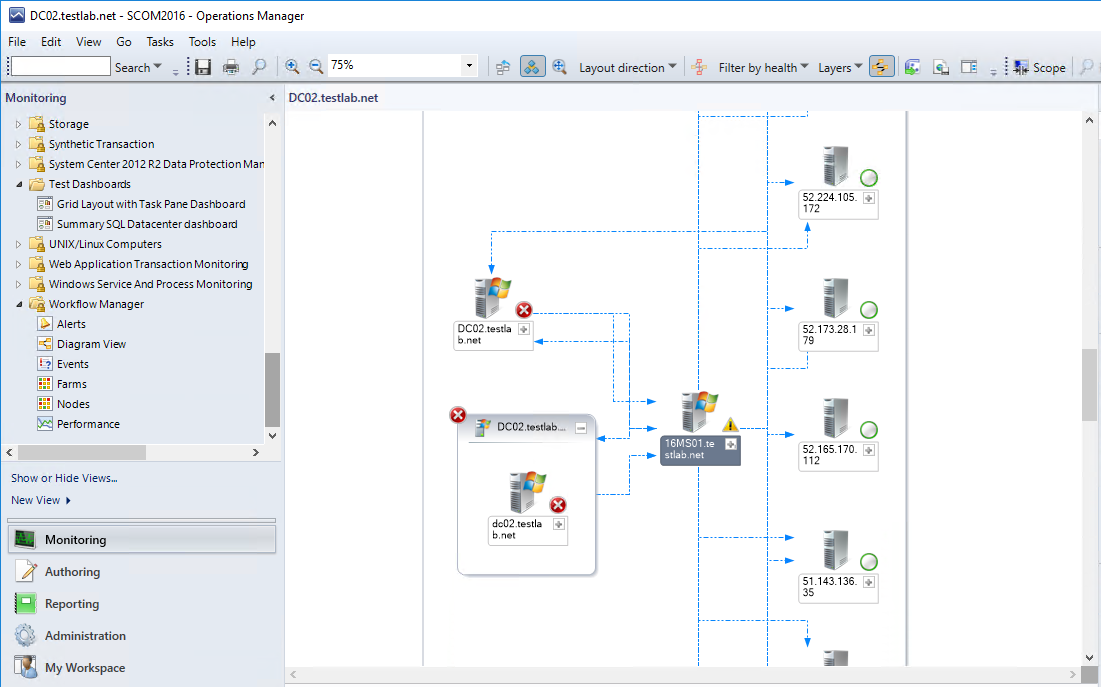
Nothing like seeing what an application actually does, mapping ports a server is using, and who the server talks to!

From the docs site – https://docs.microsoft.com/en-us/azure/monitoring/monitoring-service-map-scom


Download Management Pack

Let’s start with the pack download

Download Management Pack


Install Management pack

Choose your preference

PowerShell (as admin)

Import-SCOMManagementPack -FullName “S:\monadmin\backup\$date”

In case you need help – TechNet article


Lab Example

Import-SCOMManagementPack -FullName “S:\MonAdmin\SCOM\Management packs\Service Map – Blue Stripe for SCOM – OMS\v1.0.0.6\Microsoft.SystemCenter.ServiceMap.mpb”


Import via SCOM Console


Configure the Service Map integration

In SCOM Console, click on Administration Tab

Navigate to the Operations Management Suite, and expand for the Service Map selection


Click ‘Add workspace’

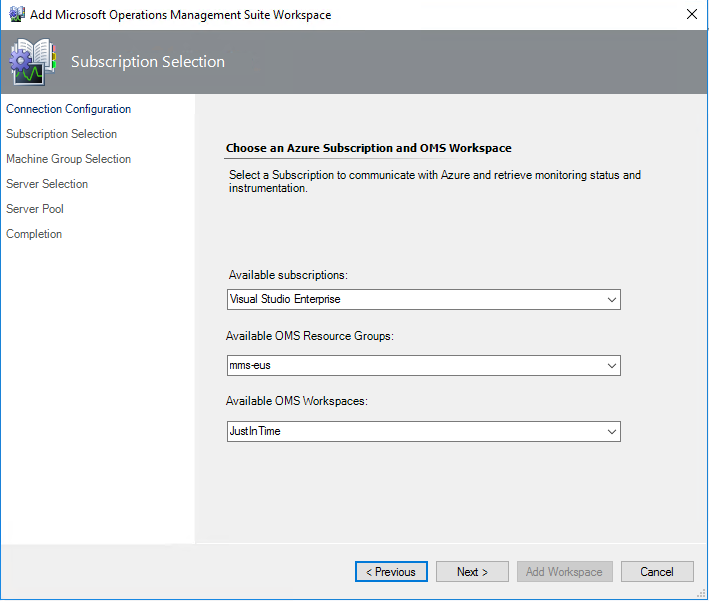
Paste in your Tenant ID, Application ID, and Service Principal Key that you set up prior

Click Next


Verify Workspace Information
Click Next


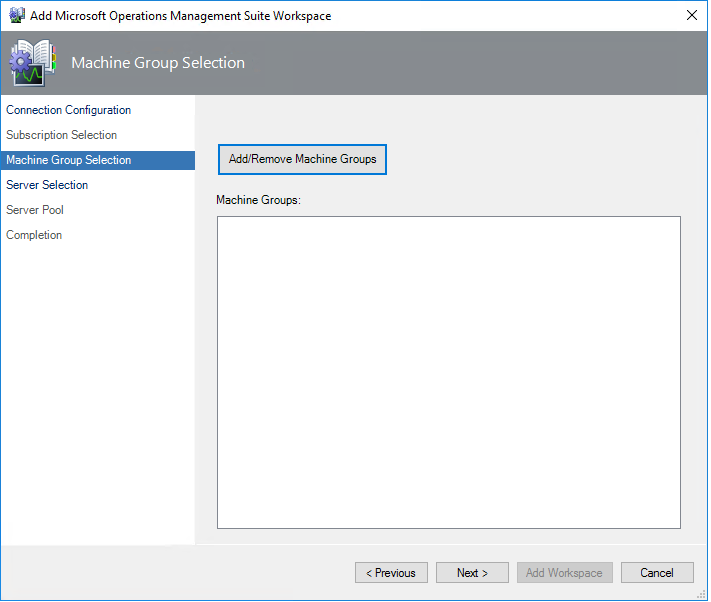
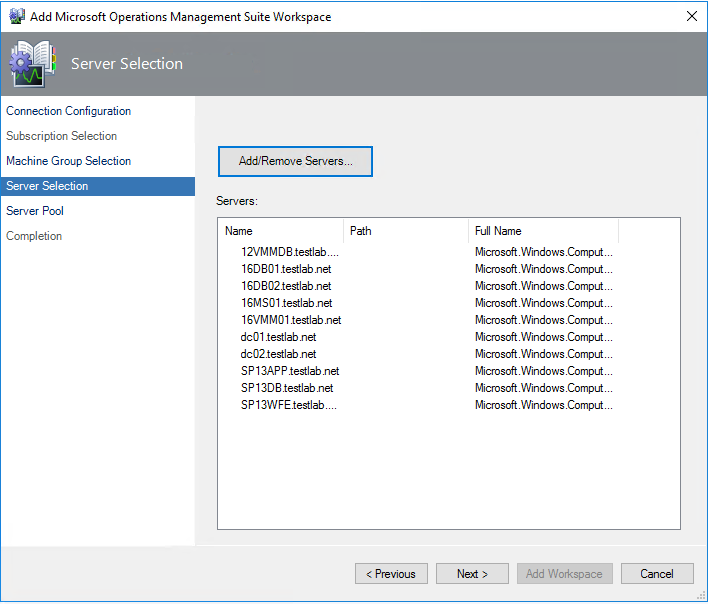
Two options – if you don’t have any Windows Computer based groups in your MG, skip down to Server Selection


If there are Machine Groups to add, click ‘Add/Remove’


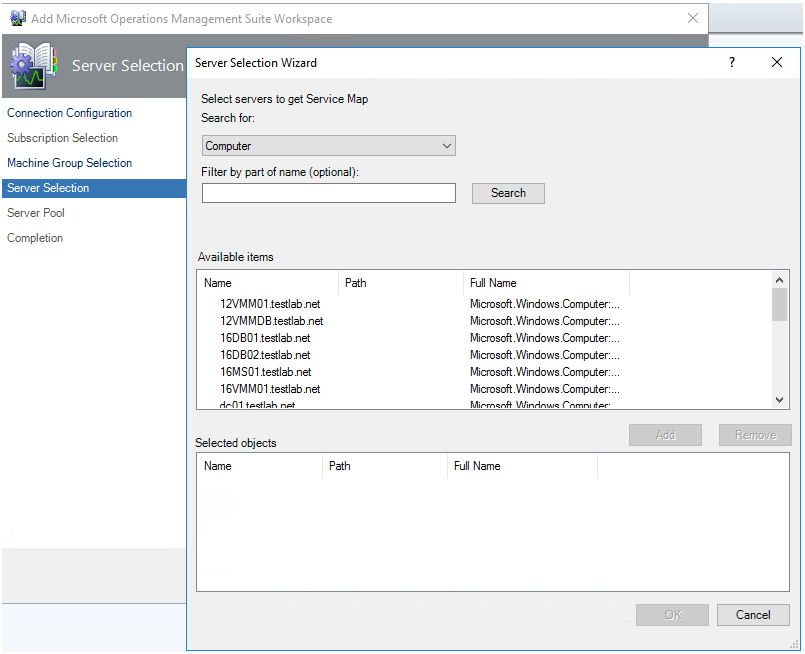
Click Next to select individual servers

Click Add

Click OK to close window


Click Next to move to next window


NOTE

  • Speed to fetch information is based on a rule see docs site
  • In the Server Selection window, you configure the Service Map Servers Group with the servers that you want to sync between Operations Manager and Service Map. Click Add/Remove Servers.

For the integration to build a distributed application diagram for a server, the server must be:

  • Managed by Operations Manager
  • Managed by Service Map
  • Listed in the Service Map Servers Group


From <https://docs.microsoft.com/en-us/azure/monitoring/monitoring-service-map-scom>


Setup proxy if needed

Click Add Workspace


Use Service Map

Time to Use the tool – https://docs.microsoft.com/en-us/azure/monitoring/monitoring-service-map


Verifying Servers specified in Service Map

Verify group

SCOM Console > Authoring Tab > Groups

Look for > Service Map

View Group members or look at Explicit tab


Troubleshooting

On Management Server (MS), Operations Manager Event log

PowerShell

get-eventlog -logname “Operations Manager” -newest 25


# This command will help if you get stuck on the workspace

get-eventlog -logname “Operations Manager” -Source “Operations Manager” -newest 25 | ? {$_.eventID -eq 6400 } |fl


GUI

Filter by Error,Warning


Install Azure Log Analytics Service Map Dependency Agent


To make all this work, sometimes, it seems like a slot machine, deposit your quarter, and hope you hit the jackpot!


So to get started, you probably have a list of computers where you have the MMA agent, and want to install Service Map to see how and who the computers are talking (to)


Login to Azure Portal

Click on Log Analytics

Click on your Subscription

Click on Service Map

Click on the Download link for Windows or Linux

Save file


Take saved file and copy to computer


GUI method

If you want a PowerShell method, Daniel Orneling has a great blog and Gallery TechNet script that will help


Docs site link has more details

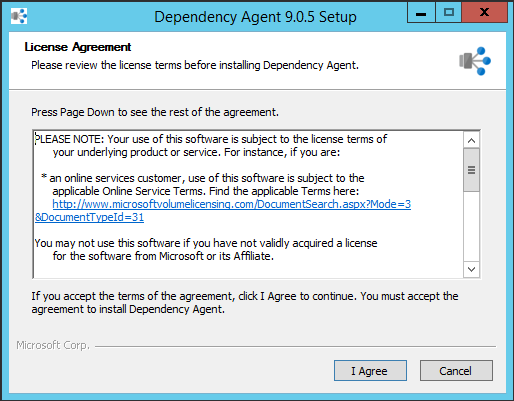
Execute the InstallDependencyAgent-Windows.exe


Answer yes for UAC elevation


Click I Agree


Click Finish


Verify Agent installed


NOTE: If installing for SCOM, it's based on the Rule 'Microsoft.SystemCenter.ServiceMapImport.Rule'

https://docs.microsoft.com/en-us/azure/monitoring/monitoring-service-map-scom#configure-rules-and-overrides


PowerShell

get-eventlog -logname “Operations Manager” -Source “HealthService” -newest 25 | ? {$_.eventID -eq
1201 } |fl

get-service MicrosoftDependencyAgent


Event Viewer

Installing and configuring the MMA agent


Maybe the MMA agent is like Venom?
Proof I’ve watched too many a Marvel movie…


An existential moment perhaps, but the MMA agent can be a bunch of strings stuck from one place to another, monitoring whatever its told to do.


If you are running SCOM2016 or above, the MMA agent is built-in with Log Analytics, just configure your workspace


Download and Install MMA agent

SCOM 2012R2 agent does not have MMA, so download MMA agent from Log Analytics workspace

Azure Portal > Log Analytics > Subscription > Advanced Settings

Click on Windows Servers from Connected Sources to download Windows Agent

Click on Linux Servers from Connected Sources to download Linux Agent


From the Azure Portal (https://ms.portal.azure.com)

Click on Log Analytics, <your subscription >

Click on Advanced Settings

My view defaulted to Connected Sources > Windows Servers


Save the workspace ID and workspace key to notepad/OneNote for later


< Assuming the MMA agent is installed with Log Analytics capability >


Update MMA Agent with Workspace ID and Key

From MMA agent, update the OMS Workspace with the GUID copied to notepad


Click on Start > Control Panel, System and Security > Microsoft Monitoring Agent

Click on Azure Log Analytics (OMS) tab on MMA agent

Click Add


Add Workspace ID and Key to agent

Click OK

Click OK again on MMA properties


Look for the healthy green checkbox’d circle


Troubleshooting Errors in the Operations Manager Event Logs

Blog posts – Verify, 55002