Dock the Outlook calendar

Tired of clicking to see your Outlook calendar?


I recently lost the ‘Outlook peek’ off my Outlook client, and panicked!

Here’s the Office Support link https://support.office.com/en-us/article/Change-how-you-view-your-Outlook-calendar-A4E0DFD2-89A1-4770-9197-A3E786F4CD8F


It’s real easy to fix, but man it eluded me there [ as I over think it 🙂 ]


Right click on the calendar icon (lower left hand corner)

Choose Dock the peek


Voila!  calendar shows on your email tab


Office support article

OMS Heartbeat failures and creating alerts


Feel like you have a ton of data, but lack insights?


Would like to thank the Product team to clarify how to do this with Kusto (new OMS Query language)


If you use OMS and need to verify the most recent data collection

Heartbeat | summarize max(TimeGenerated)

If you want to check a specific machine you can run this one:  

Heartbeat | where Computer==”contosovm” | summarize max(TimeGenerated)

If you want to build an alert based on it you can write something like:

Heartbeat | where Computer==”contosovm” | summarize m=max(TimeGenerated) | where m < ago(15m)

The last query will return result only if you have heartbeat missing for more than 15 minutes.


If you need additional information on OMS query syntax, check out Antoni’s blog

https://blogs.technet.microsoft.com/antoni/2018/02/03/operations-management-suite-101-log-analytics-queries-101/


Kusto site http://kusto/

SQL MP bloat

Updated 25 Feb 2023


Ever wish alerts were like a wad of cash?

The more you solve, the more you make!


How about performance counter data?


The SQL management packs are awesome for visualizations, and provide a bunch of data.


Tim McFadden pointed out SQL Performance counters https://www.scom2k7.com/crazy-db-performance-collection-rules-in-the-sql-mps/

His blog brings up SQL MP Disk Latency performance counters.


His blog got me thinking about SQL DB and DB file design, where multiple DB files are on the same Drive, causes duplicate performance counters (SCOM workflows) on the agent, and will typically be one of the culprits for HealthService restarts.


SQL MP creates performance counters (per DB file, group, instance, engine)


Let’s start with how I figured out why all my money goes into storage.


Start in the SCOM console

Click on the Reporting Tab

Click on the ‘System Center Core Monitoring Reports’ folder

Double click on the Data Volume by Management Pack

View of SCOM report from console reporting tab

Select the timeframe (from, to)

Click Run

Data Volume MP selected


Reporting Data

I have 2 2016 DB’s and 1 2014 (SCVMM) database server monitored, and it’s 50% of my data volume!


Another example – had the DW shutdown for days

Data volume of SQL after


Did you know there are 60+ perf counter rules in 2012 alone, and nearly 200 in 2016?


How about an OFF pack, a management pack that turns off all the performance counter rules?

The monitors still exist for health, just no pretty performance graph, should you look.


Github repo link

Check out the Gallery post for download

TechNet gallery download


Zip file contains

  1.  OFF MP’s for 2008,2012,2014,2016
  2. XLS sheets to allow you to go to the SQL team and ask them what performance counters they use


2016 SQL SP1 patch issue

False alert?


If you have SQL2016 SP1 monitored in SCOM, you most likely have Compliance monitor warnings


This is actually a problem with SP1 where SQL did not update the registry key.


Two options to remedy:

  1. Disable SCOM monitor per instance (or class if SP1 is NOT in your environment)
  2. Fix the offending SQL Servers that are patched to SP1


Steps to fix the offending SQL Servers patched to SP1

Update Registry Key


Via PowerShell


TechNet forum is nice as well, but had to tweak it (blog listed here )


# Get Instance

$Instance = (Get-ItemProperty “HKLM:\SOFTWARE\Microsoft\Microsoft SQL Server”).InstalledInstance )

NOTE: If you have multiple instances, you will need a foreach loop

# Get Version

$Version = (Get-ItemProperty “HKLM:\SOFTWARE\Microsoft\Microsoft SQL Server\$((Get-ItemProperty ‘HKLM:\SOFTWARE\Microsoft\Microsoft SQL Server\Instance Names\SQL’).$Instance)\Setup”).Version

# Match Version and set Registry Key
if ($Version -match ‘13.1.4’)

{

Set-ItemProperty -Path “HKLM:\SOFTWARE\Microsoft\Microsoft SQL Server\$((Get-ItemProperty ‘HKLM:\SOFTWARE\Microsoft\Microsoft SQL Server\Instance Names\SQL’).$Instance)\Setup” -Name ‘SP’ -Value 1

}

# Verify

Get-ItemProperty -path “HKLM:\Software\Microsoft\Microsoft SQL Server\MSSQL13.MSSQLSERVER\Setup” | ft SP


Steps broken out


Get Registry Key value via PowerShell


Get-ItemProperty -path “HKLM:\Software\Microsoft\Microsoft SQL Server\MSSQL13.MSSQLSERVER\Setup” | ft SP


Set Registry Key


Set-ItemProperty -path “HKLM:\Software\Microsoft\Microsoft SQL Server\MSSQL13.MSSQLSERVER\Setup” -name “SP” -value 1


Verification

Verify via PowerShell


Verify via RegEdit


Reset SCOM Monitor


And the false alert is gone!

Importing OMS views

Perusing the TechNet Gallery looking at other’s contributions, I came across some cool new OMS views by Cameron Fuller and Marin Frankovic 


What came next kept me puzzled for a few minutes… Where do I go to export/import views in OMS?


How to add views to OMS

From OMS,

Click the + sign for View Designer


Click Import (can only select one view at a time)

Click Browse at bottom


Select OMSview file to import

Click Open


Verify Overview Tile

Click Save


Click Home icon to return


Monitor Sensitive User

Custom Views https://docs.microsoft.com/en-us/azure/log-analytics/log-analytics-view-designer

Download https://gallery.technet.microsoft.com/Monitor-sensitive-user-and-5a721d64

Server Performance

                Blog http://blogs.catapultsystems.com/cfuller/archive/2017/11/28/updating-the-server-and-client-performance-solution-to-the-new-query-language/

                Download https://gallery.technet.microsoft.com/scriptcenter/Server-Performance-3d767ab1


SCOM 1801 New Features (previously 1711 Technical Preview)


What does the new SCOM bring?!


HTML5 Web Dashboards! here

What’s New https://docs.microsoft.com/en-us/system-center/scom/what-is-new-1801?view=sc-om-1801

The SCOM Team published a 5 set blog post on Web Console https://blogs.technet.microsoft.com/momteam/2018/02/12/new-scom-web-console-blog-series-post1/


The new SCOM version also gives visibility into

Management Packs Updates and Recommendations

Operations Manager Products (view SCOM topology)

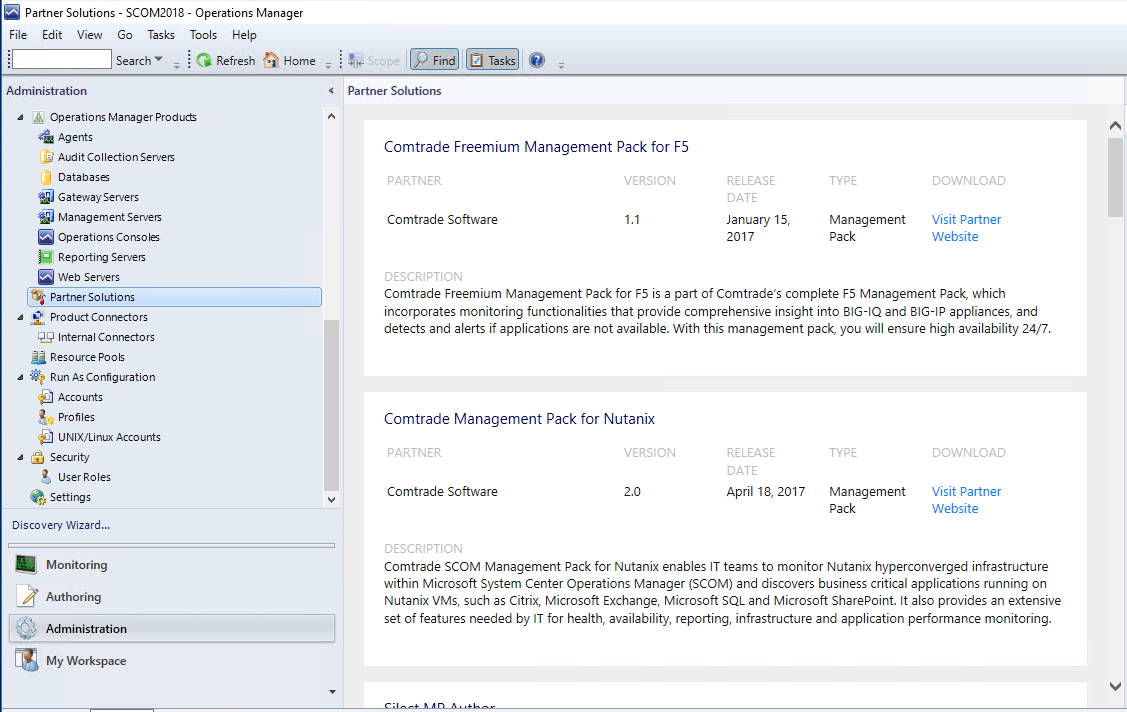
Partner Solutions


For now I’ll focus on the last two


Operations Manager Products

Click on Administration Tab

Expand Operations Manager Products

Topology features are pretty neat.

Whether you’re new to SCOM, or have interesting Server naming conventions, or someone built the environment and changed jobs or left the company…

At least you can easily find out how the SCOM environment is setup


Partner Solutions

Cool!

Silect MP Author, Comtrade, Nutanix, Veeam, Infront, ClearPointe, Backbone

Lync 2013 Addendum Management Pack

Continuing the Addendum tradition 🙂 Lync couldn’t be forgotten.


To understand options and methods available on the Server and SCOM, re-read the Active Directory Addendum blog


Lync 2013

Now that we understand the methods available, let’s get to the Addendum.


The Addendum pack has 32 Recovery Tasks for Lync Service Monitors.


The recoveries cover the following services:

Access Edge, CMS Master, File Transfer Agent, Lync Backup Service, Push Notification Service, Replica Replicator Agent, Online Telephony Conferencing, Audio Video Conferencing, BI Data Collector, Conferencing Attendant, Conferencing Announcement, Application Sharing, Persistent Chat, Persistenc Chat Compliance, Centralized Logging Service Agent, Call Park, Web Conferencing, Web Conferencing Edge, IM Conferencing, Legal Intercept Service, Log Retention Service, Audio Video Edge, Mediation, Audio Video Authentication, Bandwidth Policy Service Authentication, Bandwidth Policy Service Core, Server Response Group, Front End Service, World Wide Web Publishing, XMPP Translating Gateway, XMPP Translating Gateway Proxy.

The recovery tasks verify service state, start ‘not running’ services, and include the option to recalculate health.


My goal is automation that helps anyone work smarter versus harder, with the goal to avoid being woke up at 2am just to restart a service.


Gallery Download          https://gallery.technet.microsoft.com/Lync-2013-Addendum-2a92aa00

Skype for Business 2015 (SfB) Addendum Management Pack


Continuing the Addendum tradition 🙂 Skype was next on the list.


To understand options and methods available on the Server and SCOM, re-read the Active Directory Addendum blog


Skype for Business 2015 (SfB)

Now that we understand the methods available, let’s get to the Addendum.

This Skype Addendum MP adds Recovery Tasks to the Skype for Business 2015 Service Monitors.

The recovery tasks verify service state, start ‘not running’ services, and recalculate health.

36 services monitored, with 36 recovery tasks.

The recovery tasks verify service state, start ‘not running’ services, and include the option to recalculate health.


My goal is automation that helps anyone work smarter versus harder, with the goal to avoid being woke up at 2am just to restart a service.


Gallery Download      https://gallery.technet.microsoft.com/Skype-for-Business-2015-b005f49f


Active Directory 2012-2016 Addendum Management Pack

A Post-it note is like an addendum, no?


As an Operations engineer, how many times do you get notified for a service restart?


Did you know about Service Recovery actions, or SCOM Recovery Tasks?


Why didn’t the SCOM Recovery tasks get added to many of the common Microsoft Applications?


Hopefully today, we can discuss some actions to help limit the amount of manual rework required to resolve service issues.


Let’s explain the basics

  1. Windows Servers have a Recovery tab in the Services.msc menu.
  2. Does your monitoring tool allow for recovery actions?


To implement recovery actions, here’s an example of the Services Recovery Tab

Here’s an example of the SCOM agent service

          NOTE 3 failures spaced 1 minute apart to restart the service


Let’s take it one step further, and add a restart to the service from another tool (insert your monitoring tool here).


In SCOM, taking an action after identifying the problem can be handled different ways

  • Services are related to Health, which are typically found as monitors, and to apply restart automation falls into Recovery Tasks.


  • In Monitors as a ‘Recovery Task’, or in Rules as a response

  • Rule Response


Active Directory Domain Services (AD DS)

Now that we understand the methods available, let’s get to the Addendum.

The Active Directory Domain Services Addendum MP will add Recovery tasks to AD DS Service Monitors.

NOTE: This is for the newer v10.0.x.y management packs that support AD DS 2012-2016


Specifically, the Pack has 12 Recovery tasks for DFS, NTDS, DFSR, IsmServ, KDC, NetLogon, NTFRS, W32Time, Group Policy, DNS Client, ADWS, and DNS.


The recovery tasks verify service state, start ‘not running’ services, and include the option to recalculate health.


My goal is automation that helps anyone work smarter versus harder, with the goal to avoid being woke up at 2am just to restart a service.


Gallery Download      https://gallery.technet.microsoft.com/SCOM-AD-Directory-Addendum-22d0473a


Windows Server Dashboards

These are some cool Dashboards brought to the community by Satya Vel a few years ago.


This was brought to my attention for Dashboard functionality from SCOM 2012R2 to provide visibility for Windows Computer Health state

After a history lesson, I had to find the source!

256 cores increased the limit in Windows Server 2008R2

Prior it was 64 cores (look how far we’ve come!)


The Processor perfmon object is potentially limited since.  The Windows Team built the ‘Processor Information’ counter to handle above 64 cores (256 as of the below article)


Windows 2008 R2 Performance Monitor – Processor Information Counters have replaced Processor Counters


Beyond the history lesson, let’s get to the dashboards!

Why do you ask?     The Windows Server MP’s as far back as I have (MP version 7230) use ‘Processor Information’ instead of ‘Processor’


Flash forward to the Momteam blog in 2012

Blog https://blogs.technet.microsoft.com/momteam/2012/06/12/free-windows-server-2008-dashboards-for-opsmgr-2012-and-tool-to-help-create-your-own-customized-dashboards/


Windows Server Summary Dashboard


Task Pane Dashboard


From the Monitoring Tab

Click on the Windows Computer view

Highlight the computer you want to see performance information on

Click the ‘Windows Server Task Pane Dashboard’ in Tasks pane


What happened to CPU!


Using with SCOM 2012R2, 2016, and even TP1801 the Dashboard happened to work on my DC’s.  Processor is gathered from the AD Directory Services management packs.


With some help, the Task Pane Dashboard was corrected to target Processor Information versus Processor


If you use the console to troubleshoot issues, it’s simple to do.

Save the packs from the Gallery, and import the two MP’s

Go use the dashboards!


Gallery https://gallery.technet.microsoft.com/Updated-Windows-Server-ff45737d