Use SCOM helper for advanced administration

VoteForPedro
Vote for Pedro and SCOM helper

First, use SCOM helper for advanced administration (a shameless plug to Tyson & MonitoringGuys blog!)

 

Me as Picard being hit by SCOM helper

In case you didn’t know, as I may be the last off the airplane, it’s time to talk about SCOMHelper.  Things you forget, like using a power drill, versus manual screwdriver, all because you’re familiar with the old trusty screwdriver.  Man, I think I upgraded past the power drill with a cord, to a lithium-ion powered impact drill with SCOMHelper.


Blog https://monitoringguys.com/2019/11/12/scomhelper/
Download https://www.powershellgallery.com/packages/SCOMHelper


Install SCOMHelper

Time to use SCOM helper for advanced administration, and get it installed!

Pretty simple install.  I would recommend adding to monitoring team server, jumpserver, from SCOM MS, or console enabled, Operations Manager plug-in installed machines.

From PowerShell (as admin)

Install-Module -Name SCOMHelper

Install SCOM Helper
Install SCOM Helper


SCOM helper functions
Clear-SCOMCache Compare-String Deploy-SCOMAgent Export-SCOMEffectiveMonitoringConfigurationReport Export-SCOMEventsToCSV Export-SCOMKnowledge Export-SCOMOverrides Fast-Ping Get-SCOMAlertKnowledge Get-SCOMClassInfo Get-SCOMHealthCheckOpsConfig Get-SCOMMPFileInfo Get-SCOMRunAsAccountName Get-SCOMRunAsProfilesAccounts Get-SCOMRunningWorkflows Get-StringHash New-SCOMClassGraph New-SCOMComputerGroup Ping-AllHosts Remove-SCOMObsoleteReferenceFromMPFile Set-SCOMMPAliases Show-SCOMModules Show-SCOMPropertyBag Test-Port Unseal-SCOMMP Update-SCOMComputerGroup Start-SCOMOverrideTool

Open PowerShell (as admininstrator)
Type: Install-Module -Name SCOMHelper

Example output
PS C:\> Install-Module -Name SCOMHelper

Untrusted repository
You are installing the modules from an untrusted repository. If you trust this repository, change its
InstallationPolicy value by running the Set-PSRepository cmdlet. Are you sure you want to install the modules from
‘PSGallery’?
[Y] Yes [A] Yes to All [N] No [L] No to All [S] Suspend [?] Help (default is “N”): A

If SCOMHelper is already installed
Open PowerShell (as admininstrator)
Type: Install-Module -Name SCOMHelper -Force

(You may get the untrusted repository message if you answered Y (yes) or N (no)

Example output
PS C:\> Install-Module -Name SCOMHelper -Force
PS C:\>

Install SCOM Helper -force


Just one example –

Use the Unseal-SCOMMP to unseal your MP and MPB’s for your SCOM mgmt pack repository

Have fun playing!

If you’re administering management groups, I can pretty much guarantee you will need these:

Export-SCOMEffectiveMonitoringConfigurationReport

Export-SCOMOverrides

Get-SCOMHealthCheckOpsConfig

Get-SCOMRunningWorkflows

New-SCOMClassGraph

Remove-SCOMObsoleteReferenceFromMPFile

Show-SCOMPropertyBag

I’m off to unseal my repository, so my Notepad++ searches can find more examples for new authoring functionality.
ConfigMgr SMS role alerts

Microsoft Endpoint Configuration Manager

It’s that time to figure out the ConfigMgr SMS role alerts – If you are monitoring your SCCM/MECM environment, then you get role failure alerts.  Many times, the Operations Helpdesk, NOSC, NOC, SOC, etc. will get alerts when various roles fail on the Configuration Manager platform.  The common ask is why, what do you see, etc.  Much like Exchange, ConfigMgr internalizes the checks that are seen in the console as registry keys or events documenting said degraded component/feature.  Helping the MECM administrator understand the failure is key to decoding how to notify administrator, and when the helpdesk needs to act on ‘ConfigMgr SMS role alerts’.


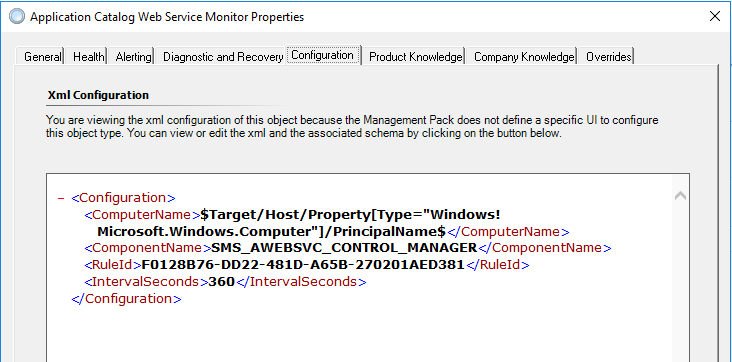
Example – MECM/SCCM looks at replication probe action state $Config/RoleName$

Example MECM Service Monitor for role alerts


The role check is based on a variable of the RoleName in a registry key that the application updates.


MECM Monitor Config
MECM Monitor Config


This is the origin of ConfigMgr SMS role alerts

HKLM:SOFTWARE\Microsoft\SMS\Operations Management\SMS Server Role\$Config/RoleName$\Availability State


Decoder ring:

1 is critical state

2,3,4 are warning states


If more details are needed, download SCCM/MECM Management Pack for SCOM here

Use Tyson’s SCOM Helper pack to unseal, and inspect XML.


Once you know the origin of the ConfigMgr SMS role alerts, you can begin tuning the MECM alerts to your environment.  Understanding role alerts will help both teams understand MECM application health.  First, use MECM application health to trend alerts/outages.  Second, leverage maintenance mode schedules, or MM scripts to NOT monitor for common administration tasks.  From my experience, the alerts are the result of MECM Admins maintaining the application – common actions like building application/package lists, cleanup actions, site maintenance, backups, etc.  Lastly, set up a subscription to notify after the tuning discussion.  See my blog on building a subscription for more details.

Weird SQL issue from SCOM DB move

Fix SQL2017+ .NET assembly - Weird .NET error
BillMurry-ThatsWeird

This post is courtesy of Andres Naranjo


Fix SQL2017+ .NET assembly error

Weird SQL issue from SCOM DB move to new SQL servers

Fix SQL2017+ .NET assembly errors after moving DB’s to new SQL servers.


Scenario: Moved the SCOM 2019 databases from a SQL 2014 database engine to a SQL 2019 database engine.  SQL ApplicationThe following error occurred when opening the SCOM admin console:


Operations Manager Event Log, Event ID 26317

Date: 10/22/2021 11:17:27 AM

Application: Operations Manager

Application Version: 10.19.10505.0

Severity: Error

Message:


An error occurred in the Microsoft .NET Framework while trying to load assembly id 65537. The server may be running out of resources, or the assembly may not be trusted. Run the query again, or check documentation to see how to solve the assembly trust issues. For more information about this error:

System.IO.FileLoadException: Could not load file or assembly ‘microsoft.enterprisemanagement.sql.userdefineddatatype, Version=0.0.0.0, Culture=neutral, PublicKeyToken=null’ or one of its dependencies. An error relating to security occurred. (Exception from HRESULT: 0x8013150A)

System.IO.FileLoadException:

at System.Reflection.RuntimeAssembly._nLoad(AssemblyName fileName, String codeBase, Evidence assemblySecurity, RuntimeAssembly locationHint, StackCrawlMark& stackMark, IntPtr pPrivHostBinder, Boolean throwOnFileNotFound, Boolean forIntrospection, Boolean suppressSecurityChecks)

at System.Reflection.RuntimeAssembly.InternalLoadAssemblyName(AssemblyName assemblyRef, Evidence assemblySecurity, RuntimeAssembly reqAssembly, StackCrawlMark& stackMark, IntPtr pPrivHostBinder, Boolean throwOnFileNotFound, Boolean forIntrospection, Boolean suppressSecurityChecks)

at System.Reflection.RuntimeAssembly.InternalLoad(String assemblyString, Evidence assemblySecurity, StackCrawlMark& stackMark, IntPtr pPrivHostBinder, Boolean forIntrospection)

at System.Reflection.RuntimeAssembly.InternalLoad(String assemblyString, Evidence assemblySecurity, StackCrawlMark& stackMark, Boolean forIntrospection)

at System.Reflection.Assembly.Load(String assemblyString)


Fix SQL2017+ .NET assembly

In addition, Operations Manager event ID’s 26317 events document the error (also check SQL Application log, see Holman’s blog).  Here is an example from the Operations Manager event log:

Screenshot of Operations Manager event log, EventID 26319
Operations Manager event log, EventID 26319


Weird SQL issue from SCOM DB move to new SQL servers

Cause:

Starting with SQL 2017, SQL restricts trusted managed assemblies.

See more details in Microsoft TechNet article here

First, ensure that SQL CLR execution is enabled with the following SQL query:


sp_configure @configname=clr_enabled, @configvalue=1
GO
RECONFIGURE
GO


NOTE: It is important to make sure the SQL Server Service is re-started after the query above.


Second, execute ‘add trusted’ stored procedure queries to mark both as trusted:


EXEC sp_add_trusted_assembly 0xFAC2A8ECA2BE6AD46FBB6EDFB53321240F4D98D199A5A28B4EB3BAD412BEC849B99018D9207CEA045D186CF67B8D06507EA33BFBF9A7A132DC0BB1D756F4F491

EXEC sp_add_trusted_assembly 0xEC312664052DE020D0F9631110AFB4DCDF14F477293E1C5DE8C42D3265F543C92FCF8BC1648FC28E9A0731B3E491BCF1D4A8EB838ED9F0B24AE19057BDDBF6EC


Verify assemblies are successfully registered as trusted run:

Select * from sys.trusted_assemblies


The output should look like this:

SQLTrustedAssemblies output from SSMS


At this point, re-start the SCOM services System Center Data Access, and System Center Management Configuration, on all management servers, and re-launch the SCOM admin console to make sure everything is working properly.


Quicker ways to start SCOM services

From PowerShell (as Admin)

restart-service healthservice; restart-service omsdk; restart-service cshost


Leverage Invoke-Command

# Invoke-Command syntax is PoSH remoting is enabled

#

# Run on multiple servers

# From PowerShell on SCOM Mgmt server, where you have same credential/access

# Example 1

“server1”,”server2″| % {invoke-command $_ -scriptblock {$env:ComputerName; restart-service healthservice; restart-service omsdk; restart-service cshost; get-service healthservice; get-service omsdk; get-service cshost }}


# Example 2

# Restart healthservice on MS/Agent

“server1”,”server2″| % {invoke-command $_ -scriptblock {$env:ComputerName; restart-service healthservice; restart-service omsdk; restart-service cshost; get-service healthservice; get-service omsdk; get-service cshost }}

Parse Events via PowerShell into table

Parsing Events via PowerShell into table
Optometrist eye testing equipment picture


Parse Events via PowerShell into table.  Ever have need to parse an event, and grab a field from the event description, then perform some action after that?


Here’s some PowerShell that may help you first to create a table, then setup columns, gather data, then parse what you need, and run a command to then output to the table


# Create Table for alerts

$Table = @()

$Table = $null


$Table = New-Object System.Data.DataTable “Failed Hosts List”

$Col1 = New-Object System.Data.DataColumn Host

$Col2 = New-Object System.Data.DataColumn IPAddress

$Table.Columns.Add($Col1)

$Table.Columns.Add($Col2)


$Alert20046 = Get-WinEvent -FilterHashtable @{LogName=’Operations Manager’;

ID=’20046′;}


$Alerts20046 = $Alert20046.Message

$Alerts20046.count


$Alerts20046uniq = $Alerts20046 | sort -uniq

$Alerts20046uniq.count


# $DeniedUniq = $Denied20046 | Sort-Object -Uniq

# $ServersDenied = @()


foreach ( $server in $DeniedUniq)

{

$Name = nslookup $server

foreach ($server in $Name)

{

# Add to Table   

# $Name.Split(“:”)[6]

# $Name.Split(“:”)[8]

$row = $Table.NewRow()

$row.Host = $Name.Split(“:”)[6]

$row.IPAddress = $Name.Split(“:”)[8]

$Table.Rows.Add($row)

}

}


Mining Windows Event Log

Mining Ore from the Windows Event Log and finding a way to make it portable


Use Get-WinEvent to use XML and filters from event viewer, to mine an event, including examples for a specific string, from a specific event, in a specific event log?


Hopefully this post will help with a few tips to simplify monitoring for events, whether in AzMon, SCOM, or via PowerShell.


Let’s start with the Dr Scripto blog post from quite a while ago –

https://devblogs.microsoft.com/scripting/data-mine-the-windows-event-log-by-using-powershell-and-xml/


Not sure how many people use get-WinEvent, but this is one tool in PowerShell that can help an admin parse the XML side of an event.


Example 1

Query Application Event Log for Severity, Event, and Event Data contains lync.exe

$query = @”

<QueryList>

  <Query Id=”0″ Path=”Application”>

    <Select Path=”Application”>*[System[Provider[@Name=’Application Hang’]

    and (Level=2) and (EventID=1002)]]

    and *[EventData[Data=’lync.exe’]]</Select>

  </Query>

</QueryList>

“@

Get-WinEvent -FilterXml $query


PowerShell output

Use Get-WinEvent to use XML and filters from event viewer
Lync.exe event example output


Use Get-WinEvent to use XML and filters from event viewer

The Tip or Trick part of this – leverage your Event Viewer Filter as a query to use with get-WinEvent

Credit for this tip comes from Andrew Blumhardt!

See below for examples to ‘use Get-WinEvent to use XML and filters from event viewer’


Navigating via Event Viewer:

Hop onto your favorite server, or connect to another server via Event Viewer

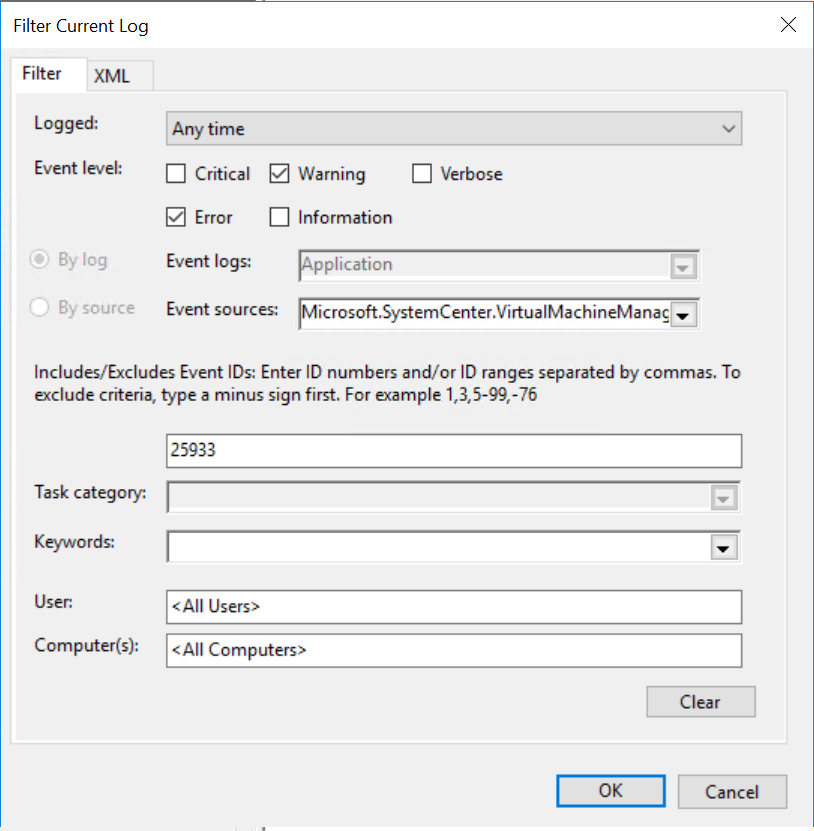
Go to the Event Log > Click Filter Current Log

Build out your filter (i.e. choose specific Event Sources, exclude events, include severities, timeframe (start/end), etc.)

Use Get-WinEvent to use XML and filters from event viewer
SCVMM Application Log Event ID 25933

Switch to the XML tab (and note you can edit your query further!)

SCVMM query example screenshot
Event Viewer filter XML tab

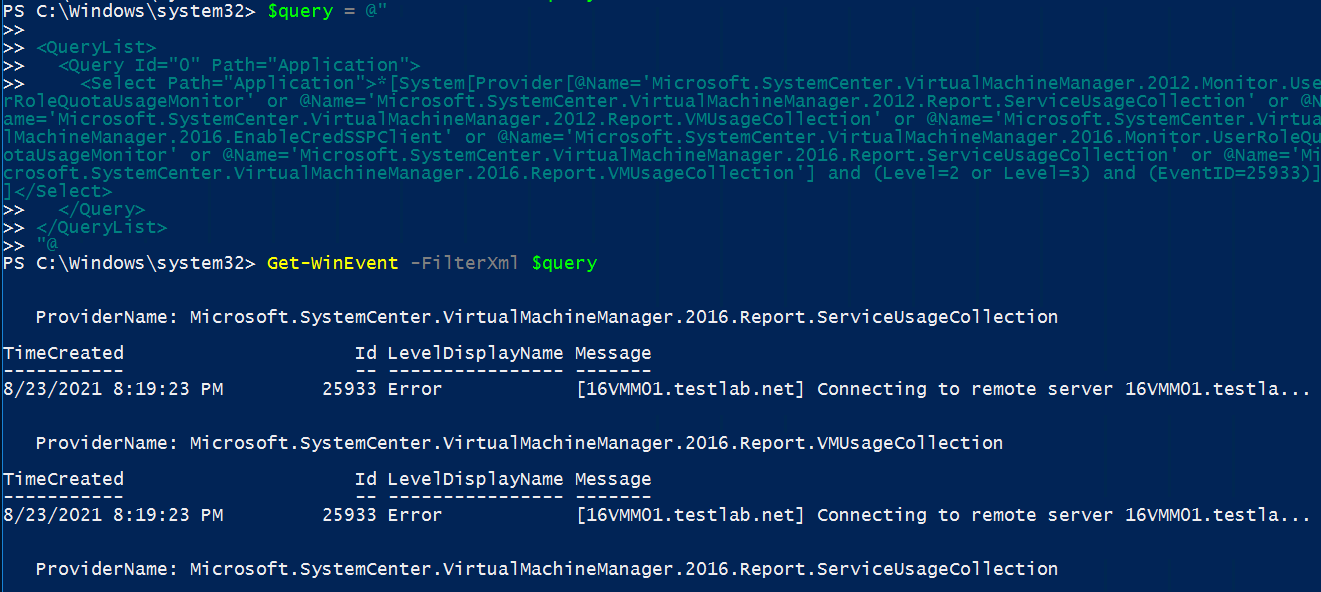
You can copy the query from the Event Viewer into your Get-WinEvent syntax

$query = @”

<QueryList>
<Query Id=”0″ Path=”Application”>
<Select Path=”Application”>*[System[Provider[@Name=’Microsoft.SystemCenter.VirtualMachineManager.2012.Monitor.UserRoleQuotaUsageMonitor’ or @Name=’Microsoft.SystemCenter.VirtualMachineManager.2012.Report.ServiceUsageCollection’ or @Name=’Microsoft.SystemCenter.VirtualMachineManager.2012.Report.VMUsageCollection’ or @Name=’Microsoft.SystemCenter.VirtualMachineManager.2016.EnableCredSSPClient’ or @Name=’Microsoft.SystemCenter.VirtualMachineManager.2016.Monitor.UserRoleQuotaUsageMonitor’ or @Name=’Microsoft.SystemCenter.VirtualMachineManager.2016.Report.ServiceUsageCollection’ or @Name=’Microsoft.SystemCenter.VirtualMachineManager.2016.Report.VMUsageCollection’] and (Level=2 or Level=3) and (EventID=25933)]]</Select>
</Query>
</QueryList>

“@

Get-WinEvent -FilterXml $query


PowerShell output

Use Get-WinEvent to use XML and filters from event viewer
SCVMM query example screenshot


Example 3

Grab System Event Log, Event ID 5827  (NetLogon denied events)

get-WinEvent -FilterHashtable @{LogName=’System’; ID=’5827′;}


PowerShell output

Use Get-WinEvent to use XML and filters from event viewer
get-WinEvent filter by logname and event ID


Documentation:

Get-WinEvent https://docs.microsoft.com/en-us/powershell/module/microsoft.powershell.diagnostics/get-winevent?view=powershell-7.1

MSFT DevBlogs https://devblogs.microsoft.com/scripting/data-mine-the-windows-event-log-by-using-powershell-and-xml/

Identify orphaned agent properties

Detective investigating items under a magnifying glass


Back again, I’m going to ‘Identify orphaned agent properties’.  For instance, does an agent still show up under Windows Computer, or more classes, like Windows Operating System?  Typically we have handled this by using Holman’s purge blog.


Deleting and Purging data from the SCOM Database


First, my thanks to Kevin H, Mihai S from the SCOM PG, & Premier Support CSS, for their help.  Let’s begin the ‘Identify orphaned agent properties’ discussion with ‘how’.  First, how do you get an orphaned property?  Second, how to you resolve?


Some example scenarios

    1. Server rebuilt with same name.  New agent runs discovery, and creates new set of GUID’s in the database.
    2. The Monitoring Tab > Windows Computer view contains unhealthy <gray> server objects.  Upon further inspection, the server does NOT show up in the Administration > Agent Managed view.
    3. Custom management pack authoring extends the Windows Computer class, or others (via SDK or PowerShell)


‘Identify and resolve’ orphaned agent properties


    1. Check for COMMIT or Overrides in management packs

PG recommended looking at Windows Computer extended class properties, and Connector Framework discoveries.

Microsoft.EnterpriseManagement.ConnectorFramework.IncrementalDiscoveryData.Commit()

or

Microsoft.EnterpriseManagement.ConnectorFramework.IncrementalDiscoveryData.Override()


Search for the ConnectorFramework

Search management packs (MP) via SCOM OpsDB (OperationsManager Database)

    1. Login to your SCOM OpsDB > New Query

select MPName, convert(xml, MPXML)

from ManagementPack

where

   MPXML like ‘%Commit(%’ or

   MPXML like ‘%Override(%’

Export management pack output or snag it/snippet screenshot

Example Snapshot from SQL query

SQL Query output of Management Pack output with Commit or Override
SQL query of MP Commit or Override pack matches

FYI – mgmt packs above use %Commit(%, but not the connectorFramework


Correct discoveries that use ConnectorFramework

Replace Discoveries

Update discoveries that contain:

New-Object Microsoft.EnterpriseManagement.ConnectorFramework.IncrementalDiscoveryData.Commit()

New-Object Microsoft.EnterpriseManagement.ConnectorFramework.IncrementalDiscoveryData.Override()

Replace with:

New-Object -comObject MOM.ScriptAPI for discovery


Test discoveries that use Remove method

Microsoft.EnterpriseManagement.ConnectorFramework.IncrementalDiscoveryData.Remove()


Example management pack discovery script

Contains

$discovery = New-Object Microsoft.EnterpriseManagement.ConnectorFramework.IncrementalDiscoveryData

$discovery.RemoveInternal($Instance,$ClassInstance.GetClasses()[0])

$discovery.Commit($mg)  <– This is the offender that causes the orphans

}


Need to find the command UNIX pack runs for perf counter

Magnifying Glass


Have you ever needed to find the command UNIX pack runs for perf counter?   Say the processor time value doesn’t match what the Unix admin may be saying SCOM is showing.


Many times you can look at the SCOM management pack, and those commands trace back to the UNIX library.


Background:  The SCOM management server runs many of the cross-plat/xplat workflows to the UNIX agent through WinRM.


Agenda
  1. Unseal SCOM UNIX management pack to obtain URI
  2. Understand command line options from UNIX/Linux side, and how to view the output
  3. Enumerate command line
  4. Test Command line from SCOM MS


Unseal SCOM UNIX management pack

The screenshot below is unsealing the Solaris10 pack to XML, and then viewing/searching to show the processor reference.

Solaris 10 processor rules

NOTE that’s a URI, not a script


How UNIX admin may supply processor output

Example – Unix admin typically uses vmstat or iostat.


The screenshot uses ‘vmstat 2 10‘ – a snapshot every 2 second intervals, 10 times

vmstat output


We can discuss the vmstat output, but it shows way more than just processor (ready queue, swap, user, system, and cpu %) to help figure out which operating system component is the problem.


Enumerate command line test

How do we test the command line syntax, to verify what SCOM pulls when running the rule?

For example, we need to make the URI actionable from the management pack.  What is needed to make a usable command?


Grab the URI from the pack

http://schemas.microsoft.com/wbem/wscim/1/cim-schema/2/SCX_ProcessorStatisticalInformation?__cimnamespace=root/scx


Because we know the URI, we now build out the syntax with WinRM

winrm enumerate http://schemas.microsoft.com/wbem/wscim/1/cim-schema/2/SCX_ProcessorStatisticalInformation?__cimnamespace=root/scx -auth:basic -remote:https://<servername>:1270 -username:<scomID, not necessarily root> -skipCACheck -skipCNCheck -skiprevocationcheck –encoding:utf-8


Test WinRM command from SCOM MS

For instance, we want to test the WinRM command from the MS to the UNIX server

winrm enumerate http://schemas.microsoft.com/wbem/wscim/1/cim-schema/2/SCX_ProcessorStatisticalInformation?__cimnamespace=root/scx -auth:basic -remote:https://ubuntu:1270 -username:scom -skipCACheck -skipCNCheck -skiprevocationcheck –encoding:utf-8


Example output

SCX_ProcessorStatisticalInformation
InstanceID = null
Caption = Processor information
Description = CPU usage statistics
ElementName = null
Name = 0
IsAggregate = FALSE
PercentIdleTime = 99
PercentUserTime = 0
PercentNiceTime = 0
PercentPrivilegedTime = 0
PercentInterruptTime = 0
PercentDPCTime = 0
PercentProcessorTime = 1
PercentIOWaitTime = 0

SCX_ProcessorStatisticalInformation
InstanceID = null
Caption = Processor information
Description = CPU usage statistics
ElementName = null
Name = _Total
IsAggregate = TRUE
PercentIdleTime = 99
PercentUserTime = 0
PercentNiceTime = 0
PercentPrivilegedTime = 0
PercentInterruptTime = 0
PercentDPCTime = 0
PercentProcessorTime = 1
PercentIOWaitTime = 0


Additional references for WinRM syntax and troubleshooting

Warren’s blog

Docs site

Use Unix MP’s for shell commands


UNIX Logical Disk classes

Time to talk about SCOM2019 UNIX classes!


Just came across an example where the UNIX Logical disk class was targeted.


Did you know: This class in the UNIX library is not like the Windows library, where Logical Disk has a matched discovery.

Logical Disk is broke out to the various UNIX flavors, where the version of UNIX has it’s own class and discovery, but the class refers to the base class of UNIX Library.


Let’s go through an example from the SCOM Console

Monitoring Tab > Discovered Inventory > Change Target Type


This lab example is for an Ubuntu (Universal Linux Library)

The Logical Disk target for the UNIX/Linux Core Library has the same output in SCOM for the flavor (i.e. Logical Disk for the Universal Linux Operating System)


How’s that possible… ?

Let’s look at the examples for the various Logical Disk Classes.

Example

AIX 7 pack – AIX Logical disk discovery/class

<ClassType ID=”Microsoft.AIX.LogicalDisk” Abstract=”true” Accessibility=”Public” Hosted=”true” Singleton=”false” Base=”Unix!Microsoft.Unix.LogicalDisk” />

Universal Linux Monitoring Library

<ClassType ID=”Microsoft.Linux.Universal.LogicalDisk” Accessibility=”Public” Abstract=”false” Base=”Linux!Microsoft.Linux.LogicalDisk” Hosted=”true” Singleton=”false” Extension=”false” />

Linux Operating System Library

<ClassType ID=”Microsoft.Linux.LogicalDisk” Accessibility=”Public” Abstract=”true” Base=”Unix!Microsoft.Unix.LogicalDisk” Hosted=”true” Singleton=”false” Extension=”false” />


This makes sense, as Linux operating systems are SUSE, RHEL, Universal Debian and RPM.  Solaris and AIX are their own operating systems.  This helps describe the class hierarchy.

UNIX

Flavor of Unix (Linux, Solaris, or AIX)

Version or flavor of Linux, Solaris, or AIX


How did I get to this conclusion?

MPViewer will help view the classes and discoveries.

What does this mean to me:    Create a single view to view ALL  UNIX ‘Logical Disk’ entries discovered.  As the UNIX flavors all use UNIX Logical Disk class for their base class,  ALL the inherited classes are displayed.


AIX Logical Disk Discovery


Univeral Linux Discovery

Universal Linux Classes


Windows Server packs are very similar

Windows Logical Disk class


SharePoint Management framework Private Preview


Do you have an Enterprise SharePoint farms that you manage health and performance via custom scripts?

Have you used SETH to manage SharePoint 2010 problems with the farm(s)?


Would you want a scalable tool you can add your own scripts and enable/check, and then alert on what you want?


Background

SharePoint Engineer Troubleshooting Helper (SETH) was a Microsoft tool for SharePoint 2010

Using SETH

Troubleshooting SETH


For SharePoint 2016 and 2019, the Customer Support team brought up the need for bringing back a utility to help with common SharePoint scenarios

On Premise Diagnostic (OPD) is the second generation of project (for SharePoint 2016 and 2019).


My goal was to help the Escalation Engineers have a full platform that can be implemented and is scalable for the technical community to maintain and use.


BTW, the only thing preventing 2013 SharePoint support is the dependency on WMF v5.0 or better on SharePoint servers.


SCOM management pack can be found here


Troubleshooting Service Map pack


Updated 14 Mar 2019


If you get these exceptions like me, the issue has been raised, with a deliverable targeted for SCOM2019UR1.

Disable the rule to reduce noise.


Are you using Service Map Management pack, and getting errors?


This alert is based on the 46651/46652 event ID in the Operations Manager event log

From SCOM Console > Authoring Tab > Management Pack Objects > Rules

Search in ‘Look for:’ bar GenericException (yes no space in between)


Rule


Rule Details


To enable debug on the MS


For collecting logs, please do the following:

  • Create folders “c:\Debug\ext\”
  • Now, Wait for an hour(which is the default time interval set in the rule for running service map api).
  • You will see some log files created in that folder “ext”. Please share the same in email.


The file showed up after the alerts, and listed debug INFO and WARN lines, and the time stamps match up to the generic exception rules.


Stay tuned for more information, I have been trying to get more answers on the exception

{WARN} [12:35:20.966] [ScomUtils] failed to export XML for Management Pack: System.NullReferenceException: Object reference not set to an instance of an object.

   at ScomBridge.ScomUtils.WritePackXmlToFile(ManagementPack pack, String filename)