DNS Addendum pack

nslookup to find out IP to name or name to IP resolution
nslookup to find out IP to name or name to IP resolution.


Simply put: Leverage the ‘DNS Addendum pack’.  Why?  DNS is a translation method to convert names to IP’s.  Can you imagine if we wanted to connect to google via IP?  The amount of workflows in the SCOM DNS pack (built by the DNS Product Group) makes for an astounding number of workflows running on your DC every minute.  Forward and reverse lookups are a good check, verifying DNS is functioning.  In a complex environment with 100’s of zones, SCOM becomes a utilization culprit for a DC’s primary missions – authenticate and resolve.  This article will help you understand how the pack will add new capabilities and tune DNS monitoring to best practice.


QUICK DOWNLOAD(S)

2016+ https://github.com/theKevinJustin/DNSAddendumAgnostic


What capabilities does the ‘DNS Addendum pack’ provide?

Count logic monitors (i.e. x events in y time, and self heal)

Daily summary report of DNS alerts broken out

DNS service(s) recovery automation

Daily alert closure workflow to close out DNS rules/monitor

Synthetic internal/external nslookup monitor (scoped to PDC emulators versus ALL DNS servers

WMI validation alert recovery to prevent false positive alerts with weird one off scenarios – one example: Security tools randomly block WMI access.


Download the DNS Addendum on GitHub and the PDF install guide, to improve AD Integrated (ADI) DNS monitoring on Windows Server 2016+ (version agnostic).


XML authoring

The pack greatly decreases alerts, workflows on your AD integrated DNS servers, and the XML authoring is an easy feat.  After you import the pack, find/replace is required for two pieces.

  • Group GUIDs update, after installing this pack.

Find/replace the GUIDs, as they are unique to every SCOM management group, hard coding the group ID GUID is not possible.

From PowerShell, on your SCOM management server, run these commands (after DNS Addendum installed)

Use get-scomclassinstance -DisplayName “GroupNameHere” | ft Id

DNS Addendum - update overrides for group GUID from SCOM management group

Find/Replace the GUID in the pack with the ID from the output above.


  • Discovery group regular expressions (RegEx)

##DNSServerRegEx##

Find ##DNSServerRegEx## and replace with your DNS server expressions.

Example server names: 16dns01, 19dc01,16dns02,19dc02,19dc03, etc.

RegEx = (?i)16dns0|19dc0

DNS Group discovery example of RegEx for find/replace


Save and Import & Enjoy!

Detected malicious verification code error

'detected malicious verification code' errors
Detected malicious verification code when verifying element – ever run into this scenario while authoring?


Ever run into the ‘detected malicious verification code’ error while authoring?  I ran into the malicious verification error authoring, and couldn’t find any content for this error while authoring a pack.


Watch your copy/paste’s with additional monitoring changes to prevent ‘detected malicious verification code’ errors

In my authoring example, I received the ‘detected malicious verification code error’ after adding Rules, Datasources, and WriteActions (including tasks).  I was copying and pasting DataSources (DS) and WriteActions (WA), thought I had it all.  Uploaded > got the error, and GRR!   Hopefully this will help others authoring to know what to check to get the management pack uploaded.


Simply put – Watch out for typo’s to avoid ‘detected malicious verification code’ errors!

I stumbled across a few websites, but nothing really pointed out to what caused the ‘detected malicious verification code error’ when uploading a management pack.  First, check monitor and rules to verify the DS/WA are called correctly (no errors in file names.  Check the Tasks as well as DisplayStrings, to make sure everything matches.


Error Seen when uploading Management pack from SCOM Console GUI regarding ‘detected malicious verification code’ error

<ManagementPackNameHere> Reports could not be imported.


If any management packs in the Import list are dependent on this management

pack, the installation of the dependent management packs will fail.


Verification failed with 1 errors:

——————————————————-

Error 1:

Found error in

2|<ManagementPackNameHere>|1.0.0.6|<ManagementPackNameHere>|

| with message:

Detected malicious verification code when verifying element of type

Microsoft.EnterpriseManagement.Configuration.ManagementPackRule with inner

exception: System.Collections.Generic.KeyNotFoundException: The given key

was not present in the dictionary.

at System.ThrowHelper.ThrowKeyNotFoundException()

at System.Collections.Generic.Dictionary`2.get_Item(TKey key)

at

Microsoft.EnterpriseManagement.Configuration.ManagementPackRule.VerifyDataTy

pes(Dictionary`2 moduletypes)

at

Microsoft.EnterpriseManagement.Configuration.ManagementPackRule.Verify(Verif

icationContext context)

at

Microsoft.EnterpriseManagement.Configuration.Verification.VerificationEngine

.VerifyCollectionItems(Object context)


Additional links

Detected malicious verification code when verifying element

Forum https://social.technet.microsoft.com/Forums/en-US/ac50ae14-882a-4788-a8e4-6a975c498a29/detected-malicious-verification-code-when-verifying-element-of-type

Caution using Tags/Notes extending classes

Caution
Caution


Please take ‘caution using Tags/Notes extending classes’.  Please read below if you use Tags/Notes on SCOM classes.  Ran across examples where SCOM Class Properties were used for tags that used the .Notes field on various classes, causing orphaned properties, NOT removed from OperationsManager database.


Background

The Microsoft.Windows.Computer Class (insert class here) is updated using Tim McFadden’s blog.  This can cause issues with orphaned classes in the database because it is not currently handled as part of the stored procedure (i.e. the Notes property classes do not get marked for deletion).


First, identify which classes have Notes property.  Start from Management Server (MS) via PowerShell.   See attached TXT for additional examples to check and add/remove Notes Property on additional windows classes.


Set Notes property for Windows Operating System server

Second, we need to see how to set and clear the value, in order to clean up the Operations Manager database, to remove the orphaned instances.  The example below sets the value for one (1) server to ‘Production’.


$WOS = Get-SCOMClass -name Microsoft.Windows.OperatingSystem | get-SCOMClassInstance | where-object -property Path -eq “16db01.testlab.net”
$WOS.'[System.ConfigItem].Notes’

$WOS.'[System.ConfigItem].Notes’.Value = “Production”

$WOS.Overwrite()

$WOS = Get-SCOMClass -name Microsoft.Windows.OperatingSystem | get-SCOMClassInstance | where-object -property Path -eq “16db01.testlab.net”

$WOS.'[System.ConfigItem].Notes’


Example Output

PS C:\Users\scomadmin> $WOS.'[System.ConfigItem].Notes’.Value = “Production”
PS C:\Users\scomadmin> $WOS.Overwrite()
PS C:\Users\scomadmin> $WOS = Get-SCOMClass -name Microsoft.Windows.OperatingSystem | get-SCOMClassInstance | where-object -property Path -eq “16db01.testlab.net”
PS C:\Users\scomadmin> $WOS.'[System.ConfigItem].Notes’

PropertyAccessRights : Unknown
Parent : Microsoft Windows Server 2016 Standard
Type : Notes
Value : Production
Id : 00000000-0000-0000-0000-000000000000
ManagementGroup : SCOM2016
ManagementGroupId : e39f5f53-9fbb-9d7f-4bfe-5f0324630ae5


Set Notes property to NULL

$WOS.'[System.ConfigItem].Notes’.Value = $null
$WOS.Overwrite()

$WOS = Get-SCOMClass -name Microsoft.Windows.OperatingSystem | get-SCOMClassInstance | where-object -property Path -eq “16db01.testlab.net”

Verify Notes value

$WOS = Get-SCOMClass -name Microsoft.Windows.OperatingSystem | get-SCOMClassInstance | where-object -property Path -eq “16db01.testlab.net”
$WOS.'[System.ConfigItem].Notes’


Example Output
PS C:\Users\scomadmin> $WOS = Get-SCOMClass -name Microsoft.Windows.OperatingSystem | get-SCOMClassInstance | where-object -property Path -eq “16db01.testlab.net”
PS C:\Users\scomadmin> $WOS.'[System.ConfigItem].Notes’

PropertyAccessRights : Unknown
Parent : Microsoft Windows Server 2016 Standard
Type : Notes
Value : (null)
Id : 00000000-0000-0000-0000-000000000000
ManagementGroup : SCOM2016
ManagementGroupId : e39f5f53-9fbb-9d7f-4bfe-5f0324630ae5


Have a happy Holiday!

Good luck, hopefully this scenario isn’t something that impacted the monitoring environment!

UNIX Logical Disk classes

Time to talk about SCOM2019 UNIX classes!


Just came across an example where the UNIX Logical disk class was targeted.


Did you know: This class in the UNIX library is not like the Windows library, where Logical Disk has a matched discovery.

Logical Disk is broke out to the various UNIX flavors, where the version of UNIX has it’s own class and discovery, but the class refers to the base class of UNIX Library.


Let’s go through an example from the SCOM Console

Monitoring Tab > Discovered Inventory > Change Target Type


This lab example is for an Ubuntu (Universal Linux Library)

The Logical Disk target for the UNIX/Linux Core Library has the same output in SCOM for the flavor (i.e. Logical Disk for the Universal Linux Operating System)


How’s that possible… ?

Let’s look at the examples for the various Logical Disk Classes.

Example

AIX 7 pack – AIX Logical disk discovery/class

<ClassType ID=”Microsoft.AIX.LogicalDisk” Abstract=”true” Accessibility=”Public” Hosted=”true” Singleton=”false” Base=”Unix!Microsoft.Unix.LogicalDisk” />

Universal Linux Monitoring Library

<ClassType ID=”Microsoft.Linux.Universal.LogicalDisk” Accessibility=”Public” Abstract=”false” Base=”Linux!Microsoft.Linux.LogicalDisk” Hosted=”true” Singleton=”false” Extension=”false” />

Linux Operating System Library

<ClassType ID=”Microsoft.Linux.LogicalDisk” Accessibility=”Public” Abstract=”true” Base=”Unix!Microsoft.Unix.LogicalDisk” Hosted=”true” Singleton=”false” Extension=”false” />


This makes sense, as Linux operating systems are SUSE, RHEL, Universal Debian and RPM.  Solaris and AIX are their own operating systems.  This helps describe the class hierarchy.

UNIX

Flavor of Unix (Linux, Solaris, or AIX)

Version or flavor of Linux, Solaris, or AIX


How did I get to this conclusion?

MPViewer will help view the classes and discoveries.

What does this mean to me:    Create a single view to view ALL  UNIX ‘Logical Disk’ entries discovered.  As the UNIX flavors all use UNIX Logical Disk class for their base class,  ALL the inherited classes are displayed.


AIX Logical Disk Discovery


Univeral Linux Discovery

Universal Linux Classes


Windows Server packs are very similar

Windows Logical Disk class


Test fire any event on any server from any application

Golden Oldies – always popular (tools vs music)

Old Holman blog that’s still relevant, even more powerful than EventLog Explorer

Basically anyone who wants to test fire events off a SCOM MP should use this tool.

Event Create, write-eventlog all have limitations (certain event sources that can be used to create events, or event ID number limitations)

First, download the 2007 R2 Admin ResKit here

MomTeam blog reference

Double click the downloaded MSI

I prefer to move extracted files under my SCOM tools/Management pack directory structure under MonAdmin (Monitoring Admin)

Copy extracted files to gold depot

Move to gold depot – SCOM \ tools \ <toolname here>

Go into the MPEventAnalyzer directory

Run the exe

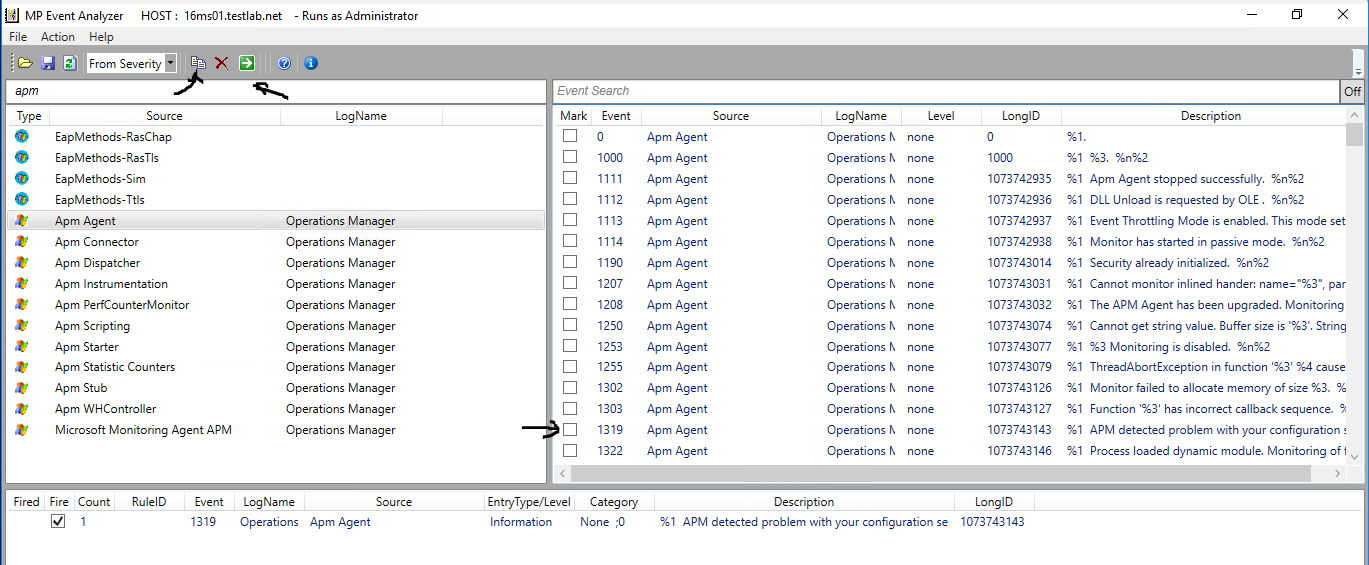
MP Event Analyzer

Click on Investigate Event Sources Tab (bottom middle)

Don’t forget you can use the search bar (where I typed apm)

For my example, double click on APM Agent

Search Events on right hand pane

Check checkbox to select the 1319 APM event for configuration error (right hand pane)

Click the ‘Add selected events to execution list’

Once event verified in bottom box, click the green box to fire selected event(s)

Verify event in Event Viewer

Validate Management Pack

Stay tuned… this did not complete the validation process.

Getting started with OMS Update Compliance

Do you already have Upgrade Readiness or Device Health deployed in OMS?

If not, read this blog


Need to know more about Windows 10 patch compliance and don’t want to access Config Man (SCCM)?


Update Compliance is the answer!


It’s just as simple as adding the OMS Update Compliance Solution

Click on the Shopping bag (on left hand pane)

Scroll right to Update Compliance


Click Add (this will be Add not View, if you don’t already have the solution loaded)


Voila! (time elapsed as the solution gathers data every 12 hours )

Get started with OMS Device Health

Anyone need telemetry data for win10 computers?

https://docs.microsoft.com/en-us/windows/deployment/update/device-health-get-started


Want the info with better reports and less overhead?

This easily replaces SCOM Agentless Exception Monitoring


OMS is technically free, why not get insights into client side problems?


Overview

Validate Telemetry Setting

Get CommercialID from OMS

Configure Deployment Script

Run Deployment Script

Verify OMS


Check Win10 Telemetry setting

Configure Telemetry Data link


FYI – Telemetry level can be managed via SCCM/MDM/Intune and/or GPO


Enhanced Telemetry (2) sends less data (not full crash dumps like Full)

The normal upload range for the Enhanced telemetry level is between 239 KB – 348 KB per day, per device.


Settings Explained


Verify Telemetry setting

My default Win10 setting was 3 based on setup wizard options


Retrieve CommercialID from OMS

Go to Settings (Cog at the top right hand corner)

Then Click on Connected Sources, Windows Telemetry

Copy the Commercial ID Key


Set up Deployment Script

Download the Deployment Script link

In my lab example, save script to Win10 client in C:\UpgradeAnalytics


Update the Deployment RunConfig.bat file

From Docs.Microsoft.com:

The Pilot folder contains advanced logging that can help troubleshoot issues and is intended to be run from an elevated command prompt.


Edit RunConfig.bat in Notepad, add your Commercial ID into the ‘set commercialIDValue’ line

Change the logPath as well if you have a preferred logging location


Run script and verify Registry keys

Set up command window as system

Don’t forget psexec from sysinternals tool

psexec -s cmd.exe

cd UpgradeAnalytics\Deployment

runConfig.bat


Example output


Verify Registry

Registry key paths depending on how these are set with SCCM/MDM/Intune vs. GPO

        $vCommercialIDPath = “HKLM:\SOFTWARE\Microsoft\Windows\CurrentVersion\Policies\DataCollection”
        $GPOCommercialIDPath = “HKLM:\SOFTWARE\Policies\Microsoft\Windows\DataCollection”


Add Device Health Solution to OMS

Add Device Health as part of the Windows Analytics suite

NOTE Windows Analytics suite includes Upgrade Readiness and Update Compliance


Wait 2 days and see what shows up as devices check in


Clicking on Device Health pane


Added Bonus – once you configure the deployment script, the other two Windows Analytics tools are ready for consumption – Upgrade Readiness and Update Compliance


Requirements

OMS subscription

Win10 clients have HTTPS access to Microsoft hosts (see Endpoints in Configure Telemetry link below)


References

Windows Analytics link
Upgrade Readiness link
Upgrade Readiness Script V2 link
Upgrade Readiness Script Original link
Configure Telemetry link

SCOM Maintenance Mode PowerShell

My thanks to Matt Taylor and Kevin Holman, Ralph Kyttle, and John Kavanagh for their guidance!

Updated 24 Jun 2022


Read on if these apply
Trying to start, update, or end SCOM MM

Get alerts when MM is updated
PowerShell only in your shop!
SCORCH in play but need to convert runbooks to straight PowerShell

Ran into issues using Set-SCOMMaintenanceMode, as the cmdlet doesn’t put ALL the recursive classes under Windows Computer


Background

Set-SCOMMaintenanceMode cmdlet is actually “by design.”  ☹


Start-SCOMMaintenanceMode assumes you want recursive action when you start maintenance mode….

Pick a Windows Computer and it places the Windows Computer object (AND all contained objects) into MM.


Computer in MM

All contained objects in MM


However, the problem is that Set-SCOMMaintenancemode does not have an understanding of recursiveness.

Command changes the MM entry for the Windows Computer, but NOT all the contained objects.  So they retain the original setting.


Health explorer looks like this, resulting in unwanted alerts


Details

NOTE these $Time and DateTime Method are dependent on the delay between running the commands
If you start MM, and wait 5 minutes, then update, the total MM duration will be ~20 minutes


Maintenance Mode options and examples

# Setup variables for MM

# Example 1 Windows Computer

$server = “Servername.FQDN”

$instance = (get-scomclass -DisplayName “Windows Computer” |Get-SCOMClassInstance | where { $_.DisplayName -eq $server } )

# Set time for 6 minutes

$Time = (Get-Date).addMinutes(6)

Start-SCOMMaintenanceMode -Instance $Instance -EndTime $Time -Comment “Starting Maintenance Mode.” -Reason “PlannedOther”


# Example 2

# Business needs require Windows Operating System monitoring to occur while Application is in maintenance

# My Example is Defender, could be SQL, MSMQ, Lync, Skype, or your custom class created for your application

$Class = (get-scomclass)
$Class | ? { $_.Name -like “*Defender*” } | fl DisplayName,Name

DisplayName : Protected Endpoint
Name        : Microsoft.WindowsDefender.ProtectedServer

DisplayName : Protected Candidate
Name        : Microsoft.WindowsDefender.ProtectedServerCandidate

DisplayName : Unprotected Endpoint
Name        : Microsoft.WindowsDefender.UnprotectedServer

DisplayName : Microsoft Windows Defender Class
Name        : Microsoft.Windows.Defender.Class

# Choose the class needed

$server = “Servername.FQDN”

$instance = ( $Class | ? { $_.Name -like “Microsoft.Windows.Defender*” } |Get-SCOMClassInstance | ? { $_.DisplayName -eq $server } )

# Verify Instance variable

$instance

PS C:\Users\scomadmin> $instance

HealthState     InMaintenanceMode  DisplayName
———–     —————–  ———–
Success               False        WFM.testlab.net


# Don’t forget to add time variable

$Time = (Get-Date).addMinutes(6)

# Start maintenance mode

Start-SCOMMaintenanceMode -Instance $Instance -EndTime $Time -Comment “Starting Maintenance Mode.” -Reason “PlannedOther”


Start, Update, End and Verify Maintenance mode syntax


# Start MM via PoSH cmdlet

Start-SCOMMaintenanceMode -Instance $Instance -EndTime $Time -Comment “Starting Maintenance Mode.” -Reason “PlannedOther”


# Start MM using method vs. PowerShell cmdlet

Note Recursive in $WCobj.ScheduleMaintenanceMode

$windowsComment=”PlannedOther”
$windowReason=”PlannedOther”
$windowsComment=”Testing Maintenance Mode”
$windowDuration=15

$server= “wfm.testlab.net”
$instance = (get-scomclass -DisplayName “Windows Computer” |Get-SCOMClassInstance | ? { $_.DisplayName -eq $server } )
$instance.ScheduleMaintenanceMode([datetime]::Now.touniversaltime(),([datetime]::Now).addminutes($windowDuration).touniversaltime(), “$windowReason”, “$windowsComment” , “Recursive”)

# Drop Recursive if you don’t want it (but can’t imagine why you would!)


# Update MM

# Make sure you’ve put object in MM

$server= “wfm.testlab.net”
$instance = (get-scomclass -DisplayName “Windows Computer” |Get-SCOMClassInstance | ? { $_.DisplayName -eq $server } )

# 15 minutes in the future
$instance.UpdateMaintenanceMode([System.datetime]::Now.touniversaltime().addminutes(15),[Microsoft.EnterpriseManagement.Monitoring.MaintenanceModeReason]::PlannedOther,[System.string]::”Adding 15 minutes to the end time.”,[Microsoft.EnterpriseManagement.Common.TraversalDepth]::Recursive);


# Stop MM

# Make sure you’ve put object in MM

# Immediate
$instance.StopMaintenanceMode([System.DateTime]::Now.ToUniversalTime());

My thanks to Jan Nevaril

$server.StopMaintenanceMode([System.DateTime]::Now.ToUniversalTime(),“Recursive”)


Verification steps


# Verify MM

get-scommaintenancemode -ComputerName $instance.Name|fl MonitoringObjectId,StartTime,ScheduledEndTime

NOTE This will error if you’ve stopped maintenance

Example

PS C:\Users\scomadmin> get-scommaintenancemode -ComputerName $instance.Name
get-scommaintenancemode : The Data Access service is either not running or not yet initialized. Check the event log
for more information.
At line:1 char:1
+ get-scommaintenancemode -ComputerName $instance.Name
+ ~~~~~~~~~~~~~~~~~~~~~~~~~~~~~~~~~~~~~~~~~~~~~~~~~~~~
+ CategoryInfo          : InvalidOperation: (Microsoft.Syste…anceModeCommand:GetSCMaintenanceModeCommand) [Get-S
COMMaintenanceMode], ServiceNotRunningException
+ FullyQualifiedErrorId : ExecutionError,Microsoft.SystemCenter.OperationsManagerV10.Commands.GetSCMaintenanceMode
Command


# Validate MM through Operations Manager Event ID’s 1215 and 1216 logged

get-eventlog -LogName “Operations Manager” | ? { $_.EventID -eq 1215 -OR $_.EventID -eq 1216 } |fl EventID,TimeGenerated,Message

# Alternate command to check latest 100 events

get-eventlog -LogName “Operations Manager” -newest 100 | ? { $_.EventID -eq 1215 -OR $_.EventID -eq 1216 } |fl EventID,TimeGenerated,Message


# Error if object NOT in MM

Cannot find an overload for “UpdateMaintenanceMode” and the argument count: “1”.

At line:1 char:1

+ $WCobj.UpdateMaintenanceMode(([System.datetime]::Now).addminutes(15). …

+ ~~~~~~~~~~~~~~~~~~~~~~~~~~~~~~~~~~~~~~~~~~~~~~~~~~~~~~~~~~~~~~~~~~~~~

    + CategoryInfo          : NotSpecified: (:) [], MethodException

    + FullyQualifiedErrorId : MethodCountCouldNotFindBest


PS C:\Windows\system32>


Testing System datetime

PS C:\Windows\system32> [System.datetime]::Now.addminutes(15)


Thursday, August 24, 2017 9:18:04 AM


PS C:\Windows\system32> ([System.datetime]::Now.addminutes(15)).touniversaltime()


Thursday, August 24, 2017 2:18:16 PM


References

2012 PowerShell cmdlets https://docs.microsoft.com/en-us/previous-versions/system-center/hh920227(v=sc.20)

2016 PowerShell cmdlets https://docs.microsoft.com/en-us/powershell/module/operationsmanager/?view=systemcenter-ps-2016

2019 PowerShell cmdlets https://docs.microsoft.com/en-us/powershell/module/operationsmanager/?view=systemcenter-ps-2019

SDK

Ralph Kyttle Blog https://blogs.technet.microsoft.com/ralphkyttle/2014/11/10/scom-2012-r2-use-powershell-to-end-an-active-maintenance-mode/

DateTime Methods https://docs.microsoft.com/en-us/dotnet/api/system.datetime

SCOM 2019 Maintenance Mode
https://docs.microsoft.com/en-us/system-center/scom/manage-maintenance-mode-overview?view=sc-om-2019

MSDN MaintenanceModeReason Method https://docs.microsoft.com/en-us/previous-versions/system-center/developer/bb465591(v=msdn.10)

MSDN StopMaintenanceMode Method

UpdateMaintenanceMode Method https://docs.microsoft.com/en-us/previous-versions/system-center/developer/bb424495(v=msdn.10)


MM deluxe custom script https://gist.github.com/stegenfeldt/b3f044aa77894ed80d82f8849a48035b

Tip of the Day

Sharing a good knowledge transfer on various topics

Tip of the Day Blog https://blogs.technet.microsoft.com/tip_of_the_day

Specifically like to call out Shannon’s blog for this Windows tip (and my thanks to Ryan Christman for pointing this out!)

https://blogs.technet.microsoft.com/tip_of_the_day/2017/08/17/rds-tip-of-the-day-windows-productivity-tip-file-explorer-command-prompt-and-back-from-the-current-directory/

From Command Prompt or PowerShell
to start an explorer window from current path
type: start .

You can also start other processes

Start explorer (also works)
Start notepad

Or just bypass the start and type the executable
notepad
calc
gpedit.msc
services.msc


SYSTEM CENTER 2016/2019 Operations Manager – Anti-Virus Exclusions

Updated 30 June, 7 July 2020 and includes docs.microsoft.com article updates


NOTE: Process name exclusion wildcards could potentially prevent some dangerous programs from being detected.


Hopefully this table is helpful (my thanks to Matt Goedtel for the docs site updates, and Matt’s efforts to keep docs the ‘go-to’ site)


Previously the blog left the SCOM Admin and Security teams with questions where blogs did NOT match vendor site documentation.  The blog merged the PFE UK team blog & Kevin Holman blog  into an easier tabular view per component)


Original Blog introduction

As we are all aware, antivirus exclusions can affect monitoring data generated, and affect system performance.


Best practice is to implement specific exclusions.


Exclusions\RoleMSDBGWRSWebAgent
Folder
Management Server installation folder
Default: “C:\Program Files\Microsoft System Center 2016\Operations Manager\Server\”
*
Agent installation folder
Default: “C:\Program Files\Microsoft Monitoring Agent”
**
Gateway installation folder
Default: “C:\Program Files\Microsoft System Center 2016\Operations Manager\Gateway\”
*
Reporting installation folder
Default: “C:\Program Files\Microsoft System Center 2016\Operations Manager\Reporting”
*
WebConsole installation folder
Default: “C:\Program Files\Microsoft System Center 2016\Operations Manager\WebConsole”
*
SQL Data installation folder
Default: “C:\Program Files\Microsoft SQL Server\MSSQL.1x<INSTANCENAME>\MSSQL\Data”
*
SQL Log installation folder
Default: “C:\Program Files\Microsoft SQL Server\MSSQL.1x<INSTANCENAME>\MSSQL\Log”
*
SQL Reporting installation folder
Default: “C:\Program Files\Microsoft SQL Server\MSRS.1x<INSTANCENAME>
*
File Types
EDB*****
CHK*****
LOG*****
LDF**
MDF**
NDF**
Processes
CShost.exe*
HealthService.exe******
Microsoft.Mom.Sdk.ServiceHost.exe*
MonitoringHost.exe******
SQL Server
Default: “C:\Program Files\Microsoft SQL Server\MSSQL1x.<Instance Name>\MSSQL\Binn\SQLServr.exe”
*
SQL Reporting Services
Default: “C:\Program Files\Microsoft SQL Server\MSRS1x.<Instance Name>\Reporting Services\ReportServer\Bin\ReportingServicesService.exe”
**


Useful information for decoding the matrix

Docs site https://docs.microsoft.com/en-us/system-center/scom/plan-security-antivirus?view=sc-om-2019

Platform https://support.microsoft.com/en-us/help/822158/virus-scanning-recommendations-for-enterprise-computers-that-are-running-currently-supported-versions-of-windows

SCOM 2012/2012R2 KB975931 https://support.microsoft.com/en-us/help/975931/recommendations-for-antivirus-exclusions-that-relate-to-operations-manager

PFE UK team blog https://blogs.technet.microsoft.com/manageabilityguys/2013/11/26/system-center-2012-r2-operations-manager-anti-virus-exclusions/

SQL

https://support.microsoft.com/en-us/help/309422/choosing-antivirus-software-for-computers-that-run-sql-server

https://blogs.technet.microsoft.com/raymond_ris/2014/01/16/windows-antivirus-exclusion-recommendations-servers-clients-and-role-specific/

Version mapping by folder (my thanks to StackOverFlow https://stackoverflow.com/questions/18753886/sql-server-file-names-vs-versions )
100 = SQL Server 2008    = 10.00.xxxx
105 = SQL Server 2008 R2 = 10.50.xxxx
110 = SQL Server 2012    = 11.00.xxxx
120 = SQL Server 2014    = 12.00.xxxx
130 = SQL Server 2016    = 13.00.xxxx