Do your SCOM users need to know if a server is in scheduled maintenance? This came about as Aris asked questions.
First, let’s discuss specific maintenance mode and maintenance schedule scenarios users might ask. Second, determining IF scheduled maintenance enabled, running, about to run. Third, how does another user know when scheduled maintenance ends, allowing action and decision point to add/extend server maintenance. Fourth, whenever scheduled maintenance entered by one user, is NOT automatically seen by other roles. While product guidance states ‘maintenance schedules be added by someone in SCOM admin group’, self-service users still need visibility. Lastly, can we figure out a way to answer these questions. Given these points, users to be able to see server maintenance details. Also, can solution adhere to best practice ‘no alerts during planned maintenance’.
Whether you’re building a new SCOM2019, SCOM2022 environment or not, you might be missing these event details, and NOT even know!
It’s been a while for me, and I came across these, so posting for a fresh heads up!
Leverage Holman’s TXT files to keep your logging up to maximum potential! Use the information below to resolve SCOM2016+ SQL SysMessages and 18054 events.
— Source entity of the relationship doesn’t exist.
EXECUTE sp_addmessage @msgnum = 777980002, @msgtext = N’The specified relationship doesn”t have a valid source.’, @severity = 16, @lang = ‘us_english’, @with_log = false, @replace = ‘REPLACE’
GO
— Target entity of the relationship doesn’t exist.
EXECUTE sp_addmessage @msgnum = 777980003, @msgtext = N’The specified relationship doesn”t have a valid target.’, @severity = 16, @lang = ‘us_english’, @with_log = false, @replace = ‘REPLACE’
GO
— Discovery data from invalid managed entity is dropped.
EXECUTE sp_addmessage @msgnum = 777980004, @msgtext = N’Discovery data has been received from a rule targeted to a non-existent entity. The discovery data will be dropped.’, @severity = 16, @lang = ‘us_english’, @with_log = false, @replace = ‘REPLACE’
GO
— Invalid relationship rejected by cycle detection.
EXECUTE sp_addmessage @msgnum = 777980005, @msgtext = N’Relationship {%s} was rejected because it would cause a containment cycle; relationship source = ”%s” and target = ”%s”.’, @severity = 16, @lang = ‘us_english’, @with_log = false, @replace = ‘REPLACE’
GO
— Discovery data generated by invalid connector.
EXECUTE sp_addmessage @msgnum = 777980006, @msgtext = N’Discovery data generated by invalid connector:%s.’, @severity = 16, @lang = ‘us_english’, @with_log = false, @replace = ‘REPLACE’
GO
— Discovery data generated by invalid rule, task, discovery.
EXECUTE sp_addmessage @msgnum = 777980007, @msgtext = N’Discovery data generated by invalid discovery source. Id:%s.’, @severity = 16, @lang = ‘us_english’, @with_log = false, @replace = ‘REPLACE’
GO
If no account information is returned, this is not a finding.
If account information is returned, this is a finding.
Tab delimited view –
Remove Computer Accounts DB SQL6-D0-000400 V-213902 CAT II Non-repudiation of actions taken is required in order to maintain data integrity. Examples of particular actions taken by individuals include creating information, sending a message, approving information (e.g., indicating concurrence or signing a contract), and receiving a message.
Remove Computer AccountsSQL6-D0-004200V-213935CAT IINon-repudiation of actions taken is required in order to maintain data integrity. Examples of particular actions taken by individuals include creating information, sending a message, approving information (e.g., indicating concurrence or signing a contract), and receiving a message.
Can provide one work-around to mitigate.
Awaiting CSS engagement for official mitigation from support and SCOM PG.
Second, another change with the repo’s was a ‘whitespace audit’ encoded characters, or ‘data concealment’. See AT&T link CyberSecurity Link
Third, after whitespace we focused on script/workflow efficiencies seen in large enterprise environments. While Efforts began in December, the workflow efficiencies sprint resulted in two sets of improvements.
Fast and Efficient
1) Added ‘Reset Monitors Script base code’ $Age variable
What does this mean?
Simply put $Age allows admins to define monitor age before resetting.
The default is 1 (day), but can be specified in the script to tailor to requirements.
Example
$Age = [DateTime](Get-Date).AddDays(-1)
2) Beyond incorporating $Age into the reset monitor logic, the packs utilize logic for a much faster runtime (~90%+).
What does this mean?
Updated logic quickly gathers unhealthy monitor objects, by leveraging ‘Get-SCOMManagementPack‘ and then ‘Get-SCOMClass‘, before passing to ‘Get-SCOMClassInstance‘.
Example PowerShell
## Grab the MP, get the Monitors and Rules from the MP, then grab all alerts found inside the Monitors/Rules
$SCOMCoreMP = Get-SCOMManagementPack -DisplayName “Microsoft Windows Server DNS Monitoring”
My thanks to Aris Somatis for his deep dive reviewing the packs with me, particularly new use cases. The PowerShell below builds on Scott Murr’s initial TechNet published logic from years back. Consequently, the reset logic provides a ‘manual intervention required’ alerting/monitoring system.
Improving SCOM monitor reset logic
Calling the reset method has been a game changer for my customers – including operators, system and application owners!
Background
Scott’s reset logic, from SCOM2012, helped administrators reset unhealthy monitors where alerts may have been closed. Because Scott leveraged the ResetMonitoringState method, the community gained a way to keep true health. Additionally, many administrators and engineers built custom management packs to provide solutions. Second, the addendum packs blog brought in more options – best practices, lessons from the field (and customers), and health model accurate alerting for what was really broken in the environment. Third, addressing ‘gaps’ or ‘blind spots’ from product teams. As a result of NEW monitoring, the packs may include: rules/monitors, datasource/writeAction (DS/WA) workflows, recovery tasks and automation, count logic monitors, overrides, discoveries, and groups. Thirdly, to take monitoring to the next level. To top that off, with very little/NO cost compared to competitors!
PowerShell code
Aris’s Age use case takes this even further. Using monitor age allows further analysis to dial down ‘monitor reset’ to object is X days old. Comparatively, the 24-72 hour setup default is used in the addendums, so Age provides a second option. Third option can rely on SCOM’s built-in cleanup, but that’s typically 14-30 days. Overall, flexibility is a good thing.
# Specify age variable for your environment
$Age = [DateTime](Get-Date).AddDays(-7)
PowerShell code snippet
First, the reset logic can pivot on the age requirement. Then, adjust the Age variable per requirements. Third, figure out which method applies to gather a unique list of classes, whether by partial string(s), or by management pack name(s).
Set age variable (how long ‘OLD’ monitors might be stale and need reset)
# Example sets $Age variable to 7 days ago (-7)
$Age = [DateTime](Get-Date).AddDays(-7)
Unpack two different ways to gather classes for monitors to reset
# When common string name exists in all classes
Example DFS/FileServices packs all have one of the three strings:
0
Found 0 unhealthy monitors for class Microsoft.SystemCenter.HealthServicesGroup
1
Found 1 unhealthy monitors for class Microsoft.SystemCenter.HealthServiceWatcher

Resetting Health State on ' + Microsoft.SystemCenter.HealthServiceWatcher:Microsoft.SystemCenter.AgentWatchersGroup;5e0
4f804-8b71-6eb6-0101-dcbb58022498 + '

Guid
----
0218d239-3d37-f9b1-75d2-6d52c2c7c0c1
Do you have expert PowerPoint soft skills? Are you an expert presenter? I’ll bet there’s at least one item here you might not know. Fortunate to have spent some time learning from Asia Platt, Brittany Holloway, and Mauricio Fuentes about expert presentations. Let’s go over some tips and tools to improve what you present, for more interaction, clarity, and more.
Quick Overview
Magnification tools like Magnifier, ZoomIt, and Teams
Laser pointer in PowerPoint
Rehearse and record PPT slide deck
Soft Skills tips and tricks
Magnification tools
Zoom – Can you see this?
Various methods for Zooming (including Teams)
Zoom – Can you see this?
Do you struggle with demo’s to present screens that customers struggle to view? See some magnifier tool options from windows client/server, teams, and PowerPoint below.
Magnifier (on Windows client/servers)
Click on Start > type Magnifier
Change zoom level
Move mouse to focal point
Move to focal for zoom.
BE careful and don’t move mouse too much!!
ZoomIt
Good utility for demo’s and presentations. Zoom, draw, whiteboard, type pen (in colors), and more
Use Teams features to zoom in and out, and more in meetings, calls, and screen shares.
Laser pointer in PowerPoint
Hit the Control Key to turn your mouse into a pointer, allowing your audience to know ‘what’ is being emphasized.
Click Control, or Control-L for Laser pointer when presenting in PowerPoint.
Click Control, or Control-L for Laser pointer when presenting in PowerPoint.
Rehearse with coach
Record PPT slide deck
Asia (Asha) suggested this method to record delivery for analysis. This helps check tone, pace, filler words, and more.
From PowerPoint, click on Slide Show > Rehearse with coach
PowerPoint Rehearse – record and get analysis from practicing your presentation.Go through presentation, and view analysis
PowerPoint rehearsal analytics showing pace, tone, and more.
Second page screenshot of more details
PowerPoint rehearsal analytics bottom half of screen.
Soft Skills tips and tricks
PowerPoints ‘Rehearse with Coach’ is an awesome way to practice and level set delivery.
Magnification tools – Magnifier, ZoomIt, Teams (built in Zoom)
Be creative and be yourself in delivery!
Be creative and be yourself in delivery.
3. Involvement
Soft Skill Involvement
Involvement example
Interaction soft skill – personalization.
I utilized this to reinforce (from my introduction), as an audience check in, gauging involvement. This helped me gauge where the audience was attention wise. Required audience thought before answering.
Interaction soft skill – personalization. Where from my introduction, I used this to quiz the class to gauge interest and where the audience was attention wise. Audience had to think about the slide to answer.
Hope this article provided another tool in the Presentation Soft Skills toolbox!
Hope this gave another tool in the Presentation Soft Skills toolbox!
Don’t you wish this were the certificates we worked with!
Man, I wish I had a few of these certificates in my PKI infrastructure (portfolio)! Ever need to identify an expired certificate, and or delete the certificate? Depending on UAC, AppLocker, and other settings, the delete portion may require server logon.
Identify an expired certificate
Few ways to identify an expired certificate on servers.
Via RDP session to server
RDP to server, open MMC > Add Plug In > Certificates > for Computer
RDP to server, MMC, Certificates Plug In, Computer, expand certificate store to find expired certificate.
Via PowerShell
GCI Cert:\LocalMachine\*
The certificate store file path will vary the above command.
NOTE the SuperUser blog post will help decipher the folder name
Updated DNS2012R2 Addendum overrides. Learned a few new things with Overrides workspace views, and why Authoring pane > Management pack Objects > Overrides may not load.
When your management pack has improper overrides, expect the loading icon. This may be caused due to overrides, whether error is with target, class/rule/monitor.
Console Overrides Loading
Sometimes, an Object of class error gets your hopes up (pointing at a non-existent object).
Object of Class error
Example when Overrides loads properly
When Authoring Tab Overrides view loads successfully.
If Overrides view will not load, try creating a workspace view for Overrides.
Navigation Steps:
From SCOM Console
Click on My Workspace
Right Click > New > Overrides Summary View
Create Workspace Overrides View
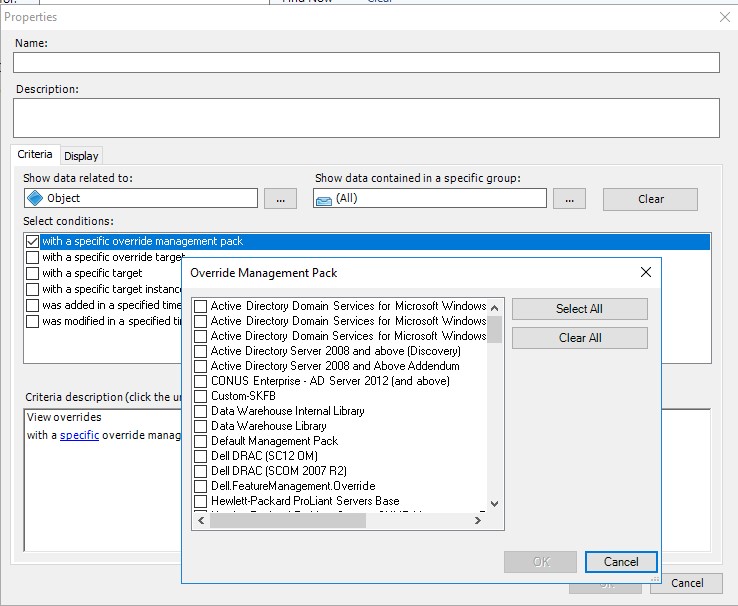
Select checkbox ‘with a specific override management pack’ checkbox, then the ‘specific’ link to choose management pack(s).
Select Specific Override management pack(s)
Choose unsealed management pack(s) with overrides
Can select all – OR pick a few to see what loads without errors
Click OK
If you get the loading screen and error, now begins the pack analysis.
OverridesViewFailsToLoad
Clicking on the ‘Show’ link points to a non-existent object
Microsoft.EnterpriseManagement.Common.ObjectNotFoundException: An object of class ManagementPackClass with ID 76e2559c-aaf4-b1ec-60cf-d40ab4102fbc was not found.
How did I know that?
Run get-SCOMClassInstance command from PowerShell or Operations Manager shell
Example output of ‘get-SCOMClassInstance -ID “76e2559c-aaf4-b1ec-60cf-d40ab4102fbc” ‘
Get-SCOMClassInstance output of the GUID listed in the console error.
Work on the Overrides of the affected XML packs, and Import.
Once corrected, the Workspace view loads successfully, finite!
‘NiCE VMware addendum’ enhances VMware monitoring, tuning alerts to ‘manual intervention’ required alerting. The NiCE folks have been around for some time as a trusted Microsoft partner, creating additional monitoring functionality across Microsoft products. Having completed a number of projects implementing the VMware pack, it’s time to share the configuration and alert report capabilities.
Key breakdown of VMware ESX environment monitoring
NiCE VMware monitoring features for ESX, vSphere, vSAN environments
Adjustments to vendor pack to further the mantra ‘alert when manual intervention required’.
Set monitor alerts to multiple samples over an hour (i.e. compute and performance of ESX environment)
Reports by team (requires regular expression updates for environment servers owned by each team)
Monitor reset logic, and service monitorType (count logic for X failures over Y time, before alert)
Overrides to change vendor pack provided discoveries, rules, monitors
Remove alert noise for unmanaged objects in ESX environment
Customize pack for environment
Customize the ‘NiCE VMware addendum’ pack for specific environment. This means updating group discoveries, and GUIDs for group specific overrides. Further updates are required to update server naming conventions for team virtualization reports.
Classes/groups created for pack
Discoveries
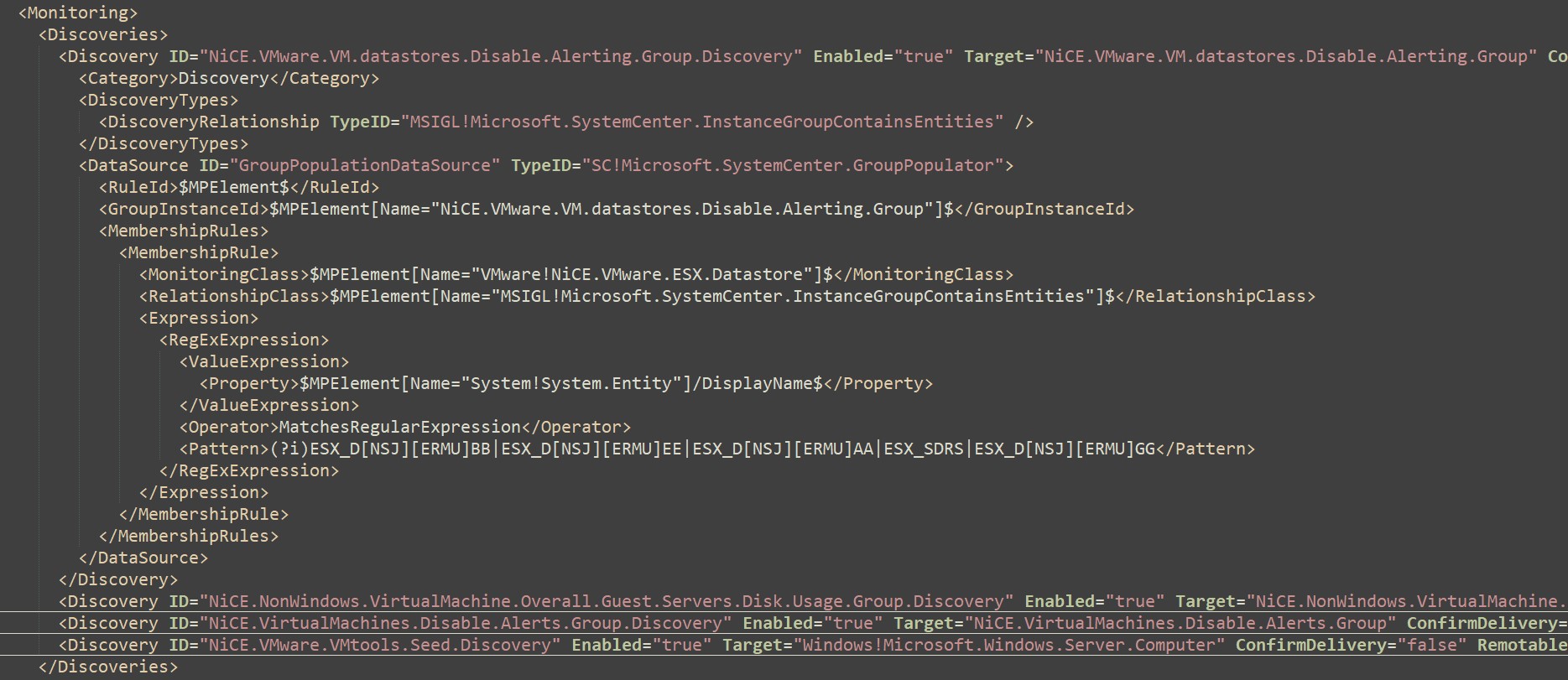
Breakout of Discoveries that need pattern updates to match
Find/Replace ##ESXHostDataStoreNamingConventions## with names to exclude
Example of regular expressions for multiple customers
Update disable guest machine alerts
Disable guest machines in ESX environment to disable alerts.
‘File Services Addendum’, named Microsoft Windows Server FileServices 2016 Addendum, adds replication health/backlog script, seed and group classes, replication/service monitors, recovery tasks, and overrides to tune monitored environment.
Addendum assumes the file services version agnostic version 10. pack is installed.
Looking at XML file in Notepad++, the pack references are what packs the workflows refer to (other management packs). Kevin Holman taught building backwards compatibility with MP authoring. Backwards compatibility allows SCOM2012+ import without errors. To take this one step further, the v10.0.0.0 file services packs referenced represent the version agnostic packs.
NOTE: File Services Addendum references may need updates if the whole file services management packs are NOT installed.
References screenshot
Addendum logic
Capabilities
Daily report and close automation, on-demand tasks for reports
DFS backlog script errors
SmSvc, DFSN, DFSR service recovery and rule alerts (from Holman fragments library)
DFS replication backlog watcher, script, alerts
Notepad++ screenshot
Next, we look at the group/class discoveries
Update the Class/Group discoveries for DFS servers or script install paths for replication script.
Update Class/Group discoveries for DFS servers or script install paths for replication script.
Find and replace FilePath and ##DFSServerNamingConvention## variable.
To provide the best experiences, we use technologies like cookies to store and/or access device information. Consenting to these technologies will allow us to process data such as browsing behavior or unique IDs on this site. Not consenting or withdrawing consent, may adversely affect certain features and functions.
Functional
Always active
The technical storage or access is strictly necessary for the legitimate purpose of enabling the use of a specific service explicitly requested by the subscriber or user, or for the sole purpose of carrying out the transmission of a communication over an electronic communications network.
Preferences
The technical storage or access is necessary for the legitimate purpose of storing preferences that are not requested by the subscriber or user.
Statistics
The technical storage or access that is used exclusively for statistical purposes.The technical storage or access that is used exclusively for anonymous statistical purposes. Without a subpoena, voluntary compliance on the part of your Internet Service Provider, or additional records from a third party, information stored or retrieved for this purpose alone cannot usually be used to identify you.
Marketing
The technical storage or access is required to create user profiles to send advertising, or to track the user on a website or across several websites for similar marketing purposes.