SCOM 1711 – Technical Preview for upcoming 1801

If you’re not aware, System Center will start doing 6 month releases, and will be YYDD named


Example 

SCOM released in Jan 2018 is 1801, then 180x, 190x, etc.

Technical previews will also exist prior (currently 1711 – the technical preview for 1801).


Register for Technical Preview

Evaluate and download https://www.microsoft.com/en-us/evalcenter/evaluate-system-center-release

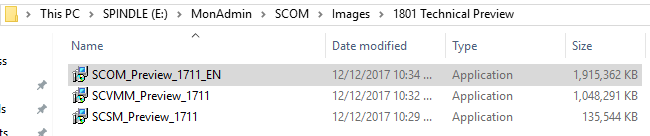
Save appropriate product(s)


Extract for ISO files

Go to path where files were saved


Double click on file to extract


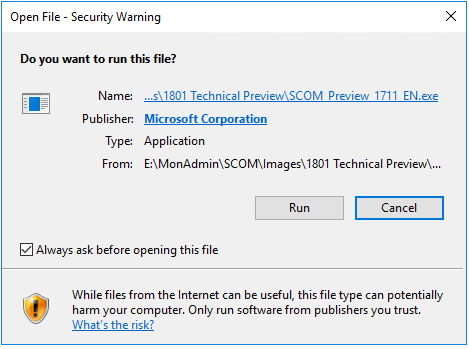
Click on Run to run the file


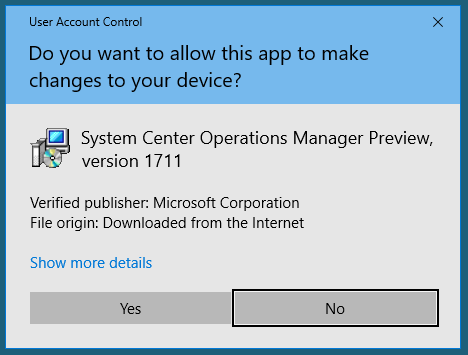
Answer Yes to UAC prompt

Click ‘I accept for EULA


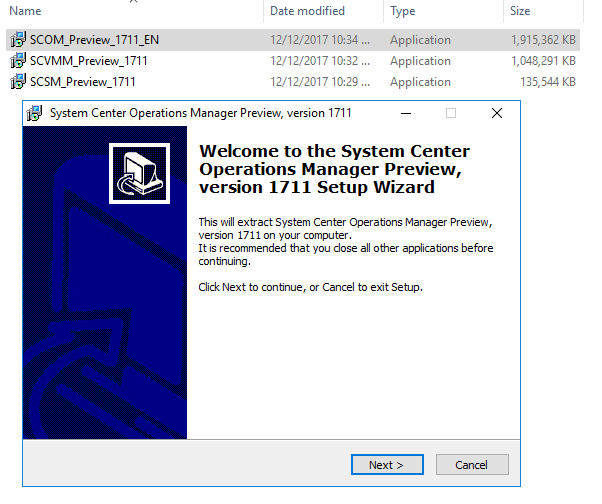
Click Next to begin the setup wizard

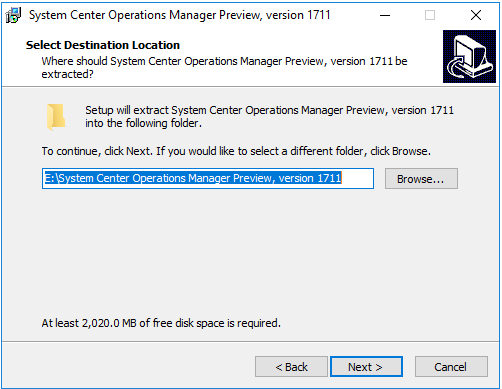
Select Path to save file

Click Next


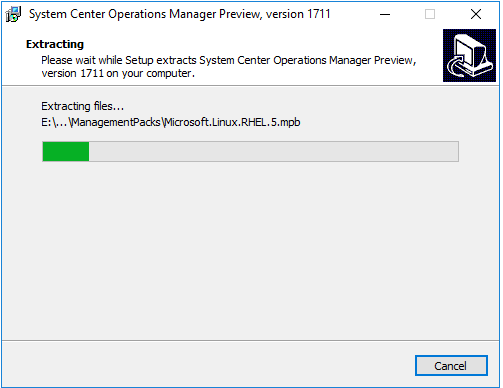
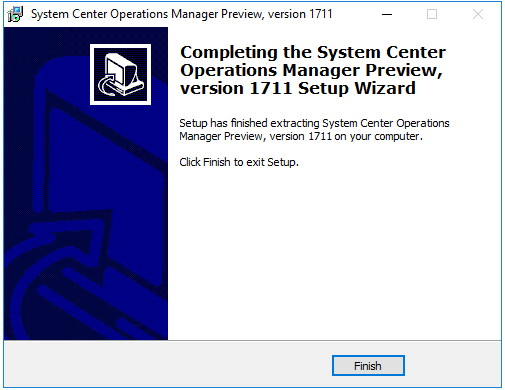
File extract completes


Click Finish


Looks like SCOM ISO


Now it’s time to grab Holman’s quick start guide and set up new servers for 1801 management group (if you don’t already have the steps down pat!)


Logical Disks Dynamic Group

So what do you do when a team comes to you and asks for different values for logical disk alerts?


Work smarter vs. harder!


Harder

Use Explicit groups

As an Admin, someone should not have to update groups every time a server or app changes in the environment.


Smarter

Use Dynamic groups

One better, use regular expressions (see Kevin Holman’s blog if you need a refresher)


Great background information

Holman had a great article to make groups of logical disks

TechNet had some good example references in this wiki

Forum article where John Joyner (MVP) listed a way to make a dynamic group

Groups can consist of objects in a primary class and also includes Windows Computer attribute


How can this apply to  your environment?

Is there a unique attribute for the class you’ve chosen, or possibly to include Windows Computer class properties?

In my experience, the Windows Computer Class can be utilized to better specify the criteria, using Principal Name, NetBIOS name, etc.)


Let’s begin to see walk through the Logical Disk class attributes, and understand that we can look at the class, and the Windows Computer class.


From the SCOM Console

Click on the Monitoring Tab

Click on Discovered Inventory

On the Tasks pane (right hand pane), click on change target type

I chose Windows Server 2016 Logical Disk (corresponding for 2008,12 class structures exist)


Are there any unique class/object properties where we can differentiate?

Path stands out, possibly size

Display Name/Device Identifier/Device Name are of course the drive letter


Create a Dynamic group

From the SCOM Console

Click on the Authoring Tab

Click on Groups

On Task pane, click on ‘Create New group’


Name the group

Recommend naming convention – my example is TEAM Logical Disk group (where TEAM could be SQL, SharePoint, Exchange, Skype, etc.)

Don’t forget to add description comments to help the next guy who’s tracking down details!

Create Management pack, or add to the Team’s overrides or customizations management pack.


Click Next twice (to get to Dynamic Members tab)

Click Create/Edit Rules


Choose class

Our example was ‘Windows Server 2016 Logical Disk’

Click Add


Click the Property Drop down


Note the options – and refer back to your notes in the Discovered Inventory from the Monitoring Tab

The three D’s in the middle – Device Identifier, Device Name, and Device Description were all the drive letter

I chose Device Name as it seemed the logical choice


Click Insert + to add another property

Click again on the Class properties

Select the bottom choice – (Host=Windows Computer)

Select Principal name

In my case, the servers met a specific naming convention for the server name


In the Operator Column, choose ‘Matches regular expression’

In the Value field, enter your regular expression


My example is (?i)16[md]

Go back to my Discovered inventory output


Dissect the regular expression

(?i) case inclusive (don’t care upper or lower case – back to Unix roots!)

16m or 16d is in the server name


Click OK

Click Next twice to create group (and bypass Sub Groups, Excluded Members)

Click Create Group

Click Close


Verify expression

From the Authoring pane

Click on the Group and either right click ‘View Group members’, or in the task pane, click ‘View Group members’

Practice using regular expressions to get the desired results!


Now it’s time to go off and override the monitor for the newly created group!


OMS/Advisor Event ID 55002


This article is written for the Gateway CommunicationSecurityException event

At first I thought maybe this was TLS1.2 enabling, but backed off the change, the events kept pouring in every 5 minutes.

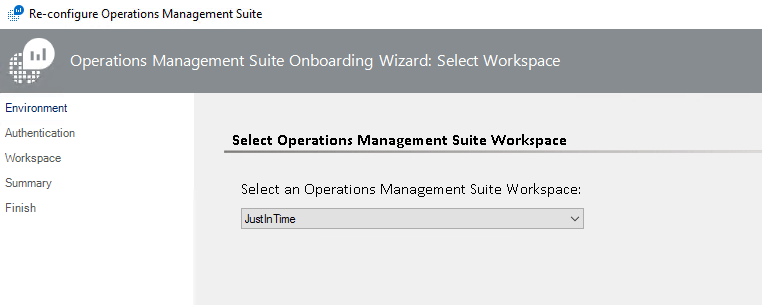
Tried to reconfigure the OMS/Advisor environment, and voila! Error resolved


Let’s go through the steps to re-configure the Operations Management Suite (OMS) in SCOM


Reconfigure OMS

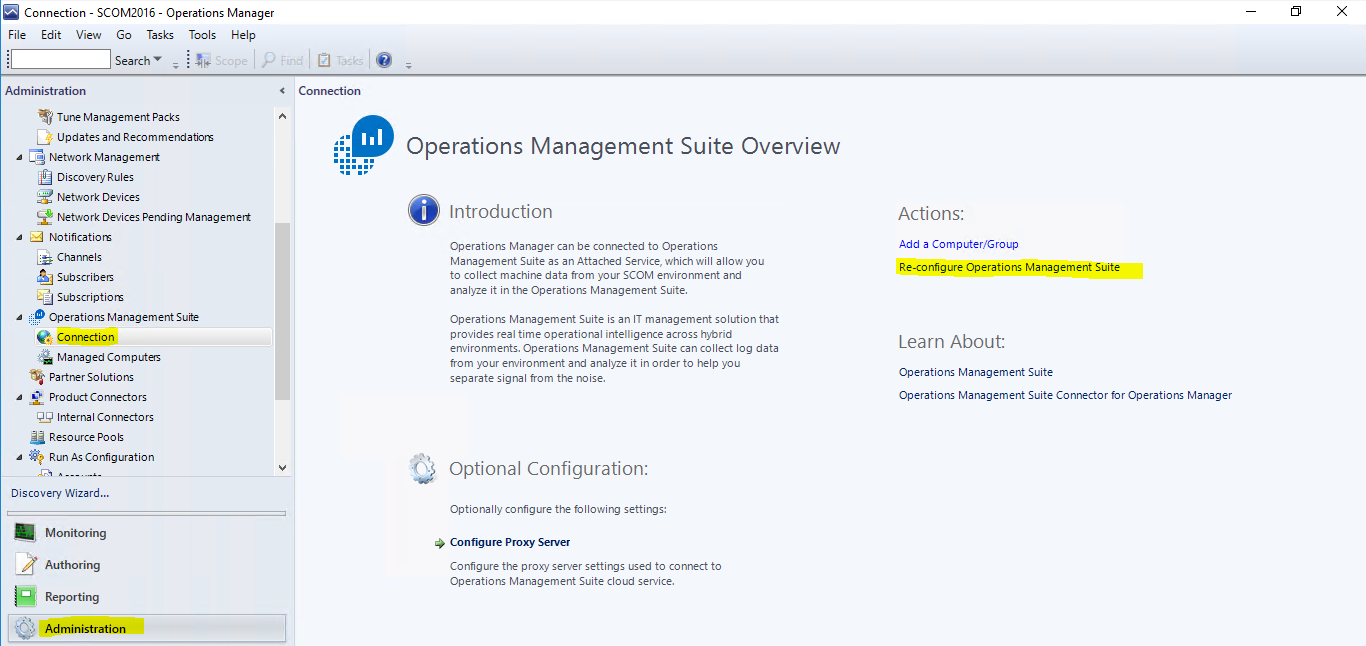
  1. From the SCOM Console, click on Administration tab
  2. Expand Operations Management Suite (Advisor on 2012R2)
  3. Click on the Connection
  4. On the center pane, click on Re-configure Operations Management Suite


5. Add any trusted sites to IE if there are pop-ups

I had 2 missing websites

Secure.aadcdn.microsoftonline-p.com

az416426.vo.msecnd.net

( I hit Previous and next to verify the wizard would pass with the hopes the attempt would retry)

6. Exit the Reconfigure wizard to get a retry (then the second website popped up as an untrusted site)

7. Enter credentials to your OMS environment


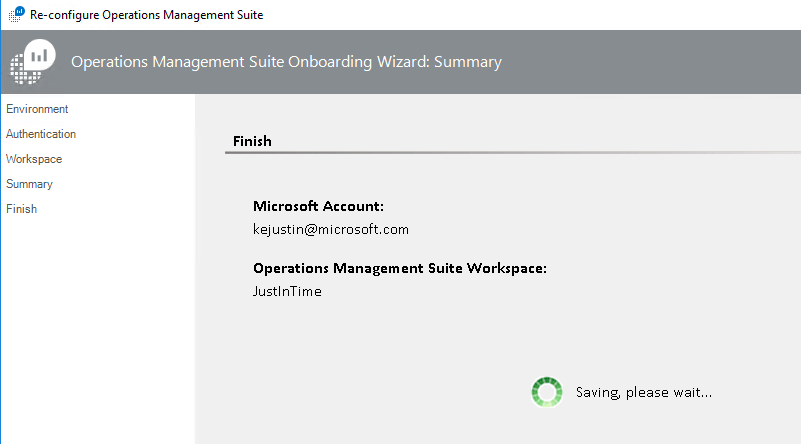
Connection to OMS successful


Click Next twice

Reconfigure success

Click Close


Verify Event Log

Verify Operations Manager Event Log has no new events (this check runs every 5 minutes by default)

get-eventlog -logname “Operations Manager” | ? { $_.EventID -match 55002 } | select-object -last 2


Event ID 55002 from Operations Manager Event Log

Log Name:      Operations Manager
Source:        Advisor
Date:          12/11/2017 2:15:20 PM
Event ID:      55002
Task Category: None
Level:         Warning
Keywords:      Classic
User:          N/A
Computer:      16MS01.testlab.net
Description:
Failed to synchronize the latest Management Package information from Advisor Cloud service. Wait for the next cycle to retry. Reason: Microsoft.SystemCenter.Advisor.Common.WebService.GatewayCommunicationSecurityException: Message security was invalid for the connection with web service when performing Get Intelligence Packs with client specified versions —> System.ServiceModel.Security.MessageSecurityException: An unsecured or incorrectly secured fault was received from the other party. See the inner FaultException for the fault code and detail. —> System.ServiceModel.FaultException: ID3242: The security token could not be authenticated or authorized.
— End of inner exception stack trace —

Server stack trace:
at System.ServiceModel.Channels.SecurityChannelFactory`1.SecurityRequestChannel.ProcessReply(Message reply, SecurityProtocolCorrelationState correlationState, TimeSpan timeout)
at System.ServiceModel.Channels.SecurityChannelFactory`1.SecurityRequestChannel.Request(Message message, TimeSpan timeout)
at System.ServiceModel.Dispatcher.RequestChannelBinder.Request(Message message, TimeSpan timeout)
at System.ServiceModel.Channels.ServiceChannel.Call(String action, Boolean oneway, ProxyOperationRuntime operation, Object[] ins, Object[] outs, TimeSpan timeout)
at System.ServiceModel.Channels.ServiceChannel.Request(Message message, TimeSpan timeout)

Exception rethrown at [0]:
at System.ServiceModel.Security.IssuanceTokenProviderBase`1.DoNegotiation(TimeSpan timeout)
at System.ServiceModel.Security.IssuanceTokenProviderBase`1.GetTokenCore(TimeSpan timeout)
at System.IdentityModel.Selectors.SecurityTokenProvider.GetToken(TimeSpan timeout)
at System.ServiceModel.Security.Tokens.IssuedSecurityTokenProvider.GetTokenCore(TimeSpan timeout)
at System.IdentityModel.Selectors.SecurityTokenProvider.GetToken(TimeSpan timeout)
at System.ServiceModel.Security.SecurityProtocol.TryGetSupportingTokens(SecurityProtocolFactory factory, EndpointAddress target, Uri via, Message message, TimeSpan timeout, Boolean isBlockingCall, IList`1& supportingTokens)
at System.ServiceModel.Security.TransportSecurityProtocol.SecureOutgoingMessageAtInitiator(Message& message, String actor, TimeSpan timeout)
at System.ServiceModel.Security.TransportSecurityProtocol.SecureOutgoingMessage(Message& message, TimeSpan timeout)
at System.ServiceModel.Security.SecurityProtocol.SecureOutgoingMessage(Message& message, TimeSpan timeout, SecurityProtocolCorrelationState correlationState)
at System.ServiceModel.Channels.SecurityChannelFactory`1.SecurityRequestChannel.Request(Message message, TimeSpan timeout)
at System.ServiceModel.Dispatcher.RequestChannelBinder.Request(Message message, TimeSpan timeout)
at System.ServiceModel.Channels.ServiceChannel.Call(String action, Boolean oneway, ProxyOperationRuntime operation, Object[] ins, Object[] outs, TimeSpan timeout)
at System.ServiceModel.Channels.ServiceChannelProxy.InvokeService(IMethodCallMessage methodCall, ProxyOperationRuntime operation)
at System.ServiceModel.Channels.ServiceChannelProxy.Invoke(IMessage message)

Exception rethrown at [1]:
at System.Runtime.Remoting.Proxies.RealProxy.HandleReturnMessage(IMessage reqMsg, IMessage retMsg)
at System.Runtime.Remoting.Proxies.RealProxy.PrivateInvoke(MessageData& msgData, Int32 type)
at Microsoft.AttachedServices.WebService.IIntelligenceService.GetIntelligencePacksInfo(ClientProperties clientProperties)
at Microsoft.SystemCenter.Advisor.Core.WebService.WebServiceCallHelper.CallWebService[T](Func`1 webServiceCall, String webServiceDescription)
— End of inner exception stack trace —
at Microsoft.SystemCenter.Advisor.Core.WebService.IntelligenceServiceClient.CallWebServiceWithRetry[T](Func`2 function)
at Microsoft.SystemCenter.Advisor.Core.WebService.IntelligenceServiceClient.GetIntelligencePacksInfo(ClientProperties clientProperties)
at Microsoft.SystemCenter.Advisor.Core.IntelligencePackWriteAction.UpdateIntelligencePacks()

VSAE support for 2017

VSAE support for VS2017 has been released!

https://systemcenterom.uservoice.com/forums/293064-general-operations-manager-feedback/suggestions/18560653-updated-vsae-to-support-visual-studio-2017

VSAE download https://www.microsoft.com/en-us/download/details.aspx?id=30169

MomTeam Blog https://techcommunity.microsoft.com/t5/System-Center-Blog/System-Center-Visual-Studio-Authoring-Extension-VSAE-support-for/ba-p/351872?search-action-id=139696432720&search-result-uid=351872/

Ruling out SCOM as the cause of SCHANNEL events


Ruling out SCOM notifications as the cause of SCHANNEL events


Still getting SCHANNEL error events and want to rule out SCOM

Management pack SQL events https://kevinjustin.com/blog/2017/11/08/sql-native-client-for-tls1-2/

SCHANNEL ciphers debugged https://kevinjustin.com/blog/2017/11/08/schannel-event-logging/


What command Channels are setup for notifications?


Validate Subscriptions aren’t the cause for email/text

Exchange 2013 and above typically use S/MIME to digitally sign/encrypt messages


Email communication can cause System 36871 events https://support.microsoft.com/en-us/help/305088/schannel-error-message-36871-when-receiving-an-ehlo-smtp-command

Do the events correlate with emailed alerts?
Tracing Notifications http://blog.scomskills.com/enable-tracing-of-the-notification-component-om07/


SCOM ETL traces

Run traces on suspect MS

2012R2 MS (adjust drive letter according to drive SCOM install)
cd “D:\Program Files\Microsoft System Center 2012 R2\Operations Manager\Server\Tools”
2012R2 GW (adjust drive letter according to drive SCOM install)
cd “C:\Program Files\System Center Operations Manager\Gateway\Tools”
2016 MS
cd ‘C:\Program Files\Microsoft System Center 2016\Operations Manager\Server\Tools\’

# Stop Tracing
 .\StopTracing.cmd
# Clean up old files
remove-item C:\windows\Logs\OpsMgrTrace\*


# Start Traces

StartTracing.cmd VER

TraceLogSM.exe -stop TracingGuidsNative

TraceLogSM.exe -stop TracingGuidsUI


# Wait until notification fires and validate if 36871 SCHANNEL event ID is logged

# Stop and format the trace
 .\StopTracing.cmd
 .\FormatTracing.cmd

# Review txt files from C:\windows\Logs\OpsMgrTrace


SCHANNEL event logging

First, my thanks to Bhuvnesh Kumar for his help!


Time to figure out what’s going on behind the curtain!


Are you seeing System Event Log, Event ID 36871 events?


Why does this matter?


Depending on OS versions and patches, the TLS Cipher Suites may not match on the various SCOM servers.

  1. If you’re setting up TLS1.2, you need the SCOM servers to talk
  2. The bad part, is this isn’t logged much on the GW but log more often on MS
  3. Sometimes the 36871 events come with 36874, but in my experience they occur after Event Logging is enabled.


The unanswered question is “why are we seeing the 36871 events?”


In my example, the events only happened once a day, roughly 24 hours


Event Viewer


Are events related to the Cipher Suite, or is it a MP trying to run the old SQLOLEDB method?


This article will focus on verifying Cipher Suite on a server

See this article for MP analysis for SQL methods


SCHANNEL event logging setup


From Holman’s blog

DecimalDescription
0Do not log
1Log Error messages
2Log Warnings
3Log Error and Warning messages
4Log Informational and Success events
5Log Error, Informational and Success events
6Log Warnings, Informational and Success events
7Log Everything (Warnings, Errors, Informational and Success events


I’d recommend setting it to 3 to see errors and warnings, or 7 to see everything.

Remember to set this back to 1 when done resolving any issues.


Add

From Command Prompt or PowerShell (as administrator)

reg add “HKLM\SYSTEM\CurrentControlSet\Control\SecurityProviders\SCHANNEL” /v “EventLogging” /t REG_DWORD /d 7 /f

Disable

reg delete “HKLM\SYSTEM\CurrentControlSet\Control\SecurityProviders\SCHANNEL” /v “EventLogging”

Verification

reg query “HKLM\SYSTEM\CurrentControlSet\Control\SecurityProviders\SCHANNEL” /v “EventLogging”


PowerShell verification

RegEdit Verification

Time to reboot!


Verify SCHANNEL events

Look at the System Event log, and filter for 36880 and 36874 events for clues


36880 provides Cipher Suite details


Event ID 36874 definitely describes the scenario


The easy answer to solve the cipher suite is to ask – is this server patched with latest security and .NET patches?

After all this, in my example, we confirmed that simple step was assumed, and inaccurate.


References
36871 event https://docs.microsoft.com/en-us/previous-versions/windows/it-pro/windows-server-2012-R2-and-2012/dn786445(v=ws.11)

SCHANNEL events https://docs.microsoft.com/en-us/previous-versions/windows/it-pro/windows-server-2012-R2-and-2012/dn786445(v=ws.11)

SChannel error codes https://docs.microsoft.com/en-us/windows/win32/secauthn/schannel-error-codes-for-tls-and-ssl-alerts

SChannel events https://docs.microsoft.com/en-us/previous-versions/windows/it-pro/windows-server-2012-R2-and-2012/dn786445(v=ws.11)

SSL errors https://www.experts-exchange.com/questions/28996780/event-id-36871-Schannel.html

Troubleshooting https://docs.microsoft.com/en-us/iis/troubleshoot/security-issues/troubleshooting-ssl-related-issues-server-certificate

SQL native client for TLS1.2

Ever try to talk to someone when language is a barrier?


Sure, we can run an app, or search our phrase to pronounce, but it’s so much better when we can communicate seamlessly.


Post TLS1.2 for SCOM

Let’s talk SQL

Part of TLS1.2 is updating SQL Native Client to talk using a secure client that uses TLS1.2

That means a different executable should be called.


Why is that important in SCOM?

Maybe you have management packs that connect to SQL or run external commands.


On MS, there are multiple clues for various errors on Management Packs that use SSL or talk to SQL via a non-TLS method.  NOTE this may mean that the SQL DB that management pack is connecting to may need the same pre-req SQL updates to a TLS 1.2 enabled version.

  1. Do you have custom SQL queries being run, CMDB get’s, OLE DB Data Source checks?
  2. Any Event ID 1401 or 11854 events in the Operations Manager Event log?
    1. These events identify management pack scripts creating SCHANNEL events
      a. Event ID 1401 event example


Cause

SQLOLEDB connection strings will cause 36871 Sytem Log events


Example (TLS1.0)
sConnectString = “PROVIDER=SQLOLEDB;DATA SOURCE=<databaseServerFQDN>;DATABASE=MSSQLSERVER;trusted_connection=yes”
 SQLNCLI11 driver for TLS1.2 connection strings

Example (TLS1.2)
 sConnectString = “Provider=SQLNCLI11;DATA SOURCE=<databaseServerFQDN>;DATABASE=MSSQLSERVER;trusted_connection=yes”


Identify
Look for management packs with SQLOLEDB as the Connect string to reduce 36871 SCHANNEL events

In Windows Explorer, use the Advanced Options dropdown to select File Contents
In the Search bar (top right), enter SQLOLEDB (example shows SQLNCLI11)
NOTE SQL Discovery group pack IS compliant


In Windows Explorer, use the Advanced Options dropdown to select File Contents
In the Search bar (top right), enter SQLNCLI11


Additional offenders
HP Topology MP
SQL 2005 discovery MP (discontinued)
SQL Addendum MP’s (will work to update these with Holman)
SharePoint Foundation server (v15.0.4557.1000)
PRE TLS Microsoft.SystemCenter.2007


Resolution
Unseal (if necessary), update connection string, and reimport management packs
If Sealed vendor MP, request new MP via support Incident (and/or UserVoice if Microsoft sourced pack)
If Vendor will not release MP’s, accept risk with the logged errors, update MP, or remove from SCOM


Getting started with OMS Update Compliance

Do you already have Upgrade Readiness or Device Health deployed in OMS?

If not, read this blog


Need to know more about Windows 10 patch compliance and don’t want to access Config Man (SCCM)?


Update Compliance is the answer!


It’s just as simple as adding the OMS Update Compliance Solution

Click on the Shopping bag (on left hand pane)

Scroll right to Update Compliance


Click Add (this will be Add not View, if you don’t already have the solution loaded)


Voila! (time elapsed as the solution gathers data every 12 hours )

Set up SCOM 2016 for TLS1.2

Security bugging you about SCOM using TLS1.0 ?


Have questions on the TLS1.2 Protocol Support Deployment guide link?

If using ACS, please review ACS steps to configure from the guide above


It’s time to update SCOM 2016 to TLS1.2!


Pre-requisites

.Net and SQL native client, ODBC must be updated to TLS1.2 compliant version

HTTPS Endpoints must be CA signed certificates using SHA1 or SHA2


Ensure .Net version 4.6 is installed on all SC components

Determine which .Net is installed https://docs.microsoft.com/en-us/dotnet/framework/migrationguide/how-to-determine-which-versions-are-installed

From PowerShell (run as admin is NOT required)

Get-ChildItem ‘HKLM:\SOFTWARE\Microsoft\NET Framework Setup\NDP’ -recurse | Get-ItemProperty -name Version,Release -EA 0 | Where { $_.PSChildName -match ‘^(?!S)\p{L}’} | Select PSChildName, Version, Release


Above commands from StackOverFlow article

Guide to .Net versions and dependencies https://docs.microsoft.com/enus/dotnet/framework/migration-guide/versions-and-dependencies


Sample output from win2k8R2 sp1 server (and same from 2016 server)


SQL Server updates

Install the required SQL server update supporting TLS1.2

From PowerShell as Administrator
Invoke-Sqlcmd -Query “SELECT @@VERSION;” -QueryTimeout 3

Example Output
PS C:\Windows\system32> Invoke-Sqlcmd -Query “SELECT @@VERSION;” -QueryTimeout 3
Column1

——

Microsoft SQL Server 2016 (RTM-GDR) (KB3210111) – 13.0.1728.2 (X64) …

OR

Microsoft SQL Server 2008 R2 (SP2) – 10.50.4000.0 (X64)


Compare to SQL matrix to download and install appropriate version
TLS 1.2 SQL Support https://support.microsoft.com/en-in/help/3135244/tls-1.2-support-for-microsoft-sql-server
NOTE Verify you are running a compliant cumulative update (CU), you will need the patch (SQL2016 natively supports TLS1.2)
SQL Server 2008R2 SP2 is NOT supported for TLS1.2  https://blogs.msdn.microsoft.com/sqlreleaseservices/tls-1-2-support-for-sql-server-2008-2008-r2-2012and-2014/


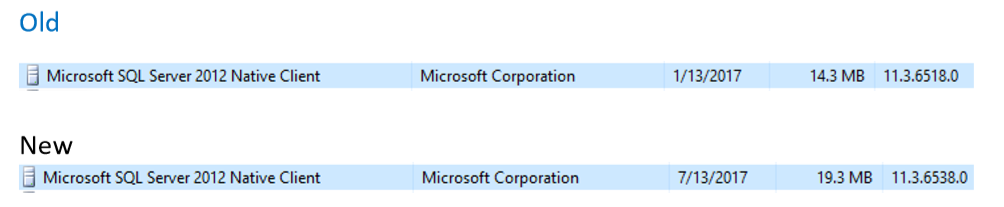
Install the required SQL Native Client
FYI – SQL 2016 uses the SQL 2012 Native client
Download link https://www.microsoft.com/en-us/download/details.aspx?id=50402


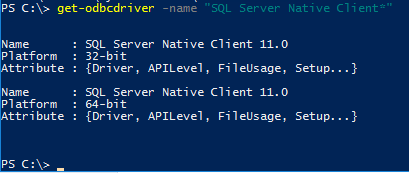
SQL Native client 11.0 should be installed on ALL MS and SQL servers (SQL 2008-2016)

From PowerShell as Administrator
get-odbcdriver -name “SQL Server Native Client*”


Example Output


From Control Panel, Programs and Features, Installed Programs


Stop SQL Server and SQL Server agent services
Stop-service SQLSERVERAGENT

Stop-service MSSQLSERVER


Install SQL Native Client MSI

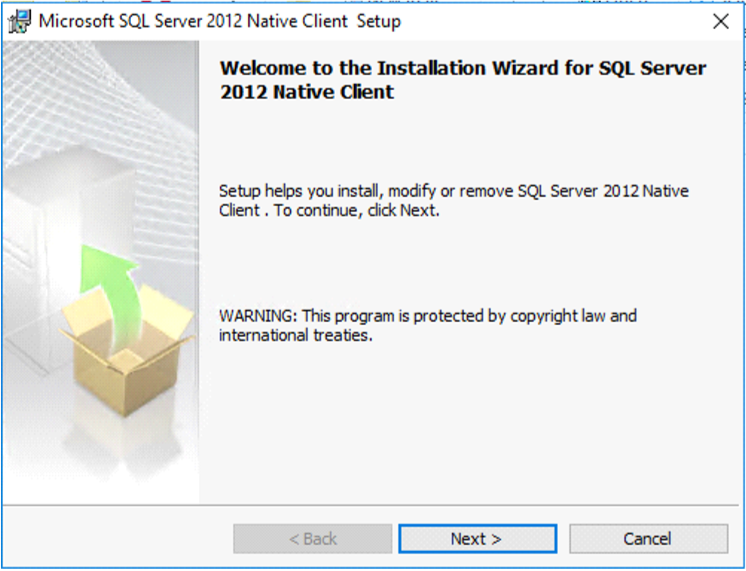
Double click on SQL Native Client MSI file to begin installation

Click on Yes to begin installation

Click Next on the Installer window


Click I accept radio button

Click Next


Click Next on Feature Selection


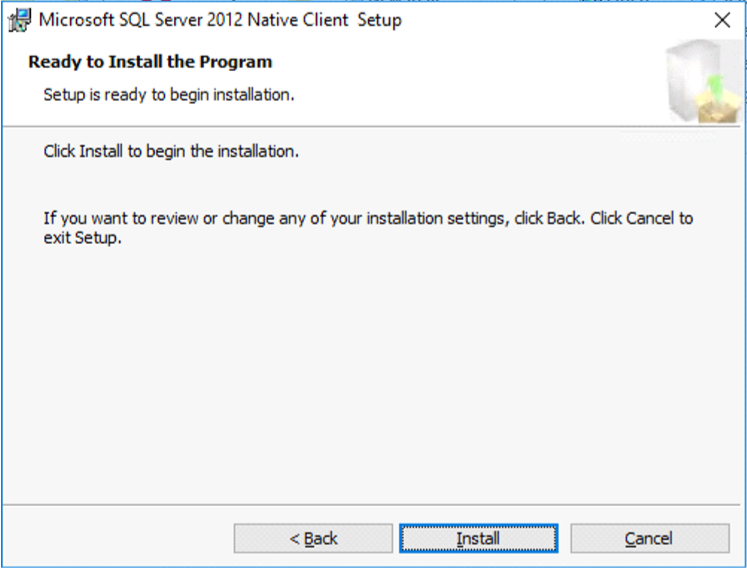
Click Install


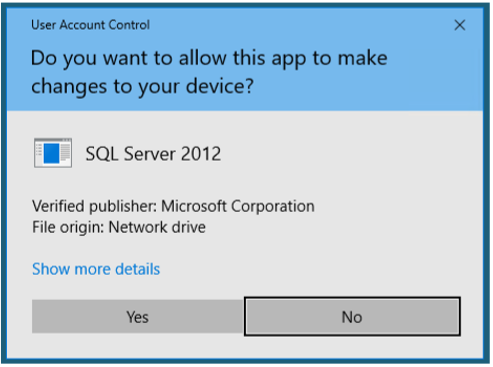
Click Yes on User Account Control (UAC) prompt


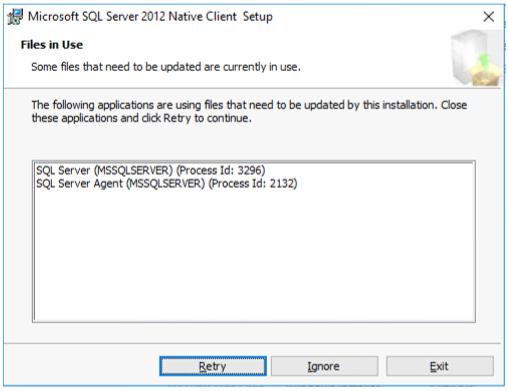
Stop SQL Server and SQL Server agent (if they restarted)


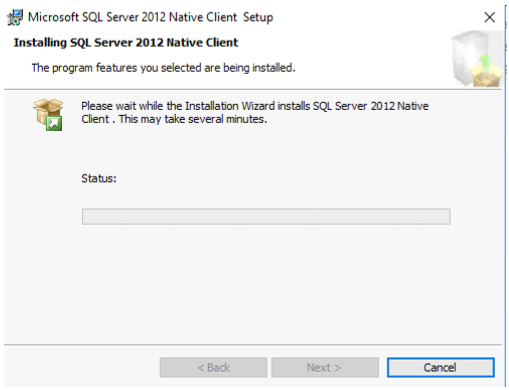
Watch installer status


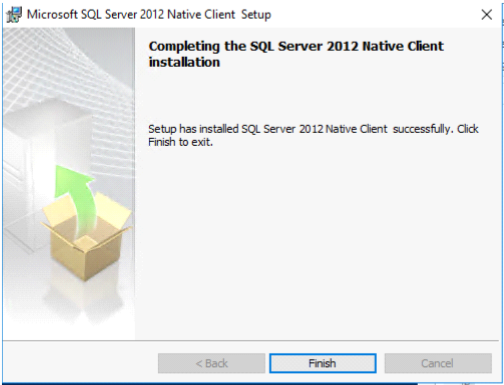
Click Finish when complete


Verify SQL Native Client Verification

Verify SQL services are running
Stop SQL Server and SQL Server agent services From PowerShell as Admin
Get-service SQLSERVERAGENT

Get-service MSSQLSERVER

From PowerShell as Admin If necessary, start SQL Server and SQL Server agent services
Start-service SQLSERVERAGENT

Start-service MSSQLSERVER
Verify Installer completed
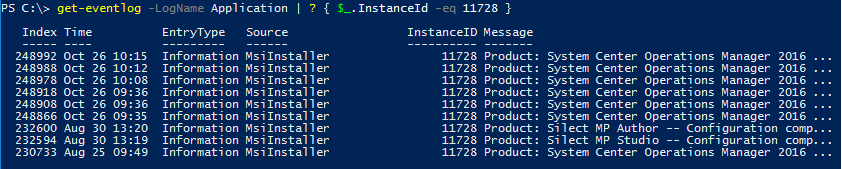
In Event Viewer, Windows Logs, Application look for event 11728


From PowerShell

Get-EventLog -LogName Application | ? { $_.InstanceId -eq 11728 }

Rinse and Repeat for other MS and SQL servers in environment


Install ODBC on all Management Servers


For SCOM & SM, ODBC 11.0 or ODBC 13.0 should be installed on all MS and SQL servers


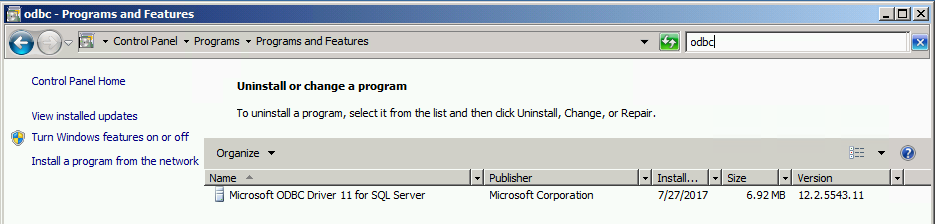
Verify ODBC v11 for server win2k8R2

From Control Panel

Click on Programs

Click on Programs and Features

Search for ODBC


Verify ODBC v13 for Server 2016

Verify version from PowerShell (run as administrator NOT required)
get-odbcdriver -name “ODBC Driver * SQL Server”


Output

Download and install appropriate version

11.0: https://www.microsoft.com/en-us/download/details.aspx?id=36434 (Version 2.0.5543.11)
13.0: https://www.microsoft.com/en-us/download/details.aspx?id=50420
Verify Installer completed
In Event Viewer, Windows Logs, Application look for event 11728


From PowerShell

Get-EventLog -LogName Application | ? { $_.InstanceId -eq 11728 } | ? { $_.Message -like “*Microsoft ODBC*”


Output


NOTE Please make sure servers are patched with latest Monthly Rollup Updates

Had issue where KB3080079 was NOT installed on server.  Patch applied to Win7, Server 2008,2008R2

From Powershell

get-hotfix -id KB3080079


Output


Install SCOM 2016 UR4 update

See Kevin Holman’s UR4 install blog https://blogs.technet.microsoft.com/kevinholman/2017/10/28/ur4-for-scom-2016-step-by-step/


Time to enable TLS1.2 Secure Channel messages on MS and SQL server (gateway if installed in your environment)

See Gallery for add/query/remove registry keys


Add SCHANNEL path for TLS

$ProtocolList       = @(“SSL 2.0″,”SSL 3.0″,”TLS 1.0”, “TLS 1.1”, “TLS 1.2”)
$ProtocolSubKeyList = @(“Client”, “Server”)
$DisabledByDefault = “DisabledByDefault”
$Enabled = “Enabled”
$registryPath = “HKLM:\\SYSTEM\CurrentControlSet\Control\SecurityProviders\SCHANNEL\Protocols\”

foreach($Protocol in $ProtocolList)
{
    Write-Host ” In 1st For loop”
foreach($key in $ProtocolSubKeyList)
{
$currentRegPath = $registryPath + $Protocol + “\” + $key
Write-Host ” Current Registry Path $currentRegPath”

if(!(Test-Path $currentRegPath))
{
    Write-Host “creating the registry”
New-Item -Path $currentRegPath -Force | out-Null
}
if($Protocol -eq “TLS 1.2”)
{
    Write-Host “Working for TLS 1.2”
New-ItemProperty -Path $currentRegPath -Name $DisabledByDefault -Value “0” -PropertyType DWORD -Force | Out-Null
New-ItemProperty -Path $currentRegPath -Name $Enabled -Value “1” -PropertyType DWORD -Force | Out-Null

}
else
{
    Write-Host “Working for other protocol”
New-ItemProperty -Path $currentRegPath -Name $DisabledByDefault -Value “1” -PropertyType DWORD -Force | Out-Null
New-ItemProperty -Path $currentRegPath -Name $Enabled -Value “0” -PropertyType DWORD -Force | Out-Null
}
}
}


# Tighten up the .NET Framework
$NetRegistryPath = “HKLM:\SOFTWARE\Microsoft\.NETFramework\v4.0.30319”
 New-ItemProperty -Path $NetRegistryPath -Name “SchUseStrongCrypto” -Value “1” -PropertyType DWORD -Force | Out-Null

$NetRegistryPath = “HKLM:\SOFTWARE\WOW6432Node\Microsoft\.NETFramework\v4.0.30319”
 New-ItemProperty -Path $NetRegistryPath -Name “SchUseStrongCrypto” -Value “1” -PropertyType DWORD -Force | Out-Null


Restart servers


Verify SCOM Console for alerts and connectivity

 

Get started with OMS Device Health

Anyone need telemetry data for win10 computers?

https://docs.microsoft.com/en-us/windows/deployment/update/device-health-get-started


Want the info with better reports and less overhead?

This easily replaces SCOM Agentless Exception Monitoring


OMS is technically free, why not get insights into client side problems?


Overview

Validate Telemetry Setting

Get CommercialID from OMS

Configure Deployment Script

Run Deployment Script

Verify OMS


Check Win10 Telemetry setting

Configure Telemetry Data link


FYI – Telemetry level can be managed via SCCM/MDM/Intune and/or GPO


Enhanced Telemetry (2) sends less data (not full crash dumps like Full)

The normal upload range for the Enhanced telemetry level is between 239 KB – 348 KB per day, per device.


Settings Explained


Verify Telemetry setting

My default Win10 setting was 3 based on setup wizard options


Retrieve CommercialID from OMS

Go to Settings (Cog at the top right hand corner)

Then Click on Connected Sources, Windows Telemetry

Copy the Commercial ID Key


Set up Deployment Script

Download the Deployment Script link

In my lab example, save script to Win10 client in C:\UpgradeAnalytics


Update the Deployment RunConfig.bat file

From Docs.Microsoft.com:

The Pilot folder contains advanced logging that can help troubleshoot issues and is intended to be run from an elevated command prompt.


Edit RunConfig.bat in Notepad, add your Commercial ID into the ‘set commercialIDValue’ line

Change the logPath as well if you have a preferred logging location


Run script and verify Registry keys

Set up command window as system

Don’t forget psexec from sysinternals tool

psexec -s cmd.exe

cd UpgradeAnalytics\Deployment

runConfig.bat


Example output


Verify Registry

Registry key paths depending on how these are set with SCCM/MDM/Intune vs. GPO

        $vCommercialIDPath = “HKLM:\SOFTWARE\Microsoft\Windows\CurrentVersion\Policies\DataCollection”
        $GPOCommercialIDPath = “HKLM:\SOFTWARE\Policies\Microsoft\Windows\DataCollection”


Add Device Health Solution to OMS

Add Device Health as part of the Windows Analytics suite

NOTE Windows Analytics suite includes Upgrade Readiness and Update Compliance


Wait 2 days and see what shows up as devices check in


Clicking on Device Health pane


Added Bonus – once you configure the deployment script, the other two Windows Analytics tools are ready for consumption – Upgrade Readiness and Update Compliance


Requirements

OMS subscription

Win10 clients have HTTPS access to Microsoft hosts (see Endpoints in Configure Telemetry link below)


References

Windows Analytics link
Upgrade Readiness link
Upgrade Readiness Script V2 link
Upgrade Readiness Script Original link
Configure Telemetry link