Azure Log Analytics Service Map Planning and Pre-reqs

My grandfather said two things:

An ounce of prevention is worth a pound of manure

Death and taxes are part of life


Planning out a deployment is a good thing.

My best friend would say “No one plans to fail, they just fail to plan”


This will be a multi-part blog – breaking out the high level steps, and my experience getting the solution set up.


What do we need for Service Map?

  • Azure connectivity
    • Setup Log Analytics workspace on MMA/SCOM agent article
    • Troubleshooting onboarding issues KB,
      • Check for Events in Operations Manager event logs blog
  • Computers in scope for visualization
    • What computers (Windows or Linux)
    • Pricing FAQ
  • Dependency agent installed on computers
  • Azure Service Principal
    • (think of it as an SSH shared key ID/password for Azure Apps to communicate)
    • Docs article


High level steps

  1. Overview blog
  2. Install the MMA agent blog
  3. Install the dependency agent blog
  4. Configure Azure Service Principal blog
  5. Configure Service Map on SCOM blog
 

Getting Started with OMS – Operations Manager Suite

How do you make sure the business you’re in is productive and making widgets?


What does OMS do?

Acronym:  OMS – Operations Manager Suite

IMHO

Answer:  Pretty much anything you can imagine to help provide a single pane of glass into what is happening in your IT environment.

Do you use System Center?

You can tailor OMS to any solution in the Solutions gallery, and you can even request solutions and functionality in the UserVoice website.


Ready to dig into OMS, even if you’re not cloud based?


OMS has four basic services


Learn more about the OMS solutions

Verify OMS managed Computers link

Capacity and Performance (HyperV) link

Service Map link

How to be heard link


Additional information

OMS Overview Azure Monitor overview

Channel 9 videos https://channel9.msdn.com/Shows/OMS-TECH-Fridays
OMS Blog https://blogs.technet.microsoft.com/msoms/


Setting up OMS Capacity and Performance

Setting up OMS Capacity and Performance


Update 18 Dec 2023 – Solution retired in 2021 with OMS sunset.  

https://github.com/uglide/azure-content/blob/master/articles/log-analytics/log-analytics-add-solutions.md Repository archived by the owner on Feb 1, 2021. It is now read-only.


Do you know what your HyperV hosts are doing?

Not a HyperV fan, there’s a VMWare solution also here


Documentation https://docs.microsoft.com/en-us/azure/log-analytics/log-analytics-capacity

https://github.com/uglide/azure-content/blob/master/articles/log-analytics/log-analytics-capacity.md


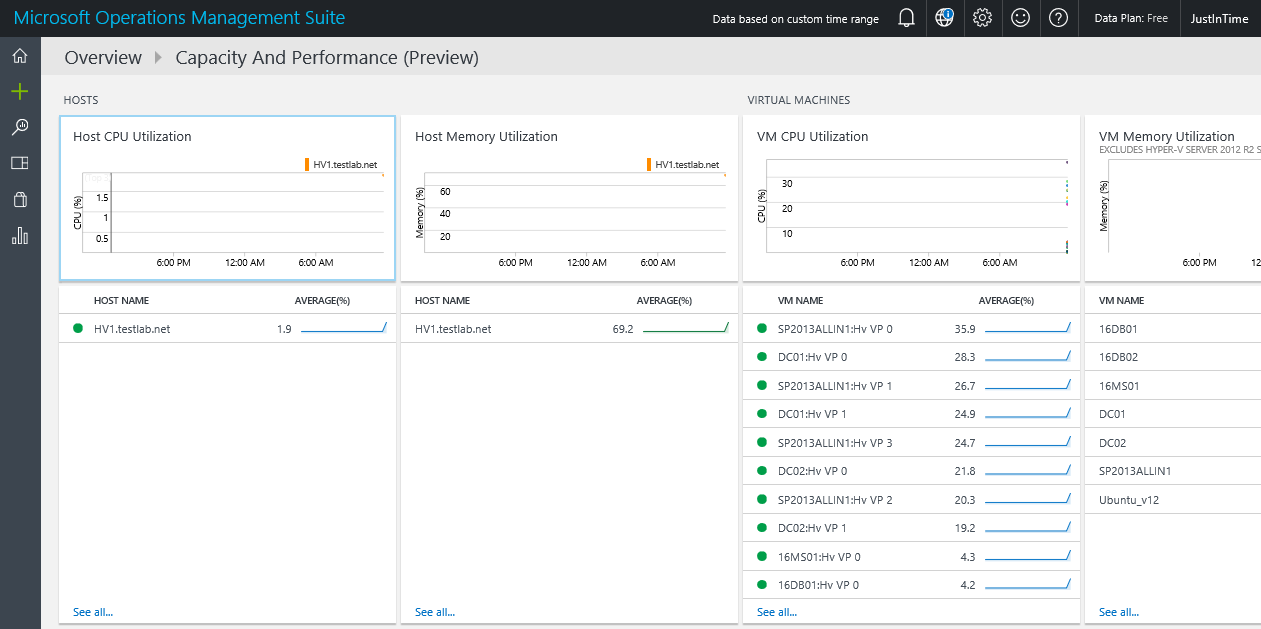
Capacity dashboard

Capacity and performance preview summary

Details

OMS dashboard
OMS dashboard


Setting up OMS Capacity and Performance

Already have the dashboard setup?  Perhaps this will help troubleshoot

Do you have network connectivity, or is a proxy required?


Troubleshooting dashboard

Firewall https://docs.microsoft.com/en-us/azure/log-analytics/log-analytics-proxy-firewall
Windows Agents https://docs.microsoft.com/en-us/azure/log-analytics/log-analytics-windows-agents


Verify Operations Manager event log on local agent, then filter for error events and/or EventID 4506.  Look for dates/times to see when events started.

Example Event ID 4506 details the Capacity and Performance Solution, citing ‘Microsoft.IntelligencePacks.CapacityPerformance.Collector’.

Operations Manager Event Log, Event ID 4506 examples


Additional options

  1. Search LAW (Log Analytics workspace) logs

https://github.com/uglide/azure-content/blob/master/articles/log-analytics/log-analytics-log-searches.md

OMS Log search screenshot


2. Verify no proxy is set up (unless your network requires this)

OMSAgent proxy setting


3. 4506’s result from too many workflows sending data from MS to DB’s (OpsMgr and DW).  Additionally, 4506 events can be communication issues from MS to DB server(s).   Lastly, use TLS1.2 configuration as a best practice to enforce encryption from MS to SQL communication.  Beyond encryption, TLS may be a culprit if AlwaysOn or SQL clusters are involved, particularly as the SCOM console connections fail as SDK cannot talk with SQL side.  See Kevin Holman’s blog for additional TLS1.2 information and setup.

TLS blog https://kevinholman.com/2018/05/06/implementing-tls-1-2-enforcement-with-scom/


Documentation

Learn article https://learn.microsoft.com/en-us/answers/questions/212007/scom-errors-no-data-in-summary-performance-dashboa
TechNet blog https://social.technet.microsoft.com/Forums/ie/en-US/10b38121-b0e1-43ec-bf3a-d22ae9ef0220/event-4506-data-was-dropped-due-to-too-much-outstanding-data-in-rule
MS RMSe https://www.system-center.me/opsmgr/event-4506-and-new-root-management-server-rms-management-server-ms/

Setting up OMS Service Map solution

hmmmm

Ever wonder what happened to BlueStripe?

Anyone else have experience using it with SCOM?

If you weren’t aware, Microsoft bought Blue Stripe back in 2015 link


Looks like BlueStripe FactFinder is now Service Map in Azure

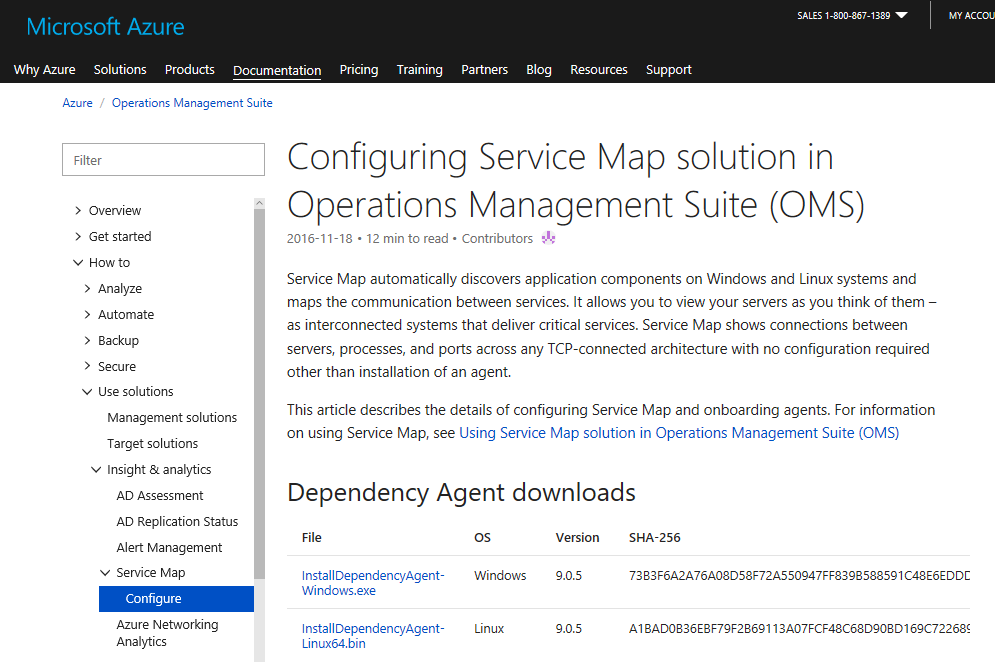
Documentation here


Service Map is very easy to add and get value from right away with OMS

Download agent

You have two choices:

  1. Choose from Docs.Microsoft.com documentation above, or from your OMS environmentdocsagentdownload
  2. From your OMS workspace, add the Service Map solution

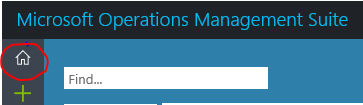
Click on Home icon in top left hand corner

omshome

Click on Service Map pane

Click on Download Agent link as appropriate for Windows or Linux

Save file and install on your server(s)

oms-initialscreen


Windows Server Installation

Execute the MSI file downloaded from OMS (NOTE may prompt with UAC prompt)

Click ‘I Agree’

servicemapinstall

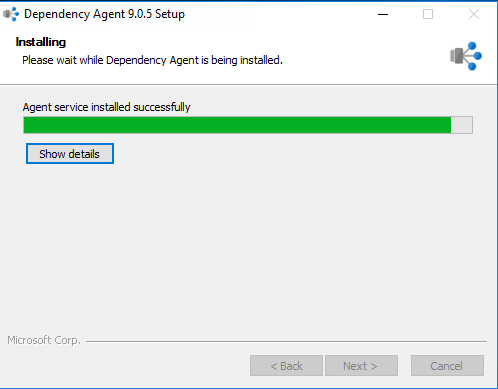
Watch the Install

servicemapinstalling

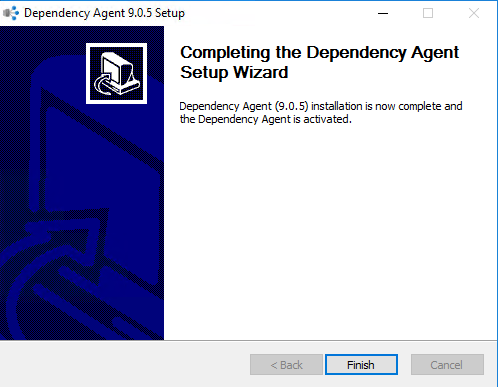
Click Finish

servicemapinstallcomplete

Now go back to OMS and look for updates (mine was that fast!)

servicemapsolution

Click on the Service Map pane to see more detail

servicemapdetail

To add additional machines is basically the same, just choose add machines

oms-addmachines


In case you caught that I have two (2) of the same named machines, it’s because I have that server set up for OMS separately.  Yes, it’s my lab, so I’m not following the best practice.

servicemapsolutionwclients

Enjoy!