MMA Agent, cross platform, and Azure

Things that make you go hmmm….


Ran across a scenario where we were trying to connect Azure Cross-platform (Linux) VM’s and MMA/SCOM agents to SCOM management group.


Management group was 2012R2, discovery wizard from SCOM console, failed to install agent, certificate errors.


Researching, found this article first

Windows Azure VM monitoring blog

There’s a version history for the Azure Monitor VM extension here

Applies:

SCOM2012R2 after UR12 or SCOM 2016 UR2+ deprecated the SHA1 certificate


Deprecating SHA1 certificates
Tech Community blog


Product team nicely published a TechNet gallery script to help!

Gallery download – Script to update SHA1 certificates to SHA256 on cross-platform agents – SCOM

TechNet Gallery Download
https://gallery.technet.microsoft.com/scriptcenter/Script-to-update-SHA1-8a30c5ef


Set up Azure Service Principal


Azure Service principal is like a Mech ID that does work for you behind the scenes

Stack Overflow states it plainly

An Azure service principal is a security identity used by user-created apps, services, and automation tools to access specific Azure resources.
Docs site defines it as a Security identity object
We will need the AAD Tenant ID, Application ID (service principal, and Password (key)

AAD Tenant ID


For Service Map, the Tenant ID is the Azure Active Directory, Directory ID


From Azure Portal

Select Azure Active Directory > Properties > Directory ID in the Azure portal

See Docs site link

Save this to notepad, somewhere for safe keeping – password safe

Tenant ID

This is where you setup the Service Principal for an application
Azure Active Directory is NOT required
From Azure Portal
Click on Azure Active Directory
Click on Properties
Copy the Directory ID
From OMS
Click on Overview, Settings
Click on Accounts, Manage Users
Copy the Tenant ID
Once you have the Directory ID copied to notepad, you need to set up an App registration

App Registration ID

From Azure Portal
Click Azure Active Directory
Click App Registrations
Click + New application registration
Create name and URL
My example is ‘ServiceMap-App’ with my domain
Click Create
 
Click Settings
Click Keys
Recommend setting 2 keys, and save to notepad, and somewhere secure
I did 1 year and 2 year keys
Enter name for Description, Duration box, and click Save
Value will be displayed
Copy the value

PLEASE!!!!

Don’t exit without grabbing the keys!  You will have to delete the App-Registration and start over
After creation, copy the values from Notepad for Tenant ID, Application ID, and keys


Service Map – Setting up SCOM management group


It’s time to get my SCOM MG running Service Map

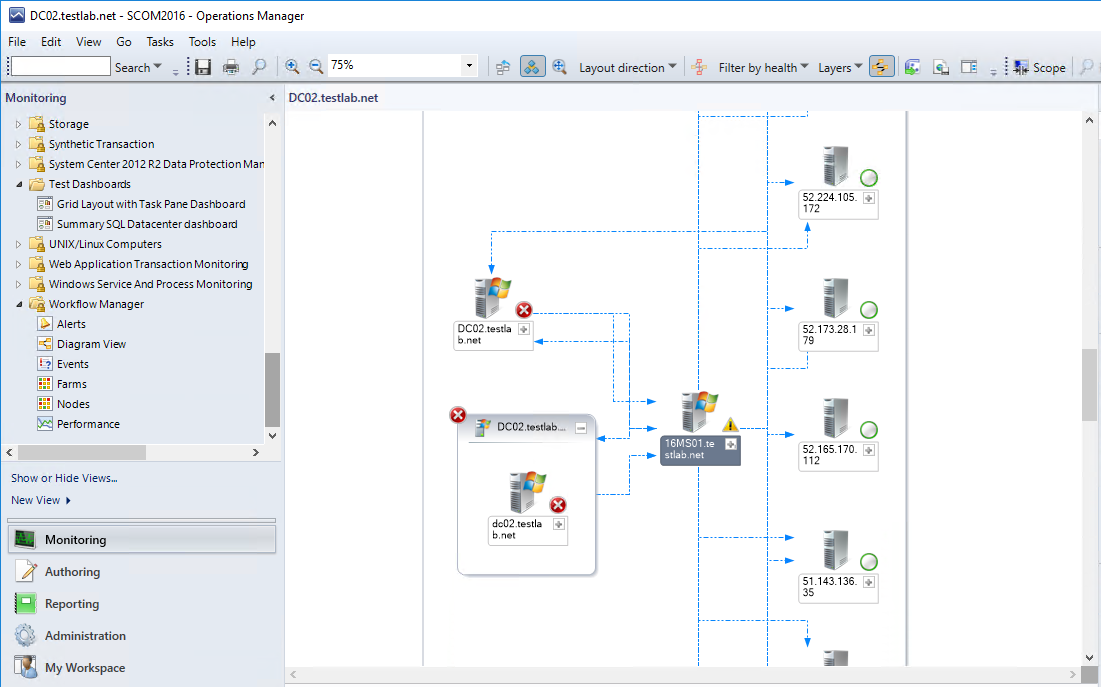
Nothing like seeing what an application actually does, mapping ports a server is using, and who the server talks to!

From the docs site – https://docs.microsoft.com/en-us/azure/monitoring/monitoring-service-map-scom


Download Management Pack

Let’s start with the pack download

Download Management Pack


Install Management pack

Choose your preference

PowerShell (as admin)

Import-SCOMManagementPack -FullName “S:\monadmin\backup\$date”

In case you need help – TechNet article


Lab Example

Import-SCOMManagementPack -FullName “S:\MonAdmin\SCOM\Management packs\Service Map – Blue Stripe for SCOM – OMS\v1.0.0.6\Microsoft.SystemCenter.ServiceMap.mpb”


Import via SCOM Console


Configure the Service Map integration

In SCOM Console, click on Administration Tab

Navigate to the Operations Management Suite, and expand for the Service Map selection


Click ‘Add workspace’

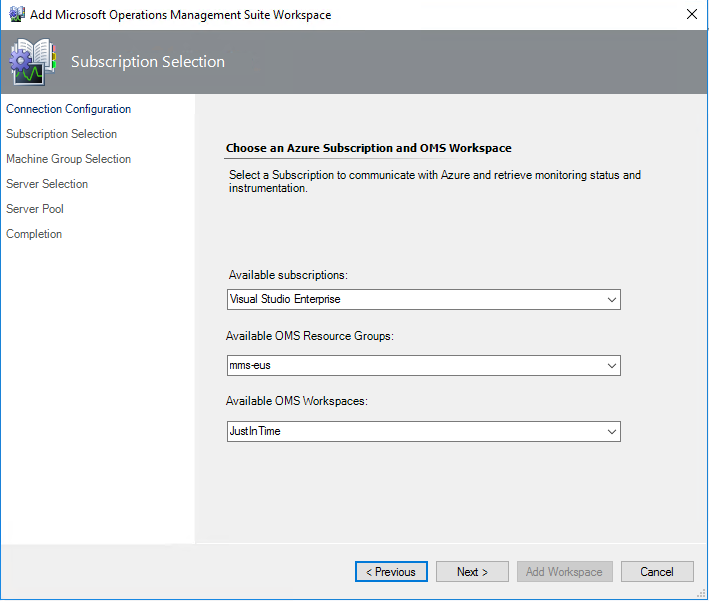
Paste in your Tenant ID, Application ID, and Service Principal Key that you set up prior

Click Next


Verify Workspace Information
Click Next


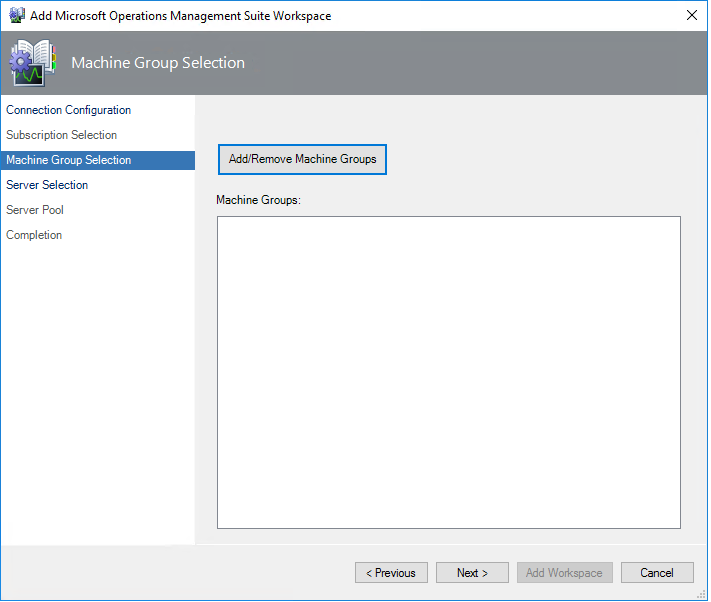
Two options – if you don’t have any Windows Computer based groups in your MG, skip down to Server Selection


If there are Machine Groups to add, click ‘Add/Remove’


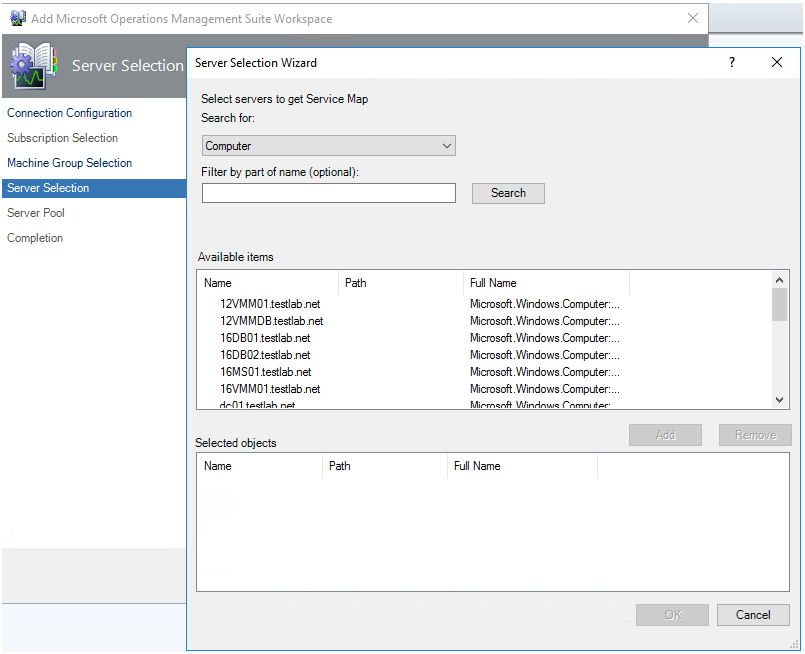
Click Next to select individual servers

Click Add

Click OK to close window


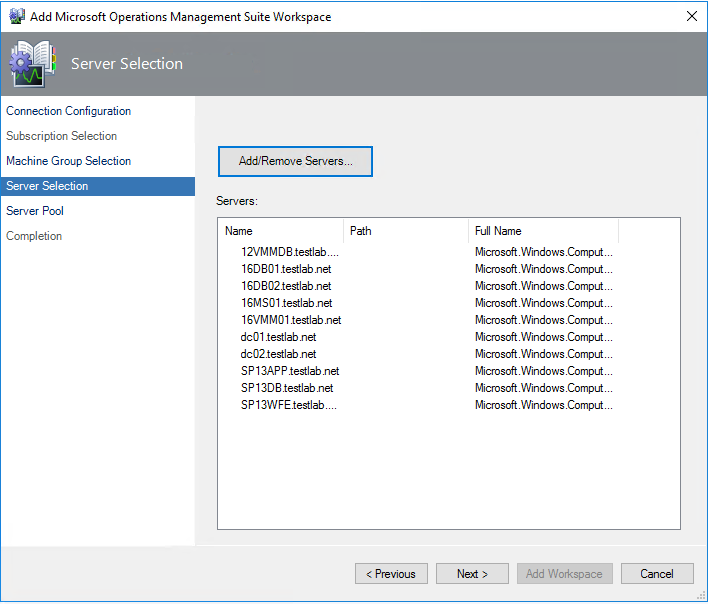
Click Next to move to next window


NOTE

  • Speed to fetch information is based on a rule see docs site
  • In the Server Selection window, you configure the Service Map Servers Group with the servers that you want to sync between Operations Manager and Service Map. Click Add/Remove Servers.

For the integration to build a distributed application diagram for a server, the server must be:

  • Managed by Operations Manager
  • Managed by Service Map
  • Listed in the Service Map Servers Group


From <https://docs.microsoft.com/en-us/azure/monitoring/monitoring-service-map-scom>


Setup proxy if needed

Click Add Workspace


Use Service Map

Time to Use the tool – https://docs.microsoft.com/en-us/azure/monitoring/monitoring-service-map


Verifying Servers specified in Service Map

Verify group

SCOM Console > Authoring Tab > Groups

Look for > Service Map

View Group members or look at Explicit tab


Troubleshooting

On Management Server (MS), Operations Manager Event log

PowerShell

get-eventlog -logname “Operations Manager” -newest 25


# This command will help if you get stuck on the workspace

get-eventlog -logname “Operations Manager” -Source “Operations Manager” -newest 25 | ? {$_.eventID -eq 6400 } |fl


GUI

Filter by Error,Warning


Install Azure Log Analytics Service Map Dependency Agent


To make all this work, sometimes, it seems like a slot machine, deposit your quarter, and hope you hit the jackpot!


So to get started, you probably have a list of computers where you have the MMA agent, and want to install Service Map to see how and who the computers are talking (to)


Login to Azure Portal

Click on Log Analytics

Click on your Subscription

Click on Service Map

Click on the Download link for Windows or Linux

Save file


Take saved file and copy to computer


GUI method

If you want a PowerShell method, Daniel Orneling has a great blog and Gallery TechNet script that will help


Docs site link has more details

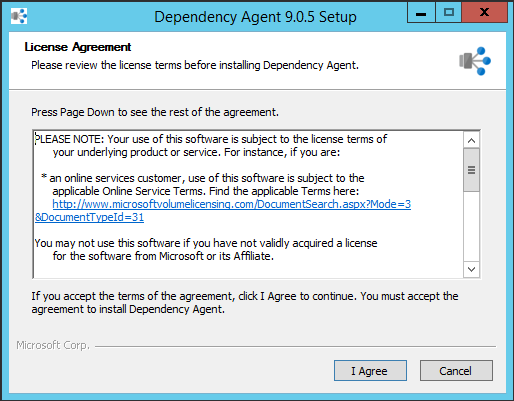
Execute the InstallDependencyAgent-Windows.exe


Answer yes for UAC elevation


Click I Agree


Click Finish


Verify Agent installed


NOTE: If installing for SCOM, it's based on the Rule 'Microsoft.SystemCenter.ServiceMapImport.Rule'

https://docs.microsoft.com/en-us/azure/monitoring/monitoring-service-map-scom#configure-rules-and-overrides


PowerShell

get-eventlog -logname “Operations Manager” -Source “HealthService” -newest 25 | ? {$_.eventID -eq
1201 } |fl

get-service MicrosoftDependencyAgent


Event Viewer

Installing and configuring the MMA agent


Maybe the MMA agent is like Venom?
Proof I’ve watched too many a Marvel movie…


An existential moment perhaps, but the MMA agent can be a bunch of strings stuck from one place to another, monitoring whatever its told to do.


If you are running SCOM2016 or above, the MMA agent is built-in with Log Analytics, just configure your workspace


Download and Install MMA agent

SCOM 2012R2 agent does not have MMA, so download MMA agent from Log Analytics workspace

Azure Portal > Log Analytics > Subscription > Advanced Settings

Click on Windows Servers from Connected Sources to download Windows Agent

Click on Linux Servers from Connected Sources to download Linux Agent


From the Azure Portal (https://ms.portal.azure.com)

Click on Log Analytics, <your subscription >

Click on Advanced Settings

My view defaulted to Connected Sources > Windows Servers


Save the workspace ID and workspace key to notepad/OneNote for later


< Assuming the MMA agent is installed with Log Analytics capability >


Update MMA Agent with Workspace ID and Key

From MMA agent, update the OMS Workspace with the GUID copied to notepad


Click on Start > Control Panel, System and Security > Microsoft Monitoring Agent

Click on Azure Log Analytics (OMS) tab on MMA agent

Click Add


Add Workspace ID and Key to agent

Click OK

Click OK again on MMA properties


Look for the healthy green checkbox’d circle


Troubleshooting Errors in the Operations Manager Event Logs

Blog posts – Verify, 55002


Azure Log Analytics Service Map Planning and Pre-reqs

My grandfather said two things:

An ounce of prevention is worth a pound of manure

Death and taxes are part of life


Planning out a deployment is a good thing.

My best friend would say “No one plans to fail, they just fail to plan”


This will be a multi-part blog – breaking out the high level steps, and my experience getting the solution set up.


What do we need for Service Map?

  • Azure connectivity
    • Setup Log Analytics workspace on MMA/SCOM agent article
    • Troubleshooting onboarding issues KB,
      • Check for Events in Operations Manager event logs blog
  • Computers in scope for visualization
    • What computers (Windows or Linux)
    • Pricing FAQ
  • Dependency agent installed on computers
  • Azure Service Principal
    • (think of it as an SSH shared key ID/password for Azure Apps to communicate)
    • Docs article


High level steps

  1. Overview blog
  2. Install the MMA agent blog
  3. Install the dependency agent blog
  4. Configure Azure Service Principal blog
  5. Configure Service Map on SCOM blog


Azure UNIX server SCOM agent setup errors with OEL v7.x


Ran into some customers with UNIX agent problems, including Azure Oracle Enterprise Linux servers with SCOM agents.


Basically this error means

  1. Fully-qualified domain name cannot be determined from the UNIX or Linux host itself
  2. The FQDN known to the UNIX/Linux host does not match the FQDN used by the management server to reach the host


Full error message text


Agent verification failed. Error detail: The server certificate on the destination computer (agentname.contoso.net:1270) has the following errors:

The SSL certificate could not be checked for revocation. The server used to check for revocation might be unreachable.

The SSL certificate is signed by an unknown certificate authority.

It is possible that:

  1. The destination certificate is signed by another certificate authority not trusted by the management server.
  2. The destination has an invalid certificate, e.g., its common name (CN) does not match the fully qualified domain name (FQDN) used for the connection.  The FQDN used for the connection is: agentname.contoso.net.
  3. The servers in the resource pool have not been configured to trust certificates signed by other servers in the pool.


The server certificate on the destination computer (agentname.contoso.net:1270) has the following errors:

The SSL certificate could not be checked for revocation. The server used to check for revocation might be unreachable.

The SSL certificate is signed by an unknown certificate authority.

It is possible that:

  1. The destination certificate is signed by another certificate authority not trusted by the management server.
  2. The destination has an invalid certificate, e.g., its common name (CN) does not match the fully qualified domain name (FQDN) used for the connection.  The FQDN used for the connection is: agentname.contoso.net.
  3. The servers in the resource pool have not been configured to trust certificates signed by other servers in the pool.


Troubleshooting links

Old TechNet article for SCOM 2007R2

Docs site – link for 1801 – Steps haven’t changed, and IMHO, docs site is better documented


Here are some commands to help troubleshoot UNIX agent

ScxAdmin


Check UNIX Agent status

scxadmin -status


Example Output

$ scxadmin -status

scxcimserver: is running

scxcimprovagt: 2 instances running


Set Unix agent to START verbose logging

scxadmin -log-set all verbose


Restart Health Service & tail scx log

scxadmin -restart

cd /var/opt/microsoft/scx/log

tail -f scx.log


To correct a SCOM agent getting a SSL certificate error:

From the Docs site, the SCXsslConfig “tool is useful in correcting issues in which the fully-qualified domain name cannot be determined from the UNIX or Linux host itself, or the FQDN known to the UNIX/Linux host does not match the FQDN used by the management server to reach the host.”


As root:

1.             Get the exact hostname of the server with the hostname command  

2.             Stop the SCOM agent – /opt/microsoft/scx/bin/tools/scxadmin -stop  

3.             Rebuild the cert  – /opt/microsoft/scx/bin/tools/scxsslconfig -v -f -h HOSTNAME -d <FQDN_Here>  

4.             Start the SCOM agent – /opt/microsoft/scx/bin/tools/scxadmin -start 


Additional Configuration topics from the docs site

Configuring SSL Ciphers link

Specifying an alternate Temporary Path for scripts link

Universal Linux – Operating System Name/Version link


Other document links

Holman SCOM 2012R2 Deploying Unix agents

Holman SCOM 2016 Monitor Unix/Linux

Adding agents via PowerShell

Setting up OMS Capacity and Performance

Setting up OMS Capacity and Performance


Update 18 Dec 2023 – Solution retired in 2021 with OMS sunset.  

https://github.com/uglide/azure-content/blob/master/articles/log-analytics/log-analytics-add-solutions.md Repository archived by the owner on Feb 1, 2021. It is now read-only.


Do you know what your HyperV hosts are doing?

Not a HyperV fan, there’s a VMWare solution also here


Documentation https://docs.microsoft.com/en-us/azure/log-analytics/log-analytics-capacity

https://github.com/uglide/azure-content/blob/master/articles/log-analytics/log-analytics-capacity.md


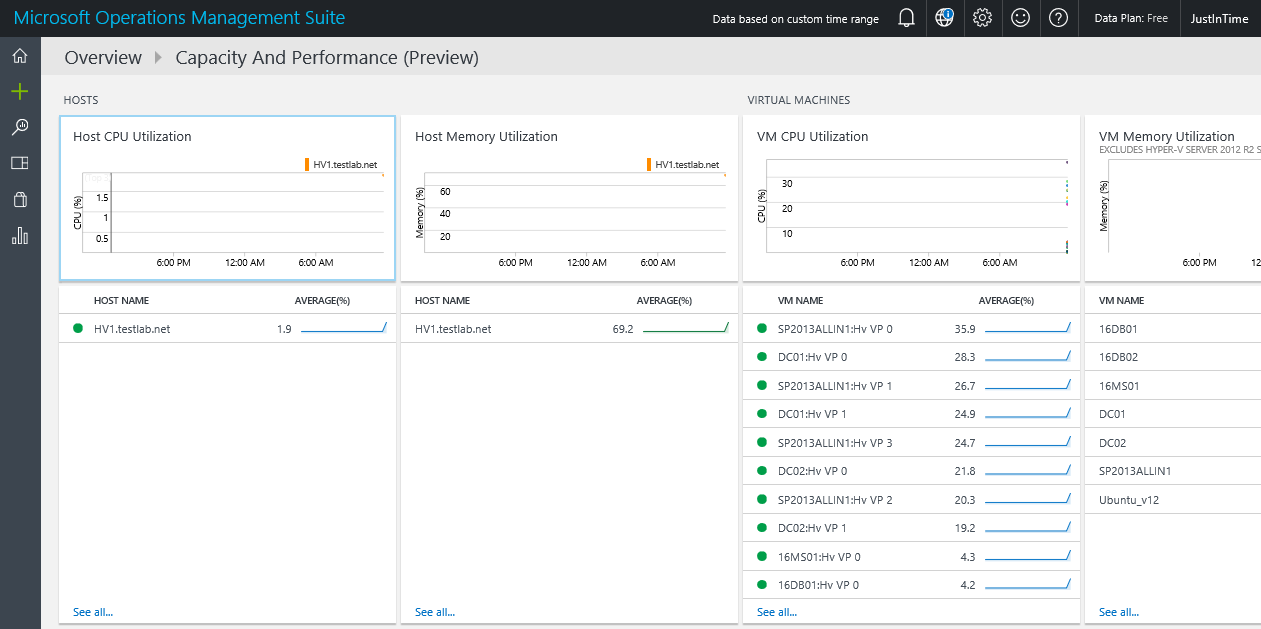
Capacity dashboard

Capacity and performance preview summary

Details

OMS dashboard
OMS dashboard


Setting up OMS Capacity and Performance

Already have the dashboard setup?  Perhaps this will help troubleshoot

Do you have network connectivity, or is a proxy required?


Troubleshooting dashboard

Firewall https://docs.microsoft.com/en-us/azure/log-analytics/log-analytics-proxy-firewall
Windows Agents https://docs.microsoft.com/en-us/azure/log-analytics/log-analytics-windows-agents


Verify Operations Manager event log on local agent, then filter for error events and/or EventID 4506.  Look for dates/times to see when events started.

Example Event ID 4506 details the Capacity and Performance Solution, citing ‘Microsoft.IntelligencePacks.CapacityPerformance.Collector’.

Operations Manager Event Log, Event ID 4506 examples


Additional options

  1. Search LAW (Log Analytics workspace) logs

https://github.com/uglide/azure-content/blob/master/articles/log-analytics/log-analytics-log-searches.md

OMS Log search screenshot


2. Verify no proxy is set up (unless your network requires this)

OMSAgent proxy setting


3. 4506’s result from too many workflows sending data from MS to DB’s (OpsMgr and DW).  Additionally, 4506 events can be communication issues from MS to DB server(s).   Lastly, use TLS1.2 configuration as a best practice to enforce encryption from MS to SQL communication.  Beyond encryption, TLS may be a culprit if AlwaysOn or SQL clusters are involved, particularly as the SCOM console connections fail as SDK cannot talk with SQL side.  See Kevin Holman’s blog for additional TLS1.2 information and setup.

TLS blog https://kevinholman.com/2018/05/06/implementing-tls-1-2-enforcement-with-scom/


Documentation

Learn article https://learn.microsoft.com/en-us/answers/questions/212007/scom-errors-no-data-in-summary-performance-dashboa
TechNet blog https://social.technet.microsoft.com/Forums/ie/en-US/10b38121-b0e1-43ec-bf3a-d22ae9ef0220/event-4506-data-was-dropped-due-to-too-much-outstanding-data-in-rule
MS RMSe https://www.system-center.me/opsmgr/event-4506-and-new-root-management-server-rms-management-server-ms/