Troubleshooting Service Map pack


Updated 14 Mar 2019


If you get these exceptions like me, the issue has been raised, with a deliverable targeted for SCOM2019UR1.

Disable the rule to reduce noise.


Are you using Service Map Management pack, and getting errors?


This alert is based on the 46651/46652 event ID in the Operations Manager event log

From SCOM Console > Authoring Tab > Management Pack Objects > Rules

Search in ‘Look for:’ bar GenericException (yes no space in between)


Rule


Rule Details


To enable debug on the MS


For collecting logs, please do the following:

  • Create folders “c:\Debug\ext\”
  • Now, Wait for an hour(which is the default time interval set in the rule for running service map api).
  • You will see some log files created in that folder “ext”. Please share the same in email.


The file showed up after the alerts, and listed debug INFO and WARN lines, and the time stamps match up to the generic exception rules.


Stay tuned for more information, I have been trying to get more answers on the exception

{WARN} [12:35:20.966] [ScomUtils] failed to export XML for Management Pack: System.NullReferenceException: Object reference not set to an instance of an object.

   at ScomBridge.ScomUtils.WritePackXmlToFile(ManagementPack pack, String filename)


XML for Product or Company Knowledge

Digging in the archives…


From a discussion with some PFE’s – the question was ‘how do I create knowledge for a monitor/rule?’

Tyson Paul pointed out the system Center Wiki  ‘Knowledge Article authoring’  


When you create a knowledge article in an MP (let’s not even go into the console GUI! )

If the Knowledge Article references a sealed workflow (does it reference a sealed pack)

It’s Company Knowledge


Example

If the Knowledge Article references a sealed monitor, it will show up under the ‘Company Knowledge’ tab

XML example from Skype Addendum pack on TechNet Gallery

<KnowledgeArticles>
<KnowledgeArticle ElementID=”ML2MC!Microsoft.LS.2015.Monitoring.Internal.Health.DiscoveryRunner” Visible=”true”>
<MamlContent>
<maml:section xmlns:maml=”http://schemas.microsoft.com/maml/2004/10″>
<maml:title>Summary</maml:title>
<maml:para>Any added Skype servers will not be discovered in SCOM.</maml:para>
</maml:section>
<maml:section xmlns:maml=”http://schemas.microsoft.com/maml/2004/10″>
<maml:title>Causes</maml:title>
<maml:para>Discovery Failed.  An internal exception has occurred during discovery.</maml:para>
</maml:section>
<maml:section xmlns:maml=”http://schemas.microsoft.com/maml/2004/10″>
<maml:title>Resolutions</maml:title>
<maml:para>Fix permission issues in alert.</maml:para>
<maml:para>Skype PowerShell module may not be installed.</maml:para>
<maml:para>Import-Module SkypeForBusiness</maml:para>
</maml:section>
</MamlContent>
</KnowledgeArticle>

</KnowledgeArticles>


If the Knowledge Article is referenced in a sealed pack, OR an UNsealed pack has a rule/monitor in the same unsealed pack)

It’s Product Knowledge


Sealed pack example


Unsealed pack Example

Visual Studio and VSAE updates


For those using Visual Studio and Authoring Extensions to author management packs


Background

VSAE is Visual Studio Authoring Extensions, used to create management packs (with or without fragments)

See Holman’s Fragment library on TechNet Gallery for multiple hints at more than what SCOM delivers out of box (OoB)


If you or your customers are having issues after upgrading to VS2017 15.8.x.y. and above…there’s a new v1.3.0.1 VSAE download

NOTE – New VSAE updates are applicable to Visual Studio 2017/2015/2013/2012

View full features at the download link:


If you upgraded Visual Studio, and need to check the VSAE version

From Visual Studio, choose Help > About Microsoft Visual Studio


In my experience, I had to remove System Center Visual Studio Authoring Extensions’ to upgrade (I was running the private patch).


After upgrade, the version information:

Control Panel > Programs > Programs and Features


Visual Studio 2017


Visual Studio errors seen when VSAE is not updated


Unresponsive VSAE (shows as Visual Studio component ‘System Center Authoring Extensions’)


Exception Encountered


Missing .NET Frameworks on the system where Visual Studio runs


Missing Visual Studio components


Another warning

In Visual Studio, be careful to dock panes, if you’ve accidentally dragged the panes around/on the screen.

Right click on the Pane, and choose dock.


If you still have problems, upgrade to latest Visual Studio, open a Premier support case.

There is also UserVoice for Visual Studio feedback https://visualstudio.uservoice.com/forums/121579-visual-studio-ide
You can also upload pics to help illustrate the UI question.


References

Install VS2017 https://docs.microsoft.com/en-us/visualstudio/install/install-visual-studio?view=vs-2017

Workloads https://docs.microsoft.com/en-us/visualstudio/install/install-visual-studio?view=vs-2017#step-4—select-workloads

Gather Log Analytics/MMA agent version

Had some questions come up from the community to check the Log Analytics agent version.

Depending on how you are setup, the SCOM Integration makes this easy with Holman’s blog for the agent management pack.

If you have admin right in Operations Manager console then you can check this directly from SCOM server:

If you are an admin in SCOM, you can check from MS

$Server = “DC01.yourlabnamehere.net”
(Get-SCOMAgent -Name $ServerName).Version

Alternatively, from server registry:

(Get-ItemProperty “HKLM:\SOFTWARE\Microsoft\Microsoft Operations Manager\3.0\setup”)

# Just the Agent version variable

(Get-ItemProperty “HKLM:\SOFTWARE\Microsoft\Microsoft Operations Manager\3.0\setup”).AgentVersion

Log Analytics

Kusto query

// Servers and Versions

Heartbeat
| project Computer,Version

// Specific version

Heartbeat
| where Version == “8.0.10918.0”
| project Computer,Version

// Summarize by Version

Heartbeat
| summarize by Version

If you’re visual

From the Portal > Log Analytics > workspace > Workspace Summary > Agent Health

Scroll right to agent version

Monitor

Monitor > Overview > Agent Health Assessment

Scroll right to agent version

Azure Log Analytics for Windows Telemetry data


I blogged about this last year here


As best practice, the Upgrade Analytics script checks for far more than just injecting the workspace key and telemetry value.


FYI – This could also be managed in an SCCM Compliance setting.

Paul Fitzgerald – Platform PFE blogged about a non SCCM method here


Assess requirements for environment:


Barebones configuration requires Commercial ID, allow telemetry, and level of telemetry data to send

Optional – Create key for IEDataOptIn

Send data to Application Insights

Customer proxy setup


Script has 11 parameters specified, not all are needed (excerpt below from script)

Param(
# run mode (Deployment or Pilot)
[Parameter(Mandatory=$true, Position=1)]
[string]$runMode,

# File share to store logs
[Parameter(Mandatory=$true, Position=2)]
[string]$logPath,

# Commercial ID provided to you
[Parameter(Mandatory=$true, Position=3)]
[string]$commercialIDValue,

# logMode == 0 log to console only
# logMode == 1 log to file and console
# logMode == 2 log to file only
[Parameter(Mandatory=$true, Position=4)]
[string]$logMode,

#To enable IE data, set AllowIEData=IEDataOptIn and set IEOptInLevel
[Parameter(Position=5)]
[string]$AllowIEData,

#IEOptInLevel = 0 Internet Explorer data collection is disabled
#IEOptInLevel = 1 Data collection is enabled for sites in the Local intranet + Trusted sites + Machine local zones
#IEOptInLevel = 2 Data collection is enabled for sites in the Internet + Restricted sites zones
#IEOptInLevel = 3 Data collection is enabled for all sites
[Parameter(Position=6)]
[string]$IEOptInLevel,

[Parameter(Position=7)]
[string]$AppInsightsOptIn,

[Parameter(Position=8)]
[string]$NoOfAppraiserRetries = 30,

[Parameter(Position=9)]
[string]$ClientProxy = “Direct”,

[Parameter(Position=10)]
[int]$HKCUProxyEnable,

[Parameter(Position=11)]
[string]$HKCUProxyServer


Simple method to update machines to send Windows telemetry data:


PowerShell script

From PowerShell as Administrator

Set-Location HKLM:


$registryPath = “HKLM:\SOFTWARE\Microsoft\Windows\CurrentVersion\Policies”

$Name = “DataCollection”

$Name2 = “AllowTelemetry”

$CommercialID = “00000000-0000-0000-0000-000000000000”

$value = “2”  # Values from 0-3 accepted

$vIEDataOptInPath = “HKLM:\SOFTWARE\Microsoft\Windows\CurrentVersion\Policies\DataCollection”

$IEOptInLevel = “2”  # Values from 0-3 accepted


If ( (Test-Path $registryPath\$Name) ) { write-host -f green “Registry keys already exist” }

If ( ! (Test-Path $registryPath\$Name) )

{

New-ItemProperty -Path $registryPath -Name $name

New-ItemProperty -Path $registryPath -Name $CommercialID

New-ItemProperty -Path $vIEDataOptInPath -Name IEDataOptIn -Type DWord -Value $IEOptInLevel

New-ItemProperty -Path $registryPath\$Name -Name $name2 -Value $value `

    -PropertyType DWORD -Force | Out-Null

Write-host -f green “Registry keys added for Telemetry”

}


References

Configure telemetry

Get Started link

Win 7,8 Opt in link

Scripting SCOM Registry key tweaks


Time to tune!


Had some requests to script the registry tweaks for SCOM


Starting off with Holman’s blog entry …


TechNet Gallery download here


Save .txt file as .ps1


On SCOM Management server(s)

Close out any SCOM Console session (to prevent SDK errors)

Run as administrator in PowerShell window

Restart SCOM services

restart-service omsdk; restart-service healthservice; restart-service chost

Verify services running

get-service omsdk; get-service healthservice; get-service chost

Workflow Manager Addendum MP for SQL Aliases


A SQL Alias is kinda like wearing disguise glasses…


From a security perspective, you can make things difficult for attackers by specifying a SQL alias and different port for SQL.


Symptom – discovery fails for WFM pack


Trying to monitor and figure out what the real database name, instance, etc. can be a challenge.

A couple of years ago, I was able to find an example for one customer where the registry key shed light on the alias.


The workflow manager management pack has a DataSourceModuleType “Microsoft.WorkflowManager.Addendum.v1.WFCommandExecuterDataSource”, where this change successfully retrieved the sql server name.

This datasource uses the PowerShell script (WorkflowPSDiscovery.ps1)


This function was changed in one example

# Get computer name from splitted dataSource
function GetPrincipalName {
param(
$ADDomain,
$ss
)

#$ssWithoutPort = $ss[0].split(‘,’)
#if (-not $ssWithoutPort[0].Contains(‘.’))
#{
# $ssWithoutPort[0] = $ssWithoutPort[0] + “.” + $ADDomain.Name
#}
#$principalName = $ssWithoutPort[0]

$key = ‘HKLM:\SOFTWARE\Microsoft\MSSQLServer\Client\ConnectTo’
$sqlfromalias = (Get-ItemProperty -Path $key -Name $ss).$ss
$sqlserverstr = $sqlfromalias.Split(‘,’)
$sqlserver = $sqlserverstr[1]
$principalName = $sqlserver

return $principalName
}


Ran into this discovery issue a second time, and the function didn’t solve the failure.

Real quick – a shout out and my thanks to Chuck Hughes and Mike Sadoff, for their time and testing this more robust discovery method.


Added logic to fix the assumed InstanceName ($instname) – Most likely why my first function worked (configuration had default SQL instance name of MSSQLSERVER )

Added GetSqlAlias function to help decode the disguise


Gallery download here


Don’t forget to override the original workflow manager discovery!

Microsoft.WorkflowManager.v1.Addendum.WFPSDiscovery

Test fire any event on any server from any application

Golden Oldies – always popular (tools vs music)

Old Holman blog that’s still relevant, even more powerful than EventLog Explorer

Basically anyone who wants to test fire events off a SCOM MP should use this tool.

Event Create, write-eventlog all have limitations (certain event sources that can be used to create events, or event ID number limitations)

First, download the 2007 R2 Admin ResKit here

MomTeam blog reference

Double click the downloaded MSI

I prefer to move extracted files under my SCOM tools/Management pack directory structure under MonAdmin (Monitoring Admin)

Copy extracted files to gold depot

Move to gold depot – SCOM \ tools \ <toolname here>

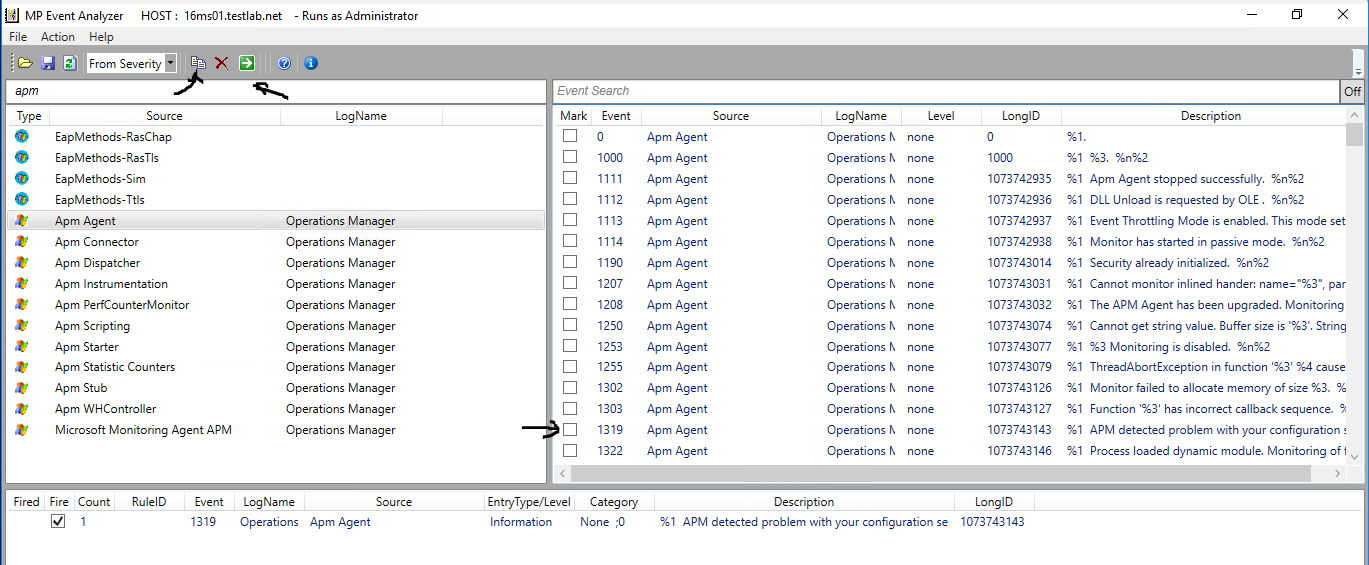
Go into the MPEventAnalyzer directory

Run the exe

MP Event Analyzer

Click on Investigate Event Sources Tab (bottom middle)

Don’t forget you can use the search bar (where I typed apm)

For my example, double click on APM Agent

Search Events on right hand pane

Check checkbox to select the 1319 APM event for configuration error (right hand pane)

Click the ‘Add selected events to execution list’

Once event verified in bottom box, click the green box to fire selected event(s)

Verify event in Event Viewer

Validate Management Pack

Stay tuned… this did not complete the validation process.

Re-learn an old but still relevant tool – EventLog Explorer


Sometimes we forget about tools that can make things easier.


Time to talk about EventLog Explorer.


Need to repro and test events for an installed program, to see what SCOM will handle?

Read this old mom team blog, courtesy of Kevin Holman blog


I wanted to try it to test fire some events, had a use case where we needed to test Skype events from the SCOM MP


Testing on my SCOM 2016 Management server


Download file, run EventLog Explorer

The Paste icon next to the X is ‘Add to Execution List’ and fills out the bottom pane

The Green Arrow is ‘go’ or execute (similar to PowerShell ISE)


Navigate through the Event Log and Event Source on the left hand pane

Mark events with the checkbox  


Add to Execution


Verify events added to bottom pane

(see my test yesterday for fired, and not fired events from today)


Click Green box with white arrow to fire events, and check Event Viewer


Yesterday’s test


Today’s test


Verify alerting occurred as expected!

Adding Management Solutions in Azure

Decoder ring applies!


OMS is Log Analytics is Azure Management Solutions.


Do you want to add solutions to your Azure subscription?

Pre-packaged visuals and insights on your data, whether azure or hybrid.


Adding Management Solutions

Login to the Azure Portal

Click on All Services

Type ‘solutions’, hit enter

Click star icon to favorite Solutions


Drag Solutions higher in your preferences (wasn’t in above screenshot)


Click Solutions


Click + to Add

Click on Security and Compliance


Click Create


Don’t forget solutions require MMA agents connected to a workspace to render any data/insights!


References

The Docs article lists how to use the management solutions