SCOM 1801 New Features (previously 1711 Technical Preview)


What does the new SCOM bring?!


HTML5 Web Dashboards! here

What’s New https://docs.microsoft.com/en-us/system-center/scom/what-is-new-1801?view=sc-om-1801

The SCOM Team published a 5 set blog post on Web Console https://blogs.technet.microsoft.com/momteam/2018/02/12/new-scom-web-console-blog-series-post1/


The new SCOM version also gives visibility into

Management Packs Updates and Recommendations

Operations Manager Products (view SCOM topology)

Partner Solutions


For now I’ll focus on the last two


Operations Manager Products

Click on Administration Tab

Expand Operations Manager Products

Topology features are pretty neat.

Whether you’re new to SCOM, or have interesting Server naming conventions, or someone built the environment and changed jobs or left the company…

At least you can easily find out how the SCOM environment is setup


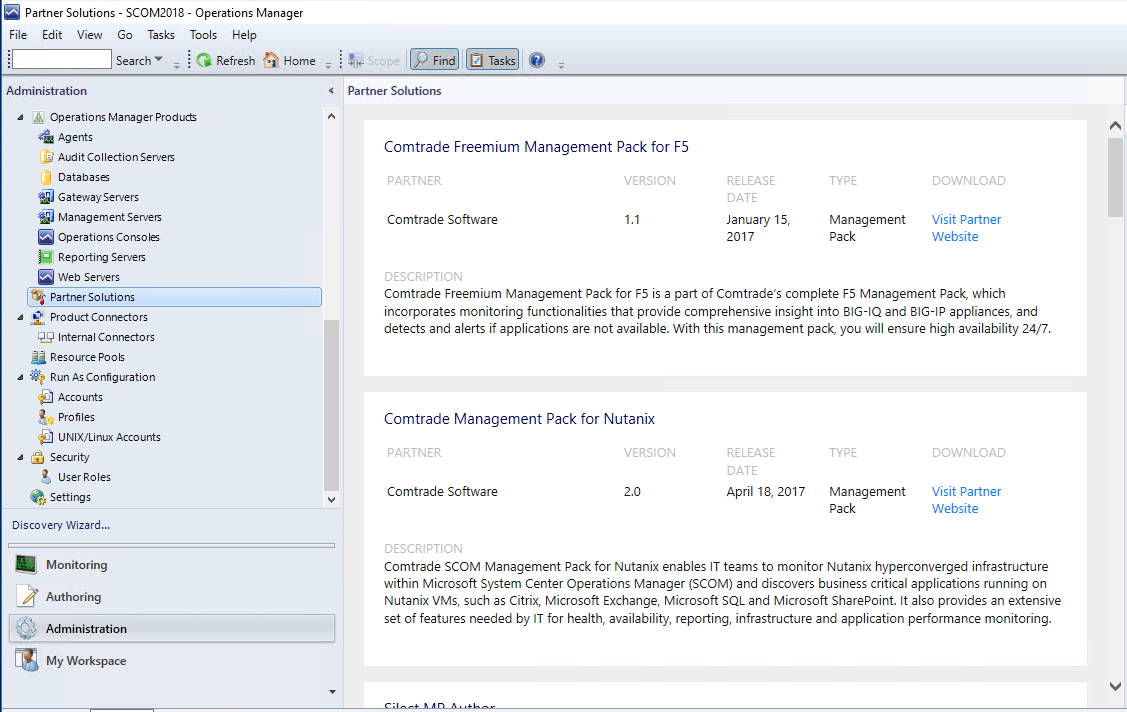
Partner Solutions

Cool!

Silect MP Author, Comtrade, Nutanix, Veeam, Infront, ClearPointe, Backbone

Lync 2013 Addendum Management Pack

Continuing the Addendum tradition 🙂 Lync couldn’t be forgotten.


To understand options and methods available on the Server and SCOM, re-read the Active Directory Addendum blog


Lync 2013

Now that we understand the methods available, let’s get to the Addendum.


The Addendum pack has 32 Recovery Tasks for Lync Service Monitors.


The recoveries cover the following services:

Access Edge, CMS Master, File Transfer Agent, Lync Backup Service, Push Notification Service, Replica Replicator Agent, Online Telephony Conferencing, Audio Video Conferencing, BI Data Collector, Conferencing Attendant, Conferencing Announcement, Application Sharing, Persistent Chat, Persistenc Chat Compliance, Centralized Logging Service Agent, Call Park, Web Conferencing, Web Conferencing Edge, IM Conferencing, Legal Intercept Service, Log Retention Service, Audio Video Edge, Mediation, Audio Video Authentication, Bandwidth Policy Service Authentication, Bandwidth Policy Service Core, Server Response Group, Front End Service, World Wide Web Publishing, XMPP Translating Gateway, XMPP Translating Gateway Proxy.

The recovery tasks verify service state, start ‘not running’ services, and include the option to recalculate health.


My goal is automation that helps anyone work smarter versus harder, with the goal to avoid being woke up at 2am just to restart a service.


Gallery Download          https://gallery.technet.microsoft.com/Lync-2013-Addendum-2a92aa00

Skype for Business 2015 (SfB) Addendum Management Pack


Continuing the Addendum tradition 🙂 Skype was next on the list.


To understand options and methods available on the Server and SCOM, re-read the Active Directory Addendum blog


Skype for Business 2015 (SfB)

Now that we understand the methods available, let’s get to the Addendum.

This Skype Addendum MP adds Recovery Tasks to the Skype for Business 2015 Service Monitors.

The recovery tasks verify service state, start ‘not running’ services, and recalculate health.

36 services monitored, with 36 recovery tasks.

The recovery tasks verify service state, start ‘not running’ services, and include the option to recalculate health.


My goal is automation that helps anyone work smarter versus harder, with the goal to avoid being woke up at 2am just to restart a service.


Gallery Download      https://gallery.technet.microsoft.com/Skype-for-Business-2015-b005f49f


Active Directory 2012-2016 Addendum Management Pack

A Post-it note is like an addendum, no?


As an Operations engineer, how many times do you get notified for a service restart?


Did you know about Service Recovery actions, or SCOM Recovery Tasks?


Why didn’t the SCOM Recovery tasks get added to many of the common Microsoft Applications?


Hopefully today, we can discuss some actions to help limit the amount of manual rework required to resolve service issues.


Let’s explain the basics

  1. Windows Servers have a Recovery tab in the Services.msc menu.
  2. Does your monitoring tool allow for recovery actions?


To implement recovery actions, here’s an example of the Services Recovery Tab

Here’s an example of the SCOM agent service

          NOTE 3 failures spaced 1 minute apart to restart the service


Let’s take it one step further, and add a restart to the service from another tool (insert your monitoring tool here).


In SCOM, taking an action after identifying the problem can be handled different ways

  • Services are related to Health, which are typically found as monitors, and to apply restart automation falls into Recovery Tasks.


  • In Monitors as a ‘Recovery Task’, or in Rules as a response

  • Rule Response


Active Directory Domain Services (AD DS)

Now that we understand the methods available, let’s get to the Addendum.

The Active Directory Domain Services Addendum MP will add Recovery tasks to AD DS Service Monitors.

NOTE: This is for the newer v10.0.x.y management packs that support AD DS 2012-2016


Specifically, the Pack has 12 Recovery tasks for DFS, NTDS, DFSR, IsmServ, KDC, NetLogon, NTFRS, W32Time, Group Policy, DNS Client, ADWS, and DNS.


The recovery tasks verify service state, start ‘not running’ services, and include the option to recalculate health.


My goal is automation that helps anyone work smarter versus harder, with the goal to avoid being woke up at 2am just to restart a service.


Gallery Download      https://gallery.technet.microsoft.com/SCOM-AD-Directory-Addendum-22d0473a


OpsMgr 1801 All in One – Quick Start Deployment Guide

Maybe you want to play with the new SCOM version like me?


Following Kevin Holman’s Quick Start Deployment Guide for SCOM 2016, build out an All in One


High Level Deployment Process:

1.  In AD,  note the ID’s and groups used for Operations Manager for the technical preview

2.  Install Windows Server 2016 to all server role servers

3.  Install Prerequisites and SQL 2016.

4.  Install the Management Server and Database Components

5.  Deploy Agents

6.  Import Management packs

7.  Set up security (roles and run-as accounts)


Prerequisites:

1.  Install Windows Server 2016 on Server

2.  Join server to domain.

3.  Install the Report Viewer controls.  Install them from https://www.microsoft.com/en-us/download/details.aspx?id=45496

          NOTE If SQL is installed on the MS (remember All in One server) 

          “Microsoft System CLR Types for SQL Server 2014” (ENU\x64\SQLSysClrTypes.msi) is not needed. 

SQL SysClrTypes available here:   https://www.microsoft.com/en-us/download/details.aspx?id=42295

4.  Install all available Windows Updates.

5.  Add the “OMAdmins” domain global group to the Local Administrators group on each server.

6. Install IIS on any management server that will also host a web console:

Open PowerShell (as an administrator) and run the following:

Add-WindowsFeature NET-WCF-HTTP-Activation45,Web-Static-Content,Web-Default-Doc,Web-Dir-Browsing,Web-Http-Errors,Web-Http-Logging,Web-Request-Monitor,Web-Filtering,Web-Stat-Compression,Web-Mgmt-Console,Web-Metabase,Web-Asp-Net,Web-Windows-Auth –Restart

Note:  The server needs to be restarted at this point, even if you are not prompted to do so.  If you do not reboot, you will get false failures about prerequisites missing for ISAPI/CGI/ASP.net registration.


7. Install SQL 2016 to the server

  • Setup is fairly straightforward. This document will not go into details and best practices for SQL configuration. Consult your DBA team to ensure your SQL deployment is configured for best practices according to your corporate standards.
  • Run setup, choose Installation > New SQL Server stand-alone installation…


When prompted for feature selection, install ALL of the following:

  • Database Engine Services
  • Full-Text and Semantic Extractions for Search
  • On the Instance configuration, choose a default instance, or a named instance. Default instances are fine for testing, labs, and production deployments. Production clustered instances of SQL will generally be a named instance. For the purposes of the POC, choose default instance to keep things simple.
  • On the Server configuration screen, set SQL Server Agent to Automatic.  You can accept the defaults for the service accounts, but I recommend using a Domain account for the service account.  Input the DOMAIN\sqlsvc account and password for Agent, Engine, and Reporting.  Set the SQL Agent to AUTOMATIC.
  • On the Collation Tab – accept the default which is SQL_Latin1_General_CP1_CI_AS
  • On the Account provisioning tab – add your personal domain user account and/or a group you already have set up for SQL admins. Alternatively, you can use the OMAdmins global group here. This will grant more rights than is required to all OMAdmin accounts, but is fine for testing purposes of the POC.
  • On the Data Directories tab – set your drive letters correctly for your SQL databases, logs, TempDB, and backup.
  • Choose Install, and setup will complete.
  • You will need to disable Windows Firewall on the SQL server, or make the necessary modifications to the firewall to allow all SQL traffic.  See http://msdn.microsoft.com/en-us/library/ms175043.aspx
  • When you complete the installation – you might consider also downloading and installing SQL Server Management Studio Tools from the installation setup page, or https://msdn.microsoft.com/en-us/library/mt238290.aspx


SCOM Step by step deployment guide:


1.  Install the Management Server role on SCOM1.

  • Log on using your personal domain user account that is a member of the OMAdmins group, and has System Administrator (SA) rights over the SQL instances.
  • Run Setup.exe

  • Click Install


  • Select the following, and then click Next:
    • Management Server
    • Operations Console
    • Web Console


  • Accept or change the default install path and click Next.


  • You might see an error from the Prerequisites here. If so – read each error and try to resolve it.


  • On the Proceed with Setup screen – click Next.


  • On the specify an installation screen – choose to create the first management server in a new management group.
  • Give your management group a name. Don’t use any special or Unicode characters, just simple text.
  • KEEP YOUR MANAGEMENT GROUP NAME SIMPLE, and don’t put version info in there.
  • Click Next.


  • Accept the license.  Next.


  • On the Configure the Operational Database screen, enter in the name of your SQL database server name and instance.
  • In my case this is “18MSB01”.
  • Leave the port at default unless you are using a special custom fixed port.
  • If necessary, change the database locations for the DB and log files.
  • I changed the default size to 5000 MB for now.
  • Click Next.


  • On the Configure the Data Warehouse Database screen, enter in the name of your SQL database server name and instance.
  • In my case this is “18MS01”.
  • Leave the port at default unless you are using a special custom fixed port.
  • If necessary, change the database locations for the DB and log files.
  • I changed the default size to 5000 MB. Click Next.


  • On the Web Console screen, choose the Default Web Site, and leave SSL unchecked. If you have already set up SSL for your default website with a certificate, you can choose SSL.  Click Next.


  • On the Web Console authentication screen, choose Mixed authentication and click Next.


  • On the accounts screen, change the accounts to Domain Account for ALL services,
  • Enter in the unique DOMAIN\OMAA, DOMAIN\OMDAS, DOMAIN\OMREAD, DOMAIN\OMWRITE
  • accounts we created previously.
  • It is a best practice to use separate accounts for distinct roles in OpsMgr
  • Although you can also just use the DOMAIN\OMDAS account for all SQL Database access roles to
  • simplify your installation (Data Access, Reader, and Writer accounts).
  • Click Next.


  • On the Diagnostic and Usage Data Click Next


  • Microsoft Update screen – choose to use updates or not.  Click Next
  • Click Install


  • Watch Installation progress


  • After a few minutes, when installation completes
  • Close when complete.


  • The Management Server will be very busy (CPU) for several minutes after the installation completes. Before continuing it is best to give the Management Server time to complete all post install processes, complete discoveries, database sync and configuration, etc. 10 minutes is typically sufficient.


Verify Console

Login to Management Group


Import Management Packs

Import your preferred management packs


Continue with Optional Activities


Verify any errors in the Operations Manager Event logs

Note the Maintenance permissions is still an issue

Operations Manager Event logs


SCOM 1801 dashboards (previously 1711)

Here dashboard dashboard <dong>

Come out, come out wherever you are!


Looking at SCOM dashboards in the new Technical Preview had me wondering.

I was totally excited after Ignite for System Center v.Next…

          Start at 16:34 in video – BRK1023 https://myignite.microsoft.com/videos/54778


Found the documents before I found the actual widgets

HTML5 overview https://docs.microsoft.com/en-us/system-center/scom/manage-overview-html5-webconsole?view=sc-om-1801

What’s new in 1801 https://docs.microsoft.com/en-us/system-center/scom/what-is-new-1801?view=sc-om-1801

Release Notes https://docs.microsoft.com/en-us/system-center/scom/release-notes-1801?view=sc-om-1801


What’s new in 1711 https://docs.microsoft.com/en-us/system-center/scom/what-is-new-1711?view=sc-om-1711

Release notes https://docs.microsoft.com/en-us/system-center/scom/release-notes-tp1711?view=sc-om-1711


We have lots of widgets to choose from


Unfortunately, the SQL MP visualizations are not yet HTML5 🙁


Web Console, well, okay, I can play


Alert Widget

Scope – Setup for a group or class (my example is All Windows Computers group, could be SQL Servers, SharePoint Servers, etc.)

Criteria – Selected Severity = Warning or Critical, changed Alert age to 1 day (default was 7)

Display – No changes made

Select Columns to display – looks like all the console options when you click on ‘Personalize view’

Group by – Last modified was selected


Completion  Click on Save Widget

Saving widget


Alert Widget


State Widget

Scope – Setup for a group AND class (my example is All Windows Computers group, could be SQL Servers, SharePoint Servers, etc.)

Criteria – Selected Severity = Warning or Critical

Display

Selected 4 columns  (Health, Display Name, Path, Principal Name )

Group by – Health

Completion – Named widget and added Description

Click on Save Widget


Saved State Widget (NOTE no unhealthy windows computers)


Performance Widget

Scope – Setup for a group AND class (my example is SQL Server Computers, could be All Windows Computers, or SharePoint Servers, etc.)

Metrics – Use filter by keyword

Search string = Memory

Selected = Stolen Server Memory

Criteria – Time Range default is 24 hours

Recommend dropping time to 1-4 hours to display less data

Display

Left Default

See difference, checkbox is counter intuitive (uncheck gives visual graph)

Completion – Named widget and added Description

Click on Save Widget

Performance Widget (visualizations check box checked, NOTE NO visual)


Performance Widget (visualizations check box UN-checked)


Tile Widget

Simple, can setup for a group or class

Click on Save Widget


Topology Widget

Gotta have a little fun, right!?

Click on Save Widget


Tile and Topology Dashboards


Now let’s continue this further next week!

SCOM 1711 – Technical Preview for upcoming 1801

If you’re not aware, System Center will start doing 6 month releases, and will be YYDD named


Example 

SCOM released in Jan 2018 is 1801, then 180x, 190x, etc.

Technical previews will also exist prior (currently 1711 – the technical preview for 1801).


Register for Technical Preview

Evaluate and download https://www.microsoft.com/en-us/evalcenter/evaluate-system-center-release

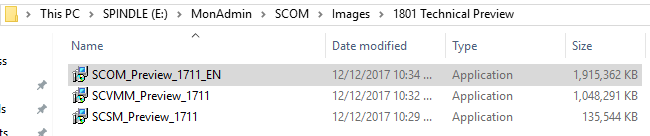
Save appropriate product(s)


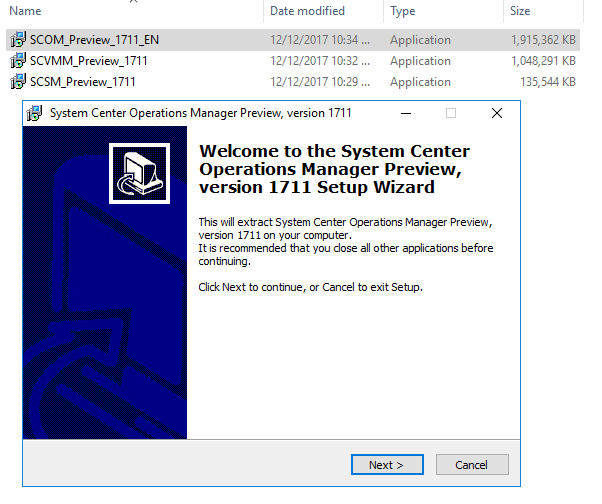
Extract for ISO files

Go to path where files were saved


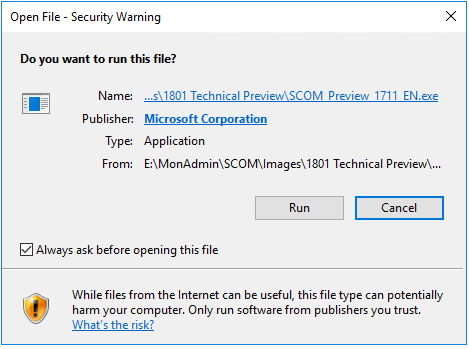
Double click on file to extract


Click on Run to run the file


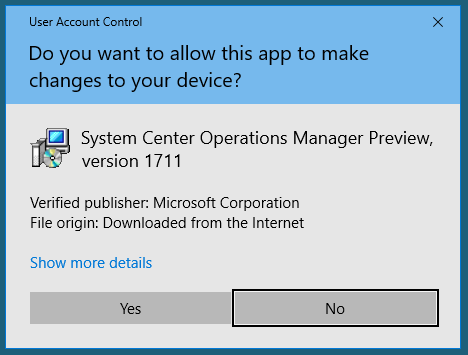
Answer Yes to UAC prompt

Click ‘I accept for EULA


Click Next to begin the setup wizard

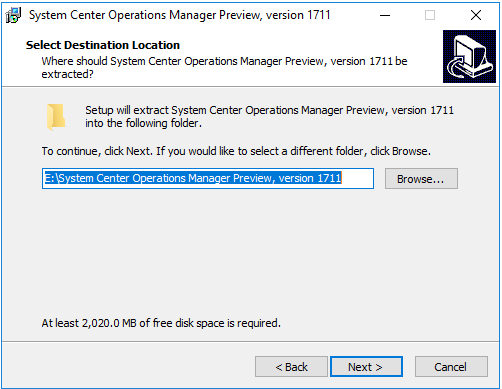
Select Path to save file

Click Next


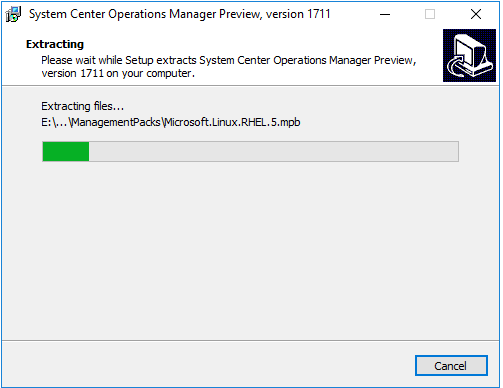
File extract completes


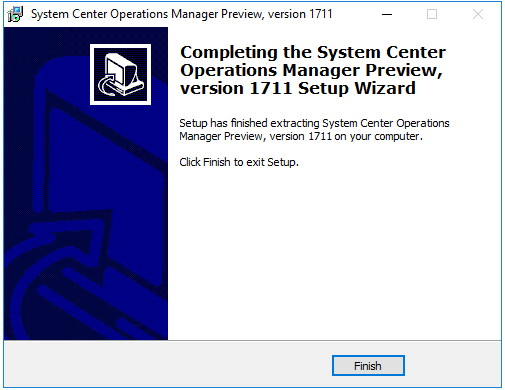
Click Finish


Looks like SCOM ISO


Now it’s time to grab Holman’s quick start guide and set up new servers for 1801 management group (if you don’t already have the steps down pat!)


Logical Disks Dynamic Group

So what do you do when a team comes to you and asks for different values for logical disk alerts?


Work smarter vs. harder!


Harder

Use Explicit groups

As an Admin, someone should not have to update groups every time a server or app changes in the environment.


Smarter

Use Dynamic groups

One better, use regular expressions (see Kevin Holman’s blog if you need a refresher)


Great background information

Holman had a great article to make groups of logical disks

TechNet had some good example references in this wiki

Forum article where John Joyner (MVP) listed a way to make a dynamic group

Groups can consist of objects in a primary class and also includes Windows Computer attribute


How can this apply to  your environment?

Is there a unique attribute for the class you’ve chosen, or possibly to include Windows Computer class properties?

In my experience, the Windows Computer Class can be utilized to better specify the criteria, using Principal Name, NetBIOS name, etc.)


Let’s begin to see walk through the Logical Disk class attributes, and understand that we can look at the class, and the Windows Computer class.


From the SCOM Console

Click on the Monitoring Tab

Click on Discovered Inventory

On the Tasks pane (right hand pane), click on change target type

I chose Windows Server 2016 Logical Disk (corresponding for 2008,12 class structures exist)


Are there any unique class/object properties where we can differentiate?

Path stands out, possibly size

Display Name/Device Identifier/Device Name are of course the drive letter


Create a Dynamic group

From the SCOM Console

Click on the Authoring Tab

Click on Groups

On Task pane, click on ‘Create New group’


Name the group

Recommend naming convention – my example is TEAM Logical Disk group (where TEAM could be SQL, SharePoint, Exchange, Skype, etc.)

Don’t forget to add description comments to help the next guy who’s tracking down details!

Create Management pack, or add to the Team’s overrides or customizations management pack.


Click Next twice (to get to Dynamic Members tab)

Click Create/Edit Rules


Choose class

Our example was ‘Windows Server 2016 Logical Disk’

Click Add


Click the Property Drop down


Note the options – and refer back to your notes in the Discovered Inventory from the Monitoring Tab

The three D’s in the middle – Device Identifier, Device Name, and Device Description were all the drive letter

I chose Device Name as it seemed the logical choice


Click Insert + to add another property

Click again on the Class properties

Select the bottom choice – (Host=Windows Computer)

Select Principal name

In my case, the servers met a specific naming convention for the server name


In the Operator Column, choose ‘Matches regular expression’

In the Value field, enter your regular expression


My example is (?i)16[md]

Go back to my Discovered inventory output


Dissect the regular expression

(?i) case inclusive (don’t care upper or lower case – back to Unix roots!)

16m or 16d is in the server name


Click OK

Click Next twice to create group (and bypass Sub Groups, Excluded Members)

Click Create Group

Click Close


Verify expression

From the Authoring pane

Click on the Group and either right click ‘View Group members’, or in the task pane, click ‘View Group members’

Practice using regular expressions to get the desired results!


Now it’s time to go off and override the monitor for the newly created group!


OMS/Advisor Event ID 55002


This article is written for the Gateway CommunicationSecurityException event

At first I thought maybe this was TLS1.2 enabling, but backed off the change, the events kept pouring in every 5 minutes.

Tried to reconfigure the OMS/Advisor environment, and voila! Error resolved


Let’s go through the steps to re-configure the Operations Management Suite (OMS) in SCOM


Reconfigure OMS

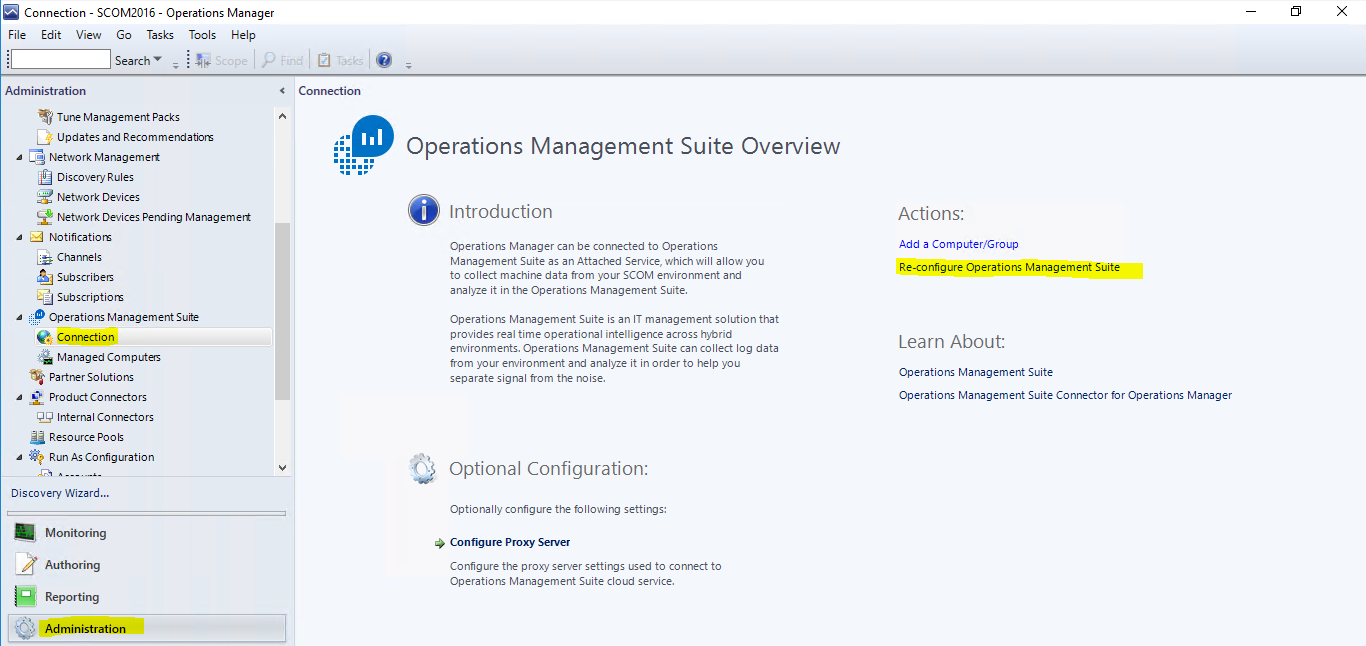
  1. From the SCOM Console, click on Administration tab
  2. Expand Operations Management Suite (Advisor on 2012R2)
  3. Click on the Connection
  4. On the center pane, click on Re-configure Operations Management Suite


5. Add any trusted sites to IE if there are pop-ups

I had 2 missing websites

Secure.aadcdn.microsoftonline-p.com

az416426.vo.msecnd.net

( I hit Previous and next to verify the wizard would pass with the hopes the attempt would retry)

6. Exit the Reconfigure wizard to get a retry (then the second website popped up as an untrusted site)

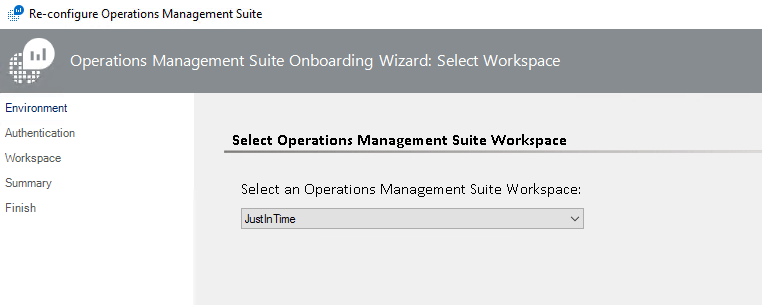
7. Enter credentials to your OMS environment


Connection to OMS successful


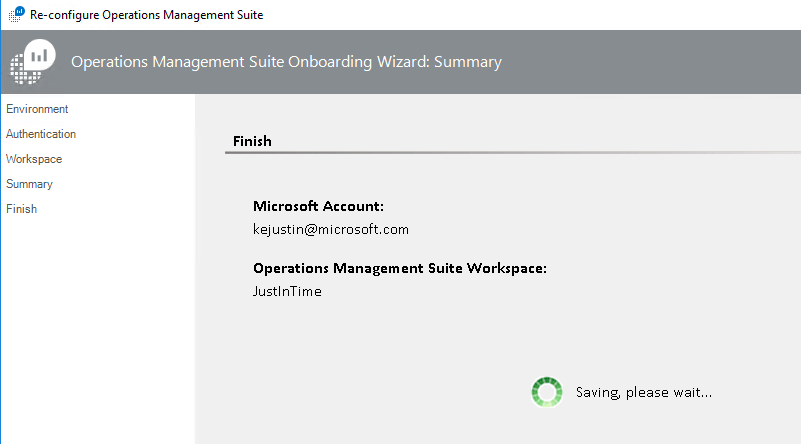
Click Next twice

Reconfigure success

Click Close


Verify Event Log

Verify Operations Manager Event Log has no new events (this check runs every 5 minutes by default)

get-eventlog -logname “Operations Manager” | ? { $_.EventID -match 55002 } | select-object -last 2


Event ID 55002 from Operations Manager Event Log

Log Name:      Operations Manager
Source:        Advisor
Date:          12/11/2017 2:15:20 PM
Event ID:      55002
Task Category: None
Level:         Warning
Keywords:      Classic
User:          N/A
Computer:      16MS01.testlab.net
Description:
Failed to synchronize the latest Management Package information from Advisor Cloud service. Wait for the next cycle to retry. Reason: Microsoft.SystemCenter.Advisor.Common.WebService.GatewayCommunicationSecurityException: Message security was invalid for the connection with web service when performing Get Intelligence Packs with client specified versions —> System.ServiceModel.Security.MessageSecurityException: An unsecured or incorrectly secured fault was received from the other party. See the inner FaultException for the fault code and detail. —> System.ServiceModel.FaultException: ID3242: The security token could not be authenticated or authorized.
— End of inner exception stack trace —

Server stack trace:
at System.ServiceModel.Channels.SecurityChannelFactory`1.SecurityRequestChannel.ProcessReply(Message reply, SecurityProtocolCorrelationState correlationState, TimeSpan timeout)
at System.ServiceModel.Channels.SecurityChannelFactory`1.SecurityRequestChannel.Request(Message message, TimeSpan timeout)
at System.ServiceModel.Dispatcher.RequestChannelBinder.Request(Message message, TimeSpan timeout)
at System.ServiceModel.Channels.ServiceChannel.Call(String action, Boolean oneway, ProxyOperationRuntime operation, Object[] ins, Object[] outs, TimeSpan timeout)
at System.ServiceModel.Channels.ServiceChannel.Request(Message message, TimeSpan timeout)

Exception rethrown at [0]:
at System.ServiceModel.Security.IssuanceTokenProviderBase`1.DoNegotiation(TimeSpan timeout)
at System.ServiceModel.Security.IssuanceTokenProviderBase`1.GetTokenCore(TimeSpan timeout)
at System.IdentityModel.Selectors.SecurityTokenProvider.GetToken(TimeSpan timeout)
at System.ServiceModel.Security.Tokens.IssuedSecurityTokenProvider.GetTokenCore(TimeSpan timeout)
at System.IdentityModel.Selectors.SecurityTokenProvider.GetToken(TimeSpan timeout)
at System.ServiceModel.Security.SecurityProtocol.TryGetSupportingTokens(SecurityProtocolFactory factory, EndpointAddress target, Uri via, Message message, TimeSpan timeout, Boolean isBlockingCall, IList`1& supportingTokens)
at System.ServiceModel.Security.TransportSecurityProtocol.SecureOutgoingMessageAtInitiator(Message& message, String actor, TimeSpan timeout)
at System.ServiceModel.Security.TransportSecurityProtocol.SecureOutgoingMessage(Message& message, TimeSpan timeout)
at System.ServiceModel.Security.SecurityProtocol.SecureOutgoingMessage(Message& message, TimeSpan timeout, SecurityProtocolCorrelationState correlationState)
at System.ServiceModel.Channels.SecurityChannelFactory`1.SecurityRequestChannel.Request(Message message, TimeSpan timeout)
at System.ServiceModel.Dispatcher.RequestChannelBinder.Request(Message message, TimeSpan timeout)
at System.ServiceModel.Channels.ServiceChannel.Call(String action, Boolean oneway, ProxyOperationRuntime operation, Object[] ins, Object[] outs, TimeSpan timeout)
at System.ServiceModel.Channels.ServiceChannelProxy.InvokeService(IMethodCallMessage methodCall, ProxyOperationRuntime operation)
at System.ServiceModel.Channels.ServiceChannelProxy.Invoke(IMessage message)

Exception rethrown at [1]:
at System.Runtime.Remoting.Proxies.RealProxy.HandleReturnMessage(IMessage reqMsg, IMessage retMsg)
at System.Runtime.Remoting.Proxies.RealProxy.PrivateInvoke(MessageData& msgData, Int32 type)
at Microsoft.AttachedServices.WebService.IIntelligenceService.GetIntelligencePacksInfo(ClientProperties clientProperties)
at Microsoft.SystemCenter.Advisor.Core.WebService.WebServiceCallHelper.CallWebService[T](Func`1 webServiceCall, String webServiceDescription)
— End of inner exception stack trace —
at Microsoft.SystemCenter.Advisor.Core.WebService.IntelligenceServiceClient.CallWebServiceWithRetry[T](Func`2 function)
at Microsoft.SystemCenter.Advisor.Core.WebService.IntelligenceServiceClient.GetIntelligencePacksInfo(ClientProperties clientProperties)
at Microsoft.SystemCenter.Advisor.Core.IntelligencePackWriteAction.UpdateIntelligencePacks()

Ruling out SCOM as the cause of SCHANNEL events


Ruling out SCOM notifications as the cause of SCHANNEL events


Still getting SCHANNEL error events and want to rule out SCOM

Management pack SQL events https://kevinjustin.com/blog/2017/11/08/sql-native-client-for-tls1-2/

SCHANNEL ciphers debugged https://kevinjustin.com/blog/2017/11/08/schannel-event-logging/


What command Channels are setup for notifications?


Validate Subscriptions aren’t the cause for email/text

Exchange 2013 and above typically use S/MIME to digitally sign/encrypt messages


Email communication can cause System 36871 events https://support.microsoft.com/en-us/help/305088/schannel-error-message-36871-when-receiving-an-ehlo-smtp-command

Do the events correlate with emailed alerts?
Tracing Notifications http://blog.scomskills.com/enable-tracing-of-the-notification-component-om07/


SCOM ETL traces

Run traces on suspect MS

2012R2 MS (adjust drive letter according to drive SCOM install)
cd “D:\Program Files\Microsoft System Center 2012 R2\Operations Manager\Server\Tools”
2012R2 GW (adjust drive letter according to drive SCOM install)
cd “C:\Program Files\System Center Operations Manager\Gateway\Tools”
2016 MS
cd ‘C:\Program Files\Microsoft System Center 2016\Operations Manager\Server\Tools\’

# Stop Tracing
 .\StopTracing.cmd
# Clean up old files
remove-item C:\windows\Logs\OpsMgrTrace\*


# Start Traces

StartTracing.cmd VER

TraceLogSM.exe -stop TracingGuidsNative

TraceLogSM.exe -stop TracingGuidsUI


# Wait until notification fires and validate if 36871 SCHANNEL event ID is logged

# Stop and format the trace
 .\StopTracing.cmd
 .\FormatTracing.cmd

# Review txt files from C:\windows\Logs\OpsMgrTrace