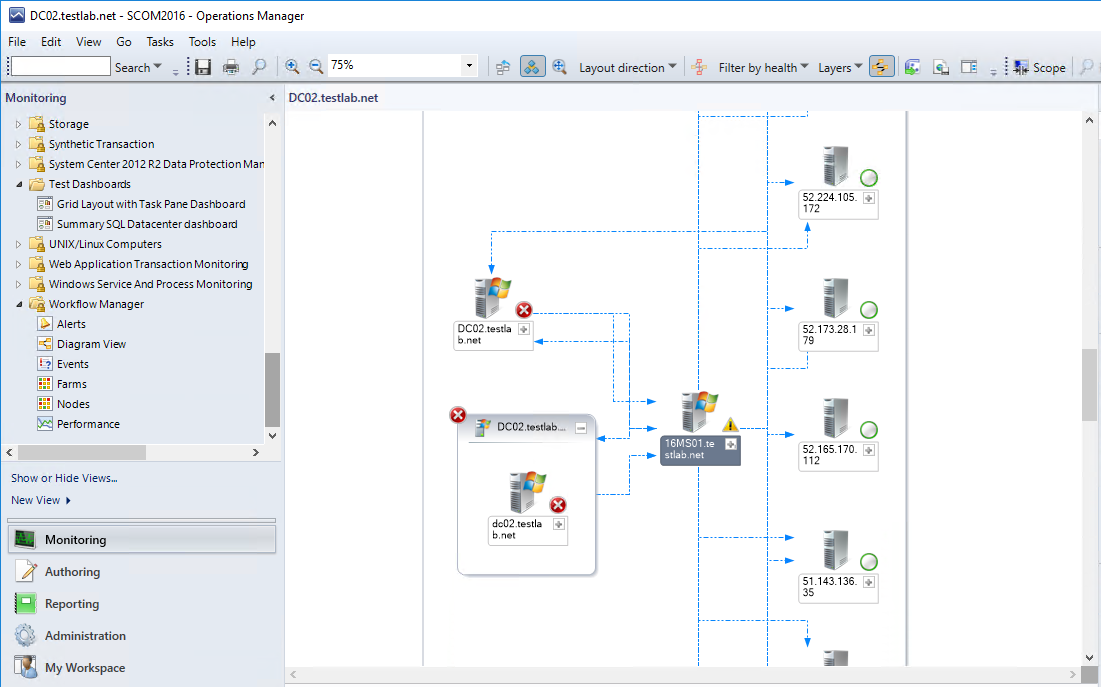
Service Map SCOM pack errors and events

Running Service Map SCOM management pack and getting errors?


Gotta love holidays

Good family time

Not at work if we’re lucky.

When you come back, do you have to go investigate some new/weird errors?


This was one of those holidays for me 🙂


Figured I’d document SCOM errors, indicate what Event Sources, event ID ranges that aid troubleshooting.


Event Source = MS ServiceMap OMS

Event ID range = 46649-46652


Long story short, the root cause for my case, my azure workspace was disabled (fun part with a lab is trying to see how much you can do before it disables!)


Digging in my inbox, found this over the weekend

Email subject: Your services were disabled because you reached your spending limit


SCOM Alerts seen:


Service Map Unknown Exception


SCOM Console alert example


Cause:    May point to Network Connectivity, proxy, or subscription disabled

REST request failed, so did name resolution (may indicate DNS issues)


Rule details

Operations Manager Event Log

Event Source = MS ServiceMap OMS

Event ID 46651


Operations Manager Event log


No Machines Alert

Rule Name = Microsoft System Center ServiceMap No Machines Alert

Event Source = MS ServiceMap OMS

Event ID = 46652

Event ID also seen is 46649 – Error in getting machine details


SCOM Console alert


Event ID 46649


Service Map for SCOM


Ever compare your work to an amusement park?

Every business application compares to a ride, roller coaster, or even a kiddie ride.

Anyone ever ask you directions to that ride, or more technical based questions like ‘what’ communication makes up that business application?


In comes Service Map to save the day!


Last year I blogged about setting up Service Map with OMS/Log Analytics, but I didn’t get the feature installed for SCOM.

December blog on how to set up OMS/Log Analytics


It’s basically the SCOM Agent (MMA) and a Dependency Agent (think old Blue Stripe agent)


Excited to see the new Service Map to hit public preview, hoping by September


Check out the blog series

Planning and PreReqs blog
Install and configure MMA agent blog
Dependency agent blog

Set up Azure Service Principal blog
Set up SCOM Management Group blog


Service Map – Setting up SCOM management group


It’s time to get my SCOM MG running Service Map

Nothing like seeing what an application actually does, mapping ports a server is using, and who the server talks to!

From the docs site – https://docs.microsoft.com/en-us/azure/monitoring/monitoring-service-map-scom


Download Management Pack

Let’s start with the pack download

Download Management Pack


Install Management pack

Choose your preference

PowerShell (as admin)

Import-SCOMManagementPack -FullName “S:\monadmin\backup\$date”

In case you need help – TechNet article


Lab Example

Import-SCOMManagementPack -FullName “S:\MonAdmin\SCOM\Management packs\Service Map – Blue Stripe for SCOM – OMS\v1.0.0.6\Microsoft.SystemCenter.ServiceMap.mpb”


Import via SCOM Console


Configure the Service Map integration

In SCOM Console, click on Administration Tab

Navigate to the Operations Management Suite, and expand for the Service Map selection


Click ‘Add workspace’

Paste in your Tenant ID, Application ID, and Service Principal Key that you set up prior

Click Next


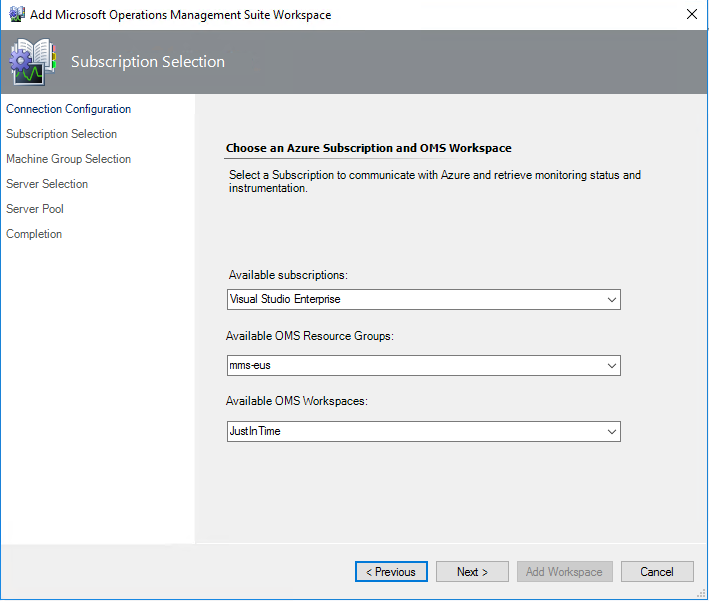
Verify Workspace Information
Click Next


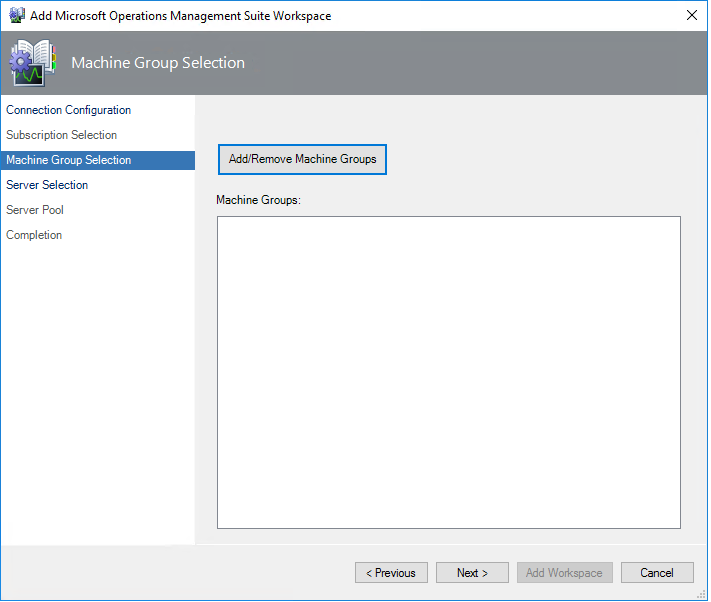
Two options – if you don’t have any Windows Computer based groups in your MG, skip down to Server Selection


If there are Machine Groups to add, click ‘Add/Remove’


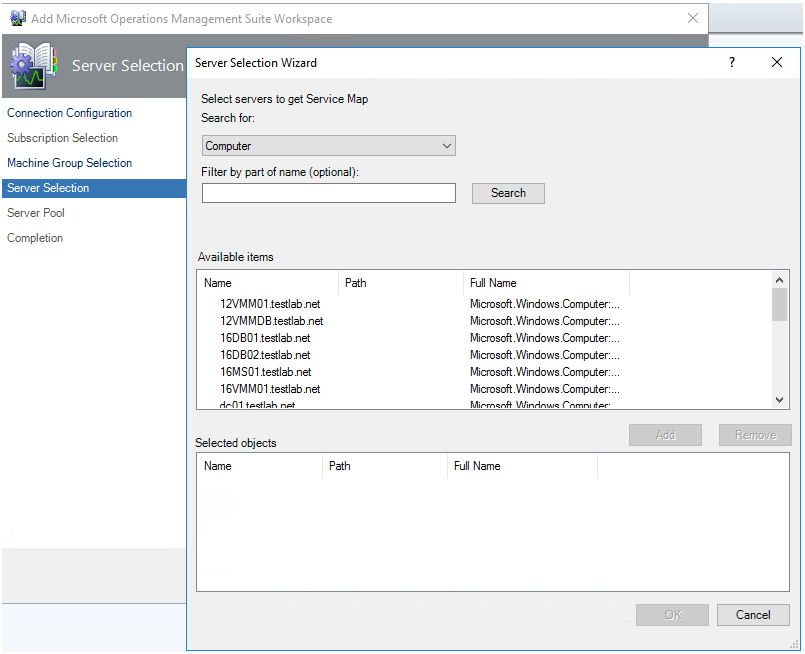
Click Next to select individual servers

Click Add

Click OK to close window


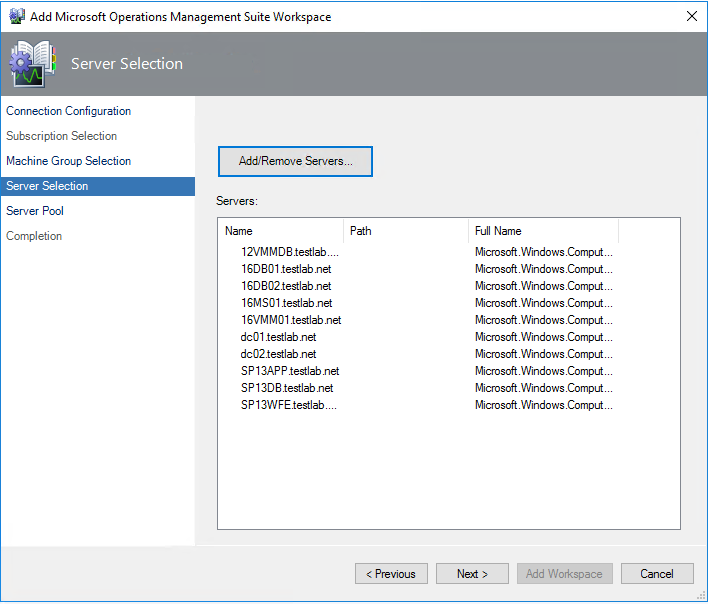
Click Next to move to next window


NOTE

  • Speed to fetch information is based on a rule see docs site
  • In the Server Selection window, you configure the Service Map Servers Group with the servers that you want to sync between Operations Manager and Service Map. Click Add/Remove Servers.

For the integration to build a distributed application diagram for a server, the server must be:

  • Managed by Operations Manager
  • Managed by Service Map
  • Listed in the Service Map Servers Group


From <https://docs.microsoft.com/en-us/azure/monitoring/monitoring-service-map-scom>


Setup proxy if needed

Click Add Workspace


Use Service Map

Time to Use the tool – https://docs.microsoft.com/en-us/azure/monitoring/monitoring-service-map


Verifying Servers specified in Service Map

Verify group

SCOM Console > Authoring Tab > Groups

Look for > Service Map

View Group members or look at Explicit tab


Troubleshooting

On Management Server (MS), Operations Manager Event log

PowerShell

get-eventlog -logname “Operations Manager” -newest 25


# This command will help if you get stuck on the workspace

get-eventlog -logname “Operations Manager” -Source “Operations Manager” -newest 25 | ? {$_.eventID -eq 6400 } |fl


GUI

Filter by Error,Warning


Updated Skype for Business 2015 (premise) Addendum MP

Updated and completed for Company Knowledge!


Many thanks to Nick Wood for his help deciphering user impact for these alerts.

Reach out to Nick on LinkedIn


This has been an arduous effort to complete the Skype alerts and components.


Gallery Download


It’s taken a few steps along the way, to get all the content delivered.


To read the whole Skype Addendum journey, please read these additional blog posts
June blog
January blog


The initial Addendum pack with just service recoveries and Azure overrides

Old pack https://gallery.technet.microsoft.com/Skype-for-Business-2015-b005f49f
This download disabled Azure, set service recovery tasks


The new Gallery download contains the following:

Skype SCOM Alerts.xls
Microsoft.LS.2015.Monitoring.ComponentAndUser.Addendum.xml
Microsoft.SystemCenter.Notifications.Internal.xml
Skype.for.Business.Server.Management.Pack.Alert.Grooming.xml


NOTE The Skype.for.Business.Server.Management.Pack.Install.txt file contains the information as well


#############################################################
#
# Breakdown of files
#
#############################################################

#
# Skype SCOM Alerts.xls
# Skype SCOM Alerts XLS is is MP Export excerpt formatted for XLS workbook
#
# Feel free to search this file

# Column D is ‘Escalate to Who’
# This has values as SCOM Engineering, Messaging Ops, Telephony, Messaging Engineering
# Column E is impact
# This has values: P3-P5, *Email
# Column F is the Display String for the monitor
# Column H has the User Impact, Cause, and Troubleshooting steps


#
# Microsoft.LS.2015.Monitoring.ComponentAndUser.Addendum.xml
# Addendum management pack sets up company knowledge tab for each Skype monitor, with actionable troubleshooting steps.
#


#
# Microsoft.SystemCenter.Notifications.Internal.xml
#

# Backup the current MP first, and merge if you are adding this to your environment!
# Use this pack cautiously, as it will replace existing Channels, subscribers, subscriptions.

# On Management server, open PowerShell window as Admin
#
# cd <path>
# Example

cd $HOME/desktop
Get-SCOMManagementPack -Name *Notification* | export-SCOMmanagementpack  -path “C:\”

Copy-item .\Microsoft.SystemCenter.Notifications.Internal.xml .\Original-<CompanyName>-Microsoft.SystemCenter.Notifications.Internal.xml


# Save the bundled Notifications pack to the same path

# YES it’s that important, the file can eliminate any alerts leaving SCOM!
#
# Save file to local drive

# Follow MP Fragment authoring if you need to merge existing Notifications with Skype pack
# https://kevinholman.com/2016/06/04/authoring-management-packs-the-fast-and-easy-way-using-visual-studio/
#

#
# Skype.for.Business.Server.Management.Pack.Alert.Grooming.xml
#
# This file is to set alerts per the XLS, making warnings for P4,P5, email, and P3 for Critical

#
#############################################################


Skype for Business 2015 (premise) Addendum MP

Ever try to figure out a Skype alert, for which server in the pool(s) is failing?


While maybe not the clearest to find root cause, the Skype pack brings a bunch of functionality, including synthetic transactions.


I was lucky enough to collaborate with Nick Wood, Skype PFE, to help provide more detail, troubleshooting, impact on what is critical versus warning.


What the addendum pack brings

Do you think 656 monitors can all be critical?

  • Sets up service restart recovery tasks for all Skype services
  • Company Knowledge tab for troubleshooting/user impact


Gallery Download


Here is a visual of our Skype efforts for integrating troubleshooting details into SCOM console.

NOTE:  Company Knowledge tab would be accessible from the alert as well


Company Knowledge

SCOM Console, Authoring tab, Dispatcher Queue monitor

Highlight monitor, right click, choose properties

Click on ‘Company Knowledge’ tab

Incorporated the XLS into SCOM under Company Knowledge for additional information on user impact, causes, and troubleshooting (under resolutions)


Active Directory 2012-2016 Addendum packs updated

Man time flies!


Thought I’d share some new functionality for AD DS (Active Directory Domain Services)


Ran across some customer errors with AD Event ID 1084, which exists in the old 8321 pack, but not in the v10.x pack.

Well, if you get these errors, your DC isn’t replicating, and most likely will need to be rebuilt.


Gallery download


Broke out the packs to separate the Recovery Tasks in their own pack, versus added functionality in the addendum.

Figured better to send packs NOT sealed, so that meant 2 packs,

WYSIWYG (wizzy-wig acronym)


What this means

v1.0.0.1 pack had just the AD DS Service Recovery Tasks

v1.0.0.2 pack has a Service Recovery Tasks pack, and the Addendum pack

What I think is cool is that the Addendum pack contains 2 rules, simple rule event (enabled by default), and also a PowerShell rule.


Rule Figured out how to simply look for criteria, count it, and alert on it.

We always look for alert suppression, some of the sliding/counting monitors are too much.


Starting with Holman’s alerting rule fragment, we can create more powerful combinations than just a single symptom.

Using Variations of the get-date command, we can actually specify how far back to look, to count for alerts.

Easier method to count events, to figure out an alert threshold.


From the rule in the Addendum pack

# Check blog for more detail https://blogs.technet.microsoft.com/heyscriptingguy/2015/01/21/adding-and-subtracting-dates-with-powershell/
# If you want this in other time increments – AddHours, AddSeconds, AddMilliseconds
#
$LastCheck = (Get-Date).AddMinutes(-65)

[int]$TempCount = (get-eventlog -logName “Directory Service” -Source “NTDS Replication” -InstanceID 1084 -Message “*8451 The replication operation encountered a database error*” -After $LastCheck).Count

IF ($TempCount -ge 1)
{
$Result = “BAD”
$Message = “The number of 1084 Replication Database error events was greater than 1”
}
ELSE
{
$Result = “GOOD”
}


Maybe we need multiple event ID’s, or search multiple event logs… you decide, and let me know.


SQL MP bloat

Updated 25 Feb 2023


Ever wish alerts were like a wad of cash?

The more you solve, the more you make!


How about performance counter data?


The SQL management packs are awesome for visualizations, and provide a bunch of data.


Tim McFadden pointed out SQL Performance counters https://www.scom2k7.com/crazy-db-performance-collection-rules-in-the-sql-mps/

His blog brings up SQL MP Disk Latency performance counters.


His blog got me thinking about SQL DB and DB file design, where multiple DB files are on the same Drive, causes duplicate performance counters (SCOM workflows) on the agent, and will typically be one of the culprits for HealthService restarts.


SQL MP creates performance counters (per DB file, group, instance, engine)


Let’s start with how I figured out why all my money goes into storage.


Start in the SCOM console

Click on the Reporting Tab

Click on the ‘System Center Core Monitoring Reports’ folder

Double click on the Data Volume by Management Pack

View of SCOM report from console reporting tab

Select the timeframe (from, to)

Click Run

Data Volume MP selected


Reporting Data

I have 2 2016 DB’s and 1 2014 (SCVMM) database server monitored, and it’s 50% of my data volume!


Another example – had the DW shutdown for days

Data volume of SQL after


Did you know there are 60+ perf counter rules in 2012 alone, and nearly 200 in 2016?


How about an OFF pack, a management pack that turns off all the performance counter rules?

The monitors still exist for health, just no pretty performance graph, should you look.


Github repo link

Check out the Gallery post for download

TechNet gallery download


Zip file contains

  1.  OFF MP’s for 2008,2012,2014,2016
  2. XLS sheets to allow you to go to the SQL team and ask them what performance counters they use


2016 SQL SP1 patch issue

False alert?


If you have SQL2016 SP1 monitored in SCOM, you most likely have Compliance monitor warnings


This is actually a problem with SP1 where SQL did not update the registry key.


Two options to remedy:

  1. Disable SCOM monitor per instance (or class if SP1 is NOT in your environment)
  2. Fix the offending SQL Servers that are patched to SP1


Steps to fix the offending SQL Servers patched to SP1

Update Registry Key


Via PowerShell


TechNet forum is nice as well, but had to tweak it (blog listed here )


# Get Instance

$Instance = (Get-ItemProperty “HKLM:\SOFTWARE\Microsoft\Microsoft SQL Server”).InstalledInstance )

NOTE: If you have multiple instances, you will need a foreach loop

# Get Version

$Version = (Get-ItemProperty “HKLM:\SOFTWARE\Microsoft\Microsoft SQL Server\$((Get-ItemProperty ‘HKLM:\SOFTWARE\Microsoft\Microsoft SQL Server\Instance Names\SQL’).$Instance)\Setup”).Version

# Match Version and set Registry Key
if ($Version -match ‘13.1.4’)

{

Set-ItemProperty -Path “HKLM:\SOFTWARE\Microsoft\Microsoft SQL Server\$((Get-ItemProperty ‘HKLM:\SOFTWARE\Microsoft\Microsoft SQL Server\Instance Names\SQL’).$Instance)\Setup” -Name ‘SP’ -Value 1

}

# Verify

Get-ItemProperty -path “HKLM:\Software\Microsoft\Microsoft SQL Server\MSSQL13.MSSQLSERVER\Setup” | ft SP


Steps broken out


Get Registry Key value via PowerShell


Get-ItemProperty -path “HKLM:\Software\Microsoft\Microsoft SQL Server\MSSQL13.MSSQLSERVER\Setup” | ft SP


Set Registry Key


Set-ItemProperty -path “HKLM:\Software\Microsoft\Microsoft SQL Server\MSSQL13.MSSQLSERVER\Setup” -name “SP” -value 1


Verification

Verify via PowerShell


Verify via RegEdit


Reset SCOM Monitor


And the false alert is gone!

Lync 2013 Addendum Management Pack

Continuing the Addendum tradition 🙂 Lync couldn’t be forgotten.


To understand options and methods available on the Server and SCOM, re-read the Active Directory Addendum blog


Lync 2013

Now that we understand the methods available, let’s get to the Addendum.


The Addendum pack has 32 Recovery Tasks for Lync Service Monitors.


The recoveries cover the following services:

Access Edge, CMS Master, File Transfer Agent, Lync Backup Service, Push Notification Service, Replica Replicator Agent, Online Telephony Conferencing, Audio Video Conferencing, BI Data Collector, Conferencing Attendant, Conferencing Announcement, Application Sharing, Persistent Chat, Persistenc Chat Compliance, Centralized Logging Service Agent, Call Park, Web Conferencing, Web Conferencing Edge, IM Conferencing, Legal Intercept Service, Log Retention Service, Audio Video Edge, Mediation, Audio Video Authentication, Bandwidth Policy Service Authentication, Bandwidth Policy Service Core, Server Response Group, Front End Service, World Wide Web Publishing, XMPP Translating Gateway, XMPP Translating Gateway Proxy.

The recovery tasks verify service state, start ‘not running’ services, and include the option to recalculate health.


My goal is automation that helps anyone work smarter versus harder, with the goal to avoid being woke up at 2am just to restart a service.


Gallery Download          https://gallery.technet.microsoft.com/Lync-2013-Addendum-2a92aa00

Skype for Business 2015 (SfB) Addendum Management Pack


Continuing the Addendum tradition 🙂 Skype was next on the list.


To understand options and methods available on the Server and SCOM, re-read the Active Directory Addendum blog


Skype for Business 2015 (SfB)

Now that we understand the methods available, let’s get to the Addendum.

This Skype Addendum MP adds Recovery Tasks to the Skype for Business 2015 Service Monitors.

The recovery tasks verify service state, start ‘not running’ services, and recalculate health.

36 services monitored, with 36 recovery tasks.

The recovery tasks verify service state, start ‘not running’ services, and include the option to recalculate health.


My goal is automation that helps anyone work smarter versus harder, with the goal to avoid being woke up at 2am just to restart a service.


Gallery Download      https://gallery.technet.microsoft.com/Skype-for-Business-2015-b005f49f