Troubleshoot Office 365 SCOM MP Run As account

Run As Account

The Office 365 Run As account is used for Proxy access for an HTTPS connection from SCOM MS to Office 365 portal endpoint.

Must be a domain account, not an Azure account (particularly if they ‘re not the same tenant or AAD associated

Service Accounts are recommended to prevent impact should an employee leave


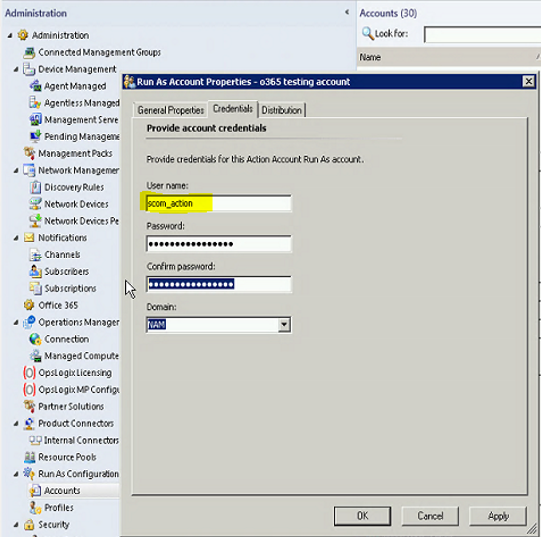
SCOM uses a domain account (example scom_action ID)

Verify that ID is in Azure tenant (contact your Azure Administrator if you don’t have access )

o365applicationazureidverify

To follow best practice, update the Run As account with the service account

o365applicationscomrunascredential


Verify Run As account

On SCOM console that there are no Operations Manager event log 7000 events for the ‘run as’ configured ID

Remote Desktop to SCOM MS Server

Verify if the ‘run as’ ID has a valid password

Look in the Operations Manager Event Log for Event ID 7000

Click on Find

Type in the user’s ID from the ‘run as’ account in SCOM

If no entries found, then ID is successfully authenticating against the domain

If errors found, correct ID/Password

Create a new subscription in SCOM to use the auto credentials option

NOTE New subscription may take 5-10 minutes to populate health data

From SCOM console

Click on Administration

Click on the Office 365 wizard

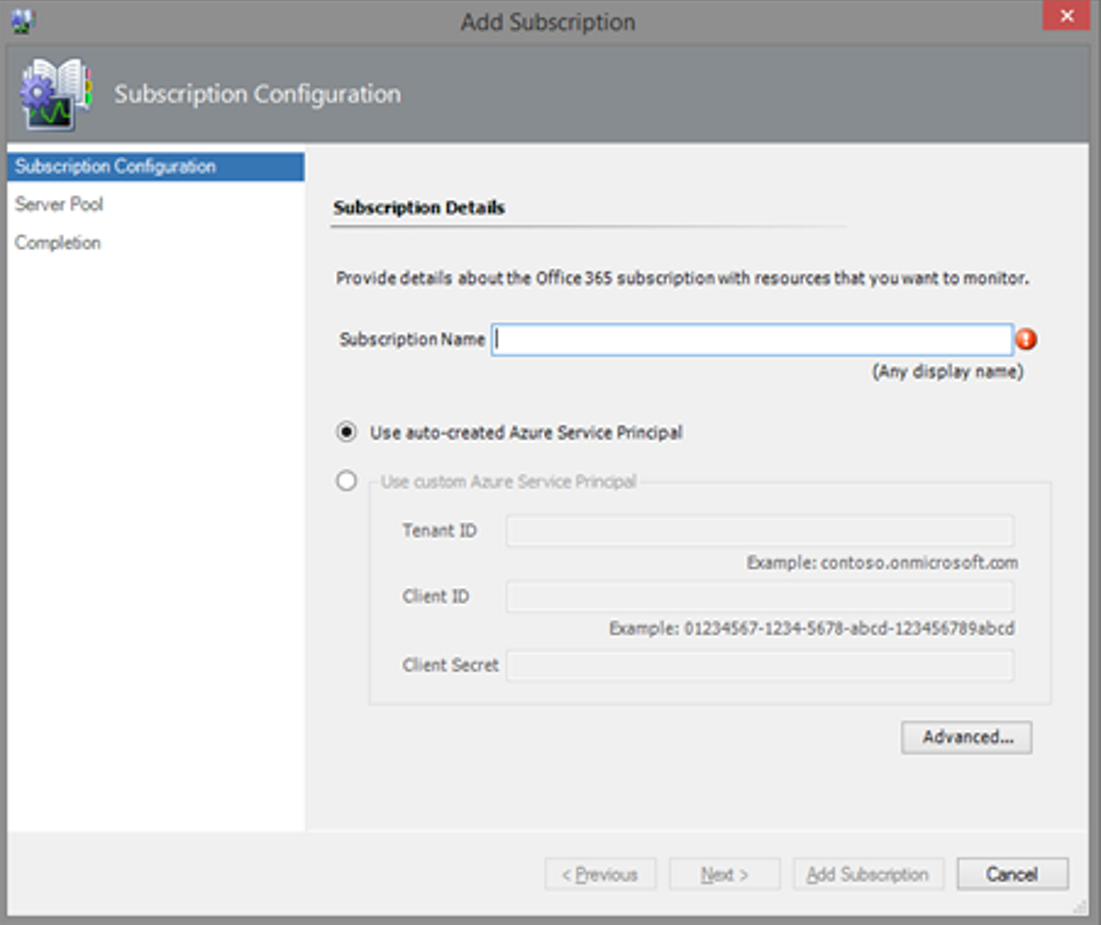
Click Add Subscription

o365applicationscomaddsubscription


Add Subscription Name

Click Next

o365applicationscomaddsubscriptionname

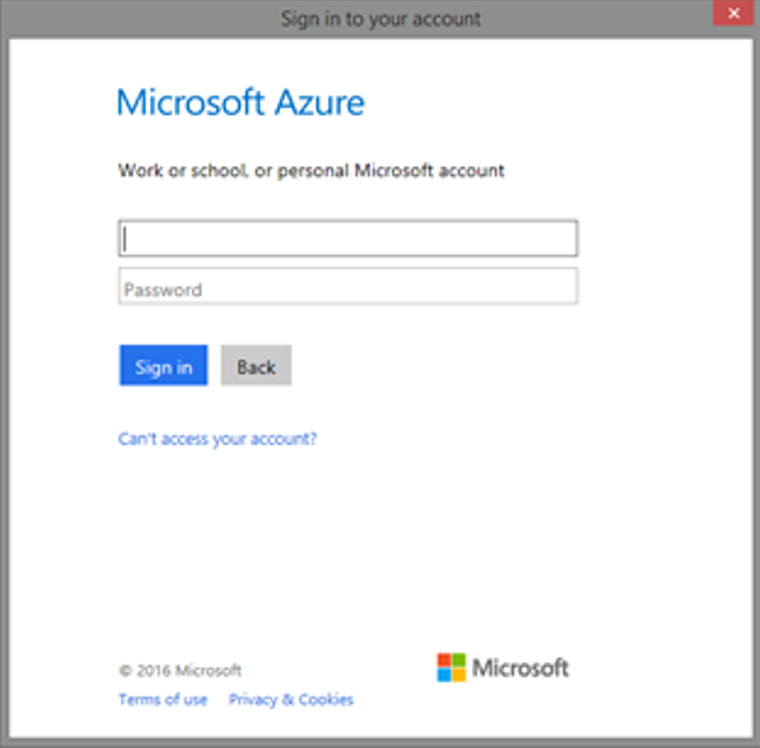
SCOM UI will prompt for Azure login

o365applicationscomazureauth

Enter ID and password

Click Sign in to authenticate


Click on Monitoring Tab

Click on Office 365 folder

Click on Office 365 Monitoring Dashboard

Verify state on the subscription in question

o365applicationscomnewsubscriptiondashboard

Verify SCOM ID used in O365 Subscription in Azure Portal

Verify SCOM ID used in O365 Subscription in Azure Portal

In Azure Portal

Verify the Application exists ( Azure tenant shows as SCOM O365MP )

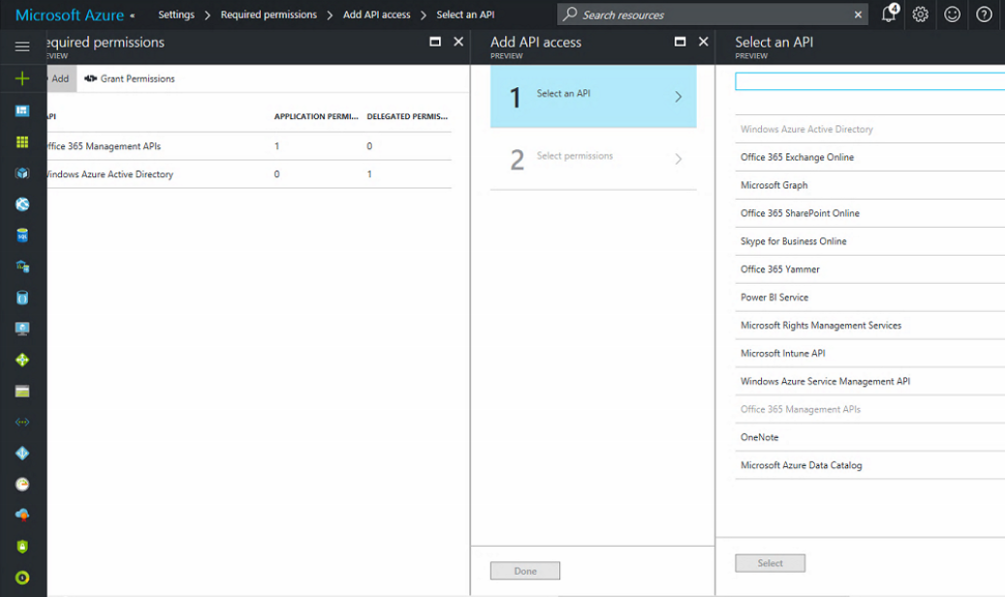
o365applicationpermissions

NOTE In the right hand pane the Office 365 Management API’s has Application Permissions, and cannot be selected

o365application-requestpermissionsclean

Click Back to the Settings window

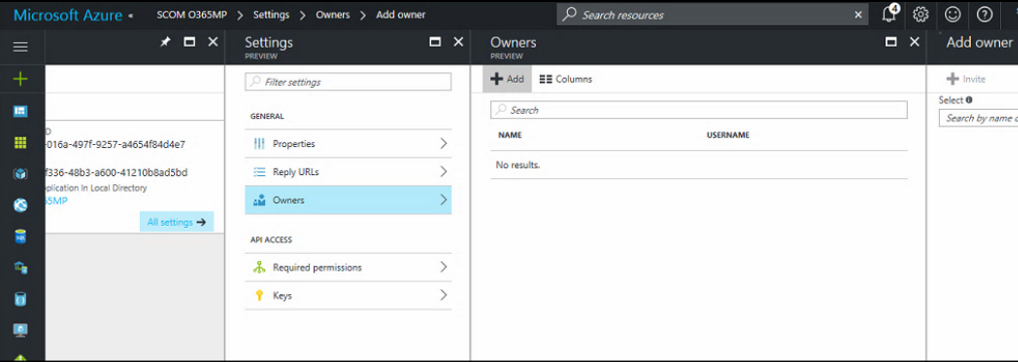
Click on Owners

o365applicationnoownersclean

NOTE NO owners show in this view

Click Add +

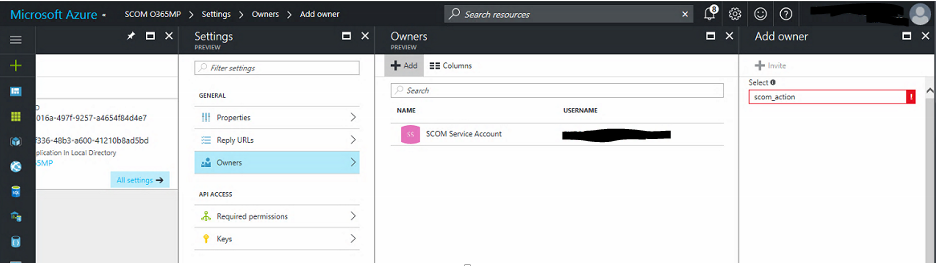
In the Add owner window, type the ID

Hit Select to add the user account (This example is the SCOM Service account)

o365application-scomidadded

Have user test

Office 365 subscription not monitored in SCOM

haiku-education-perplexed-bewildered-bemused-mystified-stumped-clipart

Yes this can leave you stumped, and wondering “why?”


This can be many parts, so choose carefully

Verify SCOM ID used in o365 subscription in Azure portal

Create a new subscription in SCOM to use the auto credentials option

Office 365 SCOM Run As Account


Verify O365 Subscription state in SCOM Console

In the SCOM console

Click on Monitoring Tab

Click on the O365 dashboard

Look at the health state

Error showed ‘endpoint not found’

Working with Azure Admin, we found the SCOM O365MP application did NOT have a service account assigned.

Verify SCOM ‘Run as’ account

Verify ‘run as’ ID (originally employee ID, not service account )

Remote Desktop to SCOM MS Server

Verify if the ‘run as’ ID has a valid password

Look in the Operations Manager Event Log for Event ID 7000

Click on Find

Type in the user’s ID from the ‘run as’ account in SCOM

If no entries found, then ID is successfully authenticating against the domain

If errors found, correct ID/Password in SCOM Console


Verify SCOM O365 Azure account


In the SCOM console

Click on Administration

Click on the O365 Wizard

Highlight the subscription

Choose Edit Subscription


Test ID (tested the Service Account)

With the radio button selected at ‘Use auto-created Azure Service Principal’

NOTE Name here is for SCOM purposes and does not have to match Azure Portal Application Name

o365applicationscomaddsubscriptionname

Click Next

SCOM UI will prompt for Azure login

o365applicationscomazureauth

Enter ID and password

Click Sign in to authenticate


If error is ‘Authentication Fails’, contact your Azure Administrator for assistance

References

Verify SCOM ID used in o365 subscription in Azure portal

Create a new subscription in SCOM to use the auto credentials option

Office 365 SCOM Run As Account

New Unix MP’s for 2016 and 2012R2


If you didn’t catch this (I didn’t), the 2016 Universal Linux Monitoring MP is missing, but is in the 2012R2 bundle

Until the bundle is fixed, don’t forget to grab the Universal Linux Monitoring MP from the 2012R2 bundle

unixmpdownloadforscom2012r2

Export the 2012R2 bundle, grab the MP

unixmp_export

Import MP into SCOM

easybutton


If that’s just a tad bit annoying, remember Microsoft wants feedback.

Feedback can be about problems, product specific feature requests, and functionality.


Use the UserVoice website for SCOM (System Center Operations Manager) https://systemcenterom.uservoice.com/

There are a lot of good features and feedback on the site.   If you weren’t aware, the product team uses this to prioritize updates to the product.

Search, vote up feedback for what’s most near and dear to your heart

ivoted

Fix 2016 Universal Linux Monitoring MP

Universal Linux MP guide needs updating

Console Errors in the new Active Directory Directory Services MP

New MP released that resolves this – v10.0.2.0 download here


Console Errors in the new Active Directory Directory Services MP

doh


At least it’s not the Security patch issue when you click on Health/State views, right?

https://support.microsoft.com/en-us/help/3200006/system-center-operations-manager-management-console-crashes-after-you


In the SCOM Console

Do you get an error when clicking on Authoring Tab, Management Pack Objects, Overrides?

overridesconsoleerror

If you are running the 2012-2016 Active Directory Directory Services v10.0.1.0 MP’s, you most likely get an error

“Microsoft.EnterpriseManagement.Common.ObjectNotFoundException: An object of class ManagementPackClass with ID <guid here>”


Unfortunately, the RODC group rule overrides were not referenced to the Discovery MP.

It’s an awesome MP, and I’m thankful for the new AD MP.

Check out Holman’s blog for all the fun and features.


Figure out which management pack has the issue with the ID

To find the offending item from the console error, see this blog.

Blog Summary = Using Ops Manager Shell, export the overrides

get-scomOverrides | out-file d:\monadmin\overrides.txt

Search for your GUID to know the ID and what in SCOM that ID is attached to.

Property          : Enabled
XmlTag            : RulePropertyOverride
Rule              : ManagementPackElementUniqueIdentifier=78ee983f-268d-0b99-0ca6-b1ca75c46621
Context           : ManagementPackElementUniqueIdentifier=0903521d-f768-3d26-a0af-ae52f8c09a29
ContextInstance   : 
Enforced          : False
Value             : false
ManagementGroup   : SCOM2012R2
ManagementGroupId : 28b70e43-4655-edfc-6127-ff4a72642488
Identifier        : 1|Microsoft.Windows.Server.AD.2012.Monitoring/31bf3856ad364e35|1.0.0.0|Microsoft.Windows.Server.2012.AD.DomainController.DRAOutboundBytesComp.Collection.Override.RODCGroup||
Name              : Microsoft.Windows.Server.2012.AD.DomainController.DRAOutboundBytesComp.Collection.Override.RODCGroup

The highlighted items show a Override for a Rule, named ‘DRA Outbound Bytes Comp’ (compressed)


Now, if you’re impatient like me, and can’t wait for the new sealed MP to fix the console error, here’s how you can fix the MP.

Unseal the three monitoring MP’s

After unsealing the MP, update the RulePropertyOverride(s) for 2012, 2012R2, and 2016 Monitoring management packs, and then import into your SCOM Management group.

MP Viewer How-To, Tool Download


Add Referencing MP to the Rule overrides
For 2012 – AD2012Core! was missing (See Manifest section for AD2012Core MP info)
For 2012R2 – AD2012R2Core! was missing (See Manifest section for AD2012R2Core MP info)
For 2016 – AD2016Core! was missing (See Manifest section for AD2016Core MP info)
The RODC group is created with each version of AD Directory Services (2008, 2012,2016)
In the 2008 MP the overrides exist in the Discovery MP
To correct the 2012, 2012R2, 2016 MP’s, the discovery MP reference must be added to the Rule


Verify overrides in SCOM Console

Click on Authoring Tab, Management Pack Objects, Overrides

overridesconsoleerror  “Microsoft.EnterpriseManagement.Common.ObjectNotFoundException: An object of class ManagementPackClass with ID <guid here>”

Through persistence, you may be able to search for Overrides


In ‘Look For’ bar, type RODC

Hit enter

Verify there are 4 (fyi there are 4 rules per AD version you have installed in your management group)


Remove Sealed AD Monitoring MP’s

Import unsealed MP’s


Verify in Console that overrides show up (No Errors seen)


Click on Authoring Tab, Management Pack Objects, Overrides

In ‘Look For’ bar, type RODC

Hit enter


Verify 16 (4 rules per AD version (2008, 2012,2012R2, 2016;  or 12 rules will display if AD 2008 packs are not installed)

Sample XML for Overrides
<Overrides>
<RulePropertyOverride ID=”Microsoft.Windows.Server.2012.AD.DomainController.DRAIntersiteOutBytes.Collection.Override.RODCGroup” Context=”AD2012Core!Microsoft.Windows.Server.2012.AD.RODCGroup” Enforced=”false” Rule=”Microsoft.Windows.Server.2012.AD.DomainController.DRAIntersiteOutBytes.Collection” Property=”Enabled”>
<Value>false</Value>
</RulePropertyOverride>
<RulePropertyOverride ID=”Microsoft.Windows.Server.2012.AD.DomainController.DRAOutboundBytesComp.Collection.Override.RODCGroup” Context=”AD2012Core!Microsoft.Windows.Server.2012.AD.RODCGroup” Enforced=”false” Rule=”Microsoft.Windows.Server.2012.AD.DomainController.DRAOutboundBytesComp.Collection” Property=”Enabled”>
<Value>false</Value>
</RulePropertyOverride>
<RulePropertyOverride ID=”Microsoft.Windows.Server.2012.AD.DomainController.DRAOutboundBytesNotComp.Collection.Override.RODCGroup” Context=”AD2012Core!Microsoft.Windows.Server.2012.AD.RODCGroup” Enforced=”false” Rule=”Microsoft.Windows.Server.2012.AD.DomainController.DRAOutboundBytesNotComp.Collection” Property=”Enabled”>
<Value>false</Value>
</RulePropertyOverride>
<RulePropertyOverride ID=”Microsoft.Windows.Server.2012.AD.DomainController.DRAOutboundBytesTotal.Collection.Override.RODCGroup” Context=”AD2012Core!Microsoft.Windows.Server.2012.AD.RODCGroup” Enforced=”false” Rule=”Microsoft.Windows.Server.2012.AD.DomainController.DRAOutboundBytesTotal.Collection” Property=”Enabled”>
<Value>false</Value>
</RulePropertyOverride>
</Overrides>


Enjoy!

woohoo