Verify SCOM ID used in O365 Subscription in Azure Portal

Verify SCOM ID used in O365 Subscription in Azure Portal

In Azure Portal

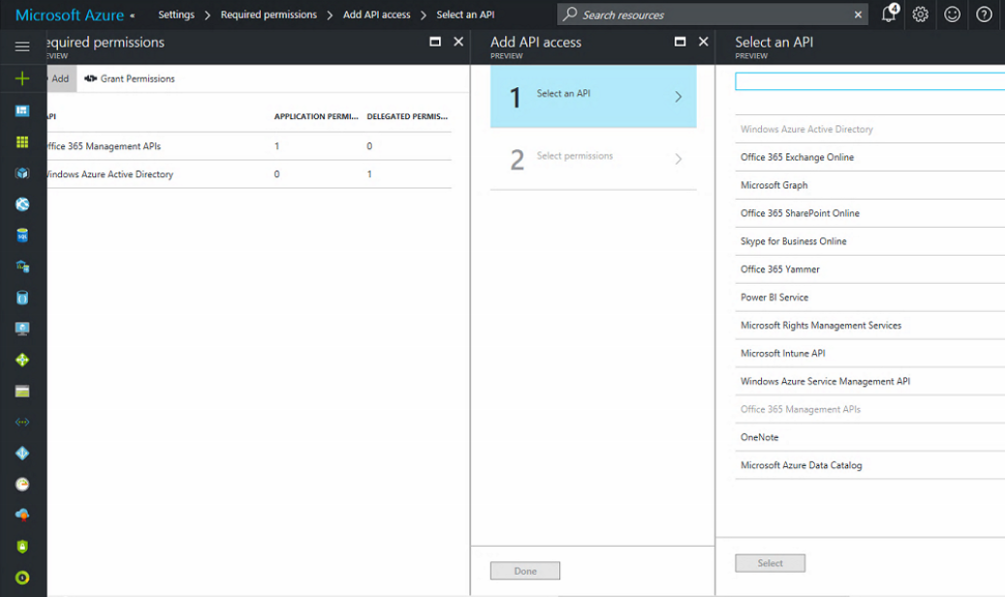
Verify the Application exists ( Azure tenant shows as SCOM O365MP )

o365applicationpermissions

NOTE In the right hand pane the Office 365 Management API’s has Application Permissions, and cannot be selected

o365application-requestpermissionsclean

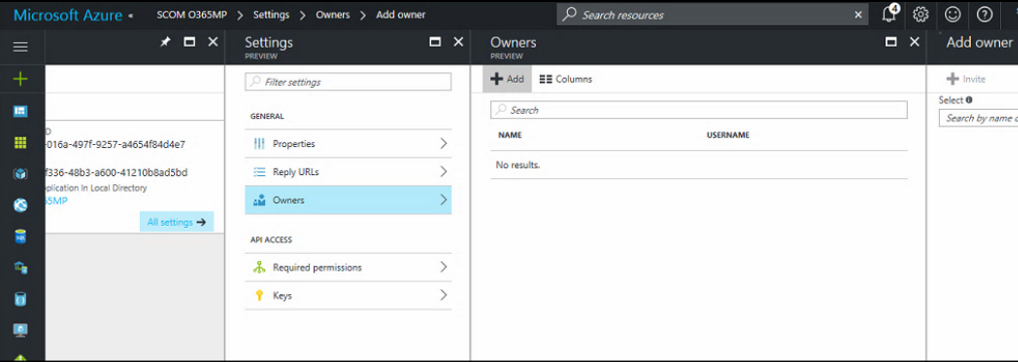
Click Back to the Settings window

Click on Owners

o365applicationnoownersclean

NOTE NO owners show in this view

Click Add +

In the Add owner window, type the ID

Hit Select to add the user account (This example is the SCOM Service account)

o365application-scomidadded

Have user test

Office 365 subscription not monitored in SCOM

haiku-education-perplexed-bewildered-bemused-mystified-stumped-clipart

Yes this can leave you stumped, and wondering “why?”


This can be many parts, so choose carefully

Verify SCOM ID used in o365 subscription in Azure portal

Create a new subscription in SCOM to use the auto credentials option

Office 365 SCOM Run As Account


Verify O365 Subscription state in SCOM Console

In the SCOM console

Click on Monitoring Tab

Click on the O365 dashboard

Look at the health state

Error showed ‘endpoint not found’

Working with Azure Admin, we found the SCOM O365MP application did NOT have a service account assigned.

Verify SCOM ‘Run as’ account

Verify ‘run as’ ID (originally employee ID, not service account )

Remote Desktop to SCOM MS Server

Verify if the ‘run as’ ID has a valid password

Look in the Operations Manager Event Log for Event ID 7000

Click on Find

Type in the user’s ID from the ‘run as’ account in SCOM

If no entries found, then ID is successfully authenticating against the domain

If errors found, correct ID/Password in SCOM Console


Verify SCOM O365 Azure account


In the SCOM console

Click on Administration

Click on the O365 Wizard

Highlight the subscription

Choose Edit Subscription


Test ID (tested the Service Account)

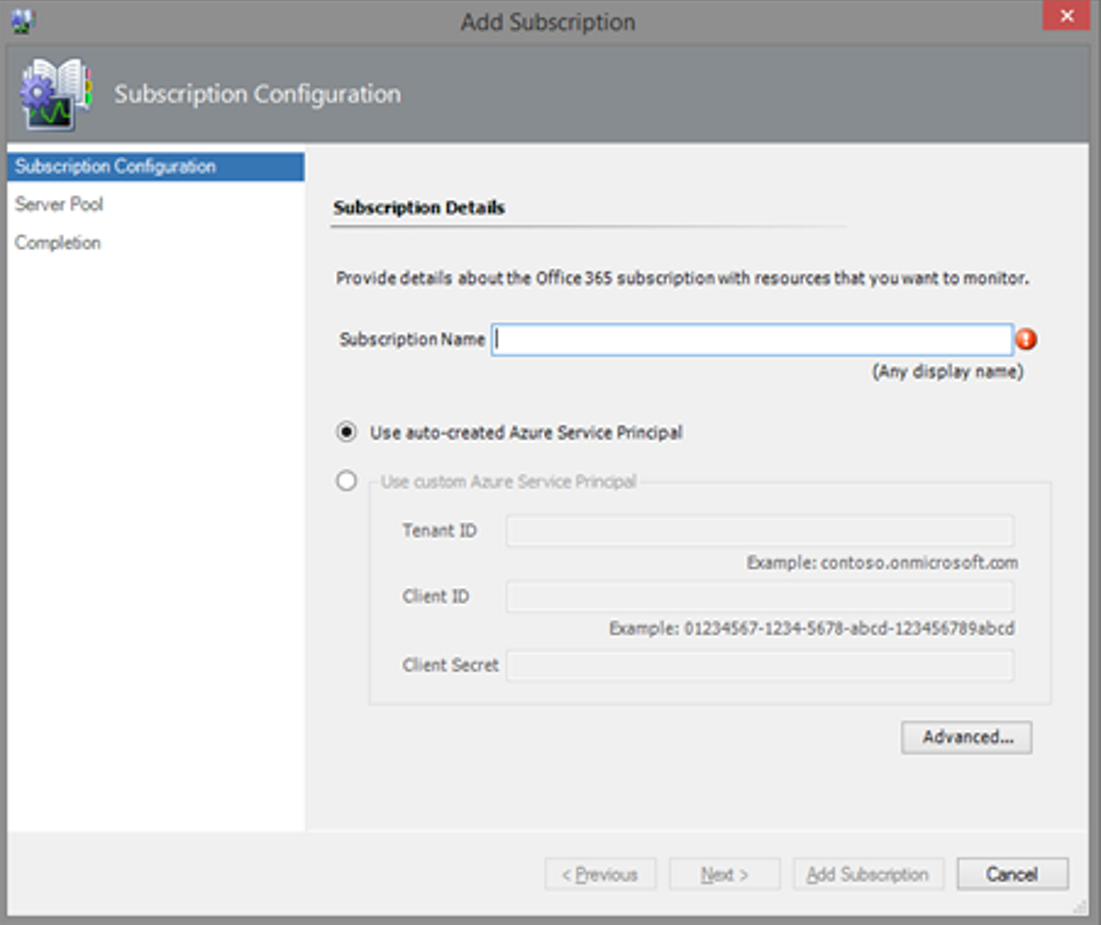
With the radio button selected at ‘Use auto-created Azure Service Principal’

NOTE Name here is for SCOM purposes and does not have to match Azure Portal Application Name

o365applicationscomaddsubscriptionname

Click Next

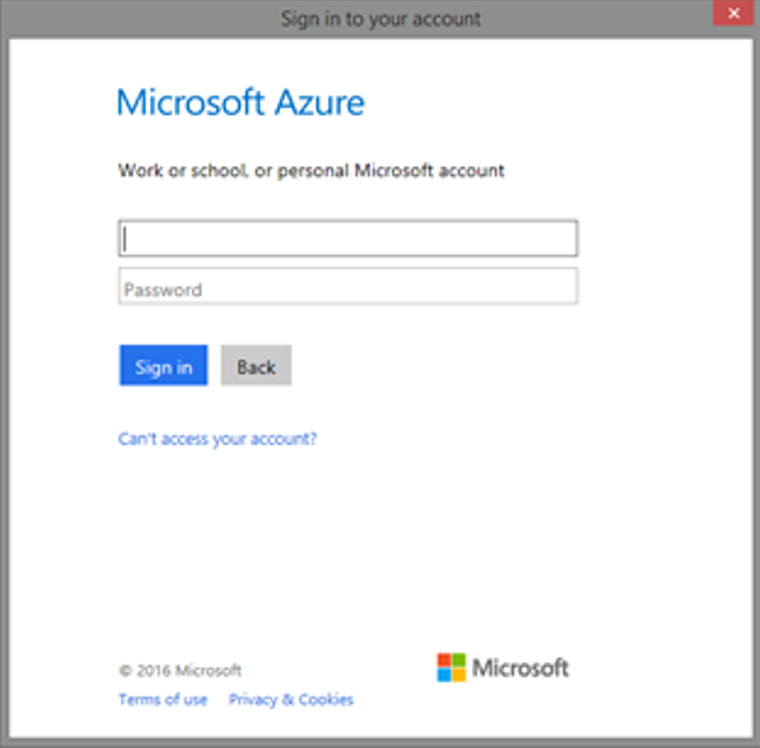
SCOM UI will prompt for Azure login

o365applicationscomazureauth

Enter ID and password

Click Sign in to authenticate


If error is ‘Authentication Fails’, contact your Azure Administrator for assistance

References

Verify SCOM ID used in o365 subscription in Azure portal

Create a new subscription in SCOM to use the auto credentials option

Office 365 SCOM Run As Account

Uncommon Custom MP Fragments

new_icon_shiny_badge_svg

Building on Kevin Holman’s MP Fragment Library are additional Uncommon Custom MP Fragments


This is the SCOM Management Pack Fragment Library which includes VSAE Fragments you can use to make SCOM management packs quickly and easily.

V1.0 has two Event Monitors with two state, two or three criteria monitors


Assumptions

Visual Studio, and the VSAE Fragments are installed

Visual Studio has a powerful plugin called VSAE (Visual Studio Authoring Extensions)
https://www.microsoft.com/en-us/download/details.aspx?id=30169

If you aren’t familar with MP fragments for authoring, see instructions at:  https://blogs.technet.microsoft.com/kevinholman/2016/06/04/authoring-management-packs-the-fast-and-easy-way-using-visual-studio/


Background
A Management Pack fragment is simply a bit of XML, that contains all the “working parts” for a specific workflow….

Several authors have written about the power of fragments since VSAE launched, but the biggest gap I saw can be broken up into two major issues:
•Nobody provided a good “library” of workable MP fragments
•Nobody came up with a VERY simple method to reuse fragments quickly and easily

If you can do a FIND and REPLACE in notepad, you can use this.

Kevin Holman’s MP Fragments here

Gallery download for the uncommon MP fragments https://gallery.technet.microsoft.com/Uncommon-Custom-MP-c5a12a86

Supported SQL version for System Center

I’ve also been asked what versions of SQL work with System Center, so here’s references to see what the latest supported SQL version and patch.

Here is the System Center SQL matrix

2016 https://docs.microsoft.com/en-us/system-center/scom/plan-sqlserver-design?view=sc-om-2016#sql-server-requirements

2019 https://docs.microsoft.com/en-us/system-center/scom/plan-sqlserver-design?view=sc-om-2019#sql-server-requirements

2012R2 https://technet.microsoft.com/en-us/library/dn281933.aspx

Sizing SCOM 2012R2 and 2016

Many times, the question comes up for Microsoft sizing guidelines for Operations Manager/SCOM.  The Sizing Calculator XLS is a great resource to use to help answer some of the storage and SQL DB questions as it relates to the various features you enable in your environment.

The sizing calculator takes features beyond windows agents to help size SQL and storage needs, as well as management servers.

The SCOM Sizing Calculator XLS from TechNet helps determine capacity and storage needs for 2012 and 2016.  Here is the 2016 System Center SQL matrix

http://download.microsoft.com/download/C/A/6/CA60425C-950B-456E-986C-C5F2FCD5668D/System%20Center%202012%20Operations%20Manager%20Sizing%20Helper%20Tool%20v1.xls

Other SCOM features that change the Operations Manager environment

# of Unix Servers

Network monitoring

Application Performance Monitoring (APM)

URL monitoring (transactional and availability)

DB Data retention requirements