Setting up OMS Service Map solution

hmmmm

Ever wonder what happened to BlueStripe?

Anyone else have experience using it with SCOM?

If you weren’t aware, Microsoft bought Blue Stripe back in 2015 link


Looks like BlueStripe FactFinder is now Service Map in Azure

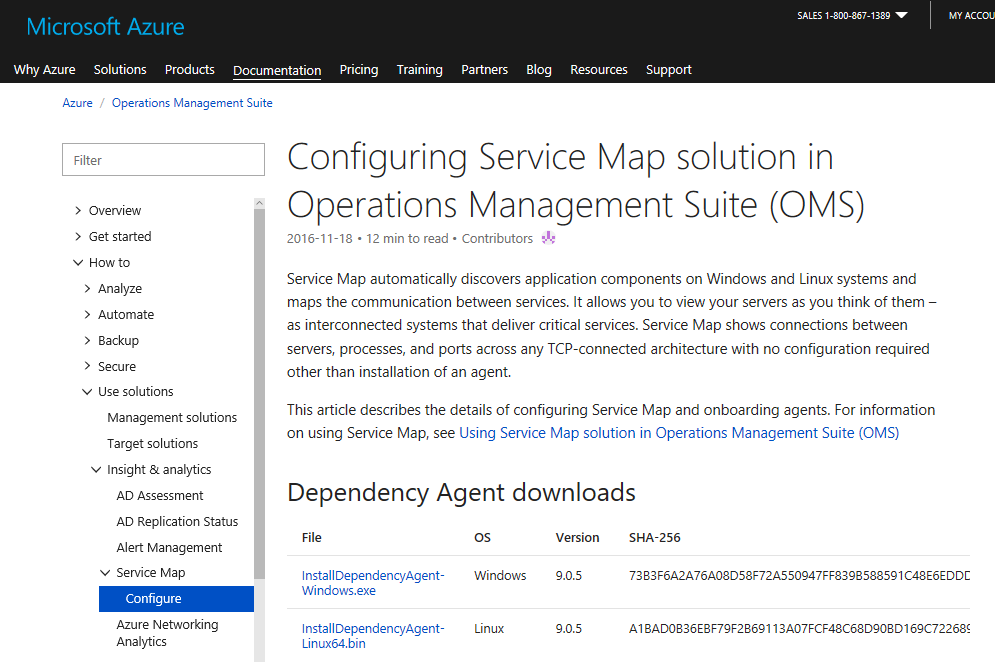
Documentation here


Service Map is very easy to add and get value from right away with OMS

Download agent

You have two choices:

  1. Choose from Docs.Microsoft.com documentation above, or from your OMS environmentdocsagentdownload
  2. From your OMS workspace, add the Service Map solution
Click on Home icon in top left hand corner
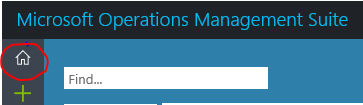
omshome

Click on Service Map pane

Click on Download Agent link as appropriate for Windows or Linux

Save file and install on your server(s)

oms-initialscreen


Windows Server Installation

Execute the MSI file downloaded from OMS (NOTE may prompt with UAC prompt)

Click ‘I Agree’

servicemapinstall

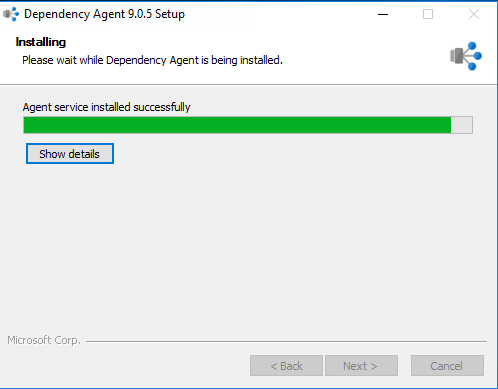
Watch the Install

servicemapinstalling

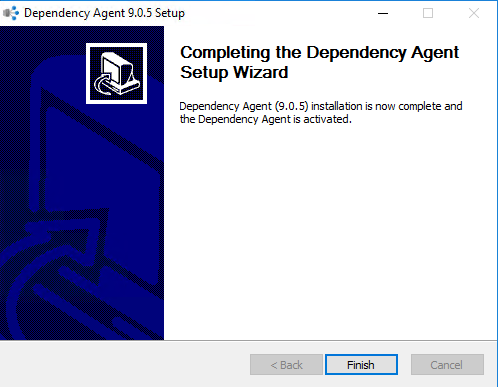
Click Finish

servicemapinstallcomplete

Now go back to OMS and look for updates (mine was that fast!)

servicemapsolution

Click on the Service Map pane to see more detail

servicemapdetail

To add additional machines is basically the same, just choose add machines

oms-addmachines


In case you caught that I have two (2) of the same named machines, it’s because I have that server set up for OMS separately.  Yes, it’s my lab, so I’m not following the best practice.

servicemapsolutionwclients

Enjoy!

Basic Admin ‘How-to’ Series

443053-royalty-free-rf-clip-art-illustration-of-a-cartoon-businessman-carrying-a-heavy-manual

This is a series of blog posts to help with SCOM best practices, and things that make SCOM easier to administer.


Associate MPX files in Notepad++ blog

Backup management packs via PowerShell blog

Get to know your monitor blog

Load Test MP with Report blog

Load Test MP Fragments blog

Maintenance Mode PowerShell blog

Manage DB storage with DWdataRP blog

Managing Subscriptions blog

PowerShell Rule/Monitor/PerfCounter MP and Fragments blog

Registry Key discovery MP Fragment clarification blog

Run As PowerShell monitor fragment blog

Sealing Management packs with 2012R2 and 2016 blog

Subscriptions blog

Subscription Set up Guide blog

Uncommon MP Fragments blog

Verifying Overrides blog


Best Practices

Agent Management pack KH Blog

Enable proxy as a default KH blog

How to be heard blog

Manage alerts/events/performance KH Blog

Office Analytics (find where all the time goes) blog

Optimize SQL blog

Recommended Registry tweaks KH blog

SCOM Agent Version Addendum KH blog

Set SCOM Agent to remotely managed KH Blog

SQL Engineering Blog

SYSTEM CENTER 2016 Operations Manager – Anti-Virus Exclusions blog

Update VMM MP’s for SCOM when SCVMM patched blog


Tools

MP Viewer blog

Download Notepad++ here

Kevin Holman blog on extracting scripts from MP’s using Transform tool from codeplex

Test fire events using EventLog Explorer here

Alternate tool to fire any events here

SCOM Management Pack backup

nobackup

Ever wish you had a backup of your MP?


It’s quite easybutton


Tailor to your requirements, but you can run this as a scheduled task, Orchestrator job, etc.

I would recommend running the script on a server with the Operations Manager shell (or at least add the Operations Manager snapIn to a non SCOM server)

NOTE This will unseal sealed management packs


# Backup Management packs to C drive

# Set up your path, my example is monadmin\backup

$date = Get-Date -UFormat “%Y-%m-%d”

c:

cd monadmin\backup

new-item -itemtype directory -path c:\monadmin\backup\$date

cd $date

# Variants accepted

# Examples – begins with OR, or Company Name, or contains Lab

Get-SCOMManagementPack -Name OR* | Export-SCOMManagementPack -Path “C:\monadmin\backup\$date”

Get-SCOMManagementPack -Name <CompanyName>* | Export-SCOMManagementPack -Path “C:\monadmin\backup\$date”

Get-SCOMManagementPack -Name *Lab* | Export-SCOMManagementPack -Path “C:\monadmin\backup\$date”


# Backup Management packs to E drive

# Set up your path, this example is monadmin\backup

$date = Get-Date -UFormat “%Y-%m-%d”

E:

cd monadmin\backup

new-item -itemtype directory -path e:\monadmin\backup\$date

cd $date

Get-SCOMManagementPack -Name OR* | Export-SCOMManagementPack -Path “E:\monadmin\backup\$date”

Get-SCOMManagementPack -Name *Lab* | Export-SCOMManagementPack -Path “E:\monadmin\backup\$date”


New Unix MP’s for 2016 and 2012R2


If you didn’t catch this (I didn’t), the 2016 Universal Linux Monitoring MP is missing, but is in the 2012R2 bundle

Until the bundle is fixed, don’t forget to grab the Universal Linux Monitoring MP from the 2012R2 bundle

unixmpdownloadforscom2012r2

Export the 2012R2 bundle, grab the MP

unixmp_export

Import MP into SCOM

easybutton


If that’s just a tad bit annoying, remember Microsoft wants feedback.

Feedback can be about problems, product specific feature requests, and functionality.


Use the UserVoice website for SCOM (System Center Operations Manager) https://systemcenterom.uservoice.com/

There are a lot of good features and feedback on the site.   If you weren’t aware, the product team uses this to prioritize updates to the product.

Search, vote up feedback for what’s most near and dear to your heart

ivoted

Fix 2016 Universal Linux Monitoring MP

Universal Linux MP guide needs updating