Get started with OMS Device Health

Anyone need telemetry data for win10 computers?

https://docs.microsoft.com/en-us/windows/deployment/update/device-health-get-started


Want the info with better reports and less overhead?

This easily replaces SCOM Agentless Exception Monitoring


OMS is technically free, why not get insights into client side problems?


Overview

Validate Telemetry Setting

Get CommercialID from OMS

Configure Deployment Script

Run Deployment Script

Verify OMS


Check Win10 Telemetry setting

Configure Telemetry Data link


FYI – Telemetry level can be managed via SCCM/MDM/Intune and/or GPO


Enhanced Telemetry (2) sends less data (not full crash dumps like Full)

The normal upload range for the Enhanced telemetry level is between 239 KB – 348 KB per day, per device.


Settings Explained


Verify Telemetry setting

My default Win10 setting was 3 based on setup wizard options


Retrieve CommercialID from OMS

Go to Settings (Cog at the top right hand corner)

Then Click on Connected Sources, Windows Telemetry

Copy the Commercial ID Key


Set up Deployment Script

Download the Deployment Script link

In my lab example, save script to Win10 client in C:\UpgradeAnalytics


Update the Deployment RunConfig.bat file

From Docs.Microsoft.com:

The Pilot folder contains advanced logging that can help troubleshoot issues and is intended to be run from an elevated command prompt.


Edit RunConfig.bat in Notepad, add your Commercial ID into the ‘set commercialIDValue’ line

Change the logPath as well if you have a preferred logging location


Run script and verify Registry keys

Set up command window as system

Don’t forget psexec from sysinternals tool

psexec -s cmd.exe

cd UpgradeAnalytics\Deployment

runConfig.bat


Example output


Verify Registry

Registry key paths depending on how these are set with SCCM/MDM/Intune vs. GPO

        $vCommercialIDPath = “HKLM:\SOFTWARE\Microsoft\Windows\CurrentVersion\Policies\DataCollection”
        $GPOCommercialIDPath = “HKLM:\SOFTWARE\Policies\Microsoft\Windows\DataCollection”


Add Device Health Solution to OMS

Add Device Health as part of the Windows Analytics suite

NOTE Windows Analytics suite includes Upgrade Readiness and Update Compliance


Wait 2 days and see what shows up as devices check in


Clicking on Device Health pane


Added Bonus – once you configure the deployment script, the other two Windows Analytics tools are ready for consumption – Upgrade Readiness and Update Compliance


Requirements

OMS subscription

Win10 clients have HTTPS access to Microsoft hosts (see Endpoints in Configure Telemetry link below)


References

Windows Analytics link
Upgrade Readiness link
Upgrade Readiness Script V2 link
Upgrade Readiness Script Original link
Configure Telemetry link

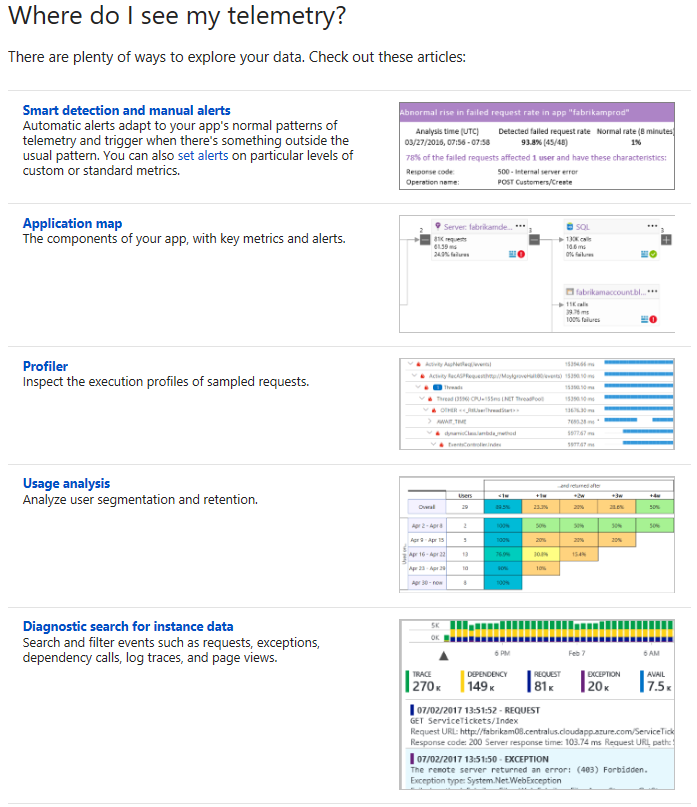
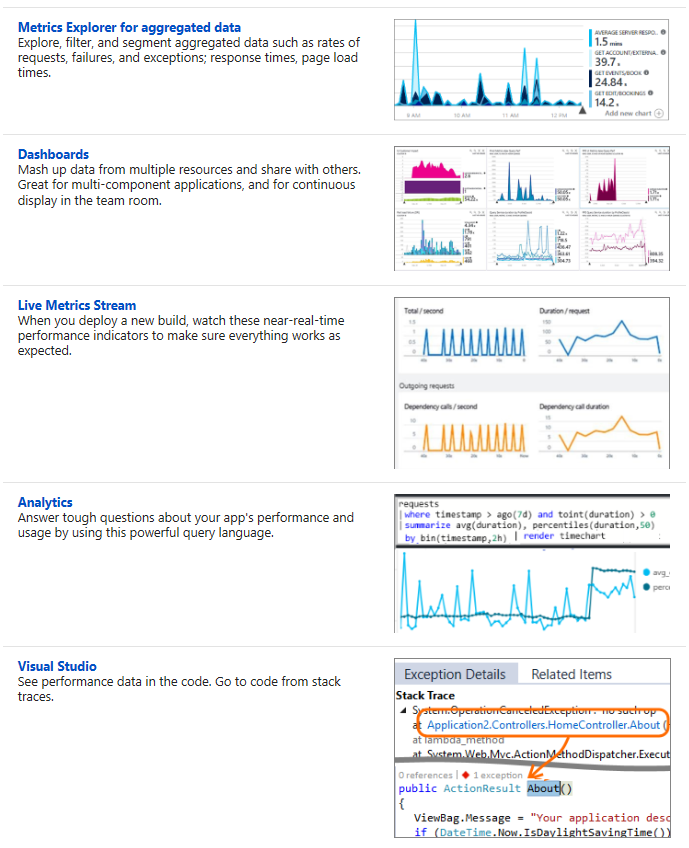
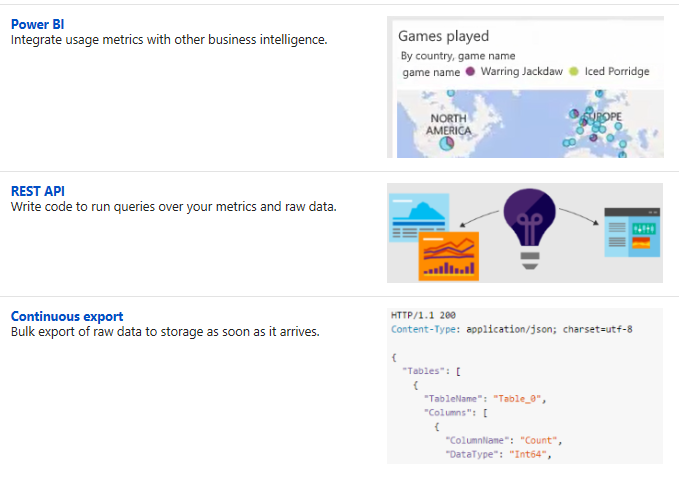
Azure Application Insights

Application Insights

Application Insights simply put is Application Performance Management for web developers (or DevOps) on multiple platforms

Are you trying to solve how to monitor application performance?

Do you need to monitor application performance for ASP.NET, Java or Node.js apps?

SCOM can monitor, but not necessarily with the same functionality

Riverbed makes products, but at a higher cost


Dashboard


Much like SCOM APM agent, application Insights Monitors the same information, without having to setup SCOM in Azure

This is also an OMS solution, so if you’re using Azure for Web Applications, this should be on the to-do list


How about application Telemetry data?


Overview https://docs.microsoft.com/en-us/azure/application-insights/app-insights-overview
Documentation https://docs.microsoft.com/en-us/azure/application-insights/

SYSTEM CENTER 2016/2019 Operations Manager – Anti-Virus Exclusions

Updated 30 June, 7 July 2020 and includes docs.microsoft.com article updates


NOTE: Process name exclusion wildcards could potentially prevent some dangerous programs from being detected.


Hopefully this table is helpful (my thanks to Matt Goedtel for the docs site updates, and Matt’s efforts to keep docs the ‘go-to’ site)


Previously the blog left the SCOM Admin and Security teams with questions where blogs did NOT match vendor site documentation.  The blog merged the PFE UK team blog & Kevin Holman blog  into an easier tabular view per component)


Original Blog introduction

As we are all aware, antivirus exclusions can affect monitoring data generated, and affect system performance.


Best practice is to implement specific exclusions.


Exclusions\RoleMSDBGWRSWebAgent
Folder
Management Server installation folder
Default: “C:\Program Files\Microsoft System Center 2016\Operations Manager\Server\”
*
Agent installation folder
Default: “C:\Program Files\Microsoft Monitoring Agent”
**
Gateway installation folder
Default: “C:\Program Files\Microsoft System Center 2016\Operations Manager\Gateway\”
*
Reporting installation folder
Default: “C:\Program Files\Microsoft System Center 2016\Operations Manager\Reporting”
*
WebConsole installation folder
Default: “C:\Program Files\Microsoft System Center 2016\Operations Manager\WebConsole”
*
SQL Data installation folder
Default: “C:\Program Files\Microsoft SQL Server\MSSQL.1x<INSTANCENAME>\MSSQL\Data”
*
SQL Log installation folder
Default: “C:\Program Files\Microsoft SQL Server\MSSQL.1x<INSTANCENAME>\MSSQL\Log”
*
SQL Reporting installation folder
Default: “C:\Program Files\Microsoft SQL Server\MSRS.1x<INSTANCENAME>
*
File Types
EDB*****
CHK*****
LOG*****
LDF**
MDF**
NDF**
Processes
CShost.exe*
HealthService.exe******
Microsoft.Mom.Sdk.ServiceHost.exe*
MonitoringHost.exe******
SQL Server
Default: “C:\Program Files\Microsoft SQL Server\MSSQL1x.<Instance Name>\MSSQL\Binn\SQLServr.exe”
*
SQL Reporting Services
Default: “C:\Program Files\Microsoft SQL Server\MSRS1x.<Instance Name>\Reporting Services\ReportServer\Bin\ReportingServicesService.exe”
**


Useful information for decoding the matrix

Docs site https://docs.microsoft.com/en-us/system-center/scom/plan-security-antivirus?view=sc-om-2019

Platform https://support.microsoft.com/en-us/help/822158/virus-scanning-recommendations-for-enterprise-computers-that-are-running-currently-supported-versions-of-windows

SCOM 2012/2012R2 KB975931 https://support.microsoft.com/en-us/help/975931/recommendations-for-antivirus-exclusions-that-relate-to-operations-manager

PFE UK team blog https://blogs.technet.microsoft.com/manageabilityguys/2013/11/26/system-center-2012-r2-operations-manager-anti-virus-exclusions/

SQL

https://support.microsoft.com/en-us/help/309422/choosing-antivirus-software-for-computers-that-run-sql-server

https://blogs.technet.microsoft.com/raymond_ris/2014/01/16/windows-antivirus-exclusion-recommendations-servers-clients-and-role-specific/

Version mapping by folder (my thanks to StackOverFlow https://stackoverflow.com/questions/18753886/sql-server-file-names-vs-versions )
100 = SQL Server 2008    = 10.00.xxxx
105 = SQL Server 2008 R2 = 10.50.xxxx
110 = SQL Server 2012    = 11.00.xxxx
120 = SQL Server 2014    = 12.00.xxxx
130 = SQL Server 2016    = 13.00.xxxx

Verifying Custom MP overrides are valid when updating sealed MP’s

kidraisedhand

I will raise my hand when asked if I prefer Notepad++ for looking at XML (because I can shrink the sections I’m not concerned about).


Using Notepad++ (works best for color and concatenation of XML or quotes in case of syntax errors when editing)


Open Overrides management pack (XML)

Click on the (-) for Manifest

Click on the dash (-) for RelationshipTypes

Click on the dash (-) for each Discovery (if it exists)

simplifyingdiscoveryview


Verify targets exist in MP’s to be updated

Scroll to the right to view the Targets of your Override management pack

simplifyingview


If changes were overrides, look at the Monitor or Rule and verify this is in the pack to be updated

overridesmonitor


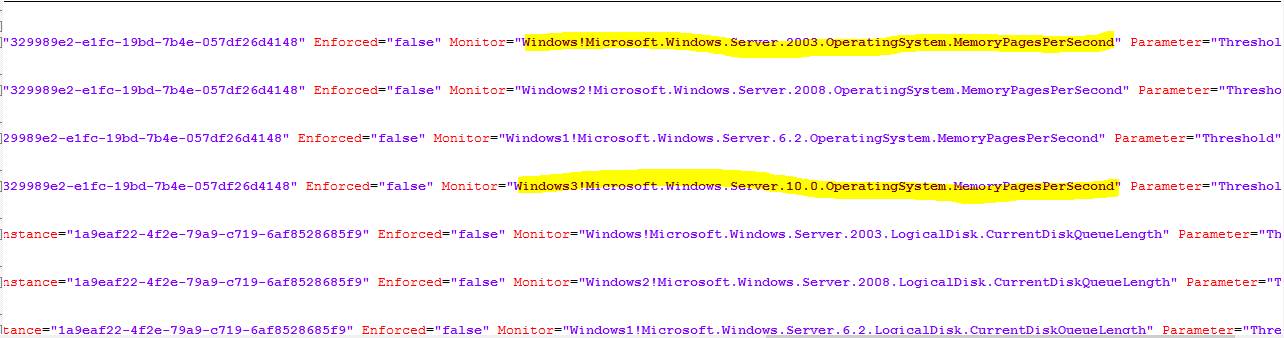
To understand which MP is being referenced, look at the example – Windows3!

Scroll to the top of your MP and click on the (+) plus sign to expand manifest

mpreference1


NOTE Windows3 is the server 2016 Monitoring MP

decodingmpreference


Verify your monitor/rule name still exists, and your Override should still apply

In Server Overrides MP, look at the Monitor= section for the Monitor name

verifyoverridemonitorhighlight


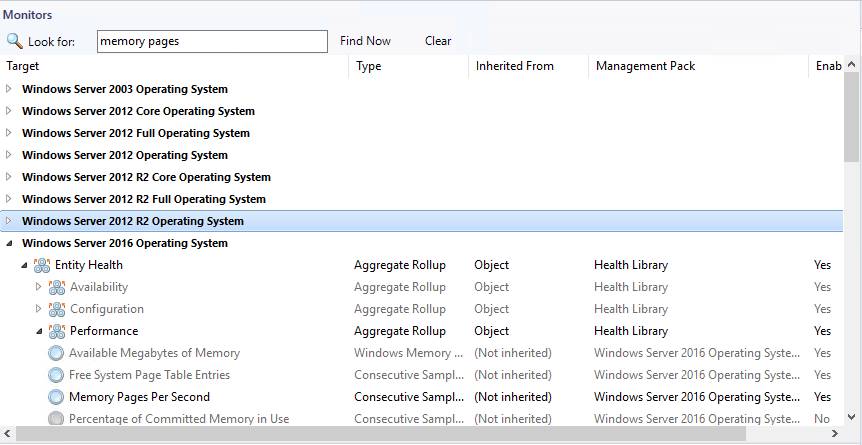
Go to the Windows Server 2008 Monitoring MP and look for that monitor

There is no monitor for 2008

notepadmonitortypes


Alternatively, you can look at the SCOM console as well (if MP is installed)

There is NO 2008 Memory Pages per second monitor

 scomconsolemonitorverify


Now to remove the override in our MP

In Notepad++, highlight the MonitorConfigurationOverride section, and delete

monitoroverridehighlight

Rinse and Repeat

Increment the version number and import MP when finished validating overrides.


Troubleshoot Office 365 SCOM MP Run As account

Run As Account

The Office 365 Run As account is used for Proxy access for an HTTPS connection from SCOM MS to Office 365 portal endpoint.

Must be a domain account, not an Azure account (particularly if they ‘re not the same tenant or AAD associated

Service Accounts are recommended to prevent impact should an employee leave


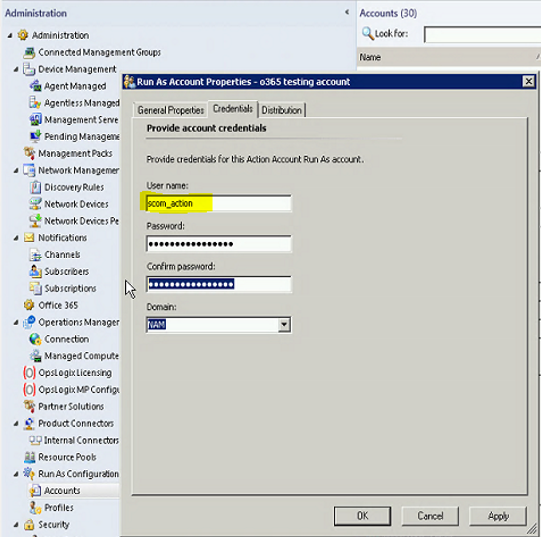
SCOM uses a domain account (example scom_action ID)

Verify that ID is in Azure tenant (contact your Azure Administrator if you don’t have access )

o365applicationazureidverify

To follow best practice, update the Run As account with the service account

o365applicationscomrunascredential


Verify Run As account

On SCOM console that there are no Operations Manager event log 7000 events for the ‘run as’ configured ID

Remote Desktop to SCOM MS Server

Verify if the ‘run as’ ID has a valid password

Look in the Operations Manager Event Log for Event ID 7000

Click on Find

Type in the user’s ID from the ‘run as’ account in SCOM

If no entries found, then ID is successfully authenticating against the domain

If errors found, correct ID/Password

Create a new subscription in SCOM to use the auto credentials option

NOTE New subscription may take 5-10 minutes to populate health data

From SCOM console

Click on Administration

Click on the Office 365 wizard

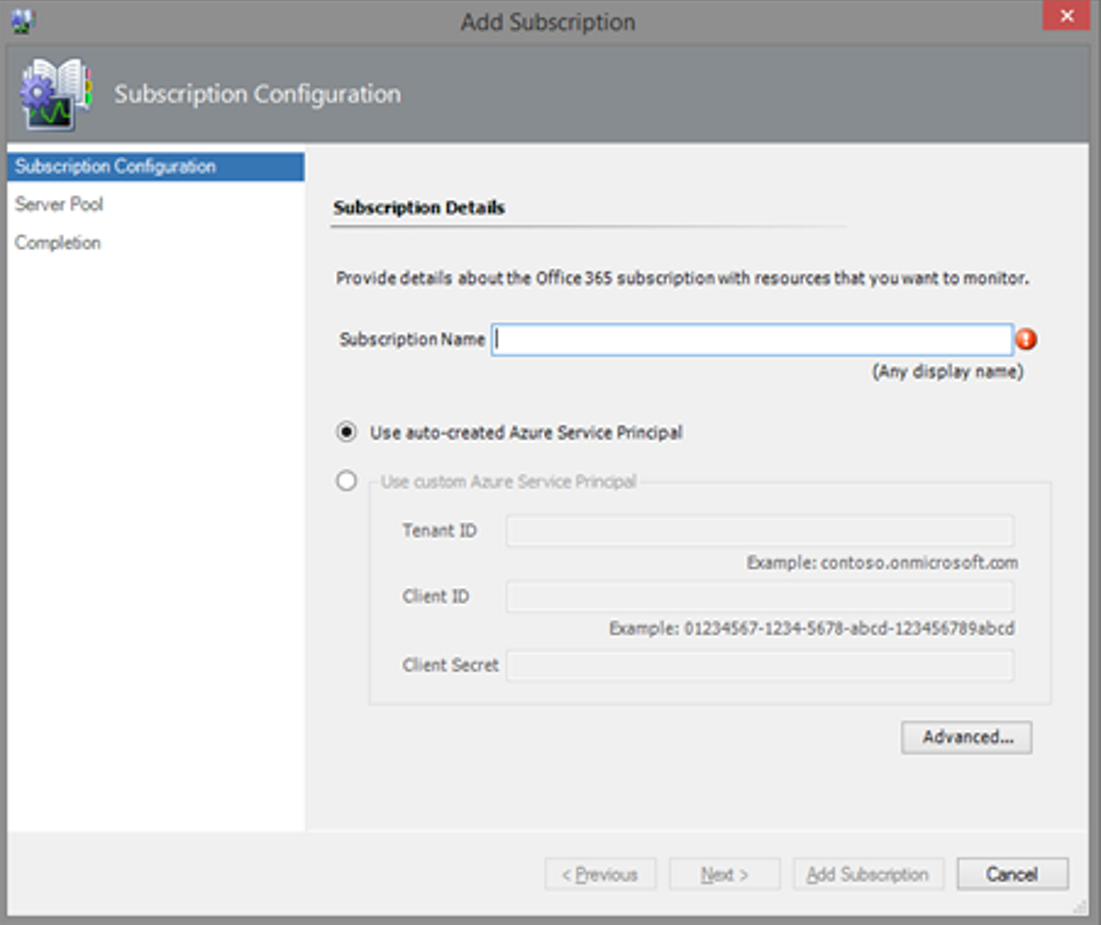
Click Add Subscription

o365applicationscomaddsubscription


Add Subscription Name

Click Next

o365applicationscomaddsubscriptionname

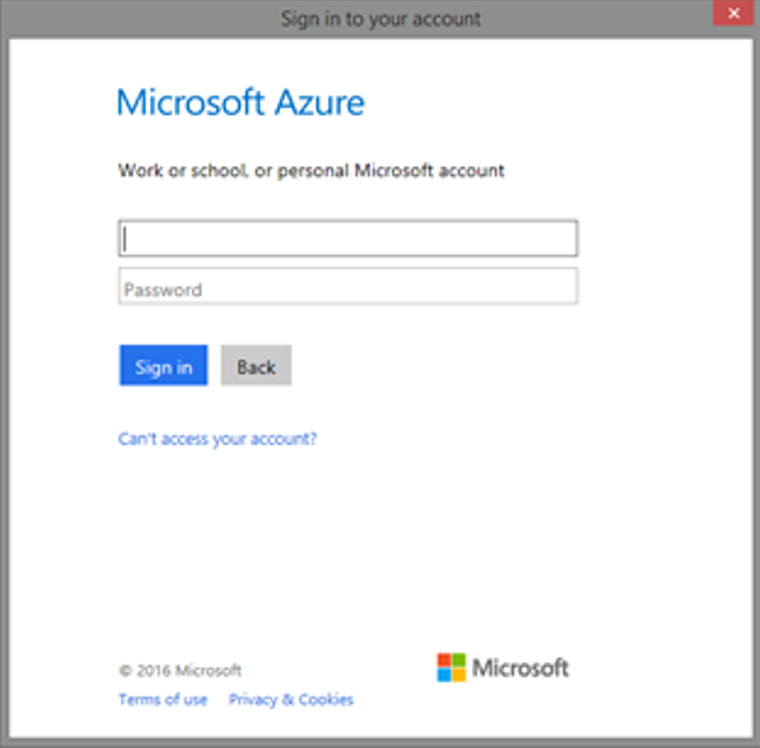
SCOM UI will prompt for Azure login

o365applicationscomazureauth

Enter ID and password

Click Sign in to authenticate


Click on Monitoring Tab

Click on Office 365 folder

Click on Office 365 Monitoring Dashboard

Verify state on the subscription in question

o365applicationscomnewsubscriptiondashboard

Verify SCOM ID used in O365 Subscription in Azure Portal

Verify SCOM ID used in O365 Subscription in Azure Portal

In Azure Portal

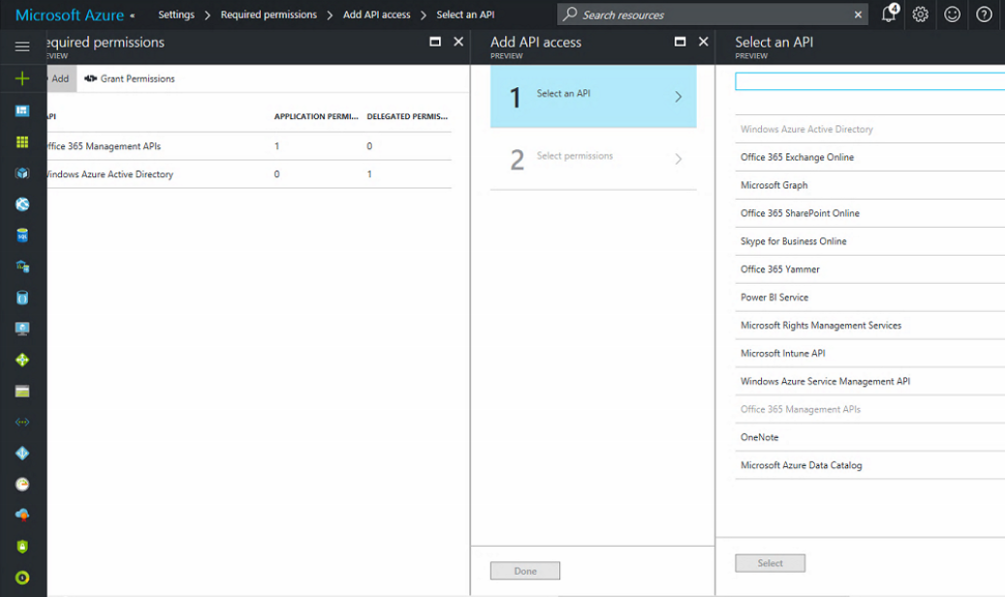
Verify the Application exists ( Azure tenant shows as SCOM O365MP )

o365applicationpermissions

NOTE In the right hand pane the Office 365 Management API’s has Application Permissions, and cannot be selected

o365application-requestpermissionsclean

Click Back to the Settings window

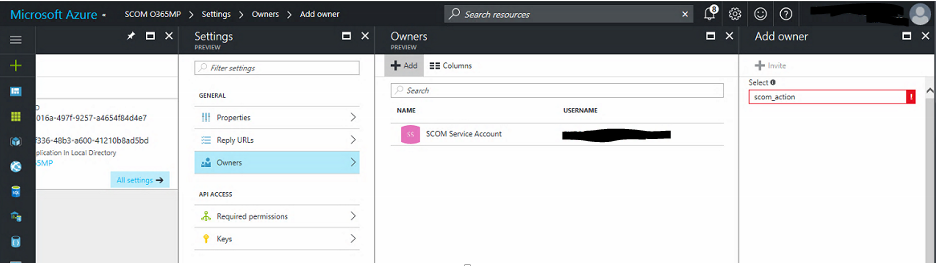
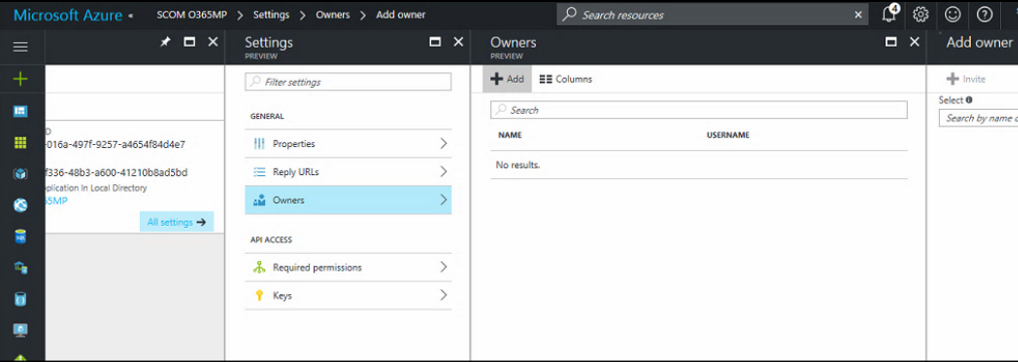
Click on Owners

o365applicationnoownersclean

NOTE NO owners show in this view

Click Add +

In the Add owner window, type the ID

Hit Select to add the user account (This example is the SCOM Service account)

o365application-scomidadded

Have user test

Office 365 subscription not monitored in SCOM

haiku-education-perplexed-bewildered-bemused-mystified-stumped-clipart

Yes this can leave you stumped, and wondering “why?”


This can be many parts, so choose carefully

Verify SCOM ID used in o365 subscription in Azure portal

Create a new subscription in SCOM to use the auto credentials option

Office 365 SCOM Run As Account


Verify O365 Subscription state in SCOM Console

In the SCOM console

Click on Monitoring Tab

Click on the O365 dashboard

Look at the health state

Error showed ‘endpoint not found’

Working with Azure Admin, we found the SCOM O365MP application did NOT have a service account assigned.

Verify SCOM ‘Run as’ account

Verify ‘run as’ ID (originally employee ID, not service account )

Remote Desktop to SCOM MS Server

Verify if the ‘run as’ ID has a valid password

Look in the Operations Manager Event Log for Event ID 7000

Click on Find

Type in the user’s ID from the ‘run as’ account in SCOM

If no entries found, then ID is successfully authenticating against the domain

If errors found, correct ID/Password in SCOM Console


Verify SCOM O365 Azure account


In the SCOM console

Click on Administration

Click on the O365 Wizard

Highlight the subscription

Choose Edit Subscription


Test ID (tested the Service Account)

With the radio button selected at ‘Use auto-created Azure Service Principal’

NOTE Name here is for SCOM purposes and does not have to match Azure Portal Application Name

o365applicationscomaddsubscriptionname

Click Next

SCOM UI will prompt for Azure login

o365applicationscomazureauth

Enter ID and password

Click Sign in to authenticate


If error is ‘Authentication Fails’, contact your Azure Administrator for assistance

References

Verify SCOM ID used in o365 subscription in Azure portal

Create a new subscription in SCOM to use the auto credentials option

Office 365 SCOM Run As Account

Associating MPX files to Notepad++ for MP Fragment Authoring

holyschnikes

Sometimes it’s shocking when you make a simple change that helps you do something easier.

For the UNIX guys in the house, using VIM, GVIM, VIMRC, all helped back in the day to make sure you closed your loops, true tests, etc.

If you use Notepad++ like I do, let alone if you’re creating MP fragments, it helps for the easy color coding.

SO, do you always open the .mpx file and then click on Language, XML?

Time to add the file type to the Style Configurator in Notepad++

In Notepad++

Click on Settings

Click on Style Configurator

Highlight XML in the language column

Add .mpx to the ‘User ext. :’ section

Click ‘Save and Close’

notepadaddmpx

Open up your next MP fragment

Spend your time updating your XML not clicking to format the file!

Save clicks!

Channel9 MSDN site

Need an Easy button to keep your knowledge fresh?

easybutton

The answer is the Channel 9 website https://channel9.msdn.com/

Subscribe to shows that interest you @ https://channel9.msdn.com/Shows


Corey’s channel caught my interest for Azure Network watcher

Network Watcher in Azure https://channel9.msdn.com/Shows/Tuesdays-With-Corey/Tuesdays-with-Corey-with-cool-new-functionality-of-Azure-Network-Watcher

Good to know IaaS features are included that most organizations