Read the ‘Configure SCOM Subscribers’ blog to build out the SNOW subscribers for multiple PowerShell command channels. Create subscribers according to design requirements.
CHANNEL New-SNowEvent.ps1 via POWERSHELL
Follow the screenshots and fill in the wizard per the steps below.
Time to update SCOM, specifically to ‘create SCOM Command Channels’, then subscribers, and subscriptions. Depending on requirements, create multiple channels within SCOM.
Save .ps1 file(s) to SCOM MS
LogAlert.ps1 to verify SCOM notification account
New-SNowEvent.ps1 to inject events into ServiceNow
New-SNowIncident.ps1 to inject incidents into ServiceNow
Save LogAlert.ps1
Create Command channel script and save to SCOM MS(s)
SNOW Event command channel injects ServiceNow SNOW events, with logic to check for alert, incident, then update the SCOM alert TicketID, Owner, ResolutionState based on runtime.
SCOM Navigation steps:
Click on Administration Tab > Notifications > Channels
Click New
Name
ServiceNow SNOW Event Creation Channel
Use New-SNowEvent.ps1 to create SCOM subscription that creates SNOW incidents, then updates SCOM alert with TicketID, Owner, Resolution State for SCOM alert.
This command channel helps admins determine variables possible to pass to PowerShell script(s).
SCOM Navigation steps:
Click on Administration Tab > Notifications > Channels
Click New
Name
ServiceNow SNOW Incident creation channel
Use New-SNowIncident.ps1 to create SCOM subscription that creates SNOW incidents, then updates SCOM alert with TicketID, Owner, Resolution State for SCOM alert.
Time to ‘Test SNOW script’ for event or incident injection. As long as the prerequisites are verified, to include network connectivity, URL, ID, Password, etc., we’re ready to go!
Once the CredentialManager piece has been completed, by the same token you can begin testing the script. Testing can begin, whether to the SCOM Admin SA account, or to the SCOM Notifications account, or even hard coding the values into your PowerShell session.
Begin script testing
The testing leverages that you’ve downloaded various integration scripts first, then being saved on SCOM MS (management servers). The following blog posts, GitHub repo’s will set up multiple methods to test from PowerShell (command line) as SA or SVC accounts.
New-SNOWEventPowerSHellOutput for REST Event injection.
Verify SCOM alert updated for ServiceNow REST injection
Check SCOM console/web console for SCOM alert updates to ResolutionState, TicketID, Owner fields, where TEAM = SYM, and Assignment Group = JustinTime Infra specified
SCOM Monitoring tab Active Alerts output view showing Owner, ResolutionState, and TicketId fields updated.
Be aware of issues
Indicator of Certificate/trust issue
Invoke-RestMethod error seen when organization cert not installed, making server sending REST injection NOT trusted.
Indicator when SNOW alert rule not configured or matching – excessive retry’s. Also note output shows summary of tests, ServiceNow SNOW detail, and SCOM alert updates.
New-SNOWEvent.ps1 failures when SNOW Alert rule not matching or created.
Logging to Operations Manager Event Log for addtional troubleshooting or debug. Unless otherwise updated, the script logs to the ‘Operations Manager’ event log, EventID = 710-712
Single Starting event indicates failed pre-requisite (pre-req NOT met)
SCOM OperationsManager events logging integration script status, as well as whoami and additional debug.
With domain joined machine, use a separate notification services svc account for notifications. SCOM is typically leverages MSAA, or even local system, depending on the accounts used when building out SCOM. Kevin Holman did an excellent job blogging this here
Verify SCOM notification account
Verify and ‘Setup SCOM Notifications account’ to separate notifications outside typical SCOM service SVC account functionality. Also, separating allows CredentialManager to secure, encrypt, and store credentials used by the notification account. Time to verify!
RDP to SCOM MS using notification account.
Open SCOM Console
Click on Administration tab
Expand Run As Configuration
Click on Accounts
Search for notification
Double click on Notifications account
Click on Credentials tab
Verify account being used, in light of CredentialManager piece storing SNOW ID and account.
NOTE Account should be part of SCOM Admins AD group
SCOM console view of Notifications SVC Account
SCOM Notifications Event Log troubleshooting
Knowing the notifications account will aid with SNOW integration scripts, as well as help log whoami, ‘run as’ logging to the ‘Operations Manager’ event log. The specific test and event or incident scripts leverage EventID’s 710-712. 710 for LogAlert.ps1, 711 for New-SNowEvent.ps1, and 712 for New-SNowIncident.ps1.
Single Starting event indicates failed pre-requisite (pre-req NOT met)
SCOM OperationsManager events logging integration script status, as well as whoami and additional debug.
Best practice – Encrypt credentials on SCOM MS to prevent cleartext in scripts. To begin, this includes details to verify SnapIn, verify credentials stored, store credentials.
Verify CredentialManager Snapin is installed
RDP to SCOM MS server(s) as SCOM Notifications SVC account with SA access
Open PowerShell as administrator
Paste command(s) into PowerShell window to test network connectivity to SNOW environments
{ write-host -f red “CredentialManager PoSH Module NOT Installed” }
CredentialManager snapin PowerShell output
Verify Stored Credentials on server
First, verify any credentials stored on server, specific to ServiceNow or not. Second, we begin to use the Get-StoredCredential command. Third, we will setup the credential for REST integration, lastly verifying credential.
Setup Credentials for SNOW RESTAPI
RDP to SCOM MS server(s) as SCOM Notifications SVC account with SA access
Open PowerShell as administrator
Paste command(s) into PowerShell window to test network connectivity to SNOW environments
If no output, there are no credentials stored under the RDP login.
Get-StoredCredential
Commands specific to ServiceNow to verify credentials exist
Been working to ‘Create ServiceNow incidents from SCOM’ with Joe Kelly (Joe’s LinkedIn), Steven Brown (Steven’s LinkedIn), and Tim Fields (Tim’s LinkedIn). Over the past few months, we’ve found quite a few methods available, some free, some with cost. All methods are built on ServiceNow (SNow) REST commands. The resulting PowerShell scripts can do most of the heavy lifting for other Tools like SolarWinds, vCenter, vRealize, Zabbix, SAP manager, Kafka, Nagios, HP OpenView.
Last month’s blog showcased the ServiceNow API/Connector for SCOM
Depending on your customer use cases, this may not be the preferred choice.
One SNOW flavor is like NetCool, where you inject ALL SCOM alerts into ITSM tool (i.e. SNOW events). Another flavor allows you to create a group of objects which will inject SNOW events.
What if you only want incidents for a small subset, and don’t want to wait on SNOW team?
We got that covered.
What if SNOW team wants events only, how can you create an incident?
Tim Fields (see Tim’s LinkedIn) and I were recently working on ServiceNow (SNow) REST commands with a customer. Little did we know the SNow API/connector was released in February. We’ve been waiting for months for the release. It was also nice to find that many other tools were mapped. Tools like SolarWinds, vCenter, vRealize, Zabbix, SAP manager, Kafka, Nagios, HP OpenView, and even email, SNMP traps were already done. Not that I didn’t figure this existed, just wasn’t part of multiple customer’s request. The SNow connectors are typically installed on SNow MID server(s). In SCOM’s case, the connector uses SCOM DLL’s, a configuration file including name, IP, ID with access.
Depending on use cases, you have some options to what best fits your needs.
SNow connector only works for a subset of SCOM alerts
Out of the Box (OotB) built connector. SCOM SNow connector assumes you have SNow MID server(s) installed and configured.
This is better than NetCool connector, as everything was sent to ITSM tool.
Connector allows SCOM group to customize objects for alert/incident creation
Note:
The default binding rules that contain SCOM as the external source, that applies to IT alerts and Metric Intelligence raw data, are the following SCOM Management Packs:
All OS Management Packs
MS SQL Server
IIS
Example
If bi-directional is configured, the bi-directional exchange of values to-and-from the external event source is enabled.
These scenarios describe the default bi-directional functionality for SCOM connectors:
When an alert is resolved in SCOM, it is auto-closed in ServiceNow. However, it is updated irrespective of the bi-directional feature because during each collection cycle, all alert changes are updated.
When an alert is manually closed in ServiceNow, it is auto-closed in SCOM. If the alert state is changed to Reopen, SCOM is also updated.
When an incident is created and associated to an alert in ServiceNow, SCOM receives the incident number as a ticket ID. However, the state of the incident is not available on SCOM. Therefore when the incident is resolved in ServiceNow, SCOM is not updated as the incident number remains the same. When the alert is associated with a new incident, the new incident number is updated in SCOM.
Unsure your experience, but recently, I’ve run across multiple occurrences where servers show up as ‘not monitored. As a result, I’ve found three distinct sets of issues that might cause ‘not monitored’ status –
This scenario usually entails deleting server from Managed Agents view in Administration tab, where alerts or other details may still exist. The procedure leverages Holman’s orphaned agent blog (tried and true) post from years back to aid cleanup.
2) Do you have packs or connectors extending classes?
3) Rebuilding a server with the same name is a common server occurrence
Related to 1, Holman’s orphaned agent blog to be used to cleanup.
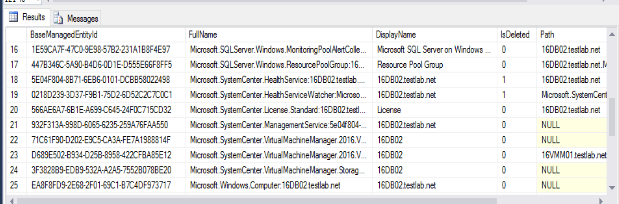
First, let’s test in the Lab. Second, let’s talk about the express lane ‘easy button’. Begin by deleting the Windows Computer orphaned object GUID. Process the Windows Computer object (bottom), followed by the top two (2) are HealthService, and HealthServiceWatcher object properties (see three items highlighted).
16db02 properties
Second piece, marking the Windows Computer GUID for deletion (IsDeleted=1) cleans up nearly ALL properties. See the progress below, how this slight change makes short order of orphaned properties for ‘server’.
Windows Computer object marks all but SCVMM for deletion
Third HealthService & SCVMM objects require manual deletion per GUID.
Note first screenshot shows health service properties marked ‘IsDeleted’ = 1 after manually processing each GUID.
HealthService marked for deletion
Fourth, screenshot shows there the HealthServiceWatcher property is marked for deletion (IsDeleted=1)
HealthServiceWatcher marked for deletion
If you have SCVMM, you will need to repeat for each of the SCVMM properties to clear out the orphans in the DB.
Why – the issue:
Typically, when servers are reimaged, i.e. NOT deleted from SCOM, there are two+ healthservice, HealthServiceWatcher, Windows Computer properties created for each image of example server. Additional properties may show duplicated for any class discoveries that are common to the old and new image.
NOTE: Deleting the current agent may clean up objects for that instance of the discovered server, but NOT the old server image.
The SQL team noted that the newer versions are defaulting Encrypt to be Yes/Mandatory. That is why the new drivers were having an issue. Setting up a certificate in the SQL endpoint would have allowed the connection to work:
To provide the best experiences, we use technologies like cookies to store and/or access device information. Consenting to these technologies will allow us to process data such as browsing behavior or unique IDs on this site. Not consenting or withdrawing consent, may adversely affect certain features and functions.
Functional
Always active
The technical storage or access is strictly necessary for the legitimate purpose of enabling the use of a specific service explicitly requested by the subscriber or user, or for the sole purpose of carrying out the transmission of a communication over an electronic communications network.
Preferences
The technical storage or access is necessary for the legitimate purpose of storing preferences that are not requested by the subscriber or user.
Statistics
The technical storage or access that is used exclusively for statistical purposes.The technical storage or access that is used exclusively for anonymous statistical purposes. Without a subpoena, voluntary compliance on the part of your Internet Service Provider, or additional records from a third party, information stored or retrieved for this purpose alone cannot usually be used to identify you.
Marketing
The technical storage or access is required to create user profiles to send advertising, or to track the user on a website or across several websites for similar marketing purposes.


![dir gci New-SNow[ie]*.ps1](https://kevinjustin.com/blog/wp-content/uploads/2024/05/New-SNOWie.png)