2016 SQL SP1 patch issue

False alert?


If you have SQL2016 SP1 monitored in SCOM, you most likely have Compliance monitor warnings


This is actually a problem with SP1 where SQL did not update the registry key.


Two options to remedy:

  1. Disable SCOM monitor per instance (or class if SP1 is NOT in your environment)
  2. Fix the offending SQL Servers that are patched to SP1


Steps to fix the offending SQL Servers patched to SP1

Update Registry Key


Via PowerShell


TechNet forum is nice as well, but had to tweak it (blog listed here )


# Get Instance

$Instance = (Get-ItemProperty “HKLM:\SOFTWARE\Microsoft\Microsoft SQL Server”).InstalledInstance )

NOTE: If you have multiple instances, you will need a foreach loop

# Get Version

$Version = (Get-ItemProperty “HKLM:\SOFTWARE\Microsoft\Microsoft SQL Server\$((Get-ItemProperty ‘HKLM:\SOFTWARE\Microsoft\Microsoft SQL Server\Instance Names\SQL’).$Instance)\Setup”).Version

# Match Version and set Registry Key
if ($Version -match ‘13.1.4’)

{

Set-ItemProperty -Path “HKLM:\SOFTWARE\Microsoft\Microsoft SQL Server\$((Get-ItemProperty ‘HKLM:\SOFTWARE\Microsoft\Microsoft SQL Server\Instance Names\SQL’).$Instance)\Setup” -Name ‘SP’ -Value 1

}

# Verify

Get-ItemProperty -path “HKLM:\Software\Microsoft\Microsoft SQL Server\MSSQL13.MSSQLSERVER\Setup” | ft SP


Steps broken out


Get Registry Key value via PowerShell


Get-ItemProperty -path “HKLM:\Software\Microsoft\Microsoft SQL Server\MSSQL13.MSSQLSERVER\Setup” | ft SP


Set Registry Key


Set-ItemProperty -path “HKLM:\Software\Microsoft\Microsoft SQL Server\MSSQL13.MSSQLSERVER\Setup” -name “SP” -value 1


Verification

Verify via PowerShell


Verify via RegEdit


Reset SCOM Monitor


And the false alert is gone!

SQL native client for TLS1.2

Ever try to talk to someone when language is a barrier?


Sure, we can run an app, or search our phrase to pronounce, but it’s so much better when we can communicate seamlessly.


Post TLS1.2 for SCOM

Let’s talk SQL

Part of TLS1.2 is updating SQL Native Client to talk using a secure client that uses TLS1.2

That means a different executable should be called.


Why is that important in SCOM?

Maybe you have management packs that connect to SQL or run external commands.


On MS, there are multiple clues for various errors on Management Packs that use SSL or talk to SQL via a non-TLS method.  NOTE this may mean that the SQL DB that management pack is connecting to may need the same pre-req SQL updates to a TLS 1.2 enabled version.

  1. Do you have custom SQL queries being run, CMDB get’s, OLE DB Data Source checks?
  2. Any Event ID 1401 or 11854 events in the Operations Manager Event log?
    1. These events identify management pack scripts creating SCHANNEL events
      a. Event ID 1401 event example


Cause

SQLOLEDB connection strings will cause 36871 Sytem Log events


Example (TLS1.0)
sConnectString = “PROVIDER=SQLOLEDB;DATA SOURCE=<databaseServerFQDN>;DATABASE=MSSQLSERVER;trusted_connection=yes”
 SQLNCLI11 driver for TLS1.2 connection strings

Example (TLS1.2)
 sConnectString = “Provider=SQLNCLI11;DATA SOURCE=<databaseServerFQDN>;DATABASE=MSSQLSERVER;trusted_connection=yes”


Identify
Look for management packs with SQLOLEDB as the Connect string to reduce 36871 SCHANNEL events

In Windows Explorer, use the Advanced Options dropdown to select File Contents
In the Search bar (top right), enter SQLOLEDB (example shows SQLNCLI11)
NOTE SQL Discovery group pack IS compliant


In Windows Explorer, use the Advanced Options dropdown to select File Contents
In the Search bar (top right), enter SQLNCLI11


Additional offenders
HP Topology MP
SQL 2005 discovery MP (discontinued)
SQL Addendum MP’s (will work to update these with Holman)
SharePoint Foundation server (v15.0.4557.1000)
PRE TLS Microsoft.SystemCenter.2007


Resolution
Unseal (if necessary), update connection string, and reimport management packs
If Sealed vendor MP, request new MP via support Incident (and/or UserVoice if Microsoft sourced pack)
If Vendor will not release MP’s, accept risk with the logged errors, update MP, or remove from SCOM


Set up SCOM 2016 for TLS1.2

Security bugging you about SCOM using TLS1.0 ?


Have questions on the TLS1.2 Protocol Support Deployment guide link?

If using ACS, please review ACS steps to configure from the guide above


It’s time to update SCOM 2016 to TLS1.2!


Pre-requisites

.Net and SQL native client, ODBC must be updated to TLS1.2 compliant version

HTTPS Endpoints must be CA signed certificates using SHA1 or SHA2


Ensure .Net version 4.6 is installed on all SC components

Determine which .Net is installed https://docs.microsoft.com/en-us/dotnet/framework/migrationguide/how-to-determine-which-versions-are-installed

From PowerShell (run as admin is NOT required)

Get-ChildItem ‘HKLM:\SOFTWARE\Microsoft\NET Framework Setup\NDP’ -recurse | Get-ItemProperty -name Version,Release -EA 0 | Where { $_.PSChildName -match ‘^(?!S)\p{L}’} | Select PSChildName, Version, Release


Above commands from StackOverFlow article

Guide to .Net versions and dependencies https://docs.microsoft.com/enus/dotnet/framework/migration-guide/versions-and-dependencies


Sample output from win2k8R2 sp1 server (and same from 2016 server)


SQL Server updates

Install the required SQL server update supporting TLS1.2

From PowerShell as Administrator
Invoke-Sqlcmd -Query “SELECT @@VERSION;” -QueryTimeout 3

Example Output
PS C:\Windows\system32> Invoke-Sqlcmd -Query “SELECT @@VERSION;” -QueryTimeout 3
Column1

——

Microsoft SQL Server 2016 (RTM-GDR) (KB3210111) – 13.0.1728.2 (X64) …

OR

Microsoft SQL Server 2008 R2 (SP2) – 10.50.4000.0 (X64)


Compare to SQL matrix to download and install appropriate version
TLS 1.2 SQL Support https://support.microsoft.com/en-in/help/3135244/tls-1.2-support-for-microsoft-sql-server
NOTE Verify you are running a compliant cumulative update (CU), you will need the patch (SQL2016 natively supports TLS1.2)
SQL Server 2008R2 SP2 is NOT supported for TLS1.2  https://blogs.msdn.microsoft.com/sqlreleaseservices/tls-1-2-support-for-sql-server-2008-2008-r2-2012and-2014/


Install the required SQL Native Client
FYI – SQL 2016 uses the SQL 2012 Native client
Download link https://www.microsoft.com/en-us/download/details.aspx?id=50402


SQL Native client 11.0 should be installed on ALL MS and SQL servers (SQL 2008-2016)

From PowerShell as Administrator
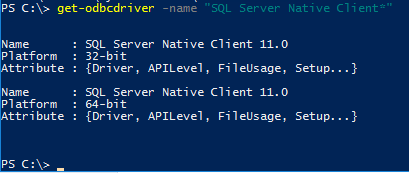
get-odbcdriver -name “SQL Server Native Client*”


Example Output


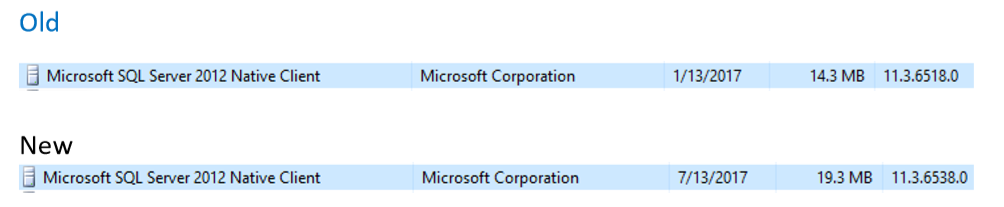
From Control Panel, Programs and Features, Installed Programs


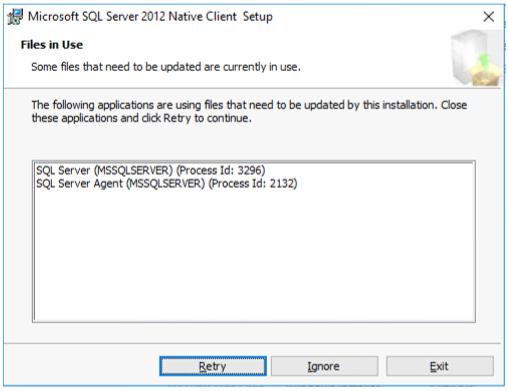
Stop SQL Server and SQL Server agent services
Stop-service SQLSERVERAGENT

Stop-service MSSQLSERVER


Install SQL Native Client MSI

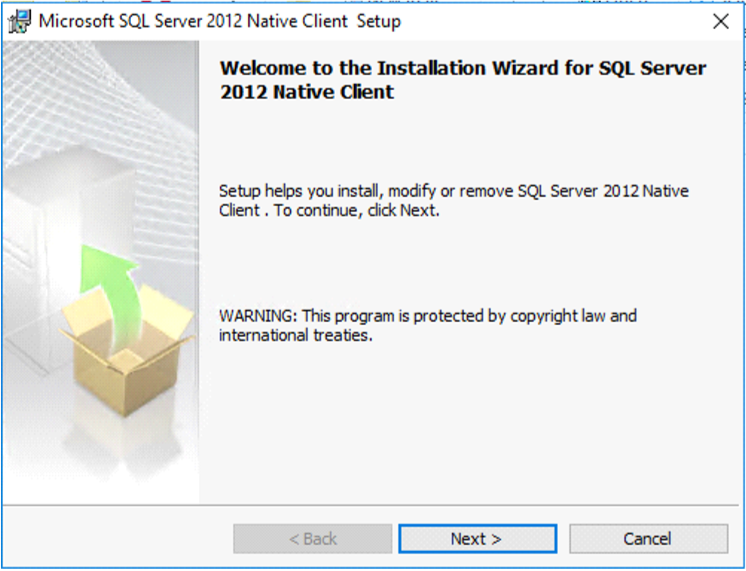
Double click on SQL Native Client MSI file to begin installation

Click on Yes to begin installation

Click Next on the Installer window


Click I accept radio button

Click Next


Click Next on Feature Selection


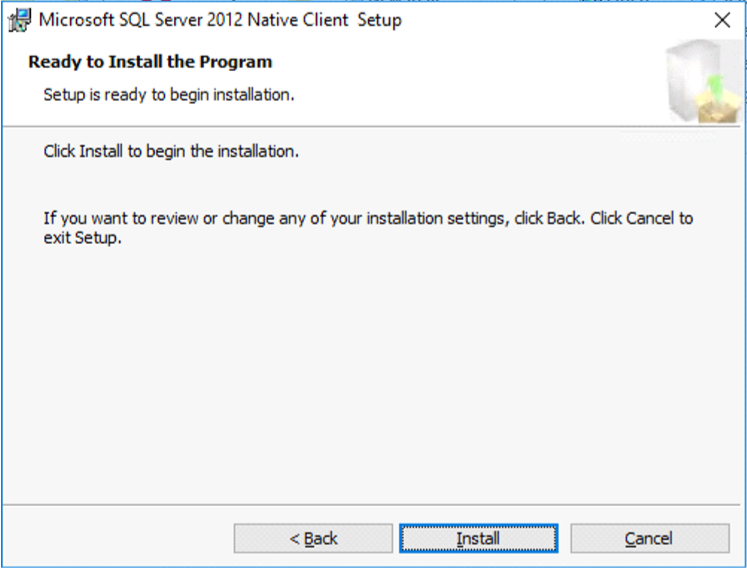
Click Install


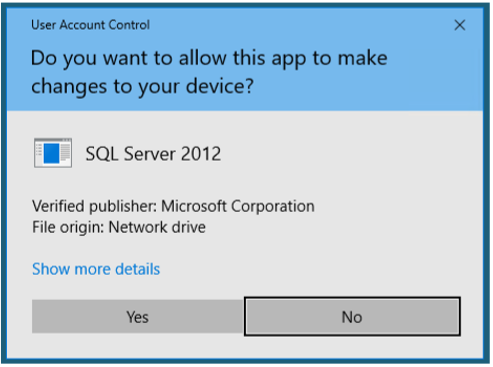
Click Yes on User Account Control (UAC) prompt


Stop SQL Server and SQL Server agent (if they restarted)


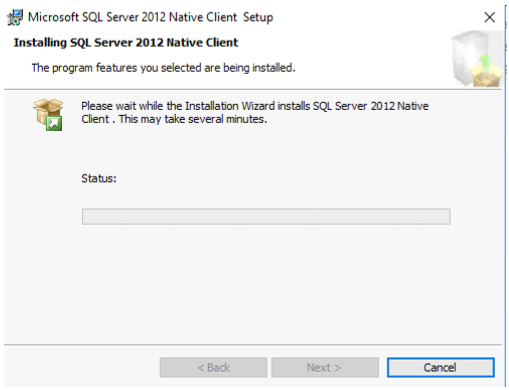
Watch installer status


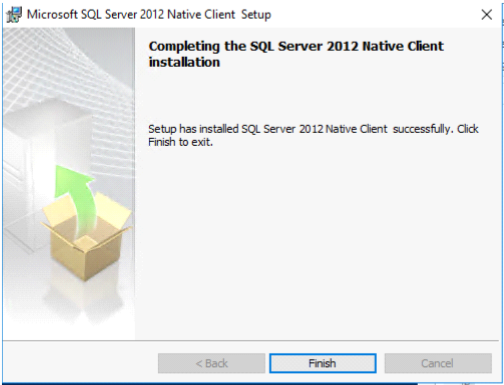
Click Finish when complete


Verify SQL Native Client Verification

Verify SQL services are running
Stop SQL Server and SQL Server agent services From PowerShell as Admin
Get-service SQLSERVERAGENT

Get-service MSSQLSERVER

From PowerShell as Admin If necessary, start SQL Server and SQL Server agent services
Start-service SQLSERVERAGENT

Start-service MSSQLSERVER
Verify Installer completed
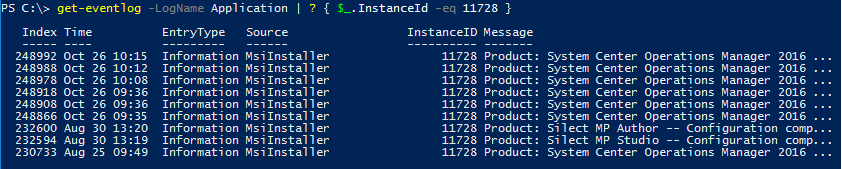
In Event Viewer, Windows Logs, Application look for event 11728


From PowerShell

Get-EventLog -LogName Application | ? { $_.InstanceId -eq 11728 }

Rinse and Repeat for other MS and SQL servers in environment


Install ODBC on all Management Servers


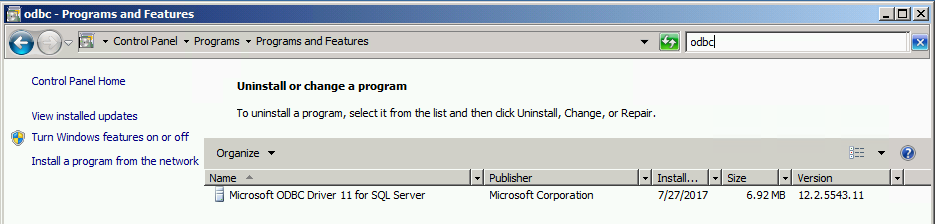
For SCOM & SM, ODBC 11.0 or ODBC 13.0 should be installed on all MS and SQL servers


Verify ODBC v11 for server win2k8R2

From Control Panel

Click on Programs

Click on Programs and Features

Search for ODBC


Verify ODBC v13 for Server 2016

Verify version from PowerShell (run as administrator NOT required)
get-odbcdriver -name “ODBC Driver * SQL Server”


Output

Download and install appropriate version

11.0: https://www.microsoft.com/en-us/download/details.aspx?id=36434 (Version 2.0.5543.11)
13.0: https://www.microsoft.com/en-us/download/details.aspx?id=50420
Verify Installer completed
In Event Viewer, Windows Logs, Application look for event 11728


From PowerShell

Get-EventLog -LogName Application | ? { $_.InstanceId -eq 11728 } | ? { $_.Message -like “*Microsoft ODBC*”


Output


NOTE Please make sure servers are patched with latest Monthly Rollup Updates

Had issue where KB3080079 was NOT installed on server.  Patch applied to Win7, Server 2008,2008R2

From Powershell

get-hotfix -id KB3080079


Output


Install SCOM 2016 UR4 update

See Kevin Holman’s UR4 install blog https://blogs.technet.microsoft.com/kevinholman/2017/10/28/ur4-for-scom-2016-step-by-step/


Time to enable TLS1.2 Secure Channel messages on MS and SQL server (gateway if installed in your environment)

See Gallery for add/query/remove registry keys


Add SCHANNEL path for TLS

$ProtocolList       = @(“SSL 2.0″,”SSL 3.0″,”TLS 1.0”, “TLS 1.1”, “TLS 1.2”)
$ProtocolSubKeyList = @(“Client”, “Server”)
$DisabledByDefault = “DisabledByDefault”
$Enabled = “Enabled”
$registryPath = “HKLM:\\SYSTEM\CurrentControlSet\Control\SecurityProviders\SCHANNEL\Protocols\”

foreach($Protocol in $ProtocolList)
{
    Write-Host ” In 1st For loop”
foreach($key in $ProtocolSubKeyList)
{
$currentRegPath = $registryPath + $Protocol + “\” + $key
Write-Host ” Current Registry Path $currentRegPath”

if(!(Test-Path $currentRegPath))
{
    Write-Host “creating the registry”
New-Item -Path $currentRegPath -Force | out-Null
}
if($Protocol -eq “TLS 1.2”)
{
    Write-Host “Working for TLS 1.2”
New-ItemProperty -Path $currentRegPath -Name $DisabledByDefault -Value “0” -PropertyType DWORD -Force | Out-Null
New-ItemProperty -Path $currentRegPath -Name $Enabled -Value “1” -PropertyType DWORD -Force | Out-Null

}
else
{
    Write-Host “Working for other protocol”
New-ItemProperty -Path $currentRegPath -Name $DisabledByDefault -Value “1” -PropertyType DWORD -Force | Out-Null
New-ItemProperty -Path $currentRegPath -Name $Enabled -Value “0” -PropertyType DWORD -Force | Out-Null
}
}
}


# Tighten up the .NET Framework
$NetRegistryPath = “HKLM:\SOFTWARE\Microsoft\.NETFramework\v4.0.30319”
 New-ItemProperty -Path $NetRegistryPath -Name “SchUseStrongCrypto” -Value “1” -PropertyType DWORD -Force | Out-Null

$NetRegistryPath = “HKLM:\SOFTWARE\WOW6432Node\Microsoft\.NETFramework\v4.0.30319”
 New-ItemProperty -Path $NetRegistryPath -Name “SchUseStrongCrypto” -Value “1” -PropertyType DWORD -Force | Out-Null


Restart servers


Verify SCOM Console for alerts and connectivity


Use DWdataRP utility on SCOM2016

Extra, Extra, read all about it!   Updated 24 June 2022

The DWdataRP utility works on SCOM2016+ 


This tool has been around since SCOM 2007, and blogged about by Kevin Holman and the SCOM Engineering Team

DW Retention https://kevinholman.com/2010/01/05/understanding-and-modifying-data-warehouse-retention-and-grooming/

Kevin added these –

Here is a link to the original command line tool, DWDATARP:   https://kevinholman.com/files/dwdatarp.zip

Here is a tool which makes this even simpler:  https://www.scom2k7.com/scom-datawarehouse-grooming-settings-super-easy-with-new-gui-tool/

And the latest new tool which adds features and simplicity, which is what I recommend: https://blakedrumm.com/blog/scom-dw-grooming-tool/


DWDataRP https://techcommunity.microsoft.com/t5/System-Center-Blog/Data-Warehouse-Data-Retention-Policy-dwdatarp-exe/ba-p/340415?search-action-id=139683980150&search-result-uid=340415


Download the link at the second link, and save to your machine (x86 or x64)


Run the executable

dwdatarp.exe -s <DB Server Name> -D <DW Database Name>


Example dwdatarp.exe -s 16DB02 -D OperationsManagerDW


Set Data sets according to SLA


Ever need to shorten up your Lab DB, so you can export it, to leverage PowerBI dashboards?


Example Output

PS C:\Users\sqladmin\Documents\DWDataRP\amd64> .\dwdatarp.exe -s 16db02.testlab.net -d OperationsManagerDW
Dataset name Aggregation name Max Age Current Size, Kb
—————————— ——————– ——- ——————–
Alert data set Raw data 180 28,736 ( 0%)
Client Monitoring data set Raw data 30 0 ( 0%)
Client Monitoring data set Daily aggregations 400 136 ( 0%)
Configuration dataset Raw data 400 259,968 ( 3%)
DPM event dataset Raw data 400 0 ( 0%)
DPM.Backup.DataSet Raw data 400 0 ( 0%)
DPM.Backup.DataSet Hourly aggregations 3 0 ( 0%)
DPM.Backup.DataSet Daily aggregations 182 0 ( 0%)
DPM.DiskMgmt.DataSet Raw data 400 0 ( 0%)
DPM.DiskMgmt.DataSet Hourly aggregations 3 0 ( 0%)
DPM.DiskMgmt.DataSet Daily aggregations 182 0 ( 0%)
DPM.DiskUtilization.DataSet Raw data 400 0 ( 0%)
DPM.DiskUtilization.DataSet Hourly aggregations 3 0 ( 0%)
DPM.DiskUtilization.DataSet Daily aggregations 182 0 ( 0%)
DPM.Recovery.DataSet Raw data 400 0 ( 0%)
DPM.Recovery.DataSet Hourly aggregations 3 0 ( 0%)
DPM.Recovery.DataSet Daily aggregations 182 0 ( 0%)
DPM.SLATrend.DataSet Raw data 400 0 ( 0%)
DPM.SLATrend.DataSet Hourly aggregations 3 0 ( 0%)
DPM.SLATrend.DataSet Daily aggregations 182 0 ( 0%)
DPM.TapeUtilization.DataSet Raw data 400 0 ( 0%)
DPM.TapeUtilization.DataSet Hourly aggregations 3 0 ( 0%)
DPM.TapeUtilization.DataSet Daily aggregations 182 0 ( 0%)
Event data set Raw data 100 456,144 ( 5%)
Exchange 2013: Mailbox Database data warehouse dataset Raw data 30 0 ( 0%)
Exchange 2013: Mailbox statistics data warehouse dataset Raw data 30 0 ( 0%)
Exchange 2013: Mailbox statistics data warehouse dataset Daily aggregations 400 0 ( 0%)
Performance data set Raw data 10 216,096 ( 2%)
Performance data set Hourly aggregations 400 5,552,832 ( 61%)
Performance data set Daily aggregations 400 221,312 ( 2%)
Process Monitoring: Performance Metric State data warehouse dataset Raw data 10 0 ( 0%)
Process Monitoring: Performance Metric State data warehouse dataset Hourly aggregations 90 0 ( 0%)
Process Monitoring: Performance Metric State data warehouse dataset Daily aggregations 180 0 ( 0%)
Process Monitoring: Process Health State data warehouse dataset Raw data 10 0 ( 0%)
Process Monitoring: Process Network Ports data warehouse dataset Raw data 10 0 ( 0%)
State data set Raw data 180 6,080 ( 0%)
State data set Hourly aggregations 400 2,335,968 ( 25%)
State data set Daily aggregations 400 99,840 ( 1%)


Commands to run to clean up the warehouse…

.\dwdatarp.exe -s 16db02.testlab.net -d OperationsManagerDW -ds Performance -a Hourly -m 60
.\dwdatarp.exe -s 16db02.testlab.net -d OperationsManagerDW -ds State -a Hourly -m 60
.\dwdatarp.exe -s 16db02.testlab.net -d OperationsManagerDW -ds event -a raw -m 30

Example Output
PS C:\Users\admin\Documents\DWDataRP\amd64> .\dwdatarp.exe -s 16db02.testlab.net -d OperationsManagerDW -ds Performan
ce -a Hourly -m 60
Max data age set to 60 on dataset “Performance data set” aggregation type “Hourly aggregations”
PS C:\Users\admin\Documents\DWDataRP\amd64> .\dwdatarp.exe -s 16db02.testlab.net -d OperationsManagerDW -ds State -a
Hourly -m 60
Max data age set to 60 on dataset “State data set” aggregation type “Hourly aggregations”
PS C:\Users\admin\Documents\DWDataRP\amd64> .\dwdatarp.exe -s 16db02.testlab.net -d OperationsManagerDW -ds event -a
raw -m 30
Max data age set to 30 on dataset “Event data set” aggregation type “Raw data”


Don’t forget to execute cleanup

–This will manually run grooming for this dataset
DECLARE @DatasetId uniqueidentifier
SET @DatasetId = (SELECT DatasetId FROM StandardDataset WHERE SchemaName = ‘Alert’)
EXEC StandardDatasetGroom @DatasetId

–This will manually run grooming for this dataset
DECLARE @DatasetId uniqueidentifier
SET @DatasetId = (SELECT DatasetId FROM StandardDataset WHERE SchemaName = ‘Event’)
EXEC StandardDatasetGroom @DatasetId

–This will manually run grooming for this dataset
DECLARE @DataSetId uniqueidentifier
SET @DataSetId = (SELECT DatasetId FROM StandardDataset WHERE SchemaName = ‘Perf’)
EXEC StandardDatasetGroom @DataSetId

–This will manually run grooming for this dataset
DECLARE @DataSetId uniqueidentifier
SET @DataSetId = (SELECT DatasetId FROM StandardDataset WHERE SchemaName = ‘State’)
EXEC StandardDatasetGroom @DataSetId

Optimize SQL for SCOM

Maybe I’m old school, but do you ever feel like optimizing SQL is like playing a video game?

Keep on shooting, hopefully you don’t hit your thrusters and drift and then die!


Does your SQL DBA Team (or did you):

NTFS Allocation Unit set to 64KB for the SQL Server drives

Dedicate memory for the OS (set SQL to use max memory)

Set autogrow to be greater than 1 MB?

MaxDOP (degrees of parallelism)

TempDB’s are on separate mounts (and match the number of cores)

Database and log files are on separate mounts

Backup SQL Server encryption keys

Disable XpCommandShell


Most of the documentation can be had from a single link

https://docs.microsoft.com/en-us/system-center/scom/plan-sqlserver-design?view=sc-om-1711


Disable XpCommandShell https://docs.microsoft.com/en-us/sql/relational-databases/system-stored-procedures/xp-cmdshell-transact-sql


SYSTEM CENTER 2016/2019 Operations Manager – Anti-Virus Exclusions

Updated 30 June, 7 July 2020 and includes docs.microsoft.com article updates


NOTE: Process name exclusion wildcards could potentially prevent some dangerous programs from being detected.


Hopefully this table is helpful (my thanks to Matt Goedtel for the docs site updates, and Matt’s efforts to keep docs the ‘go-to’ site)


Previously the blog left the SCOM Admin and Security teams with questions where blogs did NOT match vendor site documentation.  The blog merged the PFE UK team blog & Kevin Holman blog  into an easier tabular view per component)


Original Blog introduction

As we are all aware, antivirus exclusions can affect monitoring data generated, and affect system performance.


Best practice is to implement specific exclusions.


Exclusions\RoleMSDBGWRSWebAgent
Folder
Management Server installation folder
Default: “C:\Program Files\Microsoft System Center 2016\Operations Manager\Server\”
*
Agent installation folder
Default: “C:\Program Files\Microsoft Monitoring Agent”
**
Gateway installation folder
Default: “C:\Program Files\Microsoft System Center 2016\Operations Manager\Gateway\”
*
Reporting installation folder
Default: “C:\Program Files\Microsoft System Center 2016\Operations Manager\Reporting”
*
WebConsole installation folder
Default: “C:\Program Files\Microsoft System Center 2016\Operations Manager\WebConsole”
*
SQL Data installation folder
Default: “C:\Program Files\Microsoft SQL Server\MSSQL.1x<INSTANCENAME>\MSSQL\Data”
*
SQL Log installation folder
Default: “C:\Program Files\Microsoft SQL Server\MSSQL.1x<INSTANCENAME>\MSSQL\Log”
*
SQL Reporting installation folder
Default: “C:\Program Files\Microsoft SQL Server\MSRS.1x<INSTANCENAME>
*
File Types
EDB*****
CHK*****
LOG*****
LDF**
MDF**
NDF**
Processes
CShost.exe*
HealthService.exe******
Microsoft.Mom.Sdk.ServiceHost.exe*
MonitoringHost.exe******
SQL Server
Default: “C:\Program Files\Microsoft SQL Server\MSSQL1x.<Instance Name>\MSSQL\Binn\SQLServr.exe”
*
SQL Reporting Services
Default: “C:\Program Files\Microsoft SQL Server\MSRS1x.<Instance Name>\Reporting Services\ReportServer\Bin\ReportingServicesService.exe”
**


Useful information for decoding the matrix

Docs site https://docs.microsoft.com/en-us/system-center/scom/plan-security-antivirus?view=sc-om-2019

Platform https://support.microsoft.com/en-us/help/822158/virus-scanning-recommendations-for-enterprise-computers-that-are-running-currently-supported-versions-of-windows

SCOM 2012/2012R2 KB975931 https://support.microsoft.com/en-us/help/975931/recommendations-for-antivirus-exclusions-that-relate-to-operations-manager

PFE UK team blog https://blogs.technet.microsoft.com/manageabilityguys/2013/11/26/system-center-2012-r2-operations-manager-anti-virus-exclusions/

SQL

https://support.microsoft.com/en-us/help/309422/choosing-antivirus-software-for-computers-that-run-sql-server

https://blogs.technet.microsoft.com/raymond_ris/2014/01/16/windows-antivirus-exclusion-recommendations-servers-clients-and-role-specific/

Version mapping by folder (my thanks to StackOverFlow https://stackoverflow.com/questions/18753886/sql-server-file-names-vs-versions )
100 = SQL Server 2008    = 10.00.xxxx
105 = SQL Server 2008 R2 = 10.50.xxxx
110 = SQL Server 2012    = 11.00.xxxx
120 = SQL Server 2014    = 12.00.xxxx
130 = SQL Server 2016    = 13.00.xxxx

SQL Engineering Blog

hmmmm

Ever wonder when a SQL MP is published?

Wonder no longer, look for the SQL Engineering Blog!


New https://techcommunity.microsoft.com/t5/SQL-Server/bg-p/SQLServer/label-name/SQLReleases

Old – redirect in effect https://blogs.msdn.microsoft.com/sqlreleaseservices/