Detected malicious verification code error

'detected malicious verification code' errors
Detected malicious verification code when verifying element – ever run into this scenario while authoring?


Ever run into the ‘detected malicious verification code’ error while authoring?  I ran into the malicious verification error authoring, and couldn’t find any content for this error while authoring a pack.


Watch your copy/paste’s with additional monitoring changes to prevent ‘detected malicious verification code’ errors

In my authoring example, I received the ‘detected malicious verification code error’ after adding Rules, Datasources, and WriteActions (including tasks).  I was copying and pasting DataSources (DS) and WriteActions (WA), thought I had it all.  Uploaded > got the error, and GRR!   Hopefully this will help others authoring to know what to check to get the management pack uploaded.


Simply put – Watch out for typo’s to avoid ‘detected malicious verification code’ errors!

I stumbled across a few websites, but nothing really pointed out to what caused the ‘detected malicious verification code error’ when uploading a management pack.  First, check monitor and rules to verify the DS/WA are called correctly (no errors in file names.  Check the Tasks as well as DisplayStrings, to make sure everything matches.


Error Seen when uploading Management pack from SCOM Console GUI regarding ‘detected malicious verification code’ error

<ManagementPackNameHere> Reports could not be imported.


If any management packs in the Import list are dependent on this management

pack, the installation of the dependent management packs will fail.


Verification failed with 1 errors:

——————————————————-

Error 1:

Found error in

2|<ManagementPackNameHere>|1.0.0.6|<ManagementPackNameHere>|

| with message:

Detected malicious verification code when verifying element of type

Microsoft.EnterpriseManagement.Configuration.ManagementPackRule with inner

exception: System.Collections.Generic.KeyNotFoundException: The given key

was not present in the dictionary.

at System.ThrowHelper.ThrowKeyNotFoundException()

at System.Collections.Generic.Dictionary`2.get_Item(TKey key)

at

Microsoft.EnterpriseManagement.Configuration.ManagementPackRule.VerifyDataTy

pes(Dictionary`2 moduletypes)

at

Microsoft.EnterpriseManagement.Configuration.ManagementPackRule.Verify(Verif

icationContext context)

at

Microsoft.EnterpriseManagement.Configuration.Verification.VerificationEngine

.VerifyCollectionItems(Object context)


Additional links

Detected malicious verification code when verifying element

Forum https://social.technet.microsoft.com/Forums/en-US/ac50ae14-882a-4788-a8e4-6a975c498a29/detected-malicious-verification-code-when-verifying-element-of-type

Caution using Tags/Notes extending classes

Caution
Caution


Please take ‘caution using Tags/Notes extending classes’.  Please read below if you use Tags/Notes on SCOM classes.  Ran across examples where SCOM Class Properties were used for tags that used the .Notes field on various classes, causing orphaned properties, NOT removed from OperationsManager database.


Background

The Microsoft.Windows.Computer Class (insert class here) is updated using Tim McFadden’s blog.  This can cause issues with orphaned classes in the database because it is not currently handled as part of the stored procedure (i.e. the Notes property classes do not get marked for deletion).


First, identify which classes have Notes property.  Start from Management Server (MS) via PowerShell.   See attached TXT for additional examples to check and add/remove Notes Property on additional windows classes.


Set Notes property for Windows Operating System server

Second, we need to see how to set and clear the value, in order to clean up the Operations Manager database, to remove the orphaned instances.  The example below sets the value for one (1) server to ‘Production’.


$WOS = Get-SCOMClass -name Microsoft.Windows.OperatingSystem | get-SCOMClassInstance | where-object -property Path -eq “16db01.testlab.net”
$WOS.'[System.ConfigItem].Notes’

$WOS.'[System.ConfigItem].Notes’.Value = “Production”

$WOS.Overwrite()

$WOS = Get-SCOMClass -name Microsoft.Windows.OperatingSystem | get-SCOMClassInstance | where-object -property Path -eq “16db01.testlab.net”

$WOS.'[System.ConfigItem].Notes’


Example Output

PS C:\Users\scomadmin> $WOS.'[System.ConfigItem].Notes’.Value = “Production”
PS C:\Users\scomadmin> $WOS.Overwrite()
PS C:\Users\scomadmin> $WOS = Get-SCOMClass -name Microsoft.Windows.OperatingSystem | get-SCOMClassInstance | where-object -property Path -eq “16db01.testlab.net”
PS C:\Users\scomadmin> $WOS.'[System.ConfigItem].Notes’

PropertyAccessRights : Unknown
Parent : Microsoft Windows Server 2016 Standard
Type : Notes
Value : Production
Id : 00000000-0000-0000-0000-000000000000
ManagementGroup : SCOM2016
ManagementGroupId : e39f5f53-9fbb-9d7f-4bfe-5f0324630ae5


Set Notes property to NULL

$WOS.'[System.ConfigItem].Notes’.Value = $null
$WOS.Overwrite()

$WOS = Get-SCOMClass -name Microsoft.Windows.OperatingSystem | get-SCOMClassInstance | where-object -property Path -eq “16db01.testlab.net”

Verify Notes value

$WOS = Get-SCOMClass -name Microsoft.Windows.OperatingSystem | get-SCOMClassInstance | where-object -property Path -eq “16db01.testlab.net”
$WOS.'[System.ConfigItem].Notes’


Example Output
PS C:\Users\scomadmin> $WOS = Get-SCOMClass -name Microsoft.Windows.OperatingSystem | get-SCOMClassInstance | where-object -property Path -eq “16db01.testlab.net”
PS C:\Users\scomadmin> $WOS.'[System.ConfigItem].Notes’

PropertyAccessRights : Unknown
Parent : Microsoft Windows Server 2016 Standard
Type : Notes
Value : (null)
Id : 00000000-0000-0000-0000-000000000000
ManagementGroup : SCOM2016
ManagementGroupId : e39f5f53-9fbb-9d7f-4bfe-5f0324630ae5


Have a happy Holiday!

Good luck, hopefully this scenario isn’t something that impacted the monitoring environment!

Use SCOM helper for advanced administration

VoteForPedro
Vote for Pedro and SCOM helper

First, use SCOM helper for advanced administration (a shameless plug to Tyson & MonitoringGuys blog!)


Me as Picard being hit by SCOM helper

In case you didn’t know, as I may be the last off the airplane, it’s time to talk about SCOMHelper.  Things you forget, like using a power drill, versus manual screwdriver, all because you’re familiar with the old trusty screwdriver.  Man, I think I upgraded past the power drill with a cord, to a lithium-ion powered impact drill with SCOMHelper.


Blog https://monitoringguys.com/2019/11/12/scomhelper/
Download https://www.powershellgallery.com/packages/SCOMHelper


Install SCOMHelper

Time to use SCOM helper for advanced administration, and get it installed!

Pretty simple install.  I would recommend adding to monitoring team server, jumpserver, from SCOM MS, or console enabled, Operations Manager plug-in installed machines.

From PowerShell (as admin)

Install-Module -Name SCOMHelper

Install SCOM Helper
Install SCOM Helper


SCOM helper functions
Clear-SCOMCache Compare-String Deploy-SCOMAgent Export-SCOMEffectiveMonitoringConfigurationReport Export-SCOMEventsToCSV Export-SCOMKnowledge Export-SCOMOverrides Fast-Ping Get-SCOMAlertKnowledge Get-SCOMClassInfo Get-SCOMHealthCheckOpsConfig Get-SCOMMPFileInfo Get-SCOMRunAsAccountName Get-SCOMRunAsProfilesAccounts Get-SCOMRunningWorkflows Get-StringHash New-SCOMClassGraph New-SCOMComputerGroup Ping-AllHosts Remove-SCOMObsoleteReferenceFromMPFile Set-SCOMMPAliases Show-SCOMModules Show-SCOMPropertyBag Test-Port Unseal-SCOMMP Update-SCOMComputerGroup Start-SCOMOverrideTool

Open PowerShell (as admininstrator)
Type: Install-Module -Name SCOMHelper

Example output
PS C:\> Install-Module -Name SCOMHelper

Untrusted repository
You are installing the modules from an untrusted repository. If you trust this repository, change its
InstallationPolicy value by running the Set-PSRepository cmdlet. Are you sure you want to install the modules from
‘PSGallery’?
[Y] Yes [A] Yes to All [N] No [L] No to All [S] Suspend [?] Help (default is “N”): A

If SCOMHelper is already installed
Open PowerShell (as admininstrator)
Type: Install-Module -Name SCOMHelper -Force

(You may get the untrusted repository message if you answered Y (yes) or N (no)

Example output
PS C:\> Install-Module -Name SCOMHelper -Force
PS C:\>

Install SCOM Helper -force


Just one example –

Use the Unseal-SCOMMP to unseal your MP and MPB’s for your SCOM mgmt pack repository

Have fun playing!

If you’re administering management groups, I can pretty much guarantee you will need these:

Export-SCOMEffectiveMonitoringConfigurationReport

Export-SCOMOverrides

Get-SCOMHealthCheckOpsConfig

Get-SCOMRunningWorkflows

New-SCOMClassGraph

Remove-SCOMObsoleteReferenceFromMPFile

Show-SCOMPropertyBag

I’m off to unseal my repository, so my Notepad++ searches can find more examples for new authoring functionality.

ConfigMgr SMS role alerts

Microsoft Endpoint Configuration Manager

It’s that time to figure out the ConfigMgr SMS role alerts – If you are monitoring your SCCM/MECM environment, then you get role failure alerts.  Many times, the Operations Helpdesk, NOSC, NOC, SOC, etc. will get alerts when various roles fail on the Configuration Manager platform.  The common ask is why, what do you see, etc.  Much like Exchange, ConfigMgr internalizes the checks that are seen in the console as registry keys or events documenting said degraded component/feature.  Helping the MECM administrator understand the failure is key to decoding how to notify administrator, and when the helpdesk needs to act on ‘ConfigMgr SMS role alerts’.


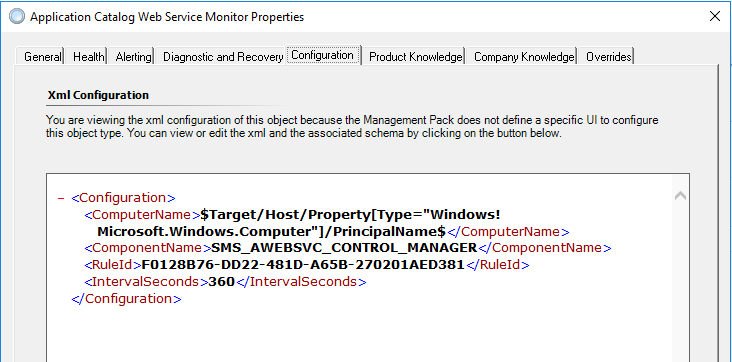
Example – MECM/SCCM looks at replication probe action state $Config/RoleName$

Example MECM Service Monitor for role alerts


The role check is based on a variable of the RoleName in a registry key that the application updates.


MECM Monitor Config
MECM Monitor Config


This is the origin of ConfigMgr SMS role alerts

HKLM:SOFTWARE\Microsoft\SMS\Operations Management\SMS Server Role\$Config/RoleName$\Availability State


Decoder ring:

1 is critical state

2,3,4 are warning states


If more details are needed, download SCCM/MECM Management Pack for SCOM here

Use Tyson’s SCOM Helper pack to unseal, and inspect XML.


Once you know the origin of the ConfigMgr SMS role alerts, you can begin tuning the MECM alerts to your environment.  Understanding role alerts will help both teams understand MECM application health.  First, use MECM application health to trend alerts/outages.  Second, leverage maintenance mode schedules, or MM scripts to NOT monitor for common administration tasks.  From my experience, the alerts are the result of MECM Admins maintaining the application – common actions like building application/package lists, cleanup actions, site maintenance, backups, etc.  Lastly, set up a subscription to notify after the tuning discussion.  See my blog on building a subscription for more details.

WebConsole APM hotfix for SCOM2012R2 and above

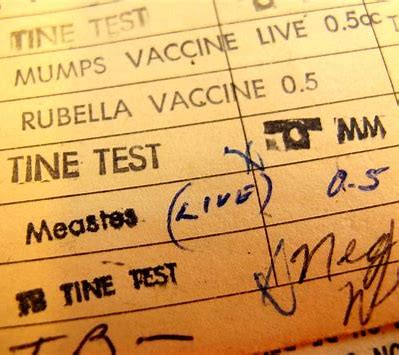
Vaccination Record - SCOM hotfix released for WebConsole/APM on SCOM2012R2 and above
Vaccination Record

SCOM hotfix released for WebConsole/APM on SCOM2012R2 and above, time for another SCOM shot!  Don’t forget your vaccination card 🙂


Let’s get started.  Time to fix the vulnerability for ‘SCOM hotfix released for WebConsole/APM on SCOM2012R2 and above’.  Read the support article, and assess what versions you have in your sandbox and production.  Once assessed, it’s time to test/implement/verify the fix applied.


Support article

https://support.microsoft.com/en-us/topic/update-for-idor-vulnerability-in-system-center-operations-manager-kb5006871-0e3a513a-ad80-4830-8984-2fc5a40ee7f7


SCOM WebConsole Hotfix links

(support.microsoft.com articles)

Specific support article for SCOM2019 UR3 Hotfix

SCOM2019 UR3 Hotfix support.microsoft.com article link

Specific support article for SCOM2016 UR10 Hotfix

SCOM2016 UR10 Hotfix support.microsoft.com article link

Specific support article for SCOM2012R2 UR14 Hotfix

SCOM2016 UR10 Hotfix support.microsoft.com article link


# Download (same EXE has all 3 SCOM versions)

https://download.microsoft.com/download/3/e/e/3eec1274-64d5-4285-84b9-c50800eb2dd2/KB5006871.EXE


Hotfix updates two paths on SCOM management server with the WebConsole role

Paths updated

(don’t forget to add File Version property to your display)

NOTE Drive letter depends on where you installed SCOM (typically D:)


SCOM2019 paths

D:\Program Files\Microsoft System Center\Operations Manager\WebConsole\AppDiagnostics\Web\bin

D:\Program Files\Microsoft System Center\Operations Manager\WebConsole\AppDiagnostics\AppAdvisor\Web\Bin

SCOM2016 paths

D:\Program Files\Microsoft System Center 2016\Operations Manager\WebConsole\AppDiagnostics\Web\bin

D:\Program Files\Microsoft System Center 2016\Operations Manager\WebConsole\AppDiagnostics\AppAdvisor\Web\Bin


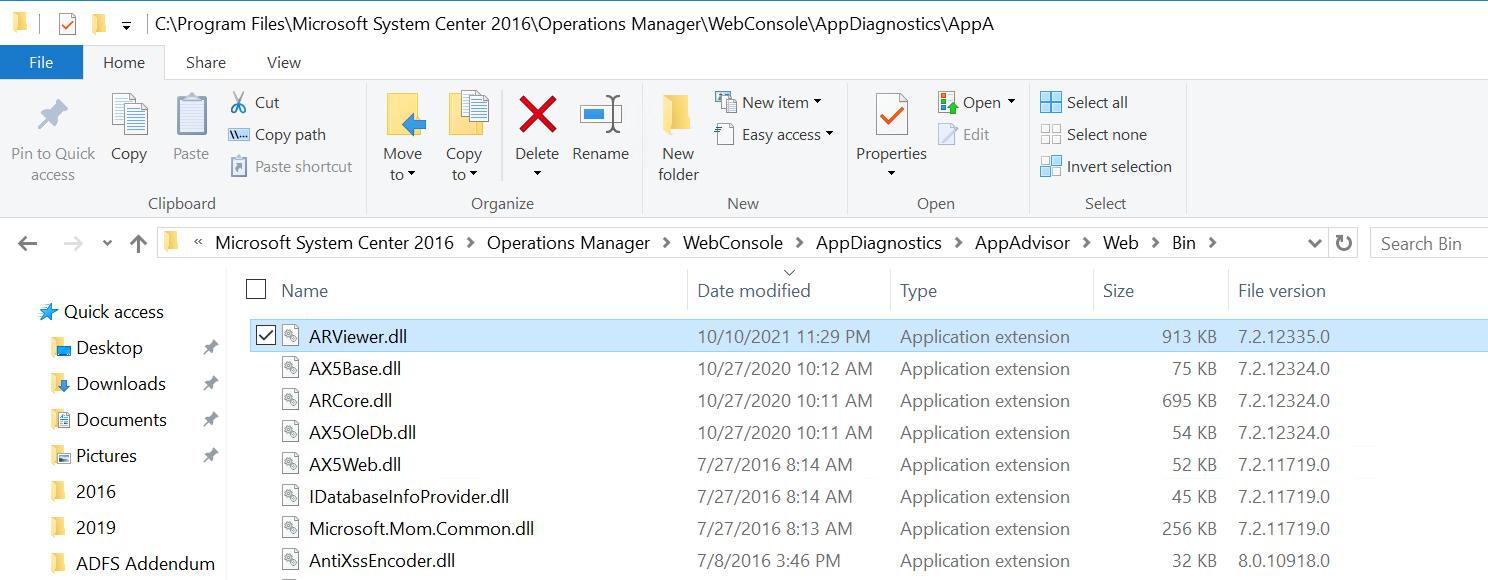
Screenshot of paths

AppDiagnostics File Path - SCOM hotfix released for WebConsole/APM on SCOM2012R2 and above
AppDiagnostics File Path
AppDiagnostics AppAdvisor File Path - SCOM hotfix released for WebConsole/APM on SCOM2012R2 and above
AppDiagnostics AppAdvisor File Path


Just in case you forgot how to add properties in Windows Explorer…

In the columns (Name, Date modified, etc,) right click > More

Add file property - SCOM hotfix released for WebConsole/APM on SCOM2012R2 and above
Add file property

Hit F to move down to the F named details > hit check box for ‘File Version’ or click on File Version and hit space bar

Click on OK

Add file property File Version - SCOM hotfix released for WebConsole/APM on SCOM2012R2 and above
Add file property File Version


Sort by ‘Date Modified’ Column

Verify File Version - SCOM hotfix released for WebConsole/APM on SCOM2012R2 and above
Verify File Version


File versions AFTER installing hotfix

Depending on which SCOM version you’re running, the path stays pretty much the same, and you want to verify that files were updated for the ‘SCOM hotfix released for WebConsole/APM’

SCOM2019

UR3 = 10.19.10505.0 > Hotfix file version = 10.19.10550.0

SCOM2016

UR10 = 7.2.12324 > Hotfix file version = 7.2.12335.0

Standard UR10 files are 8.0.10918.0


Voila > SCOM hotfix complete

Notify your Security team you’ve patched, because sometimes the scanner software isn’t accurately updated (where Security needs to open a case with their vendor!)


Complete:  Patched environment for ‘SCOM WebConsole/APM on SCOM2012R2 and above’

Mining Windows Event Log

Mining Ore from the Windows Event Log and finding a way to make it portable


Use Get-WinEvent to use XML and filters from event viewer, to mine an event, including examples for a specific string, from a specific event, in a specific event log?


Hopefully this post will help with a few tips to simplify monitoring for events, whether in AzMon, SCOM, or via PowerShell.


Let’s start with the Dr Scripto blog post from quite a while ago –

https://devblogs.microsoft.com/scripting/data-mine-the-windows-event-log-by-using-powershell-and-xml/


Not sure how many people use get-WinEvent, but this is one tool in PowerShell that can help an admin parse the XML side of an event.


Example 1

Query Application Event Log for Severity, Event, and Event Data contains lync.exe

$query = @”

<QueryList>

  <Query Id=”0″ Path=”Application”>

    <Select Path=”Application”>*[System[Provider[@Name=’Application Hang’]

    and (Level=2) and (EventID=1002)]]

    and *[EventData[Data=’lync.exe’]]</Select>

  </Query>

</QueryList>

“@

Get-WinEvent -FilterXml $query


PowerShell output

Use Get-WinEvent to use XML and filters from event viewer
Lync.exe event example output


Use Get-WinEvent to use XML and filters from event viewer

The Tip or Trick part of this – leverage your Event Viewer Filter as a query to use with get-WinEvent

Credit for this tip comes from Andrew Blumhardt!

See below for examples to ‘use Get-WinEvent to use XML and filters from event viewer’


Navigating via Event Viewer:

Hop onto your favorite server, or connect to another server via Event Viewer

Go to the Event Log > Click Filter Current Log

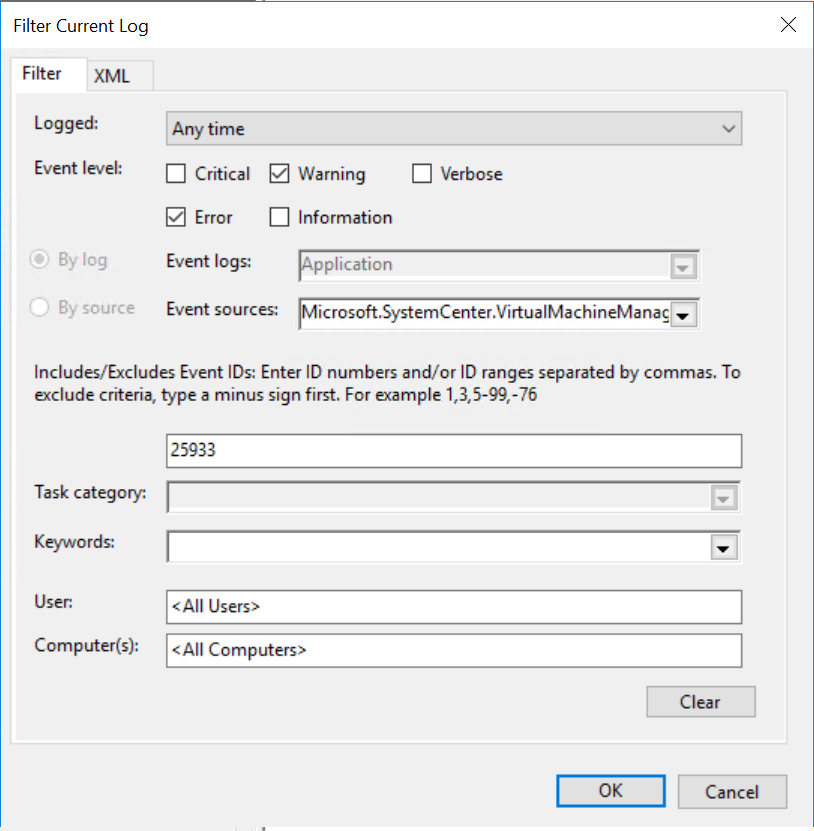
Build out your filter (i.e. choose specific Event Sources, exclude events, include severities, timeframe (start/end), etc.)

Use Get-WinEvent to use XML and filters from event viewer
SCVMM Application Log Event ID 25933

Switch to the XML tab (and note you can edit your query further!)

SCVMM query example screenshot
Event Viewer filter XML tab

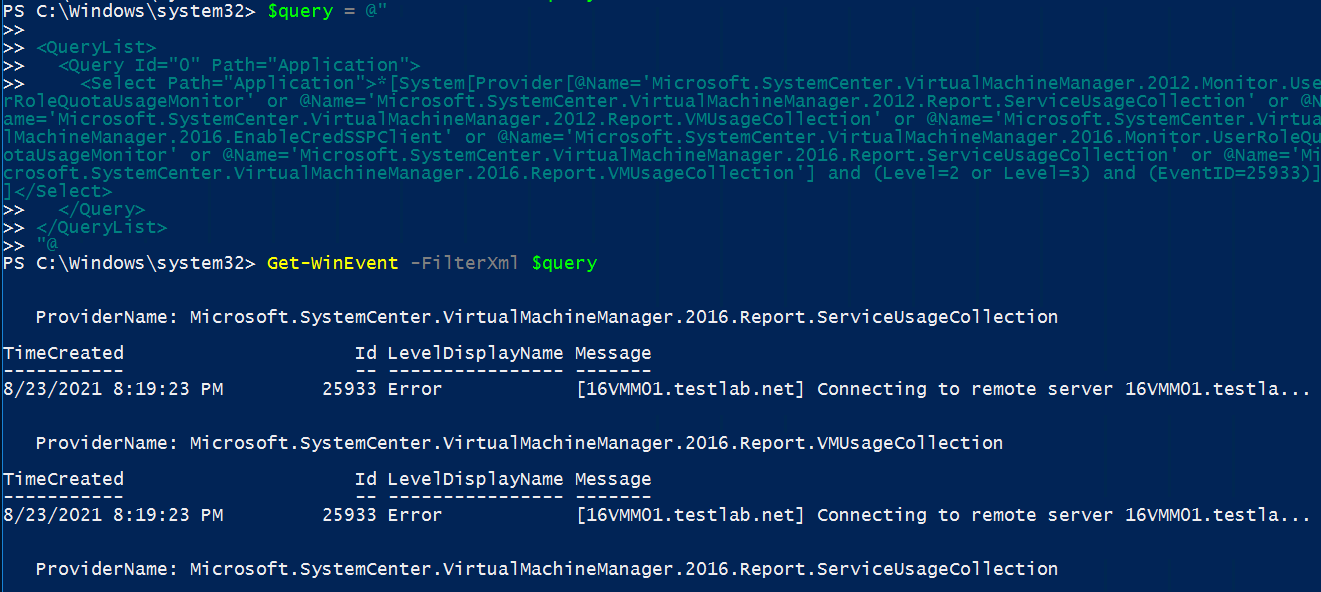
You can copy the query from the Event Viewer into your Get-WinEvent syntax

$query = @”

<QueryList>
<Query Id=”0″ Path=”Application”>
<Select Path=”Application”>*[System[Provider[@Name=’Microsoft.SystemCenter.VirtualMachineManager.2012.Monitor.UserRoleQuotaUsageMonitor’ or @Name=’Microsoft.SystemCenter.VirtualMachineManager.2012.Report.ServiceUsageCollection’ or @Name=’Microsoft.SystemCenter.VirtualMachineManager.2012.Report.VMUsageCollection’ or @Name=’Microsoft.SystemCenter.VirtualMachineManager.2016.EnableCredSSPClient’ or @Name=’Microsoft.SystemCenter.VirtualMachineManager.2016.Monitor.UserRoleQuotaUsageMonitor’ or @Name=’Microsoft.SystemCenter.VirtualMachineManager.2016.Report.ServiceUsageCollection’ or @Name=’Microsoft.SystemCenter.VirtualMachineManager.2016.Report.VMUsageCollection’] and (Level=2 or Level=3) and (EventID=25933)]]</Select>
</Query>
</QueryList>

“@

Get-WinEvent -FilterXml $query


PowerShell output

Use Get-WinEvent to use XML and filters from event viewer
SCVMM query example screenshot


Example 3

Grab System Event Log, Event ID 5827  (NetLogon denied events)

get-WinEvent -FilterHashtable @{LogName=’System’; ID=’5827′;}


PowerShell output

Use Get-WinEvent to use XML and filters from event viewer
get-WinEvent filter by logname and event ID


Documentation:

Get-WinEvent https://docs.microsoft.com/en-us/powershell/module/microsoft.powershell.diagnostics/get-winevent?view=powershell-7.1

MSFT DevBlogs https://devblogs.microsoft.com/scripting/data-mine-the-windows-event-log-by-using-powershell-and-xml/

Which subscription was the trigger?

Hello Again,

Surprise!

I am back, as a rusty nail, and back to make lemonade from lemons!

Rusty Nail through Lemon

Rusty Nail through Lemon


Ever run into an email you don’t want to get, but have difficulty finding

the subscription entry?


Do you get a subscription Email, and that channel has the Notification ID, but you’re not sure what subscription sent the alert email?


Let’s start with the notification email

Example

Notification subscription ID generating this message:

{AA0C1081-D04F-F5CA-DEB7-92B9ECA619E2}


On SCOM MS > Open PowerShell

Get-SCOMNotificationSubscription


Example

PS C:\windows\system32> Get-SCOMNotificationSubscription -ID

“BD52BB72-3FDE-9D7F-6214-B9A47A311896”


Configuration     :

Microsoft.EnterpriseManagement.Administration.AlertChangedSubscriptionConfiguration

ManagementGroup   : SCOMTestLab

Name              : Subscription168e29fd_a8e5_4ee4_956f_d9591b845475

DisplayName       : AD DailyTasks Report

Description       : +CRITERIA = Alert Name Contains ‘Proactive DailyTasks AD

Team Report’     +RESOLUTIONSTATE = (0)

New    +SUBSCRIBERS = AD team, USER Kevin Justin via EMAIL     +CHANNEL = SMTP Email

Actions           : {SMTPAction_a6a5314d_83f5_47c0_910a_e60040b4c808}

ToRecipients      : {USER <blank> via EMAIL, USER <blank> via EMAIL, USER

<blank> via Email, USER <blank> via EMAIL…}

CcRecipients      : {}

BccRecipients     : {}

Enabled           : True

Id                : bd52bb72-3fde-9d7f-6214-b9a47a311896

ManagementGroupId : 001b9265-3c9f-816c-aa36-a8687c05be8e


Get-SCOMNotificationSubscription | ? { $_.ID -eq

“BD52BB72-3FDE-9D7F-6214-B9A47A311896” }


Example

PS C:\windows\system32> Get-SCOMNotificationSubscription | ? { $_.ID -eq “BD52BB72-3FDE-9D7F-6214-B9A47A311896” }

Configuration     :

Microsoft.EnterpriseManagement.Administration.AlertChangedSubscriptionConfiguration

ManagementGroup   : SCOMTestLab

Name              : Subscription168e29fd_a8e5_4ee4_956f_d9591b845475

DisplayName       : AD DailyTasks Report

Description       : +CRITERIA = Alert Name Contains ‘Proactive DailyTasks AD

Team Report’     +RESOLUTIONSTATE = (0)

New    +SUBSCRIBERS = AD team, USER Kevin Justin via EMAIL     +CHANNEL = SMTP Email

Actions           : {SMTPAction_a6a5314d_83f5_47c0_910a_e60040b4c808}

ToRecipients      : {USER <blank> via EMAIL, USER <blank> via EMAIL, USER

<blank> via Email, USER <blank> via EMAIL…}CcRecipients      : {}

BccRecipients     : {}

Enabled           : True

Id                : bd52bb72-3fde-9d7f-6214-b9a47a311896

ManagementGroupId : 001b9265-3c9f-816c-aa36-a8687c05be8e


Update the subscription

Depending on the subscription criteria, you may need to adjust the classes, or rules/monitors, or even the criteria (properties)


Example

Using Subscription Description for more details into what is filtered, who alert is delivered to, and the channel used

SubscriptionDescription


Example

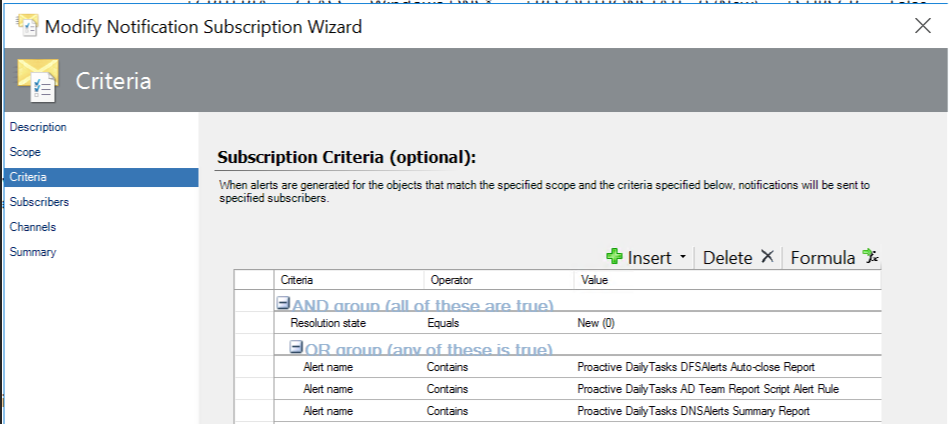
Expanding Subscription Criteria to see details into what criteria is filtered for subscription

SubscriptionCriteria

SubscriptionCriteria

See previous blogs for the best practice / how to set up subscriptions to show useful data without all the clicks

Subscription set up guide

Docs article How to Create Notification Subscriptions | Microsoft Docs

SCOM 2016 web console hot fix released

Burglar stealing a monitor
Security hotfix for SCOM 2016 web console released before your information is stolen

SCOM 2016 web console hot fix

Security teams may be contacting you for CVE-2020-1331 vulnerability on the 2016 web console.  In my example, the Tenable scanner listed ALL SCOM management group servers – under SCOM2016/2019).

NOTE KB does not install on server, so does not show up under ‘Installed Updates’


Background

HotFix DLL comes with a readme to replace the DLL for the SCOM 2016 WebConsole role

If you don’t already know this, the roles each get their own directory on your SCOM server

Security scanners run scripts to help validate if system is vulnerable.  It is possible that the scanner is just looking for some string for the install of SCOM, NOT the actual role that is vulnerable.


SCOM 2016 typically installs @ (‘\Program Files\Microsoft System Center 2016’)

SCOM 2019 typically installs @ (‘\Program Files\Microsoft System Center’)


Identify SCOM roles

Open PowerShell window to identify roles

cd “D:\Program Files\Microsoft System Center 2016\Operations Manager”


Resolve Web Console vulnerability

High level steps

Download the KB here

Execute KB

Copy dll and readme file

Backup DLL and replace

Reboot server

Contact Security Team to re-scan server


Mitigate vulnerability

Download the KB here

Extract downloaded the KB

Click Run to extract, and list extraction path

Click Run for Security Warning pop-up

Copy Windows Explorer Path you want to extract to, and paste in the path

Example

S:\MonAdmin\MSDN images\SCOM\2016\WebConsole HotFix

Enter path to extract Hot Fix
Extract Hot Fix


Copy current DLL & replace with hotfix DLL

Open PowerShell window (as admin)

# Backup DLL

# Change Drive letter if you hopefully installed SCOM on D: drive (non-system drive)

copy “C:\Program Files\Microsoft System Center 2016\Operations Manager\WebConsole\MonitoringView\bin\Microsoft.EnterpriseManagement.OperationsManager.MonitoringViews.dll”  “C:\Program Files\Microsoft System Center 2016\Operations Manager\WebConsole\MonitoringView\bin\Microsoft.EnterpriseManagement.OperationsManager.MonitoringViews-old.dll”

# Replace DLL

copy “C:\MonAdmin\Microsoft*.dll” “C:\Program Files\Microsoft System Center 2016\Operations Mana
ger\WebConsole\MonitoringView\bin”


# Verify

cd “D:\Program Files\Microsoft System Center 2016\Operations Manager\WebConsole\MonitoringView \bin”

gci Microsoft.EnterpriseManagement.Operations*.dll


Sample screenshot from Windows Explorer view of Bin directory for replaced DLL – Same size, only timestamp changes July Page 4

Windows Explorer window showing DLL's
Windows Explorer window showing DLL’s

Reboot server


Test WebConsole functionality

Verify from SCOM Console > Administration Tab > Settings > Web

Find Console URL
Find Console URL

Example

http://16ms01/OperationsManager


Contact Security Team to re-scan SCOM asset(s)


References

CVE-2020-1331 https://portal.msrc.microsoft.com/en-US/security-guidance/advisory/CVE-2020-1331


Microsoft Support article

https://support.microsoft.com/en-us/help/4566040/prevent-javascript-injection-in-operations-manager-2016-web-console

Tenable forum post https://community.tenable.com/s/question/0D53a000074LGapCAG/plugin-137369-security-updatesfor-microsoft-system-center-operations-manager


Identify orphaned agent properties

Detective investigating items under a magnifying glass


Back again, I’m going to ‘Identify orphaned agent properties’.  For instance, does an agent still show up under Windows Computer, or more classes, like Windows Operating System?  Typically we have handled this by using Holman’s purge blog.


Deleting and Purging data from the SCOM Database


First, my thanks to Kevin H, Mihai S from the SCOM PG, & Premier Support CSS, for their help.  Let’s begin the ‘Identify orphaned agent properties’ discussion with ‘how’.  First, how do you get an orphaned property?  Second, how to you resolve?


Some example scenarios

    1. Server rebuilt with same name.  New agent runs discovery, and creates new set of GUID’s in the database.
    2. The Monitoring Tab > Windows Computer view contains unhealthy <gray> server objects.  Upon further inspection, the server does NOT show up in the Administration > Agent Managed view.
    3. Custom management pack authoring extends the Windows Computer class, or others (via SDK or PowerShell)


‘Identify and resolve’ orphaned agent properties


    1. Check for COMMIT or Overrides in management packs

PG recommended looking at Windows Computer extended class properties, and Connector Framework discoveries.

Microsoft.EnterpriseManagement.ConnectorFramework.IncrementalDiscoveryData.Commit()

or

Microsoft.EnterpriseManagement.ConnectorFramework.IncrementalDiscoveryData.Override()


Search for the ConnectorFramework

Search management packs (MP) via SCOM OpsDB (OperationsManager Database)

    1. Login to your SCOM OpsDB > New Query

select MPName, convert(xml, MPXML)

from ManagementPack

where

   MPXML like ‘%Commit(%’ or

   MPXML like ‘%Override(%’

Export management pack output or snag it/snippet screenshot

Example Snapshot from SQL query

SQL Query output of Management Pack output with Commit or Override
SQL query of MP Commit or Override pack matches

FYI – mgmt packs above use %Commit(%, but not the connectorFramework


Correct discoveries that use ConnectorFramework

Replace Discoveries

Update discoveries that contain:

New-Object Microsoft.EnterpriseManagement.ConnectorFramework.IncrementalDiscoveryData.Commit()

New-Object Microsoft.EnterpriseManagement.ConnectorFramework.IncrementalDiscoveryData.Override()

Replace with:

New-Object -comObject MOM.ScriptAPI for discovery


Test discoveries that use Remove method

Microsoft.EnterpriseManagement.ConnectorFramework.IncrementalDiscoveryData.Remove()


Example management pack discovery script

Contains

$discovery = New-Object Microsoft.EnterpriseManagement.ConnectorFramework.IncrementalDiscoveryData

$discovery.RemoveInternal($Instance,$ClassInstance.GetClasses()[0])

$discovery.Commit($mg)  <– This is the offender that causes the orphans

}


ADCS – Active Directory Certificate Services Addendum pack

Time to talk Certificates!
Certificate of Achievement


Hello again, it’s time to talk about ADCS – Active Directory Certificate Services Addendum!


First, I’d like to call out Bob Williams and Vance Cozier for their help and expertise!

SCOM-ADCS-Addendum download


Background

ADCS is Active Directory Certificate Services, or what we would know as a Certificate Authority.  The goal was to improve the pack, because the focus is on how important certificates are to a modern enterprise.  Let’s begin the Active Directory Certificate Services Addendum pack review.

Collaboration

In this paragraph, let’s talk through the Certificate Services packs for 2016+, and how we as Microsoft consultants, and field engineers, recommend changes to the pack.  First, for some background, the collaboration process gets a better result improving Microsoft products.   Second, the collaboration result can vary.  Third, collaboration input can be based on customer input, or field engineer experience.  Most importantly, this is how we ‘would have liked’ the pack to work.


AD Certificate Services Monitoring

The Certificate services pack alerts on events/services.  Therefore, the pack does NOT monitor the SCEP URL.  For instance, a transaction web monitor was added.   The collaboration effort was focused on improving the ADCS pack, resulting in the creation of the Active Directory Certificate Services Addendum and customizations packs.


Download File

Let’s delve into the download file

SCOM-ADCS-Addendum download


Review file contents

  • Download.txt (in case you need to find it later!)
  • Version.Info.txt (MP version history, what was added & when)
  • XLS MP export of rules/monitors
  • ADCS Addendum & Customizations packs


References

Configuring Certificate Services docs site

ADCS download

Management Pack wiki