Setting up OMS Service Map solution

hmmmm

Ever wonder what happened to BlueStripe?

Anyone else have experience using it with SCOM?

If you weren’t aware, Microsoft bought Blue Stripe back in 2015 link


Looks like BlueStripe FactFinder is now Service Map in Azure

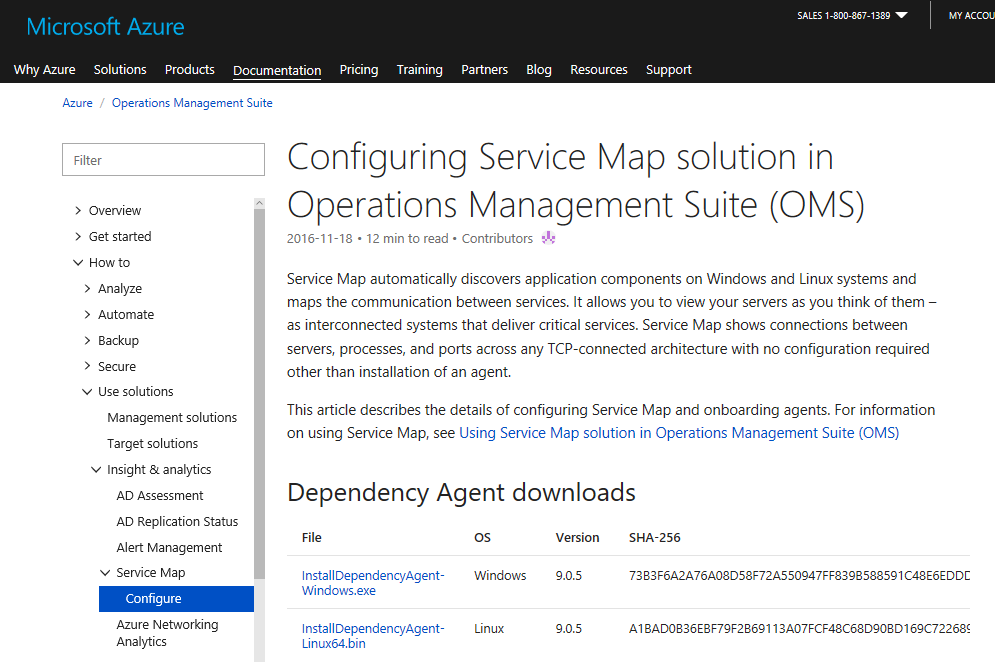
Documentation here


Service Map is very easy to add and get value from right away with OMS

Download agent

You have two choices:

  1. Choose from Docs.Microsoft.com documentation above, or from your OMS environmentdocsagentdownload
  2. From your OMS workspace, add the Service Map solution

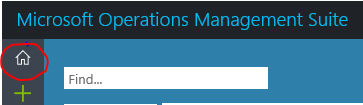
Click on Home icon in top left hand corner

omshome

Click on Service Map pane

Click on Download Agent link as appropriate for Windows or Linux

Save file and install on your server(s)

oms-initialscreen


Windows Server Installation

Execute the MSI file downloaded from OMS (NOTE may prompt with UAC prompt)

Click ‘I Agree’

servicemapinstall

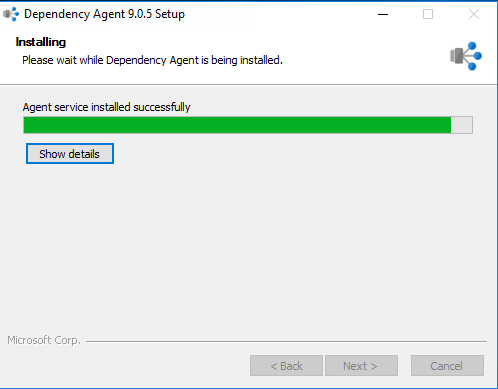
Watch the Install

servicemapinstalling

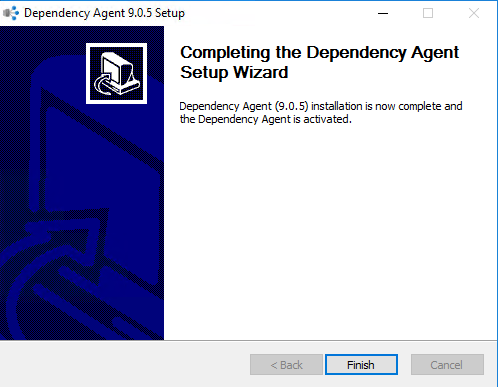
Click Finish

servicemapinstallcomplete

Now go back to OMS and look for updates (mine was that fast!)

servicemapsolution

Click on the Service Map pane to see more detail

servicemapdetail

To add additional machines is basically the same, just choose add machines

oms-addmachines


In case you caught that I have two (2) of the same named machines, it’s because I have that server set up for OMS separately.  Yes, it’s my lab, so I’m not following the best practice.

servicemapsolutionwclients

Enjoy!

Building a subscription

subscribe-and-save


Let’s talk notifications for a minute.

Everyone complains that a tool is noisy for alerts (typically emails).

Why not find a way to limit what you receive, and eliminate, the noise.

Sure, there’s alert tuning, but there are a ton of built-in options with Subscriptions in SCOM.


howto

Let’s Start by talking about now a subscription is built in SCOM.

Step 1 – An owner (or ‘subscriber’) is needed

This can be an email address, group name or variable you may want to pass to a command line for a destination (e.g. support team/NOC/POC)

Step 2 – A channel is needed (simply put, a way to get the data out of SCOM)

This can be SMTP (email), or a custom executable to a ticketing system, NetCool, BMC True Sight, xMatters, Derdack, to name a few.

Step 3 – Criteria to send to an owner (details)

Time to set up a subscription, and learn as we go!

Do you have the necessary 3 parts (subscriber, channel)

Do you have a destination/subscriber already set up?

Yes, see go to Channel

No, follow the subscriber blog here

Do you have a channel set up

Yes, see go to Subscription

No, follow the Channel blog here


Do you have a naming convention for the subscription parts?

The Subscription name needs to be intuitive, i.e. Application Name, Team Name, Company Name (depending on the environment)

Process an Application’s alerts

Example     ‘BizTalk alerts’

If BizTalk alerts needed to go to different teams

‘BizTalk DEV Alerts’ or ‘BizTalk PROD Alerts’

or if Criteria is involved ‘BizTalk Performance Alerts’

or if alerts need to route to another company ‘Contoso BizTalk alerts’

Capitalize what needs emphasis so in the Subscriptions view (make searches or sorts easier and more intuitive)

Making sense where I’m going with this?


Criteria can influence the name

CLASS, MONITOR, RULE, SEVERITY, GROUP, RESOLUTION STATE

To me the value comes in with the Description field in a subscription.

Adding relevant detail here makes life easier when followed, to know what the subscription is doing.

Try this model for the Subscription Description

CRITERIA

SUBSCRIBER

COMMENTS

Example

+MONITOR = Health Service Heartbeat Failure +SEVERITY = Warning/Critical +RESOLUTION STATE NOT equals 255 +SUBSCRIBERS = GROUP Server Admins via Email +Comments: Created 2016-02-12 for SCOM Agent tuning


Time to set up a subscription

Subscription Summary Healthservice Watcher subscription to alert on any NEW Healthservice Heartbeat failures

Name     SCOM HealthService Watcher

Description

+MONITOR = Health Service Heartbeat Failure +SEVERITY = Warning/Critical +RESOLUTION STATE NOT equals 255 +SUBSCRIBERS = GROUP Server Admins via Email +Comments: Created 2016-02-12 for SCOM Agent tuning


Criteria

Notify on all alerts where

created by Health Service Heartbeat Failure rules or monitors (e.g., sources)

and of a Warning or Critical severity

and with Not Equals 255 resolution state


Subscribers

GROUP Server Admins via eMail


Channels

SMTP Channel

Basic Admin ‘How-to’ Series

443053-royalty-free-rf-clip-art-illustration-of-a-cartoon-businessman-carrying-a-heavy-manual

This is a series of blog posts to help with SCOM best practices, and things that make SCOM easier to administer.


Associate MPX files in Notepad++ blog

Backup management packs via PowerShell blog

Get to know your monitor blog

Load Test MP with Report blog

Load Test MP Fragments blog

Maintenance Mode PowerShell blog

Manage DB storage with DWdataRP blog

Managing Subscriptions blog

PowerShell Rule/Monitor/PerfCounter MP and Fragments blog

Registry Key discovery MP Fragment clarification blog

Run As PowerShell monitor fragment blog

Sealing Management packs with 2012R2 and 2016 blog

Subscriptions blog

Subscription Set up Guide blog

Uncommon MP Fragments blog

Verifying Overrides blog


Best Practices

Agent Management pack KH Blog

Enable proxy as a default KH blog

How to be heard blog

Manage alerts/events/performance KH Blog

Office Analytics (find where all the time goes) blog

Optimize SQL blog

Recommended Registry tweaks KH blog

SCOM Agent Version Addendum KH blog

Set SCOM Agent to remotely managed KH Blog

SQL Engineering Blog

SYSTEM CENTER 2016 Operations Manager – Anti-Virus Exclusions blog

Update VMM MP’s for SCOM when SCVMM patched blog


Tools

MP Viewer blog

Download Notepad++ here

Kevin Holman blog on extracting scripts from MP’s using Transform tool from codeplex

Test fire events using EventLog Explorer here

Alternate tool to fire any events here

Verifying Custom MP overrides are valid when updating sealed MP’s

kidraisedhand

I will raise my hand when asked if I prefer Notepad++ for looking at XML (because I can shrink the sections I’m not concerned about).


Using Notepad++ (works best for color and concatenation of XML or quotes in case of syntax errors when editing)


Open Overrides management pack (XML)

Click on the (-) for Manifest

Click on the dash (-) for RelationshipTypes

Click on the dash (-) for each Discovery (if it exists)

simplifyingdiscoveryview


Verify targets exist in MP’s to be updated

Scroll to the right to view the Targets of your Override management pack

simplifyingview


If changes were overrides, look at the Monitor or Rule and verify this is in the pack to be updated

overridesmonitor


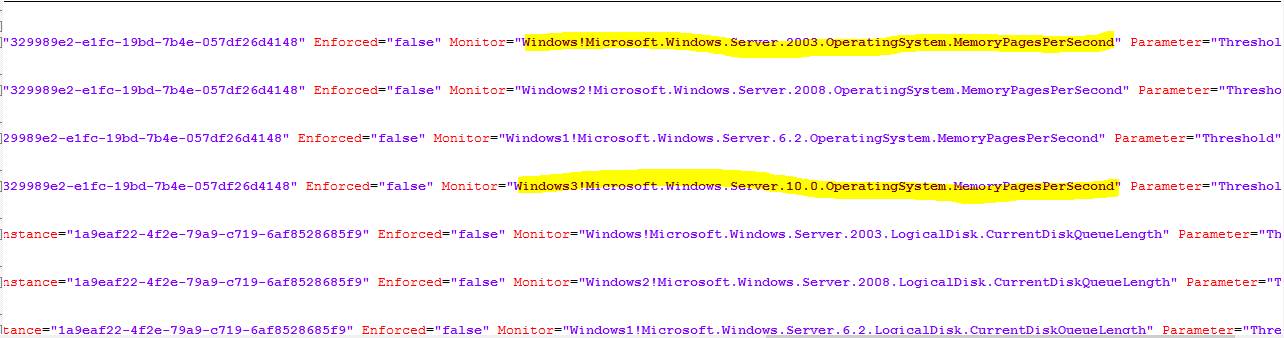
To understand which MP is being referenced, look at the example – Windows3!

Scroll to the top of your MP and click on the (+) plus sign to expand manifest

mpreference1


NOTE Windows3 is the server 2016 Monitoring MP

decodingmpreference


Verify your monitor/rule name still exists, and your Override should still apply

In Server Overrides MP, look at the Monitor= section for the Monitor name

verifyoverridemonitorhighlight


Go to the Windows Server 2008 Monitoring MP and look for that monitor

There is no monitor for 2008

notepadmonitortypes


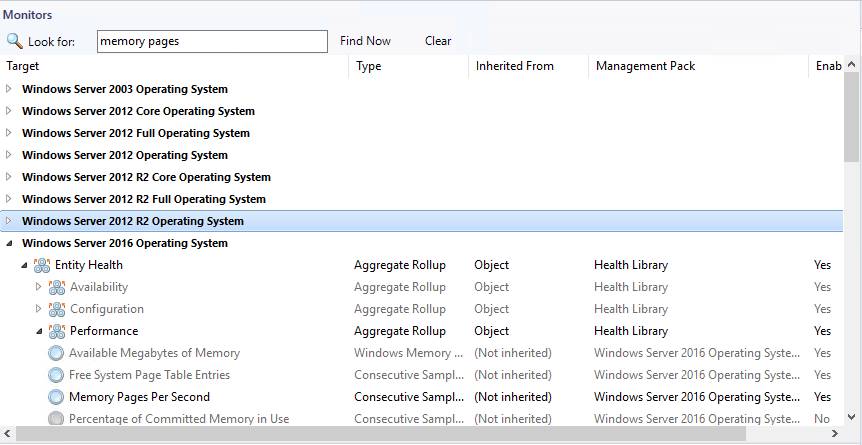
Alternatively, you can look at the SCOM console as well (if MP is installed)

There is NO 2008 Memory Pages per second monitor

 scomconsolemonitorverify


Now to remove the override in our MP

In Notepad++, highlight the MonitorConfigurationOverride section, and delete

monitoroverridehighlight

Rinse and Repeat

Increment the version number and import MP when finished validating overrides.


Troubleshoot Office 365 SCOM MP Run As account

Run As Account

The Office 365 Run As account is used for Proxy access for an HTTPS connection from SCOM MS to Office 365 portal endpoint.

Must be a domain account, not an Azure account (particularly if they ‘re not the same tenant or AAD associated

Service Accounts are recommended to prevent impact should an employee leave


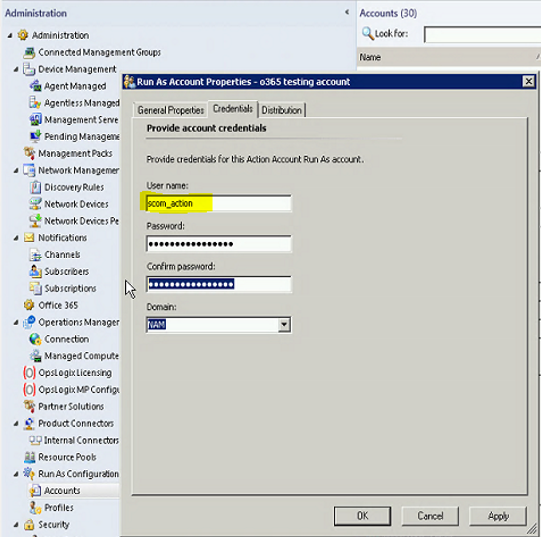
SCOM uses a domain account (example scom_action ID)

Verify that ID is in Azure tenant (contact your Azure Administrator if you don’t have access )

o365applicationazureidverify

To follow best practice, update the Run As account with the service account

o365applicationscomrunascredential


Verify Run As account

On SCOM console that there are no Operations Manager event log 7000 events for the ‘run as’ configured ID

Remote Desktop to SCOM MS Server

Verify if the ‘run as’ ID has a valid password

Look in the Operations Manager Event Log for Event ID 7000

Click on Find

Type in the user’s ID from the ‘run as’ account in SCOM

If no entries found, then ID is successfully authenticating against the domain

If errors found, correct ID/Password

Create a new subscription in SCOM to use the auto credentials option

NOTE New subscription may take 5-10 minutes to populate health data

From SCOM console

Click on Administration

Click on the Office 365 wizard

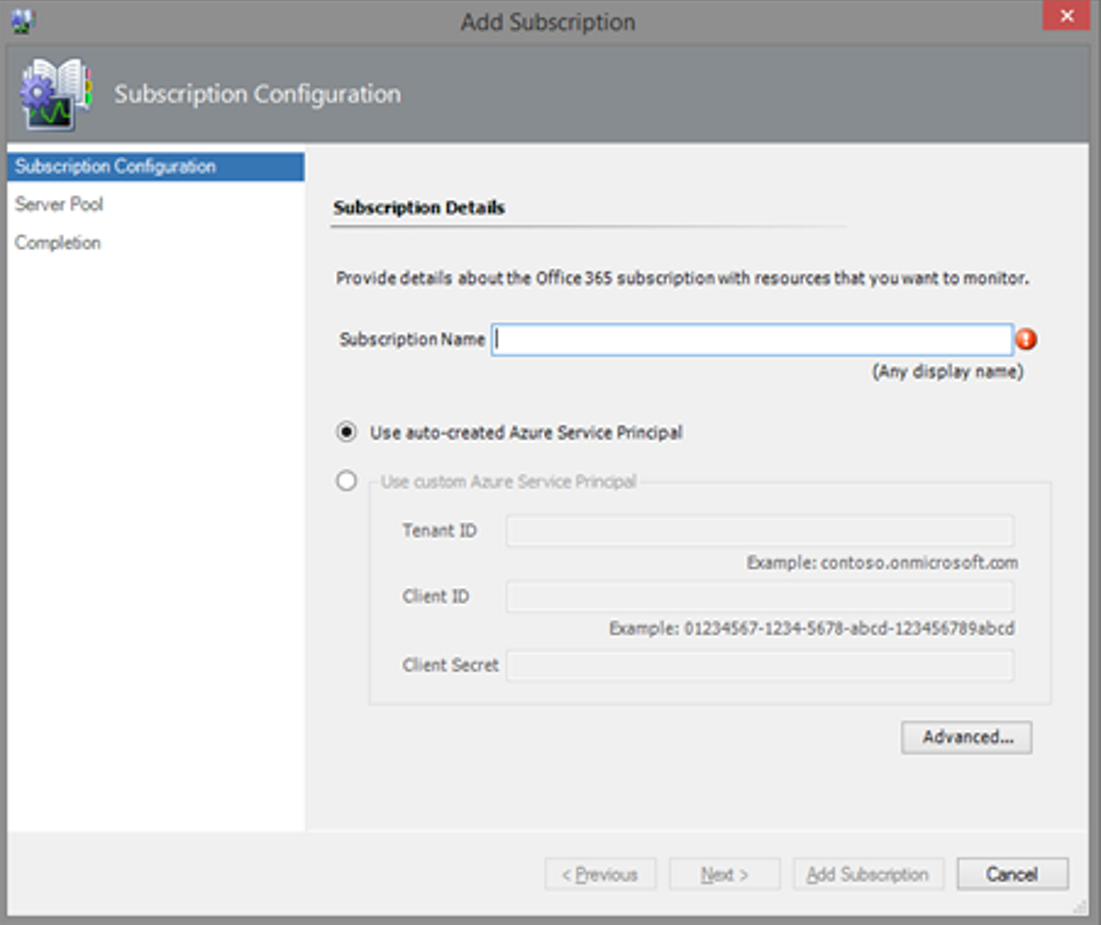
Click Add Subscription

o365applicationscomaddsubscription


Add Subscription Name

Click Next

o365applicationscomaddsubscriptionname

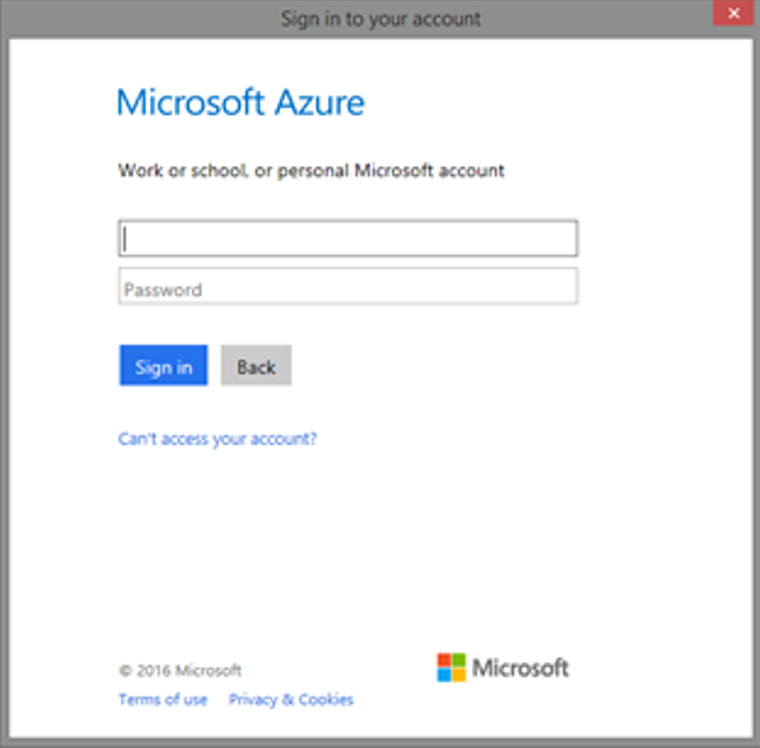
SCOM UI will prompt for Azure login

o365applicationscomazureauth

Enter ID and password

Click Sign in to authenticate


Click on Monitoring Tab

Click on Office 365 folder

Click on Office 365 Monitoring Dashboard

Verify state on the subscription in question

o365applicationscomnewsubscriptiondashboard

Verify SCOM ID used in O365 Subscription in Azure Portal

Verify SCOM ID used in O365 Subscription in Azure Portal

In Azure Portal

Verify the Application exists ( Azure tenant shows as SCOM O365MP )

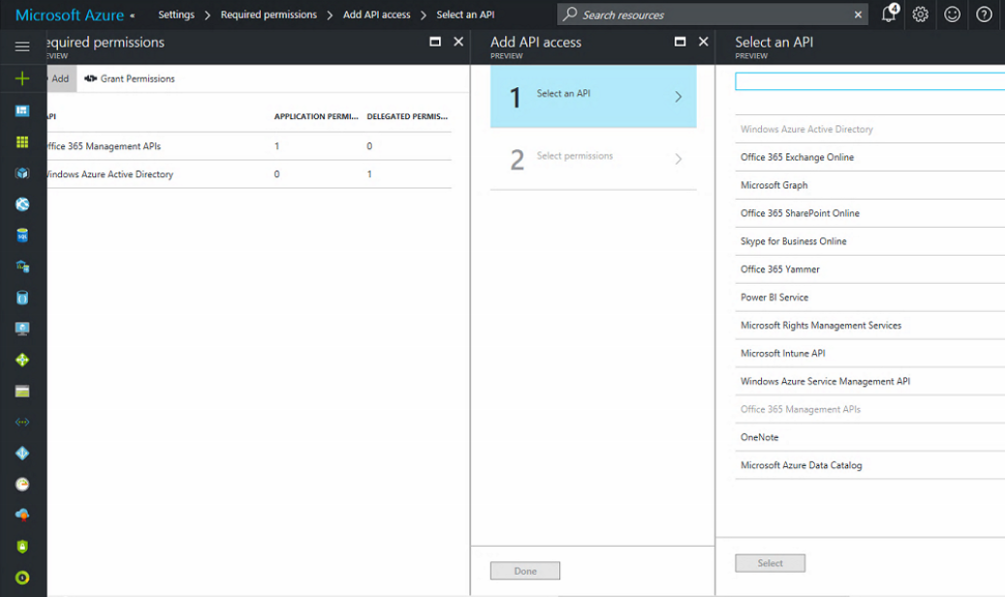
o365applicationpermissions

NOTE In the right hand pane the Office 365 Management API’s has Application Permissions, and cannot be selected

o365application-requestpermissionsclean

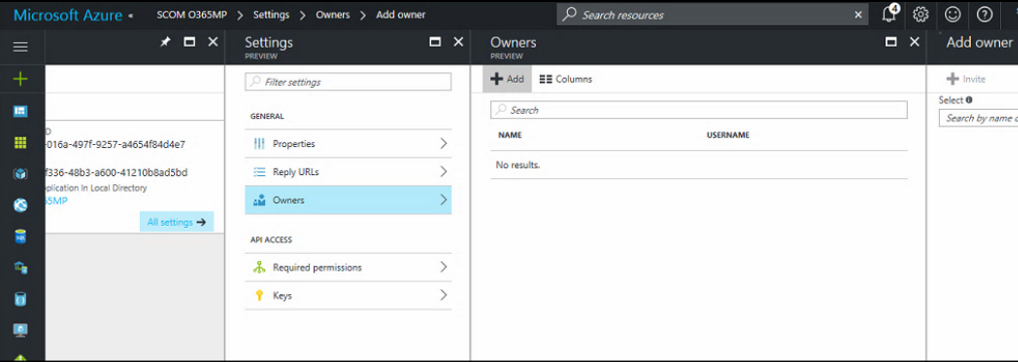
Click Back to the Settings window

Click on Owners

o365applicationnoownersclean

NOTE NO owners show in this view

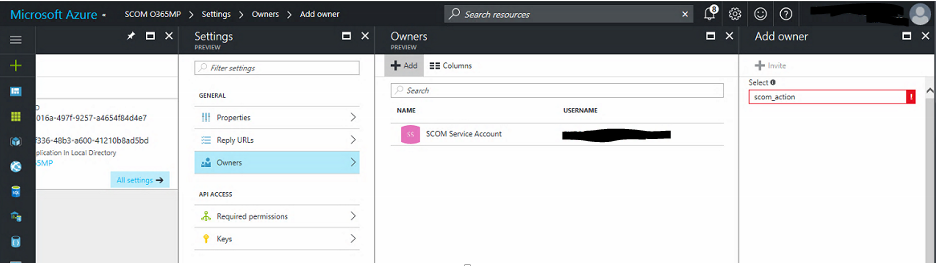
Click Add +

In the Add owner window, type the ID

Hit Select to add the user account (This example is the SCOM Service account)

o365application-scomidadded

Have user test

Office 365 subscription not monitored in SCOM

haiku-education-perplexed-bewildered-bemused-mystified-stumped-clipart

Yes this can leave you stumped, and wondering “why?”


This can be many parts, so choose carefully

Verify SCOM ID used in o365 subscription in Azure portal

Create a new subscription in SCOM to use the auto credentials option

Office 365 SCOM Run As Account


Verify O365 Subscription state in SCOM Console

In the SCOM console

Click on Monitoring Tab

Click on the O365 dashboard

Look at the health state

Error showed ‘endpoint not found’

Working with Azure Admin, we found the SCOM O365MP application did NOT have a service account assigned.

Verify SCOM ‘Run as’ account

Verify ‘run as’ ID (originally employee ID, not service account )

Remote Desktop to SCOM MS Server

Verify if the ‘run as’ ID has a valid password

Look in the Operations Manager Event Log for Event ID 7000

Click on Find

Type in the user’s ID from the ‘run as’ account in SCOM

If no entries found, then ID is successfully authenticating against the domain

If errors found, correct ID/Password in SCOM Console


Verify SCOM O365 Azure account


In the SCOM console

Click on Administration

Click on the O365 Wizard

Highlight the subscription

Choose Edit Subscription


Test ID (tested the Service Account)

With the radio button selected at ‘Use auto-created Azure Service Principal’

NOTE Name here is for SCOM purposes and does not have to match Azure Portal Application Name

o365applicationscomaddsubscriptionname

Click Next

SCOM UI will prompt for Azure login

o365applicationscomazureauth

Enter ID and password

Click Sign in to authenticate


If error is ‘Authentication Fails’, contact your Azure Administrator for assistance

References

Verify SCOM ID used in o365 subscription in Azure portal

Create a new subscription in SCOM to use the auto credentials option

Office 365 SCOM Run As Account

Uncommon Custom MP Fragments

new_icon_shiny_badge_svg

Building on Kevin Holman’s MP Fragment Library are additional Uncommon Custom MP Fragments


This is the SCOM Management Pack Fragment Library which includes VSAE Fragments you can use to make SCOM management packs quickly and easily.

V1.0 has two Event Monitors with two state, two or three criteria monitors


Assumptions

Visual Studio, and the VSAE Fragments are installed

Visual Studio has a powerful plugin called VSAE (Visual Studio Authoring Extensions)
https://www.microsoft.com/en-us/download/details.aspx?id=30169

If you aren’t familar with MP fragments for authoring, see instructions at:  https://blogs.technet.microsoft.com/kevinholman/2016/06/04/authoring-management-packs-the-fast-and-easy-way-using-visual-studio/


Background
A Management Pack fragment is simply a bit of XML, that contains all the “working parts” for a specific workflow….

Several authors have written about the power of fragments since VSAE launched, but the biggest gap I saw can be broken up into two major issues:
•Nobody provided a good “library” of workable MP fragments
•Nobody came up with a VERY simple method to reuse fragments quickly and easily

If you can do a FIND and REPLACE in notepad, you can use this.

Kevin Holman’s MP Fragments here

Gallery download for the uncommon MP fragments https://gallery.technet.microsoft.com/Uncommon-Custom-MP-c5a12a86

How to size your SCOM environment

update

Additional items to consider sizing a SCOM environment

# of Unix Servers

Network monitoring

Application Performance Monitoring (APM)

URL monitoring (transactional and availability)

DB Data retention requirements


Resources

The SCOM Sizing calculator XLS on TechNet to determine capacity and storage needs (2012 and 2016) http://download.microsoft.com/download/C/A/6/CA60425C-950B-456E-986C-C5F2FCD5668D/System%20Center%202012%20Operations%20Manager%20Sizing%20Helper%20Tool%20v1.xls


2016 Quick Start guide https://blogs.technet.microsoft.com/kevinholman/2016/10/22/opsmgr-2016-quickstart-deployment-guide/

How To upgrade to UR1 https://blogs.technet.microsoft.com/kevinholman/2016/10/22/ur1-for-scom-2016-step-by-step/


Here is the 2016 System Center SQL matrix (SCOM)

https://technet.microsoft.com/en-us/system-center-docs/system-requirements/sql-server-version-compatibility

System Center 2012 R2 Matrix (SCOM)

https://technet.microsoft.com/en-us/library/dn281933.aspx


Not quite related, but incase SCCM is to be upgraded (SCCM does show support for all SQL versions)

https://technet.microsoft.com/en-us/library/gg682077.aspx#Configurations for the SQL Server Site Database