Update MP’s for SCOM with VMM2012 R2

The fun starts here.


VMM is like more 3rd party management packs that require an app update, then push updates to SCOM.


The initial VMM MS configuration will upload the VMM UR packs to SCOM, but what do you do the next time you update VMM how do you upgrade SCOM to the latest UR?


Here’s a script to upgrade SCOM once VMM UR is updated on your VMM management server.


$UR=”UR11″

$VMMServer = “12VMM01”


# Set up your path, this example is monadmin\backup

$date = Get-Date -UFormat “%Y-%m-%d”


# Set up backup path

$backupPath = “C:\monadmin\backup”

$backupDrive = “C:”


####################################################################

# Functions

# Verify OperationsManager SnapIn Installed


Function VerifyOpsMgrSnapIn

{

If ( get-pssnapin -r | ? { $_.Description -contains “Operations Manager” } )

{

Write-host -f green “Operations Manager SnapIn already loaded!”

}

Else

{

add-pssnapin “Microsoft.EnterpriseManagement.OperationsManager.Client”;

Write-host -f green “Operations Manager SnapIn loaded”

}

}


function BackupMP

{

if ( test-path -pathtype Container $backuppath )

{

new-item -itemtype directory -path $backupPath

write-host -f green “Created $backupPath ”

}

else

{

write-host -f green “Backup Path already created $backupPath ”

}


# Get VMM management pack versions before

$before = ( get-scommanagementpack -name “*VirtualMachineManager*” )


# Set up Backup Path

$backupDrive

cd $backupPath

new-item -itemtype directory -path $backupPath\$date

cd $backupPath\$date

new-item -itemtype directory -path $backupPath\$date\SCVMM_MP$UR

cd $backupPath\$date\SCVMM_MP$UR


# Copy SCVMM MP’s to SCOM MS

#

copy-item “\\$VMMServer\d$\Program Files\Microsoft System Center 2012 R2\Virtual Machine Manager\ManagementPacks\*” -destination $backupPath\$date\SCVMM_MP$UR


# Backup existing MP’s on SCOM MS

#

# Backup SCOM Management packs to C drive

$backupDrive

cd $backupPath

new-item -itemtype directory -path c:\monadmin\backup\$date\SCVMM_MP$UR_OLD

cd $date

Get-SCOMManagementPack -Name *VirtualMachine* | Export-SCOMManagementPack -Path “$backupPath\$date”

Write-Host -f green “MP’s backed up to $backupDrive\$backupPath\$date\SCVMM_MP$UR_OLD”


# Verify copy

if ( test-path -pathtype leaf $backupPath\$date\SCVMM_MP$UR\*.mp )

{

Write-Host -f green “MP’s copied”

}

else

{

Write-Host -f yellow “Specify proper path for MP’s copy”

}

}


Function ImportMPIntoSCOM

{

# Import VMM MP’s into SCOM

# https://docs.microsoft.com/en-us/previous-versions/system-center/powershell/system-center-2012-r2/hh920193(v=sc.20)

# http://www.systemcentercentral.com/bulk-import-operations-manager-2012-management-packs/


$mpdir = “$backupPath\$date\SCVMM_MP$UR”

$mpfiles = (Get-item -path $backupPath\$date\SCVMM_MP$UR\*).Name

$mpcnt = $mpfiles.Count

Write-Host “Script is requesting to import $mpcnt management packs.”


If ($mpcnt -gt 0)

{

Write-Host “$Instcnt management packs were added to installation queue, installing now”

foreach ($ManagementPack in $mpfiles)

{

Set-Location $mpdir

Import-SCOMManagementPack -Fullname $ManagementPack -ErrorAction SilentlyContinue

Write-host -f green “Imported $ManagementPack into SCOM”

}

}

}


VerifyOpsMgrSnapIn

BackupMP

#UpdateRegistry

ImportMPIntoSCOM


# Verify SCOM Management packs loaded


Write-host -f Green “Before Management pack versions”


$before.Version


Write-host


$after = ( get-scommanagementpack -name “*VirtualMachineManager*” )

$after.version


Write-host -f yellow “Is After greater than Before?”

Write-host


Exchange Message Queue Monitoring

Q ?

Hopefully something else popped into your mind, not Star Trek – The Next Generation


How about monitoring a message queue?


This will help you monitor specifically Exchange 2013-2016 queue changes (state or message count beyond a value)


Just specify the queue and encapsulate into a monitor

OR… download the MP Fragment here

############################################################

# Test Queues

#Lab environment

#$queue1 = “Submission”
#$queue2 = “Submission2”

$queue1 = “CompanyName365-mail-onmicrosoft-com.mail.protection.outlook.com”
              $queue2 = “clustered.testlab.net”

##################################################################
# 1. How to monitor the status of the queues below (when the status is “retry” they need alert)

$SPEvent = ( get-queue | where { $_.NextHopDomain -like “$queue1” } | where { $_.Status -like “Retry” } | measure-object )
$SPEvent2 = ( get-queue | where { $_.NextHopDomain -like “$queue2” } | where { $_.Status -like “Retry” } | measure-object )

#
# 2. To get an alert when a message in any of these queues is stuck for > 5minutes
#

$SPEventStuck = ( get-queue | where { $_.NextHopDomain -like $queue1 } | where { $_.Status -like “Suspended” } | measure-object )
$SPEventStuck2 = ( get-queue | where { $_.NextHopDomain -like $queue2 } | where { $_.Status -like “Suspended” } | measure-object )

# 3. Also need alert and exact count when the message count in the above queue goes beyond 1000

$SPEventMC = ( get-queue | where { $_.NextHopDomain -like $queue1 } | where { $_.MessageCount -gt 1000 } | measure-object )
$MCQ1 = ( get-queue | where { $_.NextHopDomain -like $queue1 } )
$MQ1 = ($MCQ1.MessageCount)

$SPEventMC2 = ( get-queue | where { $_.NextHopDomain -like $queue2 } | where { $_.MessageCount -gt 1000 } | measure-object )
$MCQ2 = ( get-queue | where { $_.NextHopDomain -like $queue2 } )
$MQ2 = ($MCQ2.MessageCount)


Have fun!

Exchange 2013 monitoring Addendum

This is a good source for additional Exchange Server 2013+ monitoring, brought to my attention from Exchange PFE Dave Groll!


See Volkan Coskun’s blog post here

Update 30 Nov 2018

NOTE this content is no longer available – posted Volkun’s custom extension pack on TechNet Gallery here


This will help provide additional visibility to individual objects like Mailbox Databases or Transport Queues that are otherwise hidden in the health sets.

NOTE my Lab environment is Exchange 2016

Load Test MP with Report

Read below if you want a specific MP for load testing


I don’t know about you, but I’ve come across the situation where you need to compare performance.


This MP should help validate performance, whether to validate physical versus virtual, or a new Server Farm, storage performance between environments, etc.


Shout to Tyson Paul for his initial MP with 2016, catch his blog here!


Let’s start with the MP shell


Check out the upcoming Gallery download for MP’s and fragments here

NOTE: GUID’s will vary to your environment


To build the MP, you will need to update the following:


Pack ID to include the OS version


Add Reference for OS Monitoring MP (can use Visual Studio (VS) MP alias if VS is available for use in your environment)

Class Type ID with OS version

Discovery ID and Target with OS Version


Overrides ID with OS Version, and Target with OS MP Rule name and reference

Use the OS Monitoring MP to help with the rule names

The far right of the Override lists the Rule that must match to the OS MP


View ID with OS Version


Folder Item Element ID and ID


MP Display Strings with OS Version


Save and Import MP without the Report parameter to see what Group ID SCOM assigns the Load Test group


Part 2 – include report after group is imported

Don’t forget to update MP version under Identity!

Get Report parameter value for group ID

From PowerShell

          get-ScomGroup | ? { $_.DisplayName -like “*Load Testing Group*” } | fl ID,DisplayName

Alternatively, obtain from SQL SSMS

          select [ManagedEntityDefaultName],[ManagedEntityRowId]

          FROM [vManagedEntity]

          where [ManagedEntityDefaultName] like ‘%load%’

          order by displayname

SSMS Output


In MP XML, update View Target GUID to your Group ID


Add Report section, and update parameter values Rule GUID


PowerShell commands to run from MS or console installed machine

The GUID’s needed for the report parameters section


get-scomrule | ? { $_.DisplayName -like “System Processor Queue Length*” } | fl ID,DisplayName,Name

get-scomrule | ? { $_.DisplayName -like “Current Disk Queue Length*” } | fl ID,DisplayName,Name

get-scomrule | ? { $_.DisplayName -like “Current Disk Queue*” } | fl ID,DisplayName,Name

get-scomrule | ? { $_.DisplayName -like “Current Dis*k Queue*” } | fl ID,DisplayName,Name

get-scomrule | ? { $_.DisplayName -like “*Current Disk Queue*” } | fl ID,DisplayName,Name

get-scomrule | ? { $_.DisplayName -like “*Average Disk Seconds Per Transfer*” } | fl ID,DisplayName,Name

get-scomrule | ? { $_.DisplayName -like “*Logical Disk Idle Time*” } | fl ID,DisplayName,Name

get-scomrule | ? { $_.DisplayName -like “*Processor Time Total*” } | fl ID,DisplayName,Name

get-scomrule | ? { $_.DisplayName -like “*Memory Available Megabytes*” } | fl ID,DisplayName,Name

get-scomrule | ? { $_.DisplayName -like “*Network Adapter Bytes Total*” } | fl ID,DisplayName,Name

get-scomrule | ? { $_.DisplayName -like “*Memory Pages per Second*” } | fl ID,DisplayName,Name

get-scomrule | ? { $_.DisplayName -like “*System Processor Queue Length*” } | fl ID,DisplayName,Name


Verification

  1. From SCOM Console, Authoring Tab
    1. Update group with explicit members
    2. Verify Group members
  2. From SCOM Console, Monitoring Tab
    1. Verify Performance view has performance counters
  3. From SCOM Console Reporting Tab (this may take a few minutes to push report to Reporting server)
    1. Open report and run
    2. Export data for analysis

Get to know your monitor

Ever need to disable a specific monitor?

I know I get tired of clicking through the console, maybe you do too?
Do you know the Monitor name and class?
If yes, then you can enable/disable monitors from PowerShell


So let’s get started.

From your management server, you can run SCOM commands as your ID (assuming your ID is set up in SCOM)


This example has 2 purposes:

  1. SQL2016 SP1 does NOT populate the proper fields, and will be fixed in SP2 per the SQL Engineering blog (Look at comments section – blog here)
  2. Tired of the warning alerts in my SCOM console


Find the monitors

$Monitor = get-scommonitor | where { $_.DisplayName -like “Service Pack Compliance” } | where { $_.Name -like “*Microsoft.SQLServer.2016.DBEngine*” }


Let’s focus for a second on some differences, and how you can interchange the two depending on what information you know

DisplayName attribute is what you see in the console (note the spaces)

Name attribute typically has dots for the spaces


Override a class

Disable-SCOMMonitor -Class $Class -ManagementPack $MP -Monitor $Monitor

Just in case you need to undo the override

Enable-SCOMMonitor -Class $Class -ManagementPack $MP -Monitor $Monitor


Override a group

$Group = (Get-SCOMGroup -DisplayName “Group*”)


# Enable the group

Enable-SCOMMonitor -Group $Group -ManagementPack $MP -Monitor $Monitor


# Disable the group

Disable-SCOMMonitor -Group $Group -ManagementPack $MP -Monitor $Monitor


Reference Links

Disable-SCOMMonitor https://docs.microsoft.com/en-us/powershell/systemcenter/systemcenter2016/operationsmanager/vlatest/disable-scommonitor

Enable-SCOMMonitor https://docs.microsoft.com/en-us/powershell/systemcenter/systemcenter2016/OperationsManager/vlatest/Enable-SCOMMonitor

PowerShell Rule and Monitor Template packs MP including fragments


Hit the easy button!


For all those diehard SCOM Console MP authoring folks, don’t forget about Wei Lim’s blogs to help add PowerShell script functionality into rules and monitors.


PowerShell Rules Blog https://blogs.msdn.microsoft.com/wei_out_there_with_system_center/2015/09/28/opsmgr-new-sample-powershell-collection-rule-wizards-in-the-ops-console/

PowerShell Monitor blog https://blogs.msdn.microsoft.com/wei_out_there_with_system_center/2015/07/09/opsmgr-new-sample-wizard-to-create-powershell-monitors-in-the-ops-console/

Performance Data blog https://blogs.msdn.microsoft.com/wei_out_there_with_system_center/2015/10/03/opsmgr-collecting-performance-data-using-a-powershell-script-collection-rule-created-from-a-wizard/

Download Rule https://gallery.technet.microsoft.com/Sample-Management-Pack-e48040f7

Download Monitor https://gallery.technet.microsoft.com/Sample-Management-Pack-17b76379


If authoring with Visual Studio or Notepad++, don’t forget Holman’s MP fragments!

Discover Class = Class.And.Discovery.Script.PowerShell.mpx

Monitor Timed Script PowerShell = Monitor.TimedScript.PowerShell.mpx

Monitor Timed Script SQL Query PowerShell = Monitor.TimedScript.PowerShell.SQLQuery.mpx

PowerShell Performance Rule = Rule.Performance.Collection.PowerShellScript.mpx


Download fragments here


Happy MP Authoring!

Azure Application Insights

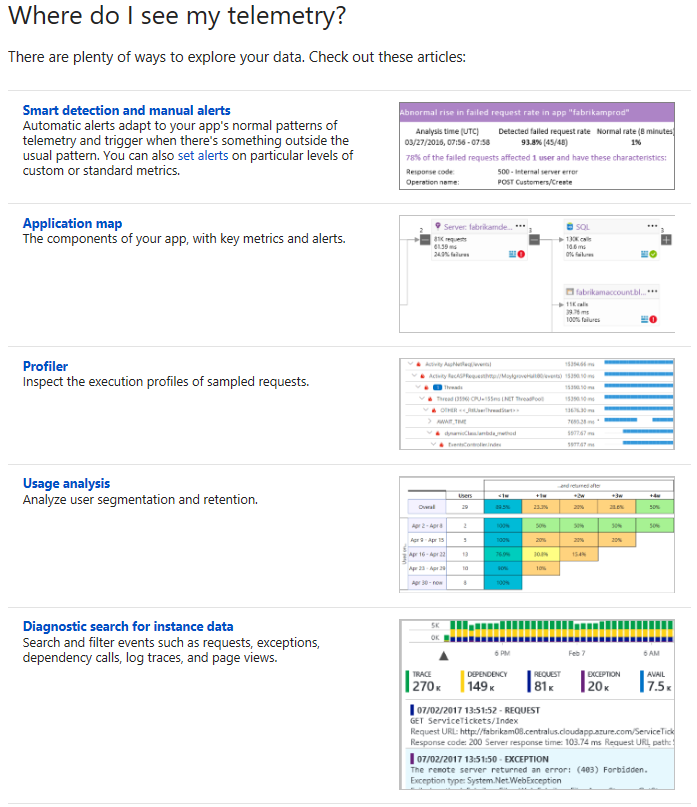
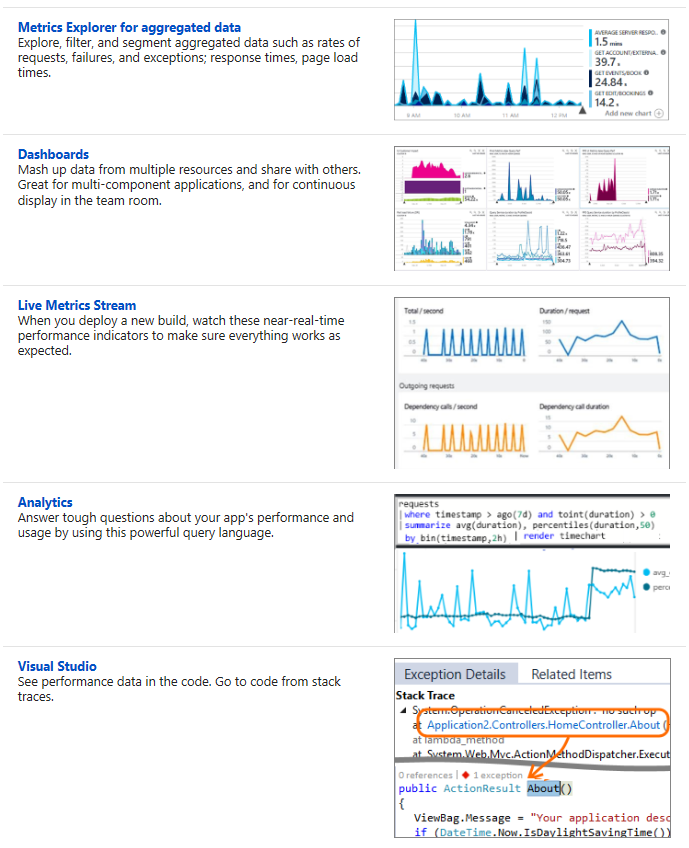
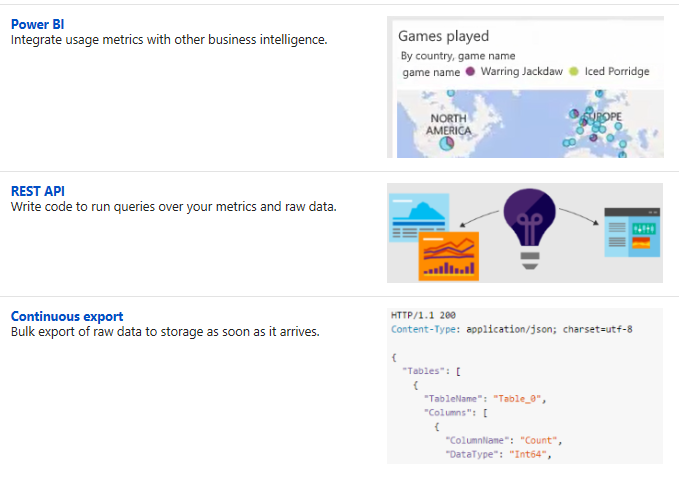
Application Insights

Application Insights simply put is Application Performance Management for web developers (or DevOps) on multiple platforms

Are you trying to solve how to monitor application performance?

Do you need to monitor application performance for ASP.NET, Java or Node.js apps?

SCOM can monitor, but not necessarily with the same functionality

Riverbed makes products, but at a higher cost


Dashboard


Much like SCOM APM agent, application Insights Monitors the same information, without having to setup SCOM in Azure

This is also an OMS solution, so if you’re using Azure for Web Applications, this should be on the to-do list


How about application Telemetry data?


Overview https://docs.microsoft.com/en-us/azure/application-insights/app-insights-overview
Documentation https://docs.microsoft.com/en-us/azure/application-insights/

SYSTEM CENTER 2016/2019 Operations Manager – Anti-Virus Exclusions

Updated 30 June, 7 July 2020 and includes docs.microsoft.com article updates


NOTE: Process name exclusion wildcards could potentially prevent some dangerous programs from being detected.


Hopefully this table is helpful (my thanks to Matt Goedtel for the docs site updates, and Matt’s efforts to keep docs the ‘go-to’ site)


Previously the blog left the SCOM Admin and Security teams with questions where blogs did NOT match vendor site documentation.  The blog merged the PFE UK team blog & Kevin Holman blog  into an easier tabular view per component)


Original Blog introduction

As we are all aware, antivirus exclusions can affect monitoring data generated, and affect system performance.


Best practice is to implement specific exclusions.


Exclusions\RoleMSDBGWRSWebAgent
Folder
Management Server installation folder
Default: “C:\Program Files\Microsoft System Center 2016\Operations Manager\Server\”
*
Agent installation folder
Default: “C:\Program Files\Microsoft Monitoring Agent”
**
Gateway installation folder
Default: “C:\Program Files\Microsoft System Center 2016\Operations Manager\Gateway\”
*
Reporting installation folder
Default: “C:\Program Files\Microsoft System Center 2016\Operations Manager\Reporting”
*
WebConsole installation folder
Default: “C:\Program Files\Microsoft System Center 2016\Operations Manager\WebConsole”
*
SQL Data installation folder
Default: “C:\Program Files\Microsoft SQL Server\MSSQL.1x<INSTANCENAME>\MSSQL\Data”
*
SQL Log installation folder
Default: “C:\Program Files\Microsoft SQL Server\MSSQL.1x<INSTANCENAME>\MSSQL\Log”
*
SQL Reporting installation folder
Default: “C:\Program Files\Microsoft SQL Server\MSRS.1x<INSTANCENAME>
*
File Types
EDB*****
CHK*****
LOG*****
LDF**
MDF**
NDF**
Processes
CShost.exe*
HealthService.exe******
Microsoft.Mom.Sdk.ServiceHost.exe*
MonitoringHost.exe******
SQL Server
Default: “C:\Program Files\Microsoft SQL Server\MSSQL1x.<Instance Name>\MSSQL\Binn\SQLServr.exe”
*
SQL Reporting Services
Default: “C:\Program Files\Microsoft SQL Server\MSRS1x.<Instance Name>\Reporting Services\ReportServer\Bin\ReportingServicesService.exe”
**


Useful information for decoding the matrix

Docs site https://docs.microsoft.com/en-us/system-center/scom/plan-security-antivirus?view=sc-om-2019

Platform https://support.microsoft.com/en-us/help/822158/virus-scanning-recommendations-for-enterprise-computers-that-are-running-currently-supported-versions-of-windows

SCOM 2012/2012R2 KB975931 https://support.microsoft.com/en-us/help/975931/recommendations-for-antivirus-exclusions-that-relate-to-operations-manager

PFE UK team blog https://blogs.technet.microsoft.com/manageabilityguys/2013/11/26/system-center-2012-r2-operations-manager-anti-virus-exclusions/

SQL

https://support.microsoft.com/en-us/help/309422/choosing-antivirus-software-for-computers-that-run-sql-server

https://blogs.technet.microsoft.com/raymond_ris/2014/01/16/windows-antivirus-exclusion-recommendations-servers-clients-and-role-specific/

Version mapping by folder (my thanks to StackOverFlow https://stackoverflow.com/questions/18753886/sql-server-file-names-vs-versions )
100 = SQL Server 2008    = 10.00.xxxx
105 = SQL Server 2008 R2 = 10.50.xxxx
110 = SQL Server 2012    = 11.00.xxxx
120 = SQL Server 2014    = 12.00.xxxx
130 = SQL Server 2016    = 13.00.xxxx

Setting up OMS Capacity and Performance

Setting up OMS Capacity and Performance


Update 18 Dec 2023 – Solution retired in 2021 with OMS sunset.  

https://github.com/uglide/azure-content/blob/master/articles/log-analytics/log-analytics-add-solutions.md Repository archived by the owner on Feb 1, 2021. It is now read-only.


Do you know what your HyperV hosts are doing?

Not a HyperV fan, there’s a VMWare solution also here


Documentation https://docs.microsoft.com/en-us/azure/log-analytics/log-analytics-capacity

https://github.com/uglide/azure-content/blob/master/articles/log-analytics/log-analytics-capacity.md


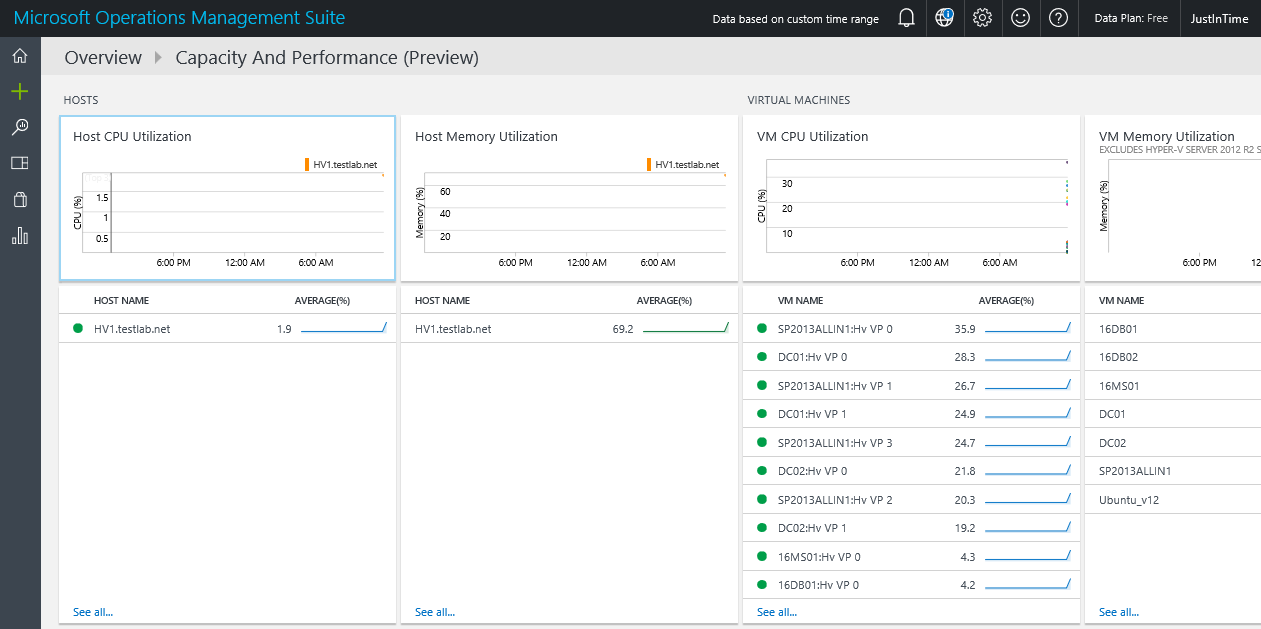
Capacity dashboard

Capacity and performance preview summary

Details

OMS dashboard
OMS dashboard


Setting up OMS Capacity and Performance

Already have the dashboard setup?  Perhaps this will help troubleshoot

Do you have network connectivity, or is a proxy required?


Troubleshooting dashboard

Firewall https://docs.microsoft.com/en-us/azure/log-analytics/log-analytics-proxy-firewall
Windows Agents https://docs.microsoft.com/en-us/azure/log-analytics/log-analytics-windows-agents


Verify Operations Manager event log on local agent, then filter for error events and/or EventID 4506.  Look for dates/times to see when events started.

Example Event ID 4506 details the Capacity and Performance Solution, citing ‘Microsoft.IntelligencePacks.CapacityPerformance.Collector’.

Operations Manager Event Log, Event ID 4506 examples


Additional options

  1. Search LAW (Log Analytics workspace) logs

https://github.com/uglide/azure-content/blob/master/articles/log-analytics/log-analytics-log-searches.md

OMS Log search screenshot


2. Verify no proxy is set up (unless your network requires this)

OMSAgent proxy setting


3. 4506’s result from too many workflows sending data from MS to DB’s (OpsMgr and DW).  Additionally, 4506 events can be communication issues from MS to DB server(s).   Lastly, use TLS1.2 configuration as a best practice to enforce encryption from MS to SQL communication.  Beyond encryption, TLS may be a culprit if AlwaysOn or SQL clusters are involved, particularly as the SCOM console connections fail as SDK cannot talk with SQL side.  See Kevin Holman’s blog for additional TLS1.2 information and setup.

TLS blog https://kevinholman.com/2018/05/06/implementing-tls-1-2-enforcement-with-scom/


Documentation

Learn article https://learn.microsoft.com/en-us/answers/questions/212007/scom-errors-no-data-in-summary-performance-dashboa
TechNet blog https://social.technet.microsoft.com/Forums/ie/en-US/10b38121-b0e1-43ec-bf3a-d22ae9ef0220/event-4506-data-was-dropped-due-to-too-much-outstanding-data-in-rule
MS RMSe https://www.system-center.me/opsmgr/event-4506-and-new-root-management-server-rms-management-server-ms/

SQL Engineering Blog

hmmmm

Ever wonder when a SQL MP is published?

Wonder no longer, look for the SQL Engineering Blog!


New https://techcommunity.microsoft.com/t5/SQL-Server/bg-p/SQLServer/label-name/SQLReleases

Old – redirect in effect https://blogs.msdn.microsoft.com/sqlreleaseservices/